Setting Up Color Swatches
✅ Your product should now display clickable color swatches based on the metafield values you added.
For Plain Jane and Interactive Only
What You’ll Learn
- How to assign a product category
- How to apply color swatches using Shopify's category metafields
- How to connect a color metafield to your theme’s product variants
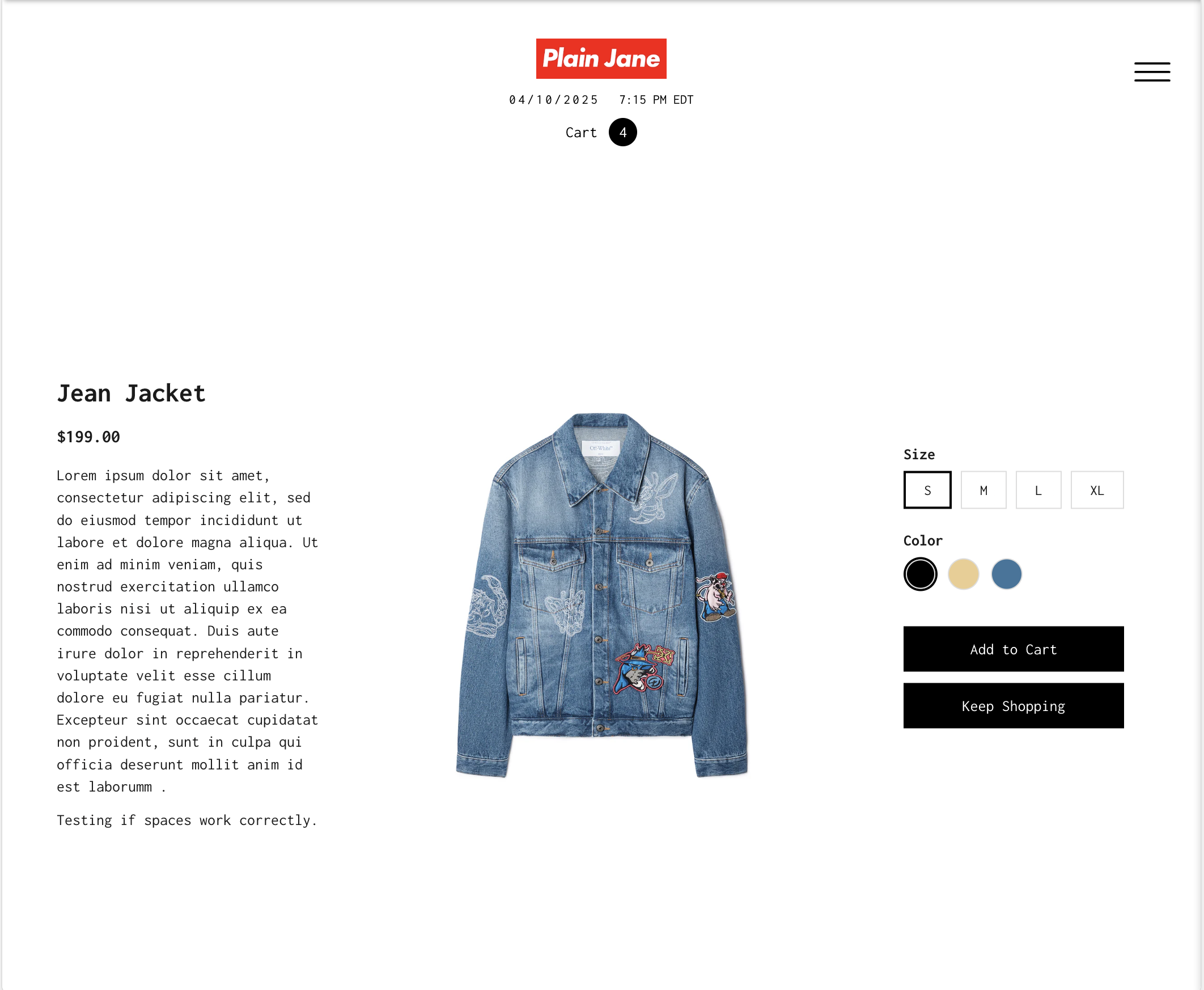
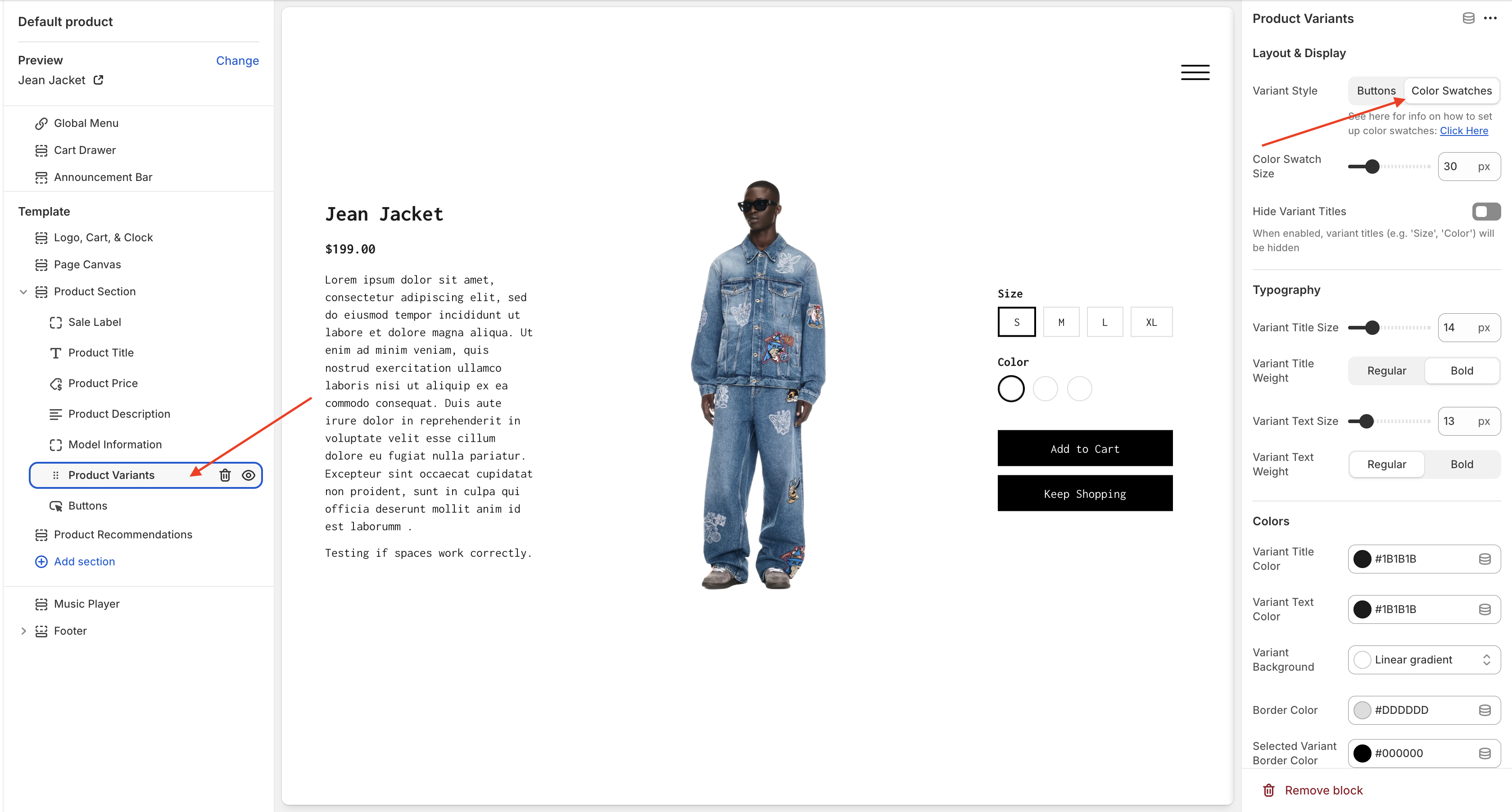
1. Open the Product Page in the Theme Editor
- In the Shopify admin, go to Online Store > Themes, then click Customize on your live theme.
- Navigate to a product page.
- Click the Product Variants block inside the Product Section.
- Under Variant Style, select Color Swatches.
💡 Tip: Use the preview selector to load a product that has multiple color variants.
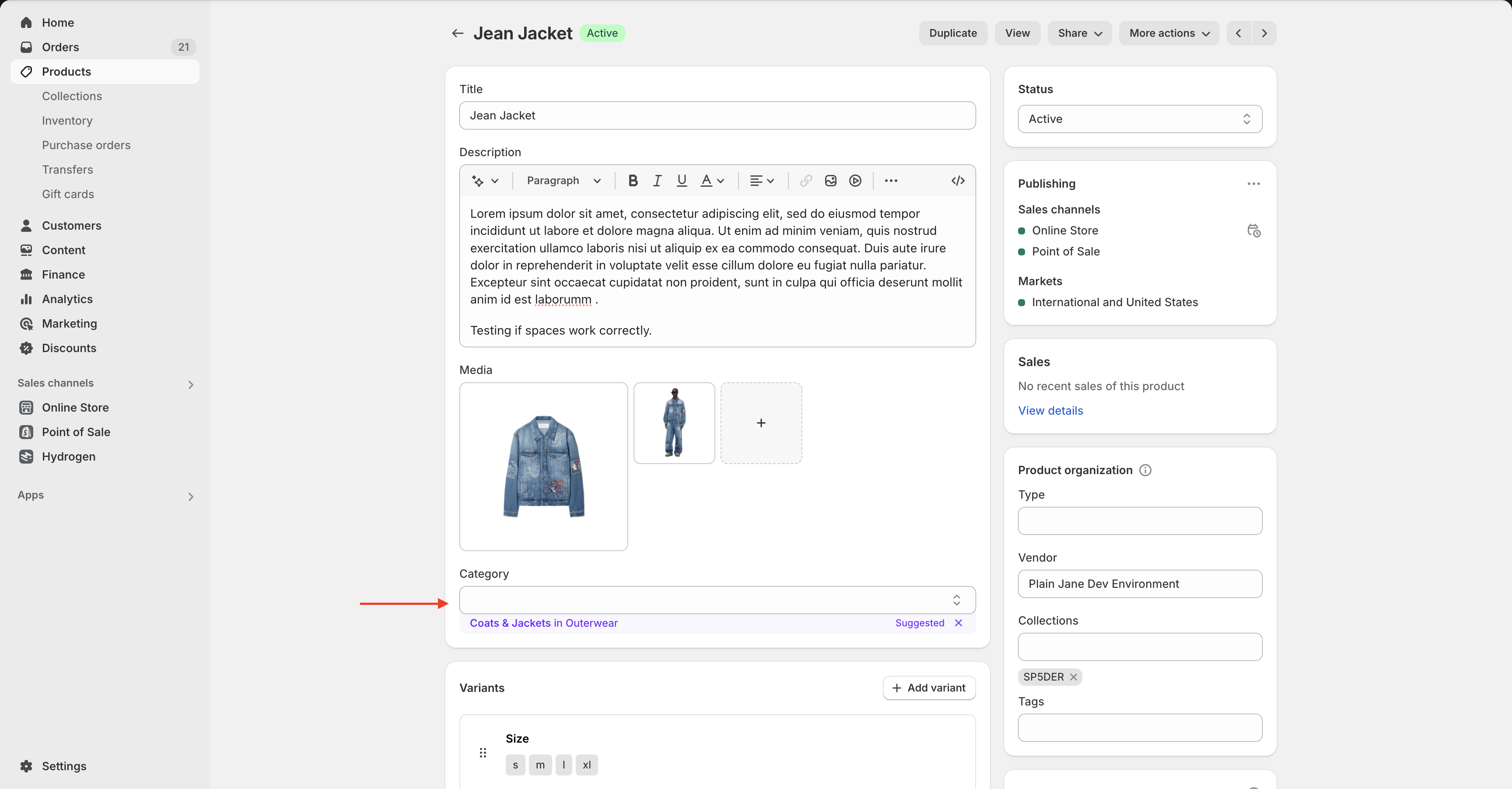
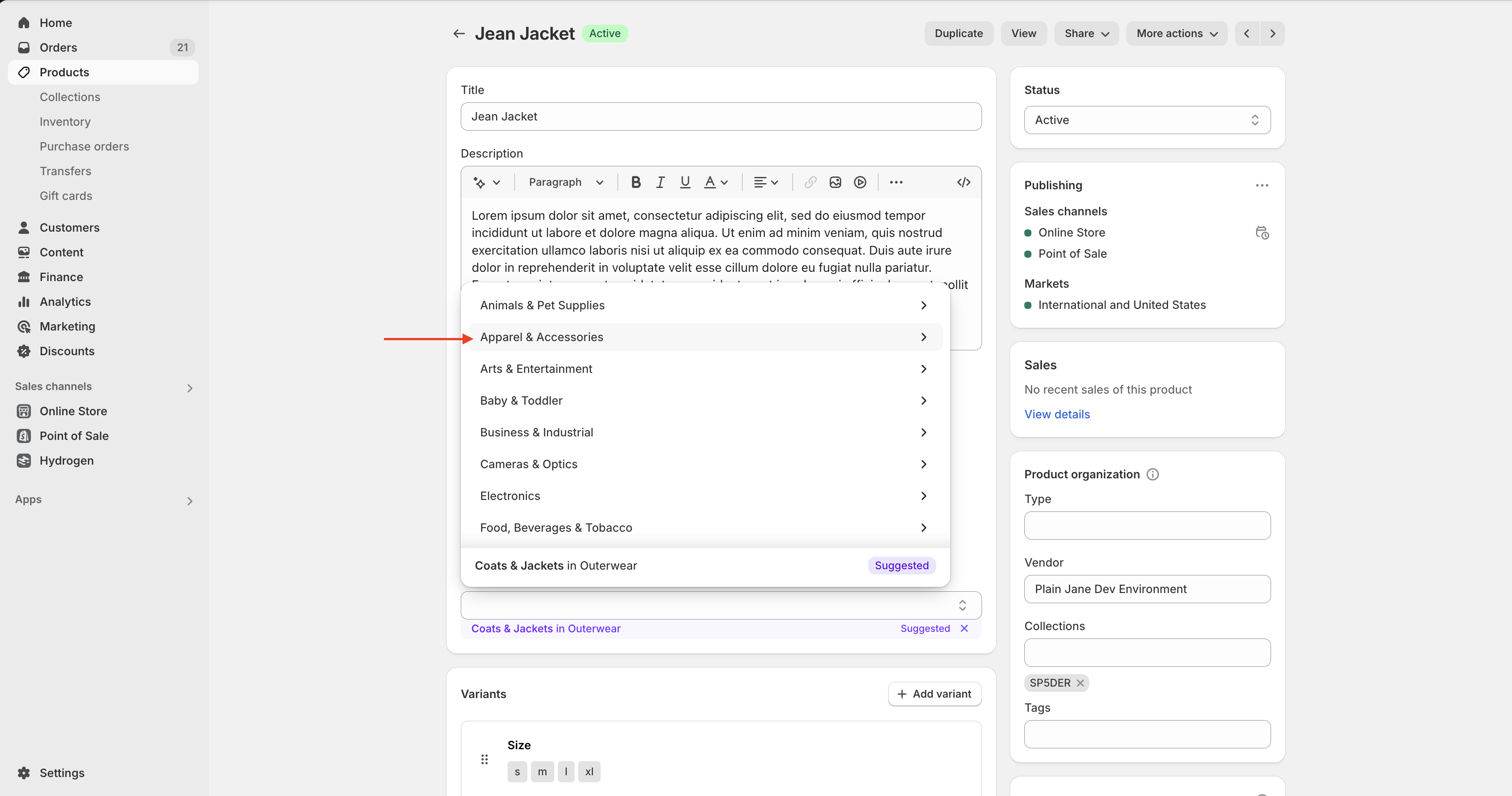
2. Assign a Category in the Shopify Admin
- Go to Products in the Shopify Admin.
- Click on the product you want to edit.
- Scroll to the Category section and assign it to a relevant option (e.g. Apparel & Accessories).
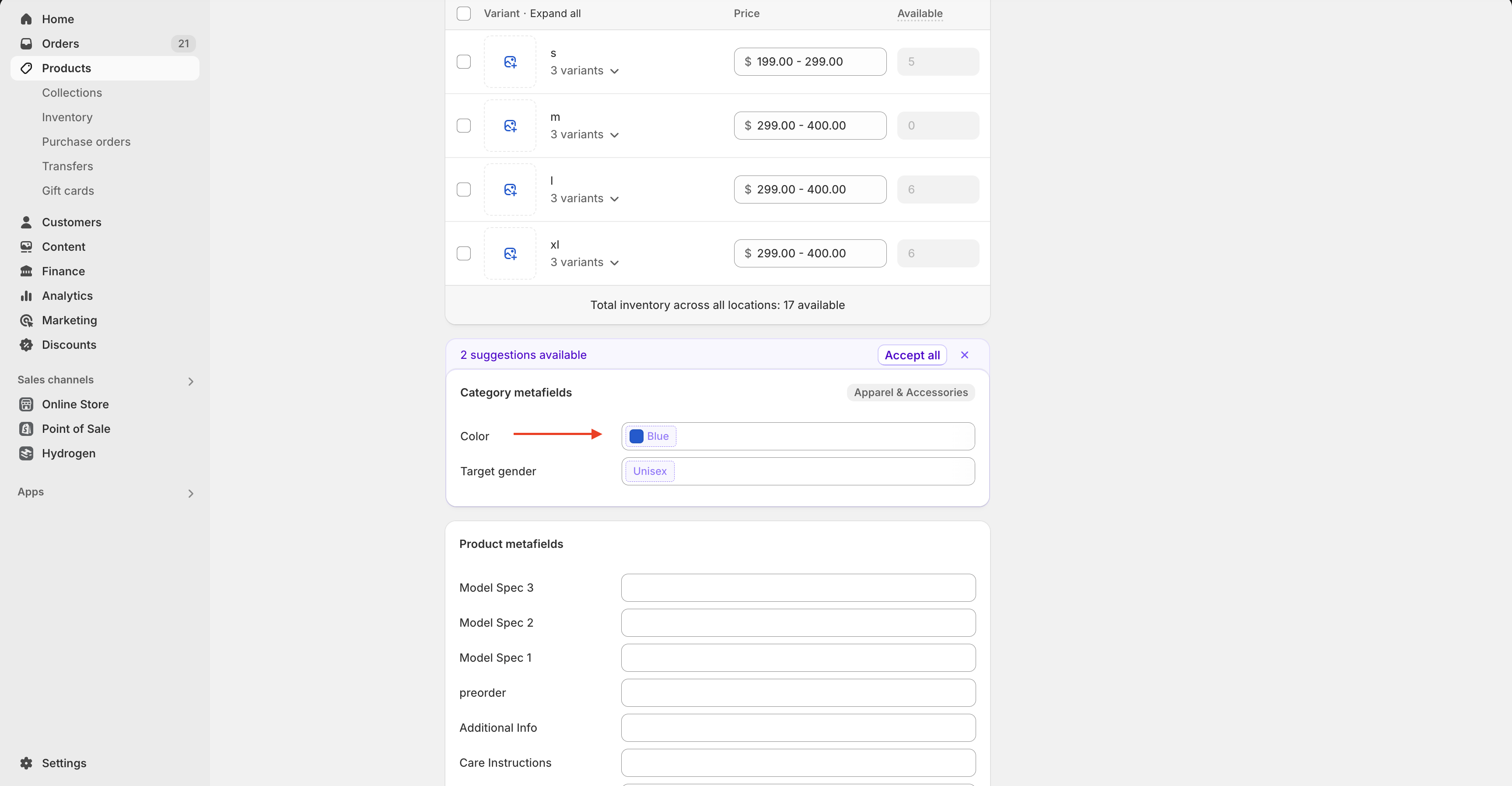
3. Add Color Values to the Category Metafields
- After assigning a category, scroll down to Category Metafields.
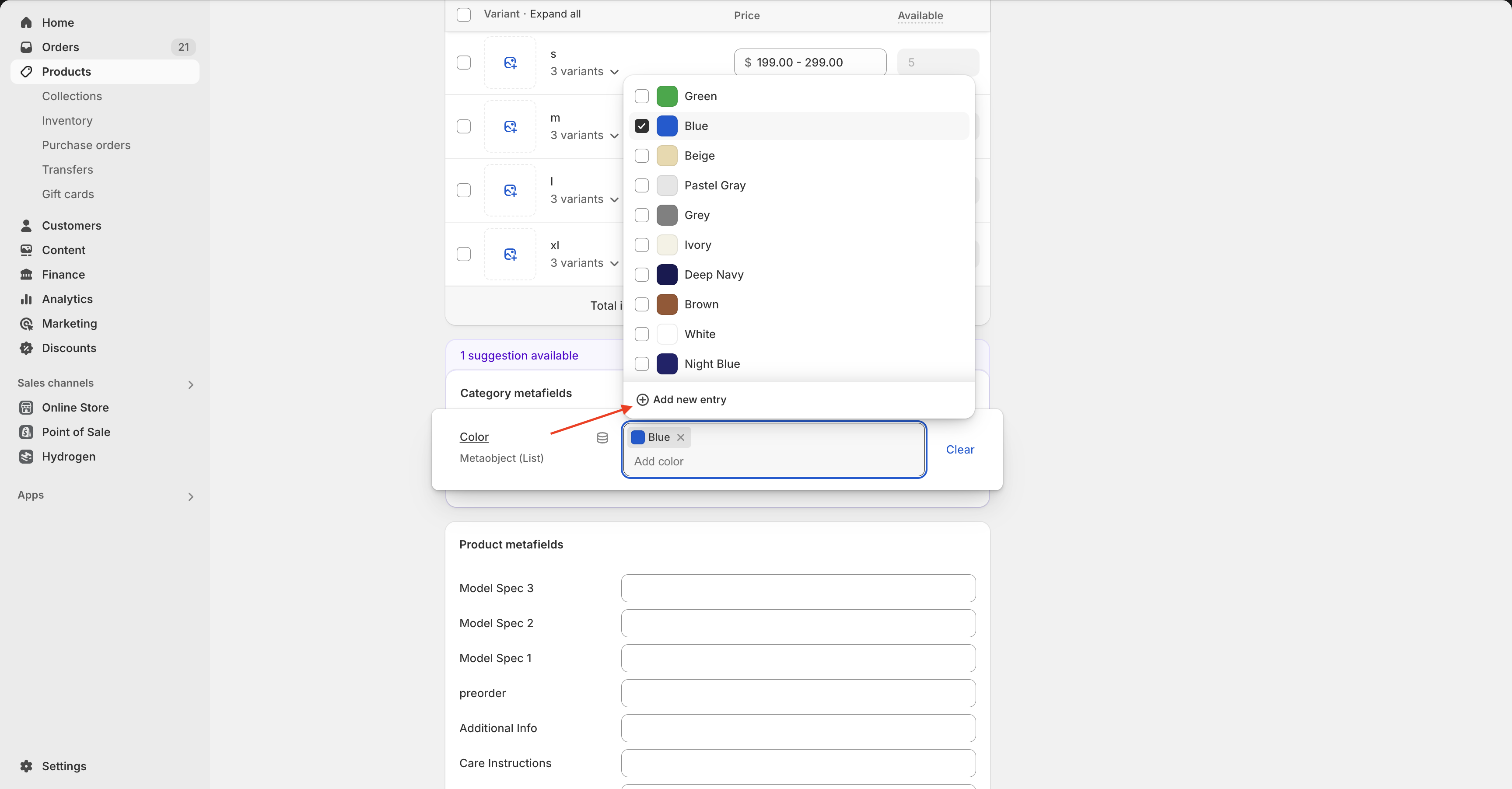
- You'll now see options specific to that category (like "Color").
- Click into the Color field and either select from the list or choose Add new entry to type in a custom color.
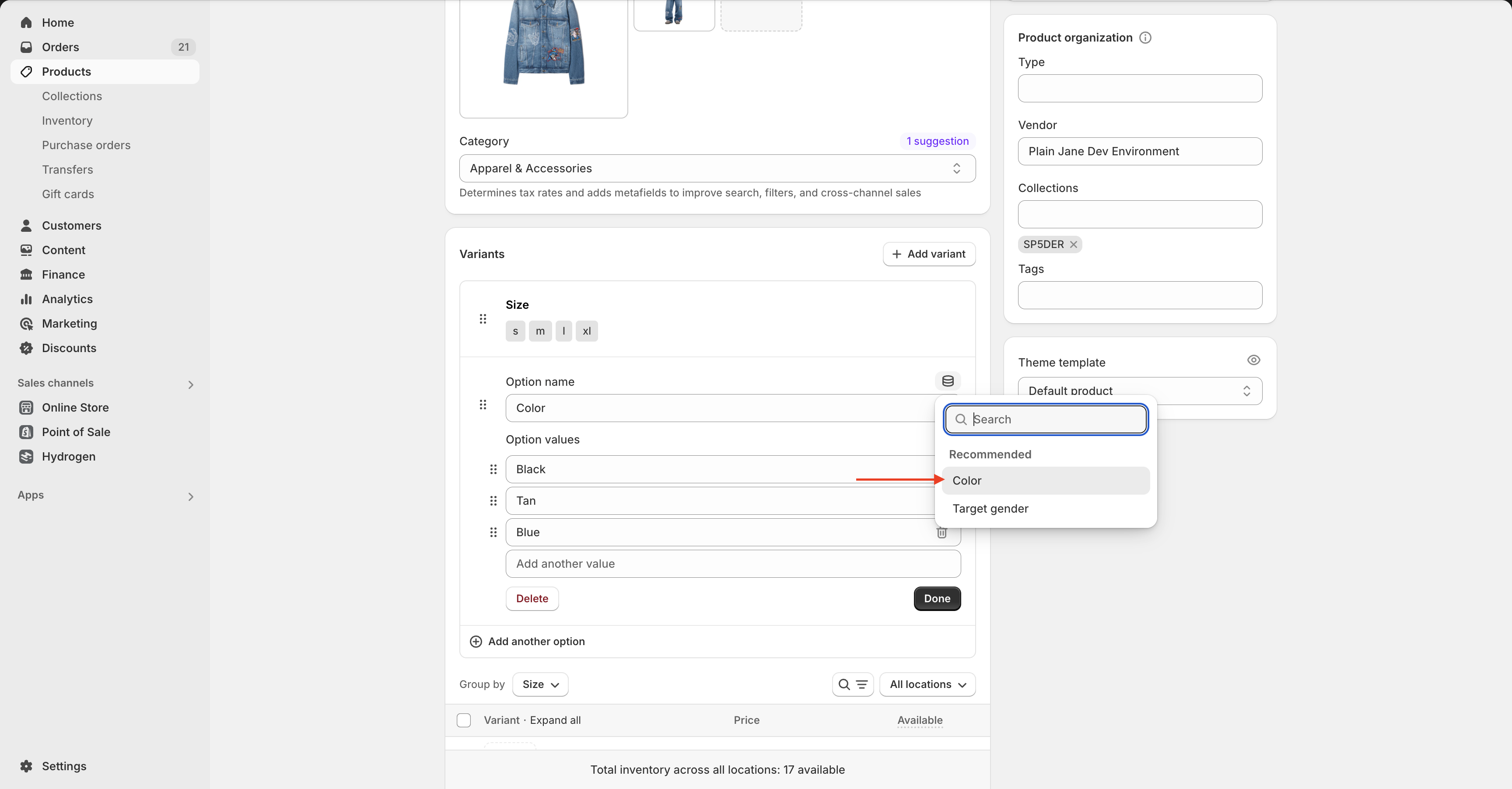
4. Link the Color Metafield to the Variant Block
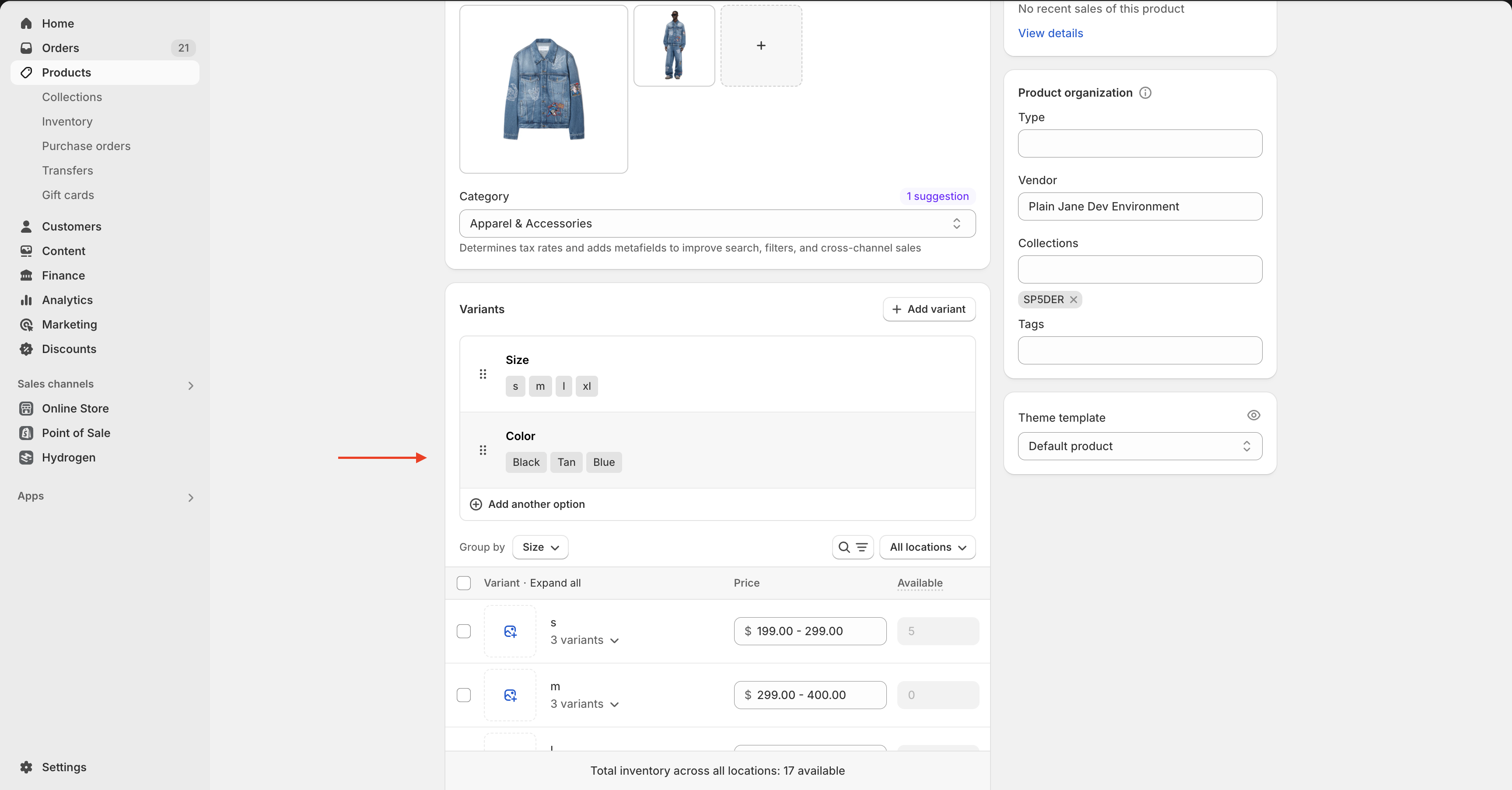
- Return to the Theme Editor and click the Product Variants block again.
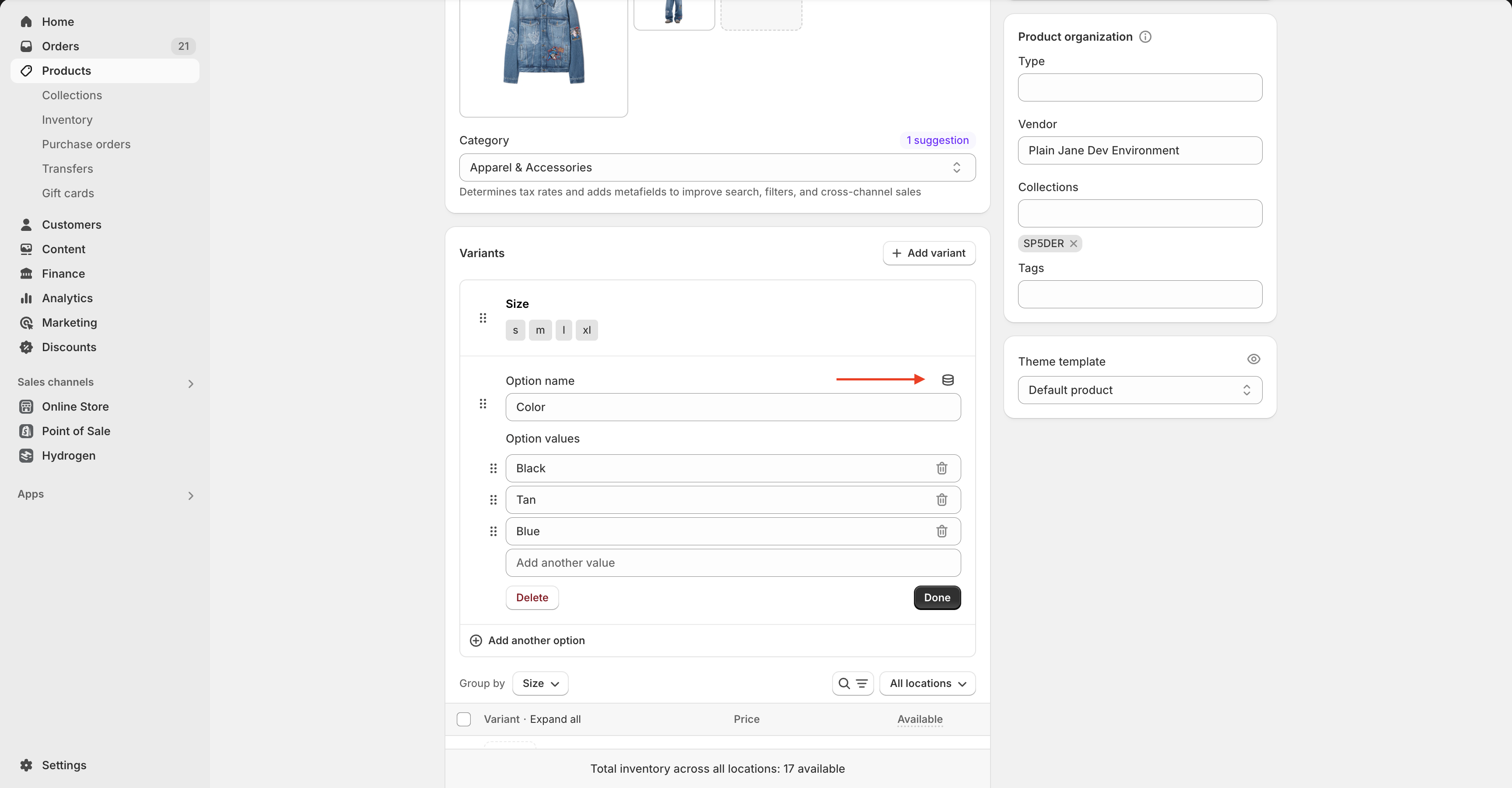
- Locate the color variant and click the dynamic source icon (stacked circle icon).
- Select the color metafield you added from the dropdown.
5. Save Your Changes
- Click Done and then Save at the top-right of the theme editor.
✅ Your product should now display clickable color swatches based on the metafield values you added.
⚠️ Warning: Color swatches only appear if your product has a variant option named “Color” and it’s matched with the corresponding metafield.
Need Help?
- 💬 Join our community on Discord: https://discord.gg/hcc2GvgZc6
- 📧 Email us at: support@openspaces.design
- 💻 Live chat with us: Available Monday–Friday, 10AM–6PM EST, directly on our website