Marquee Section
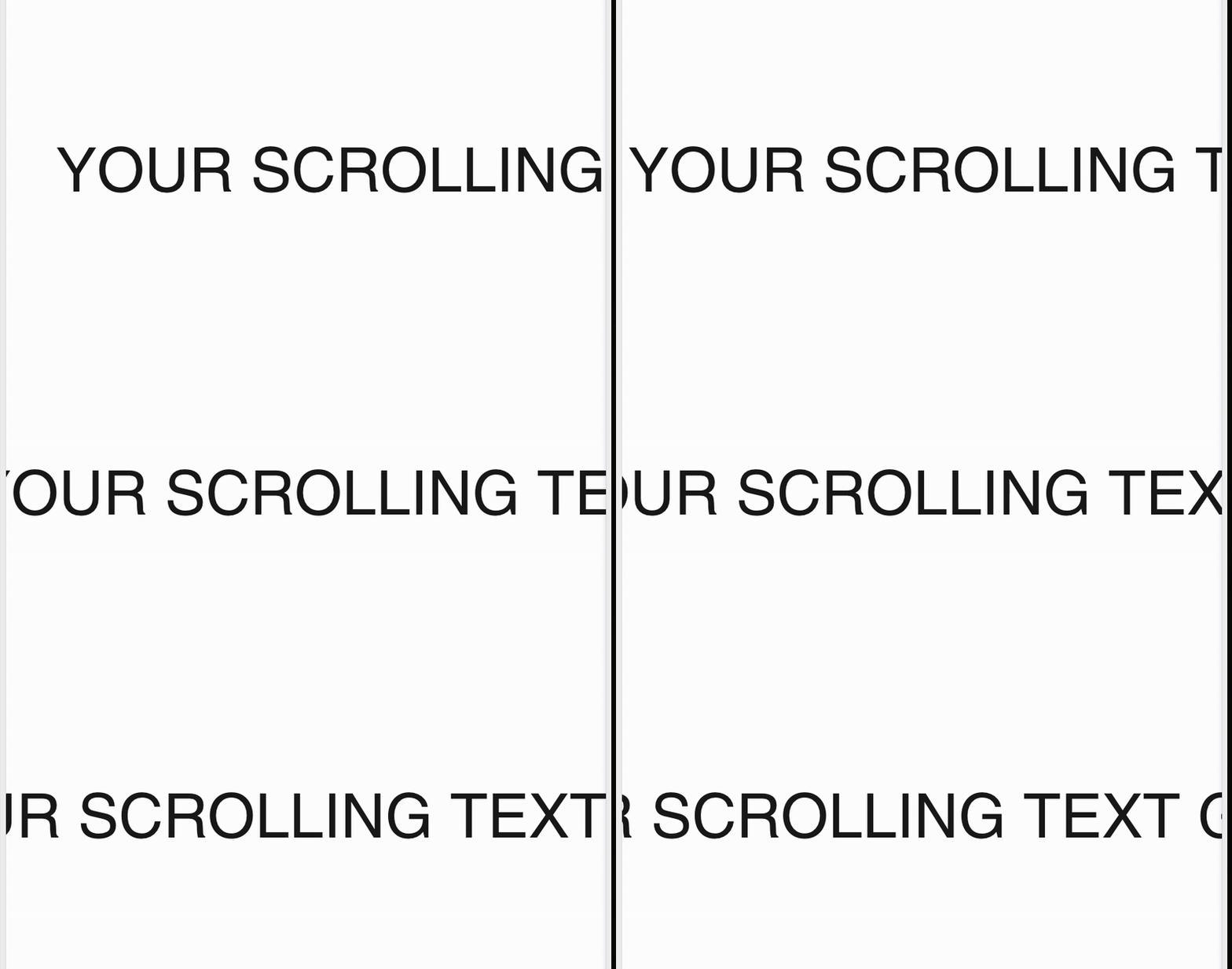
The Marquee section displays large, horizontally scrolling text with optional backgrounds.
What You’ll Learn
- How to create a scrolling text marquee
- How to add image, slideshow, or video backgrounds
- How to adjust text speed, size, and layout
- How to customize desktop and mobile appearance
🧩 Section Overview
The Marquee section displays large, horizontally scrolling text with optional backgrounds. It's perfect for bold messaging—like promotional statements, slogans, or headlines.
This section supports background customization with:
- Static images
- Slideshows (up to 3 slides)
- Videos (autoplayed and muted)
- Solid color fills
How to Add the Section
- In the Shopify Theme Editor, click Add section
- Select Marquee
- Drag it to your desired spot in the layout
Marquee Text Settings
- Marquee Text Content: Add your scrolling text here
- Show Marquee Text: Toggle on or off (helpful if using as a background-only section)
- Marquee Text Size (Desktop): Adjust text size in pixels
- Marquee Text Size (Mobile): Set a different size for small screens
- Marquee Text Color: Set the text color using a hex code
- Marquee Speed: Controls how fast the text moves (higher = faster)
💡 Tip: Speeds between 5 and 15 usually offer the best balance of visibility and motion.
Background Style Options
Choose your background style under Marquee Background Style:
- Solid Color: Set different colors for desktop and mobile
- Image Background: Upload separate images for desktop and mobile
- Slideshow Background: Upload up to 3 rotating images
- Video Background: Upload a muted
.mp4file that loops
⚠️ On iPhones in Low Power Mode, videos may not autoplay due to system restrictions.
Layout & Display
- Section Height: Choose from:
- Full Height (fills the entire screen)
- Auto Height (based on content)
Overlay Settings
Customize overlays for both Desktop and Mobile:
- Overlay Color (Top/Bottom): Adds shading above or below
- Overlay Opacity (Top/Bottom): Adjust to control transparency
Use overlays to improve text contrast on bright backgrounds.
Spacing
You can set different top and bottom spacing for desktop and mobile:
Desktop Spacing
- Top: Adjustable (default is 0px)
- Bottom: Adjustable (default is 0px)
Mobile Spacing
- Top: Adjustable (default is 0px)
- Bottom: Adjustable (default is 0px)
💡 Use extra spacing if the marquee is stacked near other full-height sections.
Mobile Fallback Option
If your main background is a video or slideshow, you can force the mobile version to show an image instead.
- Toggle Override Mobile Background with Image to enable this
This is helpful for performance and reliability on older devices or low-bandwidth conditions.
Need Help?
- 💬 Join our community on Discord: https://discord.gg/hcc2GvgZc6
- 📧 Email us at: support@openspaces.design
- 💻 Live chat with us: Available Monday–Friday, 10AM–6PM EST, directly on our website