Email Signup (Popup)
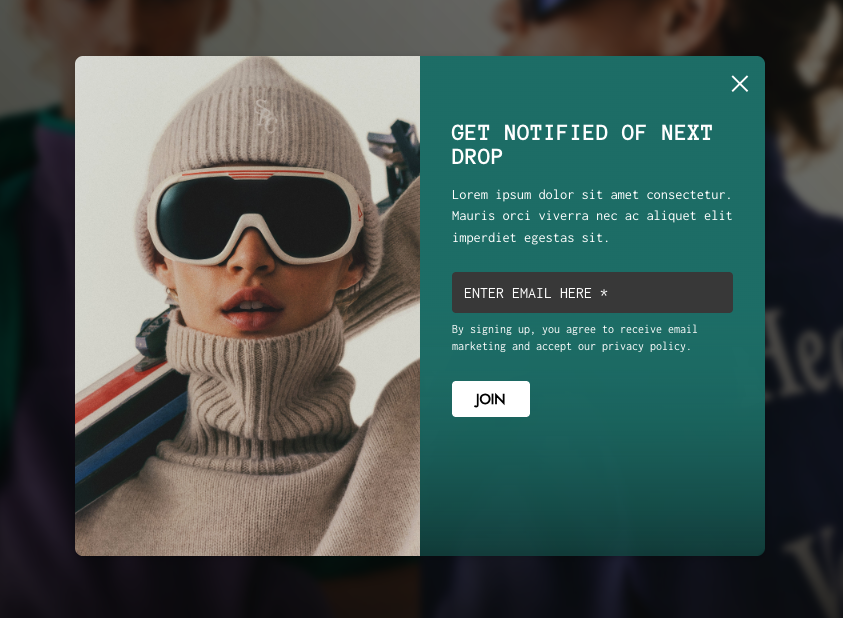
All of the following fields are customizable:
What You’ll Learn
- How to enable and customize the email signup popup
- Which theme version supports this feature
- How to collect and export email signups to your email marketing tool
Access the Theme Editor
- From your Shopify Admin, go to Online Store > Themes.
- Find your Plain Jane Lite theme and click Customize.
- Inside the Theme Editor, click the Theme Settings icon (paintbrush).
Enable and Configure the Email Popup
- In Theme Settings, select Email Pop-up.
- Configure the following options:
Visibility
Disable Email Pop-up: Check this box to turn off the popup completely.
💡 Tip: Disable this if you're using Klaviyo, Mailchimp, or another email marketing tool with its own popup.
Visual Customizations
- Show Logo: Upload your brand logo.
&#xNAN;If left blank, the default "Dummy Supreme" logo will display. - Background Image: Optional. Adds a visual background to the popup.
- Overlay Color: Background layer behind the popup (e.g., white, red).
- Popup Background Color: Color shown if no background image is set.
- Border Color: Optional border around the popup.
- Exit Button Color: Customize the close ("X") button.
- Inner Background Color: Background for the form area (e.g., behind text and inputs).
Text Fields
All of the following fields are customizable:
- Header Text
- Description
- Success Message
- Submit Button Text
Input Styling
- Placeholder Text Color: Text color before the user types.
- Input Text Color: Text color while typing.
- Submit Button Background and Text Color
- Popup Opacity: Controls the transparency of the overlay.
Save and Preview Your Popup
- Click Save in the top right.
- To test the popup:
- Open your live store in a new browser tab.
- This resets session data so the popup reappears.
⚠️ Popup not showing? The theme prevents the popup from reappearing repeatedly in the same tab. Use a new tab for each test.
Where Do Collected Emails Go?
All signups from the popup are stored in your Shopify Customers section:
- Go to Shopify Admin > Customers.
- You'll see new entries listed as customers with zero orders.
- Click Export to download the list:
- Choose "All Customers" or current page
- Import to Klaviyo, Mailchimp, MailerLite, etc.
How to Filter for Zero-Order Signups
If you want to target only new signups who haven't made a purchase yet (ideal for welcome flows or early access):
- Go to Shopify Admin > Customers
- Click Filters
- Select:
- Tagged with →
Email subscriber - Number of orders →
is equal to→0
- Tagged with →
- Save this filter view for quick access later
💡 Tip: This is especially helpful if you’re collecting signups on a store with existing customers and want to separate new leads.
Need Help?
- 💬 Join our community on Discord: https://discord.gg/hcc2GvgZc6
- 📧 Email us at: support@openspaces.design
- 💻 Live chat with us: Available Monday–Friday, 10AM–6PM EST, directly on our website