2. Setting Up Your Homepage
This is the most popular layout (e.g., Supreme-style homepage).
For Plain Jane and Interactive
⚠️ Note: The
Dynamic Backgroundsection has been deprecated in the latest versions of Plain Jane and Interactive. UsePage Canvasinstead—it offers the same functionality for background images, videos, colors, etc.⚠️ Note: This guide does not apply to Plain Jane Starter users.
What You'll Learn
- How to customize your homepage layout in Plain Jane v3 and Interactive v2
- How to add and configure Center, Side-Aligned, and Compact menus
- When to use each layout for best results
- How to link menus and manage navigation
- How to skip the homepage entirely if desired
🛠️ For New Users: Setting Up a Menu
- Go to Online Store > Navigation in your Shopify Admin.
- Click Add Menu and name it something like
Test Menu. - Add menu items like:
Men→ link to your Men's collectionLookbook→ link to a custom page or homepageContact→ link to Shopify's built-in contact page
- Click Save.
🎨 Layout 1: Center Menu
This is the most popular layout (e.g., Supreme-style homepage).
How to Set It Up
- Open your theme in the Customize editor.
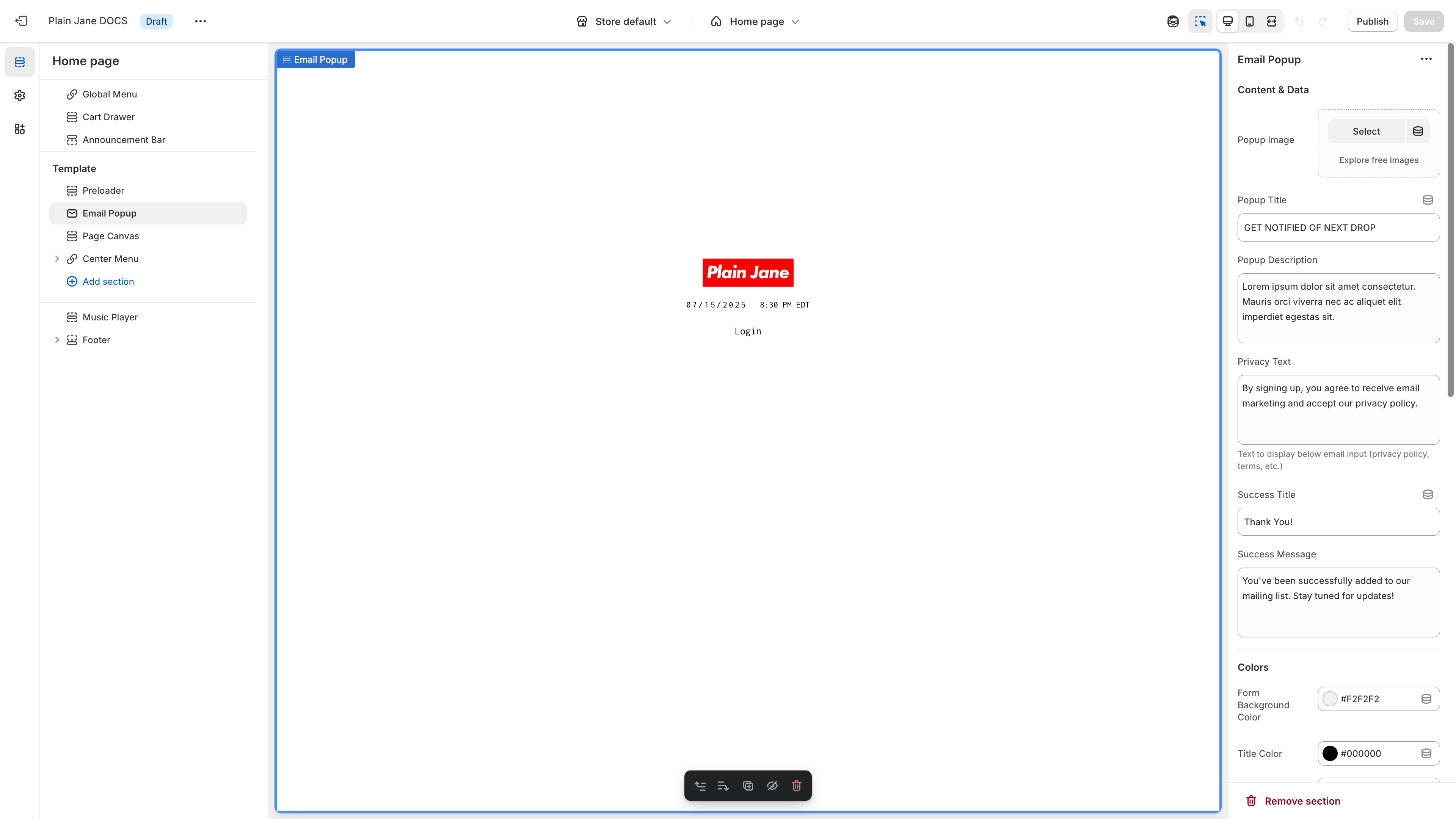
- Make sure these sections are present:
PreloaderEmail PopupPage CanvasCenter Menu
💡 Tip:
Page Canvasreplaces the deprecatedDynamic Backgroundsection. Use it for background images or colors.
Link Your Menu
- Click the
Center Menusection
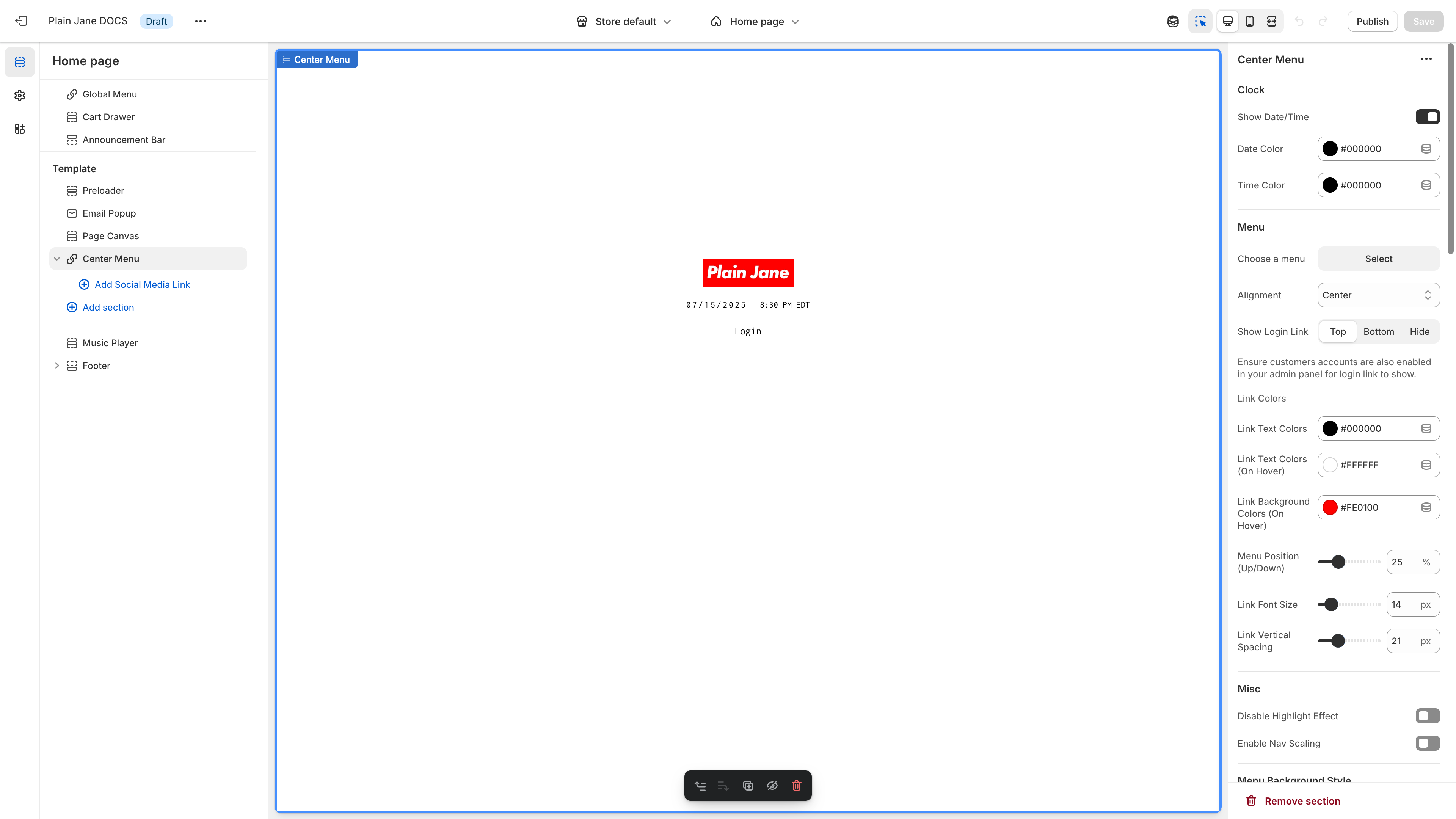
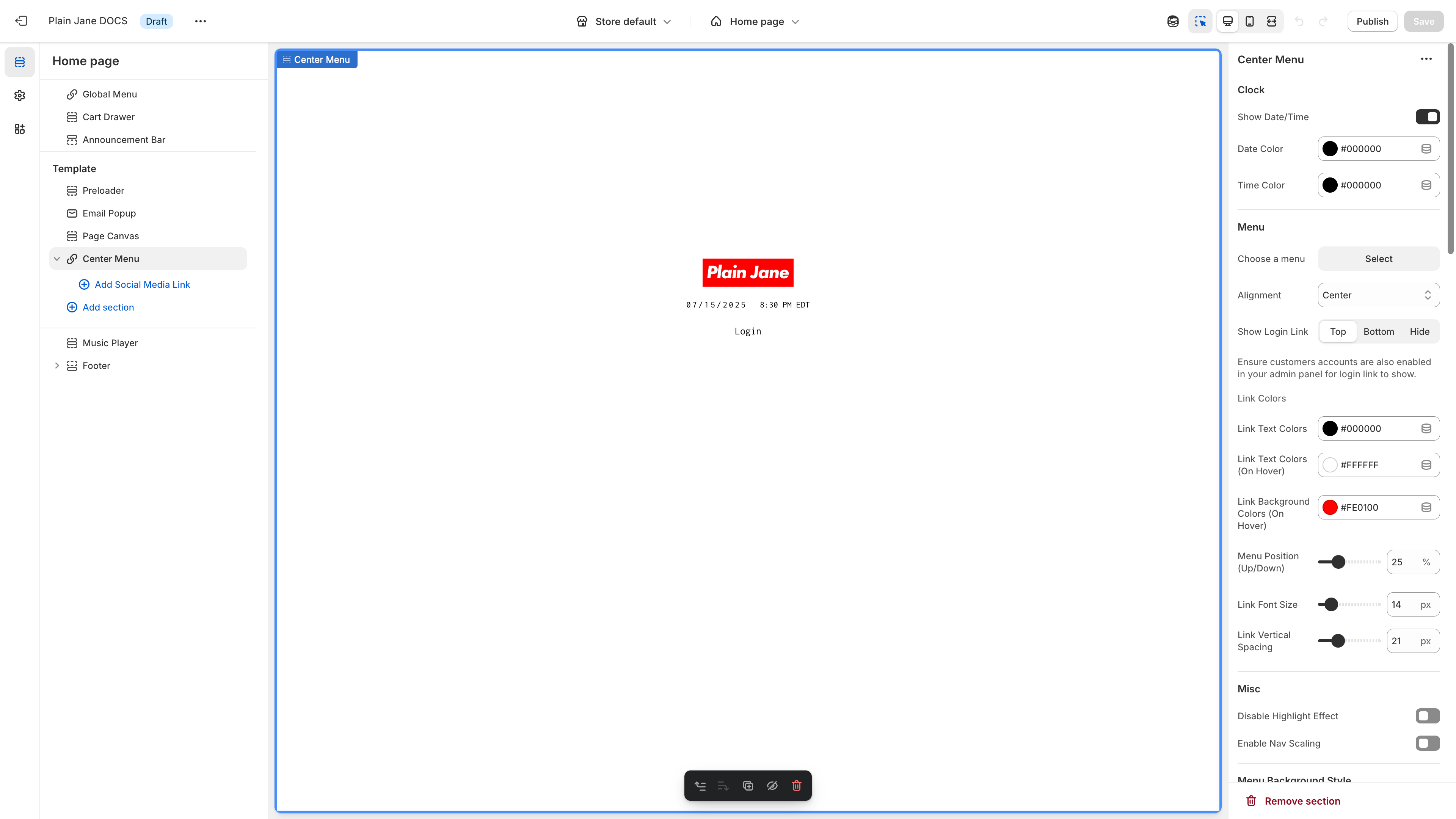
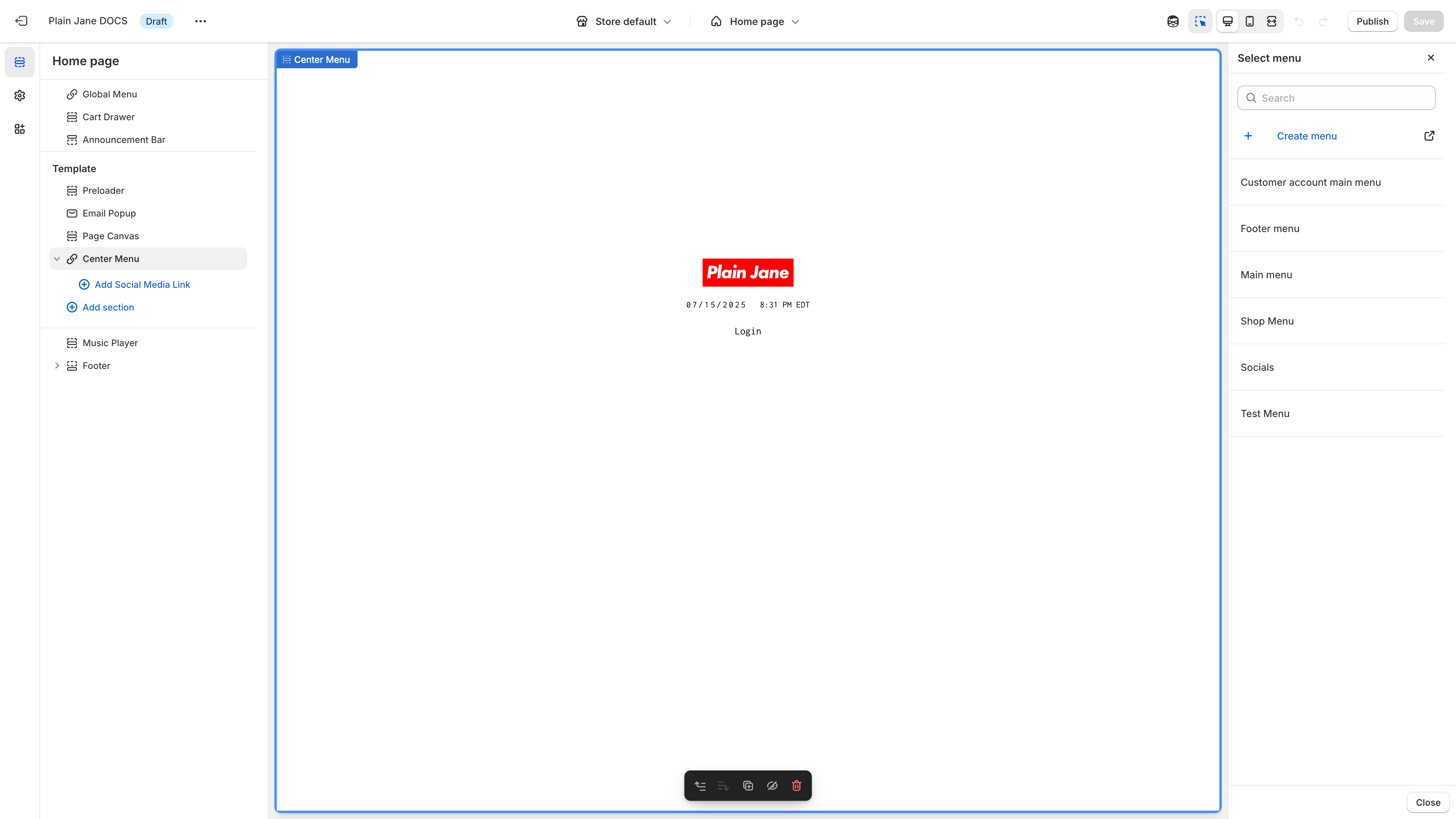
- On the right panel, choose your menu from the dropdown (e.g.,
Test Menu)
Social Media Icons
- Toggle icons on
- Paste full URLs to your profiles (e.g., TikTok, Threads, Tumblr)
💡 Tip: Don't add scrollable content below the center menu. Keep it clean and simple.
🎨 Layout 2: Side-Aligned Menu
Good for brands that want minimal vertical menus.
Setup Steps
- In the theme editor, remove the
Center Menu. - Click Add Section >
Side Aligned Menu
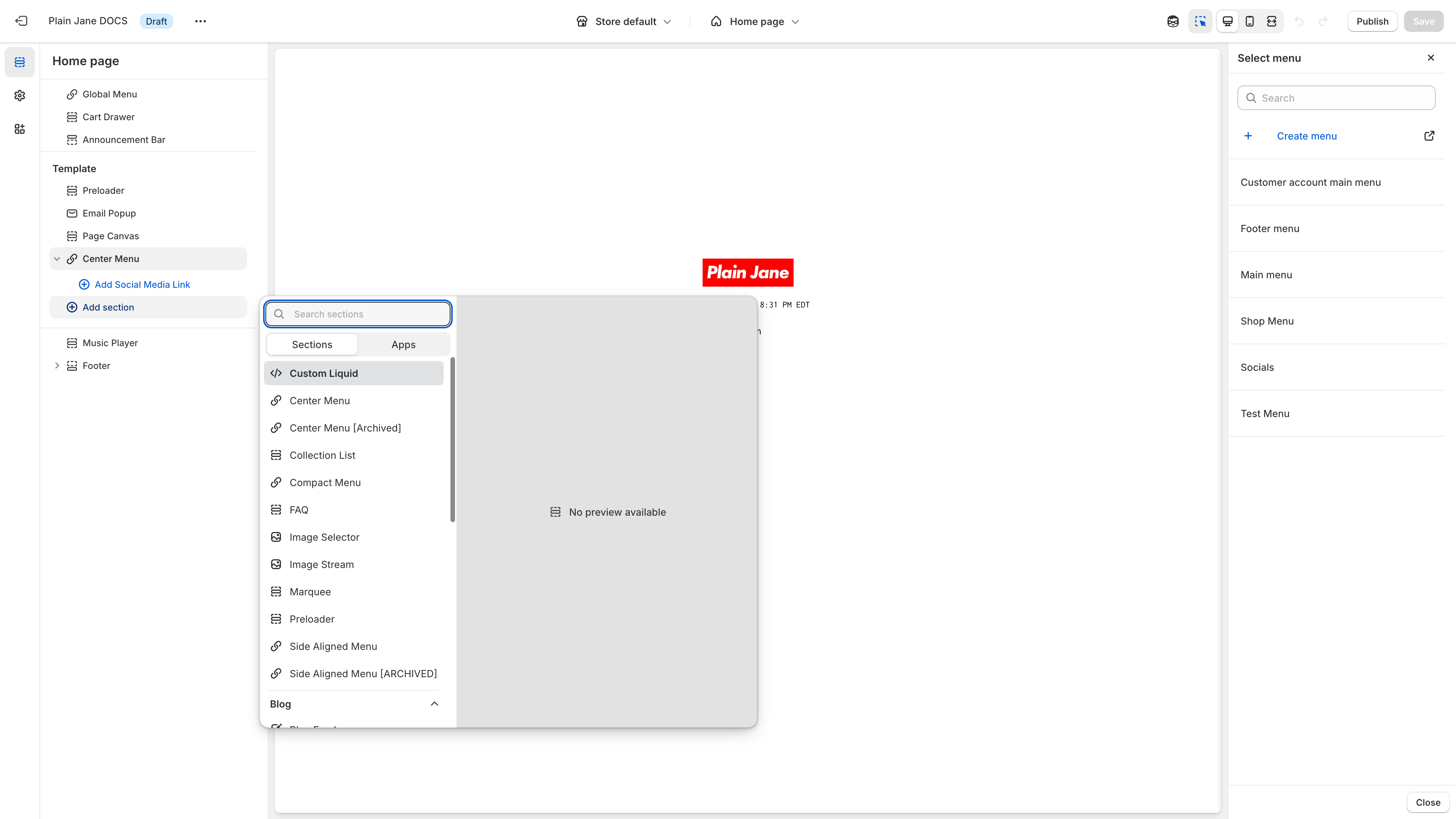
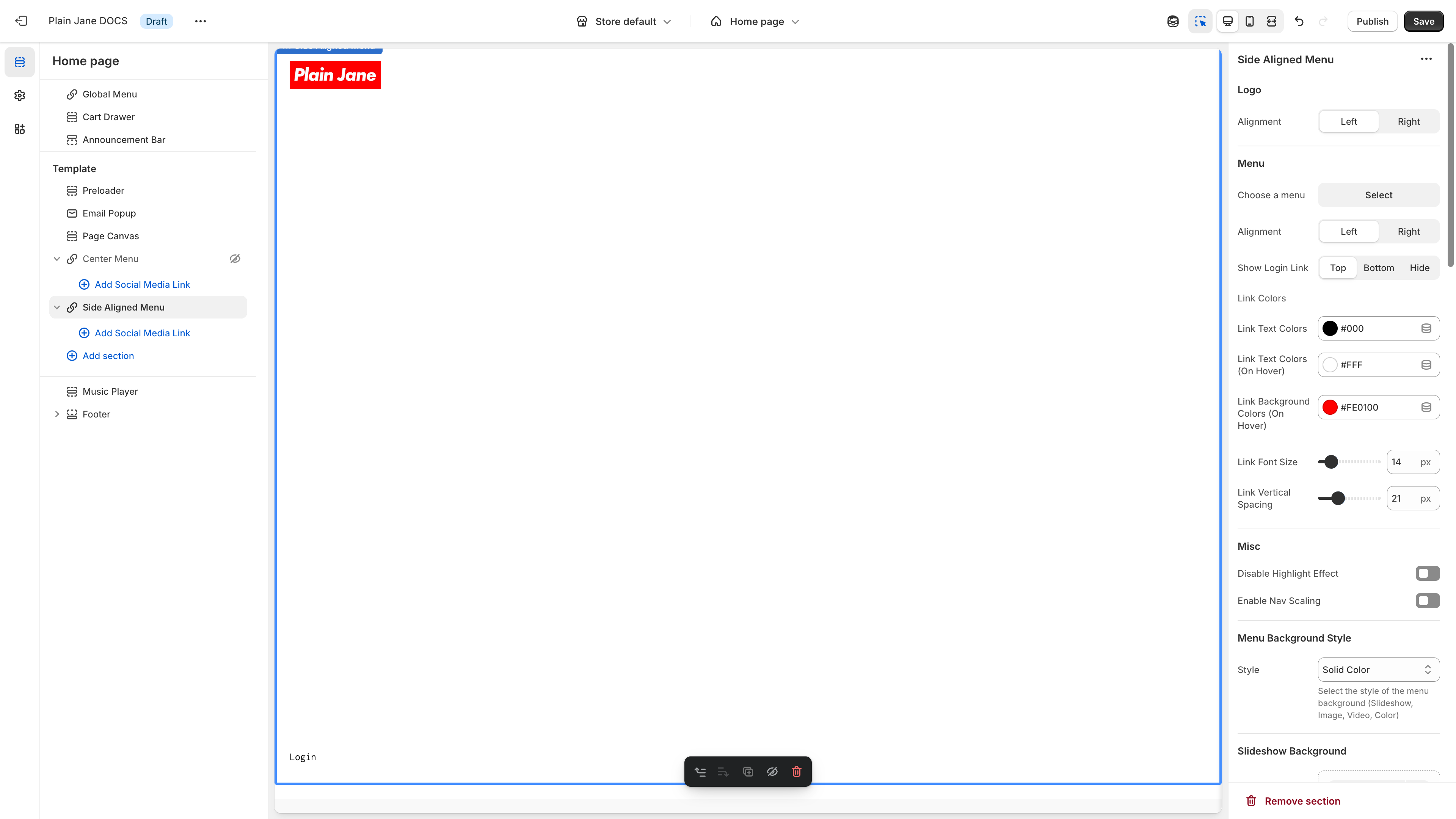
- Select your menu from the right panel
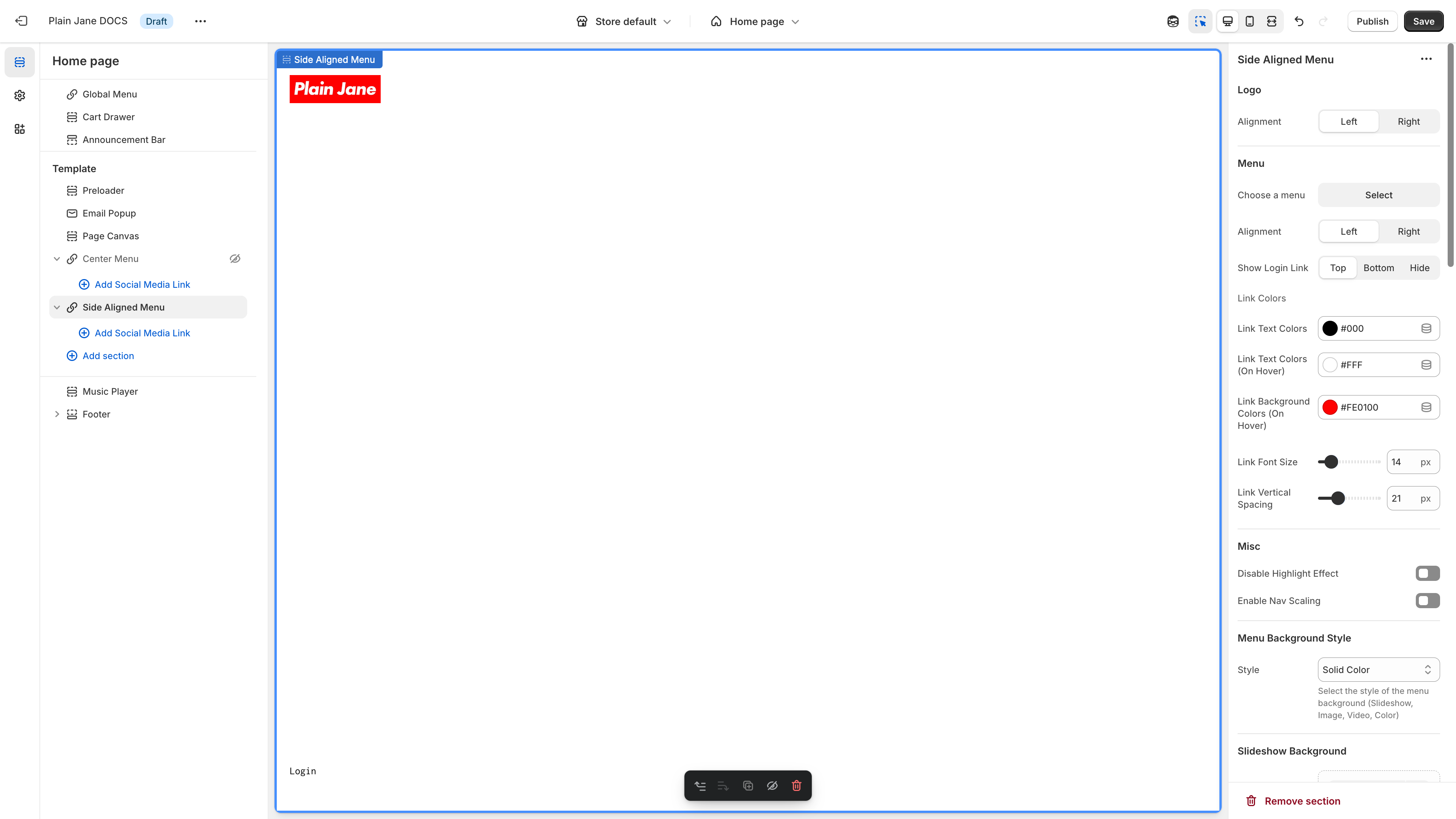
Customization Options
- Adjust font size, link spacing, and colors
- Toggle login link visibility (requires customer accounts enabled)
- Choose logo alignment (left or right)
- Change font family under
Theme Settings > Typography
💡 Tip: Avoid stacking product sections beneath this layout—it’s not scroll-friendly.
🎨 Layout 3: Compact Menu
This layout features a hamburger icon in the top right.
Setup Steps
- Add the
Compact Menusection
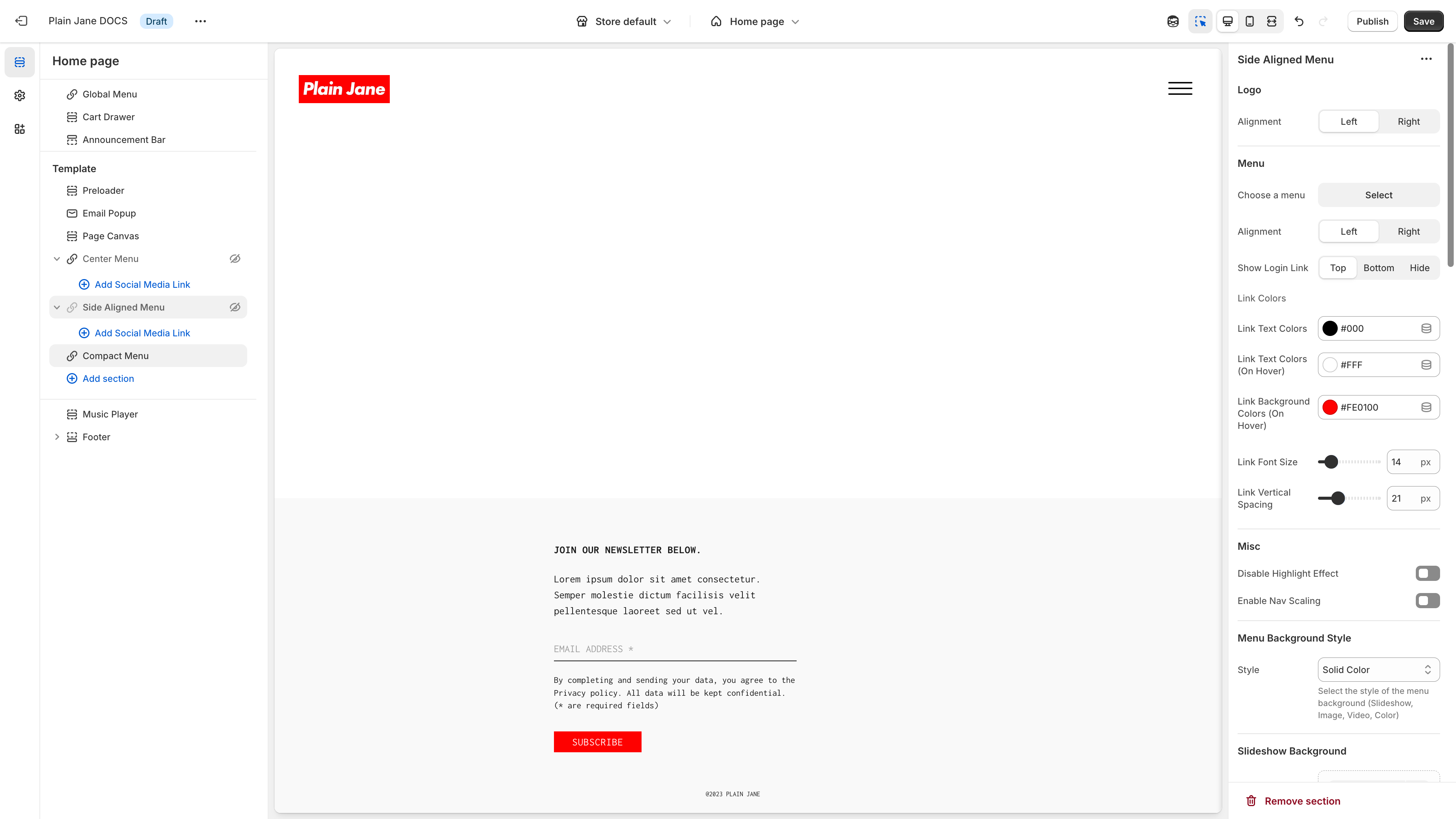
- Link your menu under
Theme Settings > Global Menu Settings
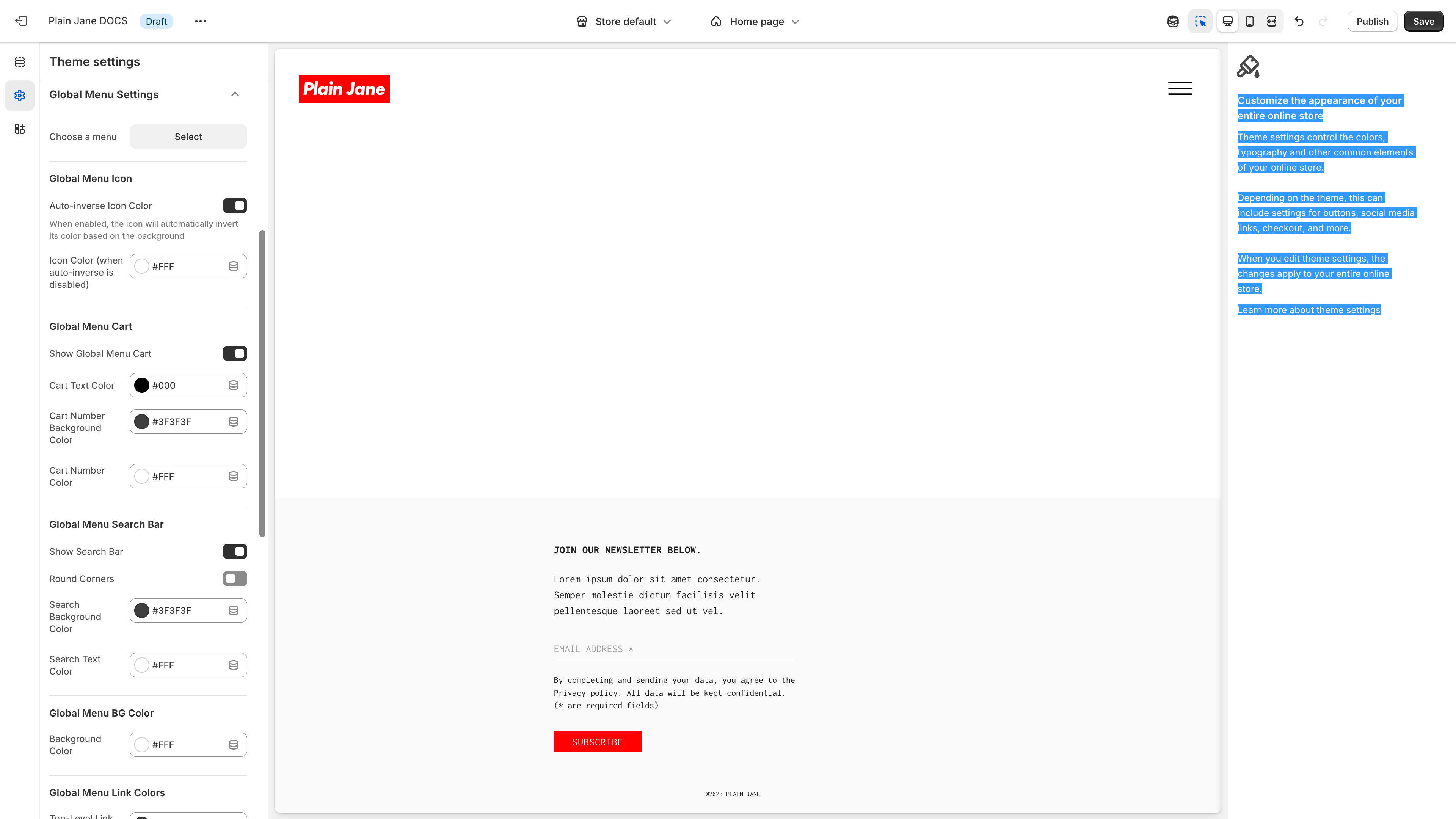
- Center or align your logo however you'd like
Add Background + Content
- Use the
Page Canvassection to:- Set a background color or upload an image
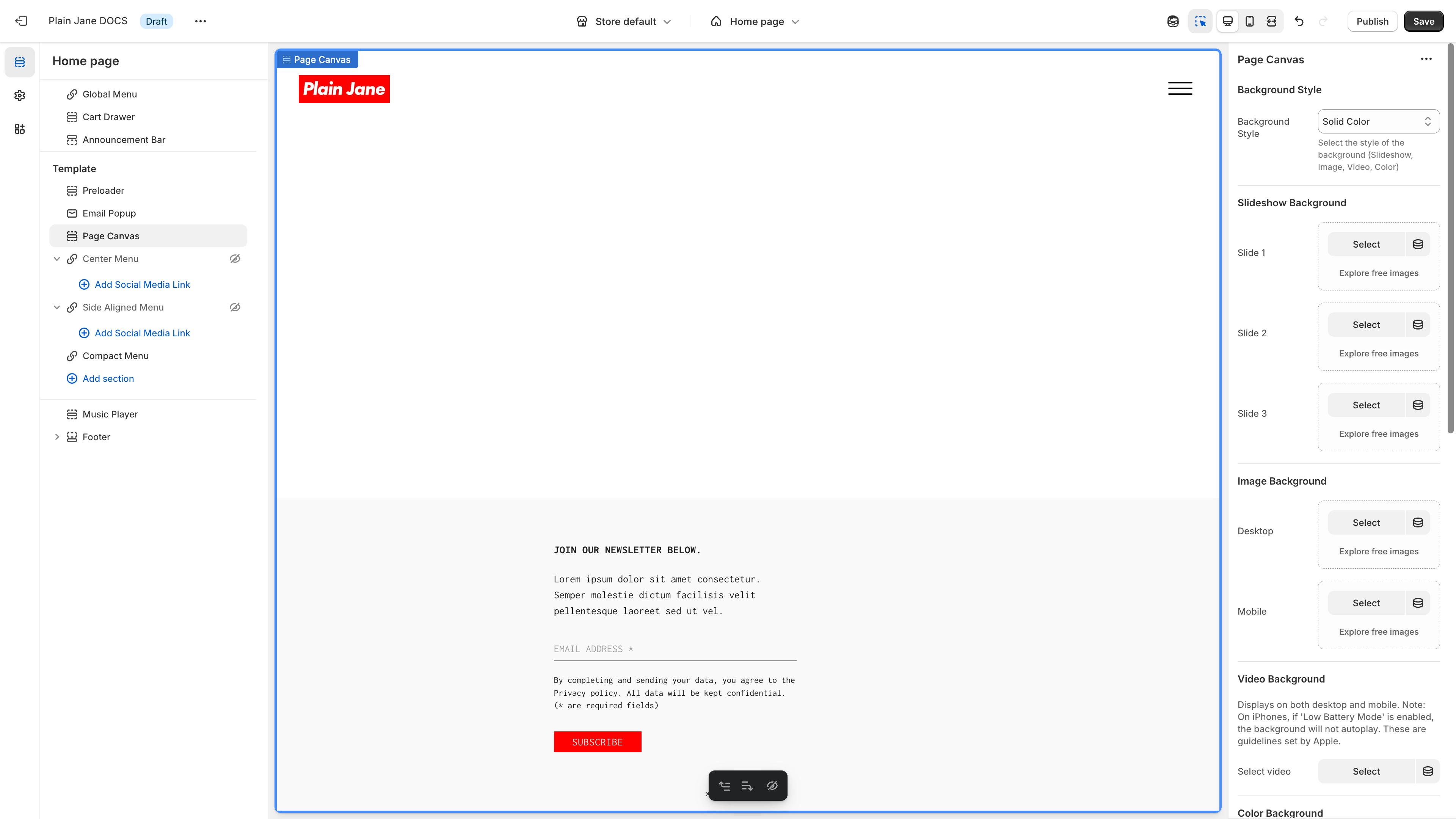
- Add sections like
Collection ListorProduct Carousel
⚠️ Warning: This is the only layout recommended for scrollable homepages.
🚀 Skipping the Homepage (Optional)
Want to take visitors straight to a collection?
- Go to
Theme Settings > Homepage Settings - Enable Skip Enter Screen
- Set the destination page (e.g., a specific collection)
💡 Tip: This is useful for product-focused brands that don’t need a homepage.
📌 Final Notes
- Use Page Canvas for all homepage background customization
- Keep your layout minimal and functional
- Always save and refresh to preview your changes
Supported Layouts:
- Center Menu (static landing)
- Side-Aligned Menu (minimal vertical nav)
- Compact Menu (scrollable homepage builder)
Need Help?
- 💬 For Tech Shpport Join Us On Discord: https://discord.gg/hcc2GvgZc6
- 📧 Email us at: support@openspaces.design
- 💻 Live chat with us: Available Monday–Friday, 10AM–6PM EST, directly on our website