1. Installing the Plain Jane Theme
How to upload and install the Plain Jane Shopify theme using a ZIP file through the Shopify admin. Follow the video below, or scroll for a written tutorial instead
For Plain Jane Starter, Plain Jane, and Plain Jane Interactive
What You’ll Learn
How to upload and install the Plain Jane Shopify theme using a ZIP file through the Shopify admin. Follow the video below, or scroll for a written tutorial instead
1. Access the Themes Section
- Log in to your Shopify Admin.
- In the left sidebar, click Online Store, then select Themes.
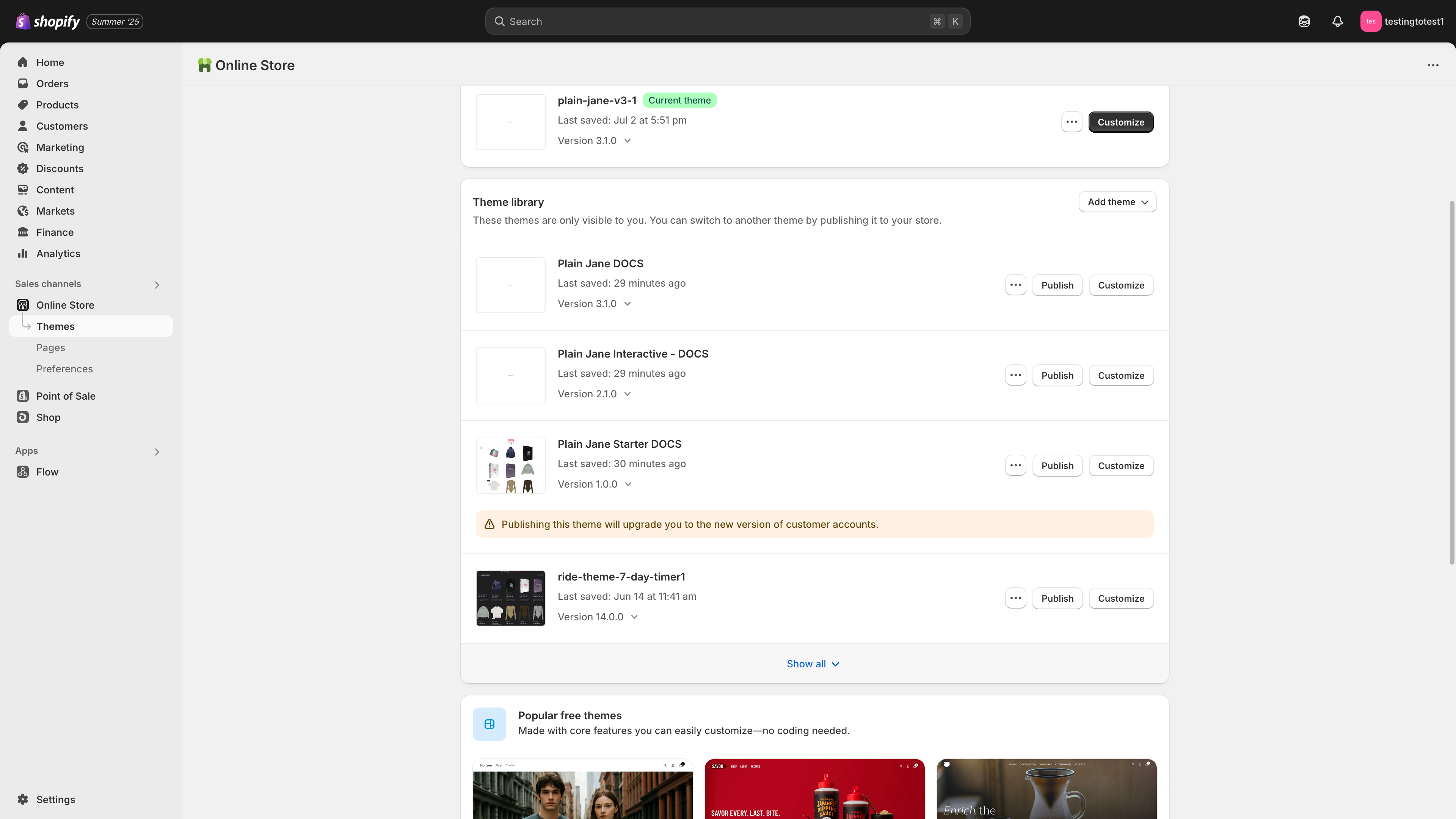
2. Import the Theme
- On the Themes page, click the Add theme button or Explore free themes to access the theme import options.
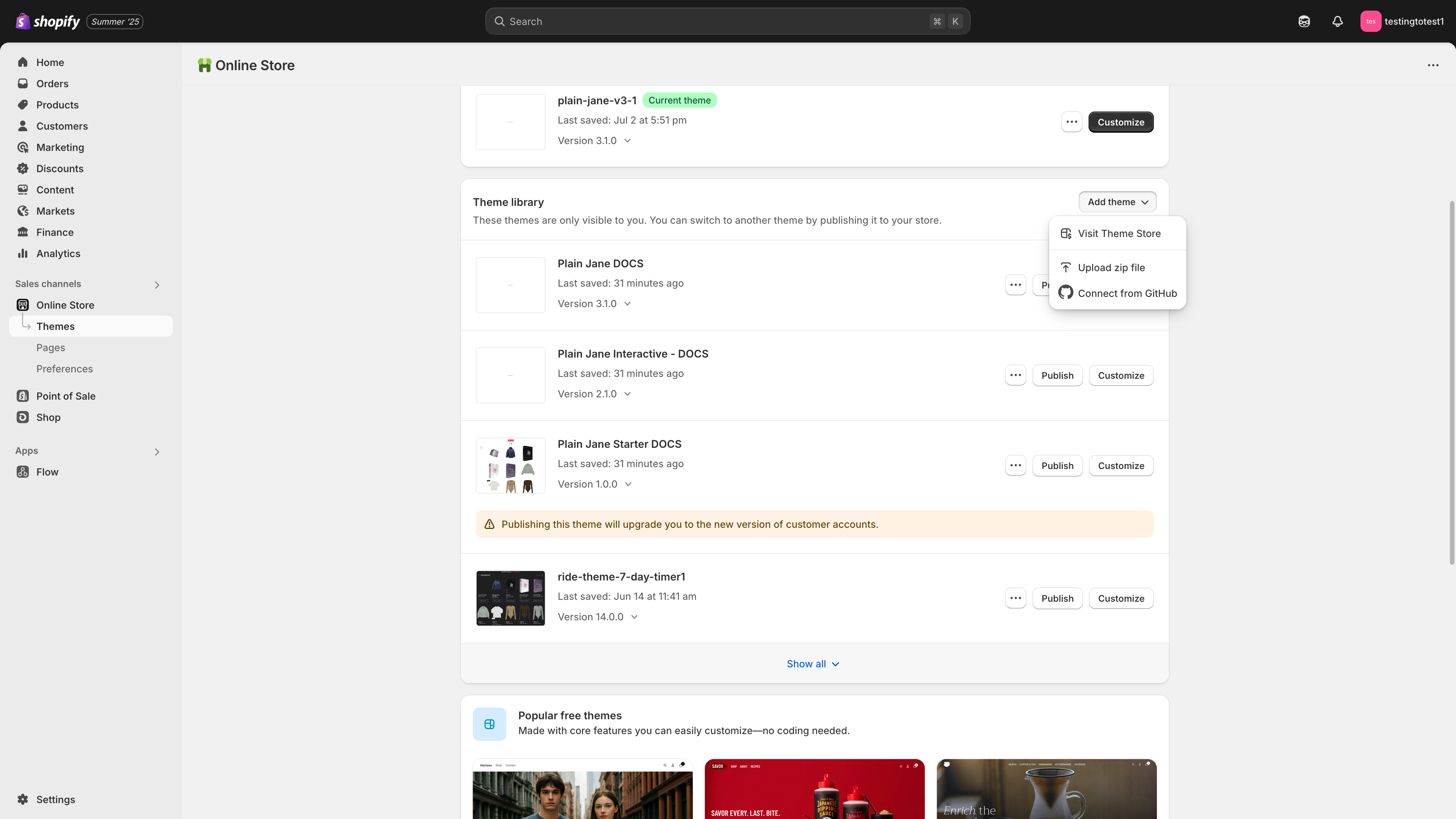
- You'll see the theme import interface where you can upload a ZIP file or browse the theme library.
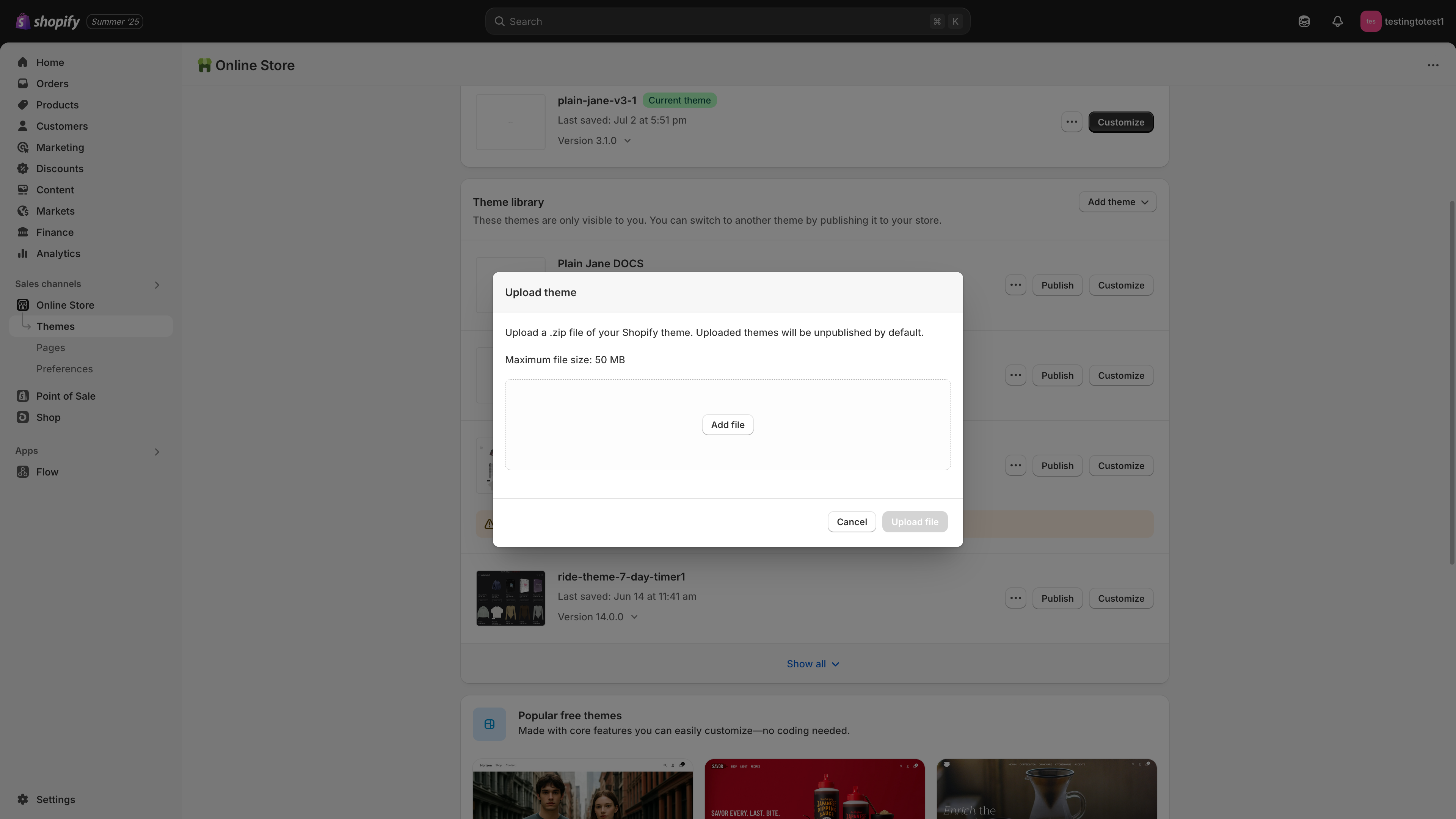
- A modal will pop up. Click Add file.
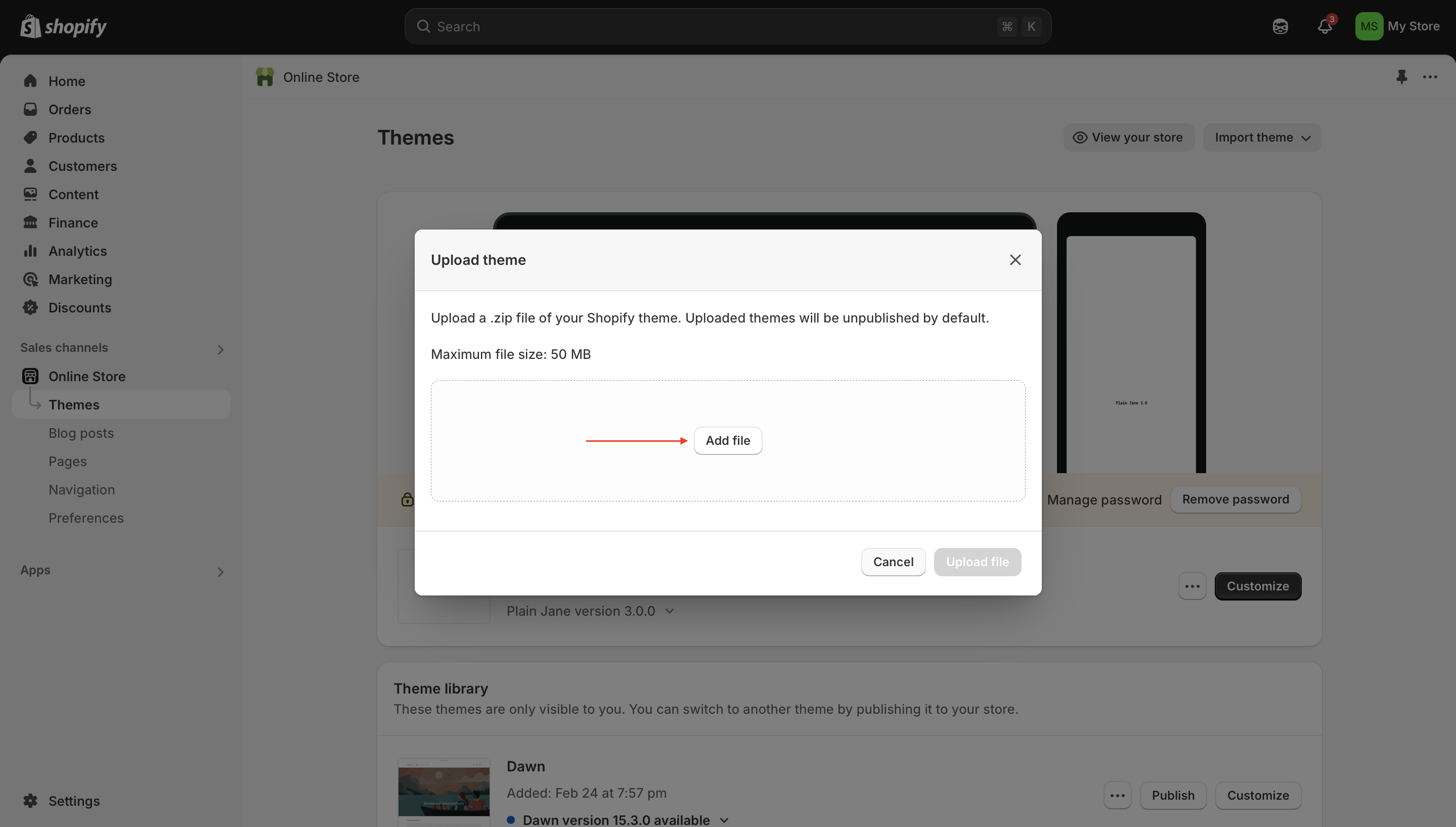
3. Upload the Theme ZIP
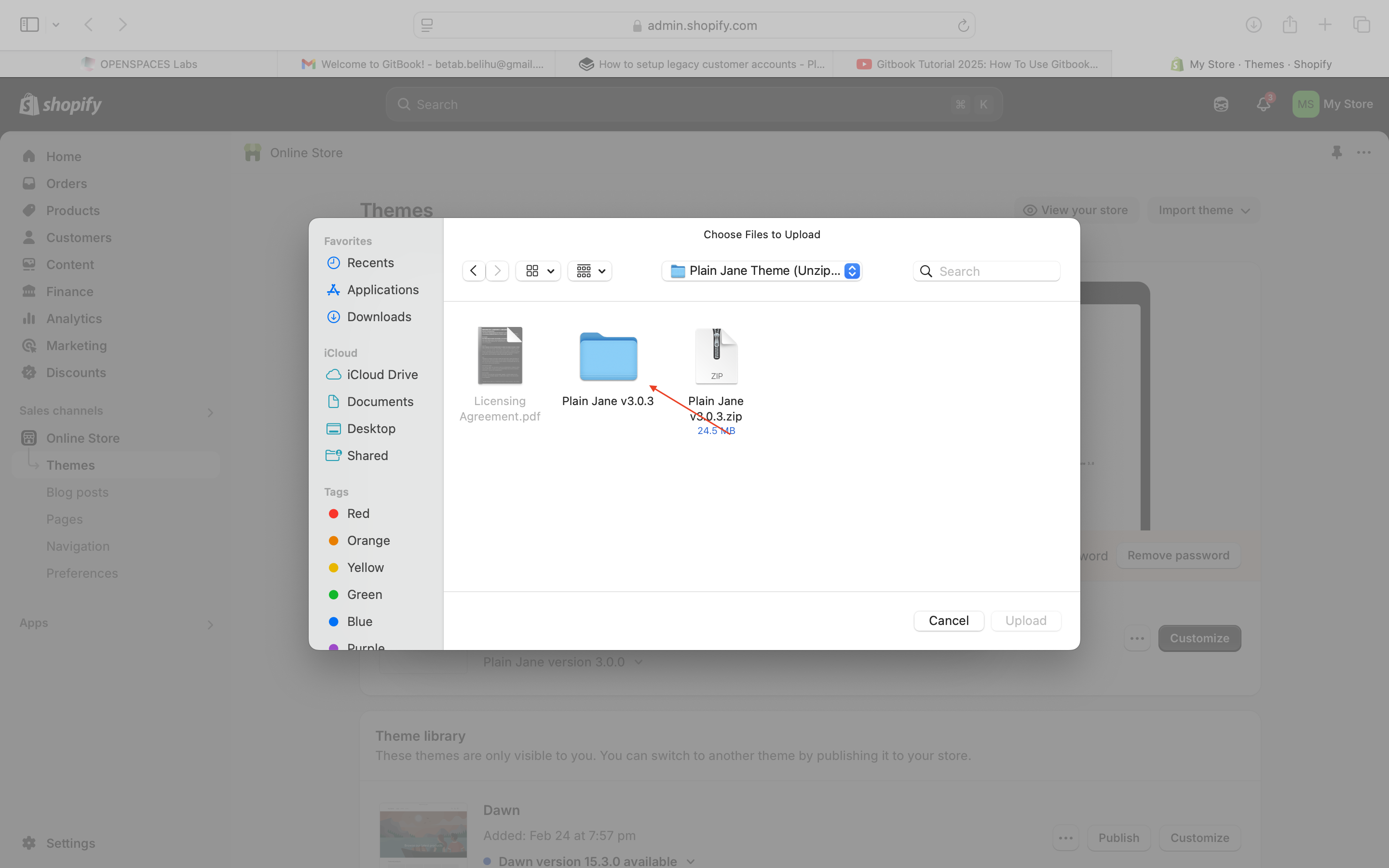
- Locate the Plain Jane theme ZIP file in your file browser.
⚠️ Important: Make sure the file is not unzipped. Shopify only accepts zipped theme files.
- Select the correct file (e.g.,
plain-jane-v3.0.3.zip) and click Upload.
4. Finalize the Upload
- Once uploaded, Shopify will process the ZIP file.
- You’ll see Plain Jane v3.0.3 (or the version you uploaded) appear under Theme library.
- Click Actions > Publish if you’re ready to make it your live theme.
💡 Tip: You can upload multiple theme versions and preview them before publishing.
Need Help?
- 💬 For Tech Shpport Join Us On Discord: https://discord.gg/hcc2GvgZc6
- 📧 Email us at: support@openspaces.design
- 💻 Live chat with us: Available Monday–Friday, 10AM–6PM EST, directly on our website