3. Creating and Customizing Your Collections Page
The header, grid, filters and product cards of a collection page, and the page that lists all your collections.
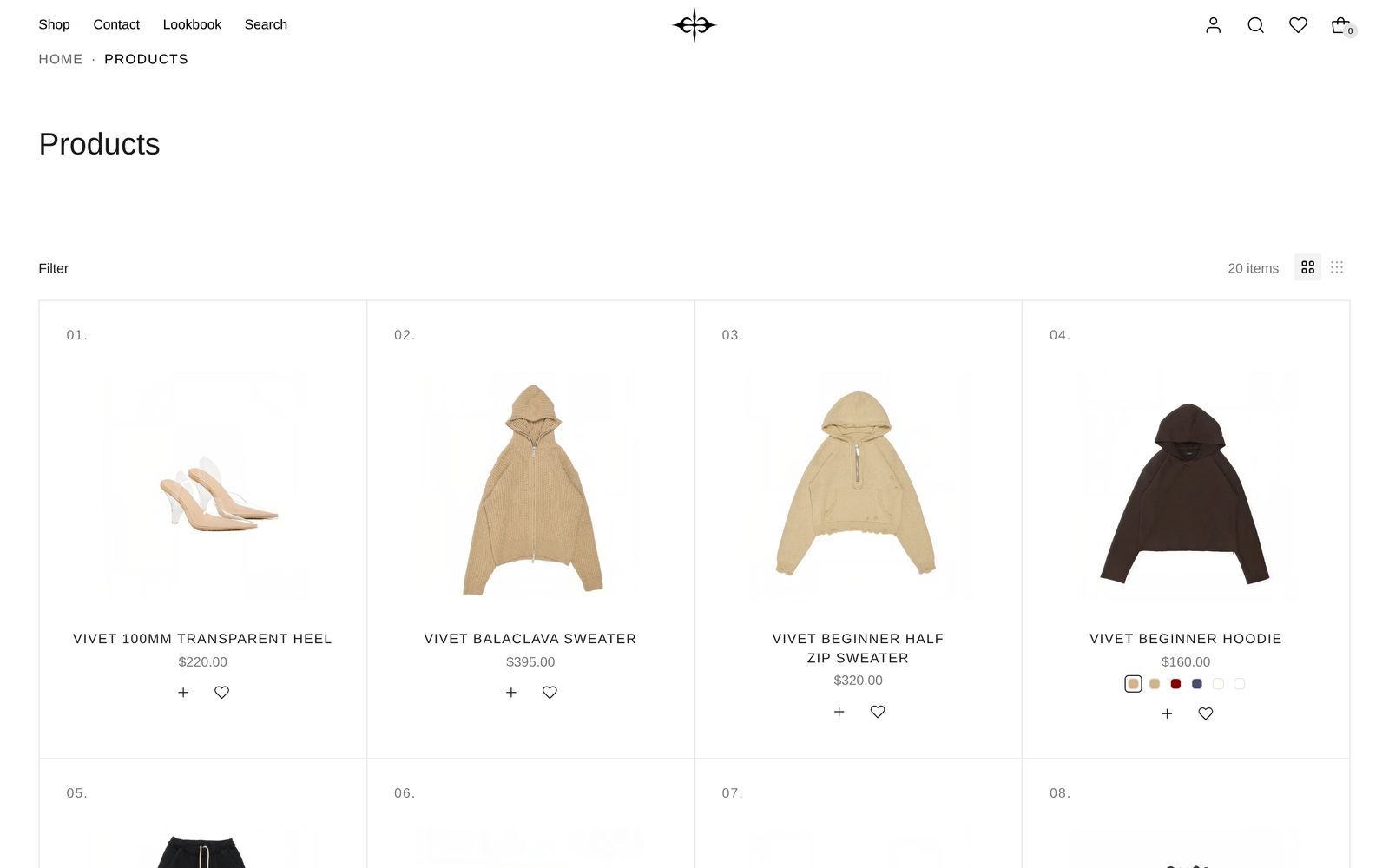
A collection page shows one collection: a picture, title and description, then its products, which shoppers can filter, sort and add to the cart. Every collection shares the page, so a change shows on all of them.
Open a collection page in the editor. It starts with two sections:
- Collection page: Header: the picture, title and description.
- Collection page: Grid: the filter bar and the products.
To use a menu column beside the products, add Collection page: Classic, then remove the grid.
What you can change
- Header: height and image position of the picture, and whether the title sits beside or above the description.
- Grid: grid style, products per row on computers and phones, and whether more products load as shoppers scroll.
- Filters and sorting: you choose the filters in your Shopify admin with the Search & Discovery app. Plain Jane Interactive lays them out.
- Product cards: title, price, swatches and buttons are blocks you can reorder or remove. See Set up color swatches.
- All-collections page: uses Collections: List. It lists nothing until you add collections.
Every setting is covered on Collection page.