Image: Centered
One picture at its own shape, centered with plenty of space around it.
One photo at its own proportions, centered on the page with large space above and below. Use it to let a single picture breathe, such as a still life or a product photographed on its own.
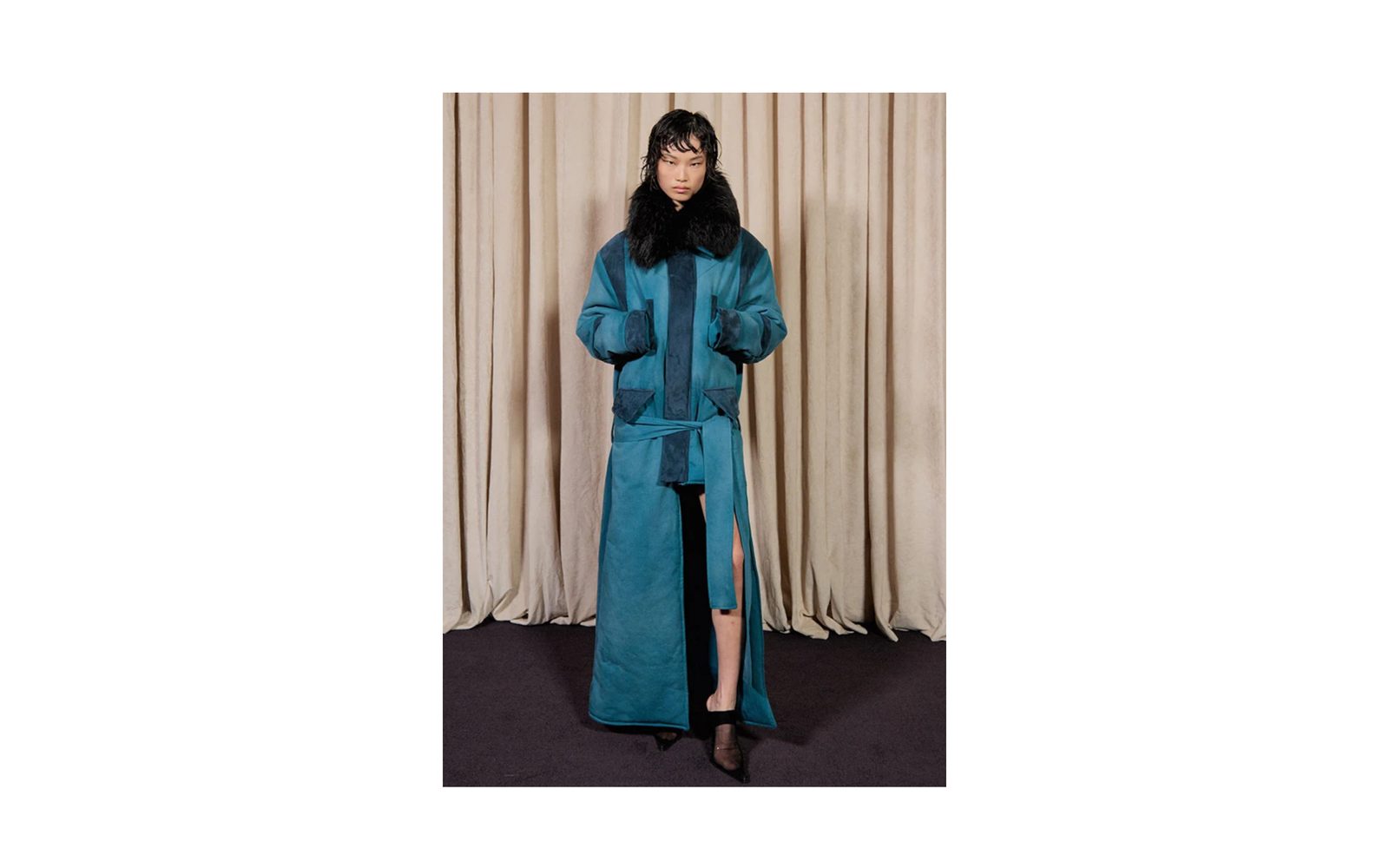
Add it
It can go on any page. In "Add section", find Image: Centered under Images. It is a ready-made Section, so it has all of that section's settings.
The blocks it starts with
- Image at Width Fit to image and Height Large, so it shows the whole photo, tall and uncropped.
Choose your photo in the Image block. To make it smaller, lower its Height to Medium or Small.
As first added
- Horizontal alignment: Center.
- Space above and Space below: Large.
On phones
The photo fills the width of the screen inside the page margin, at its own proportions. Height applies on desktop only.
Tips
- A portrait or square photo works best. A wide photo at Large height can be wider than the page. It is then shrunk to fit, with empty space above and below it.
- Until you choose a photo, a small square stands in its place. The section takes its real size once the photo is in.
- To give it a caption, add a Text block under the Image, or use Image: Captioned instead.
Settings
All settings are the general section's: see Section.