Image with text: Offset
A small captioned photo on the left beside a large paragraph.
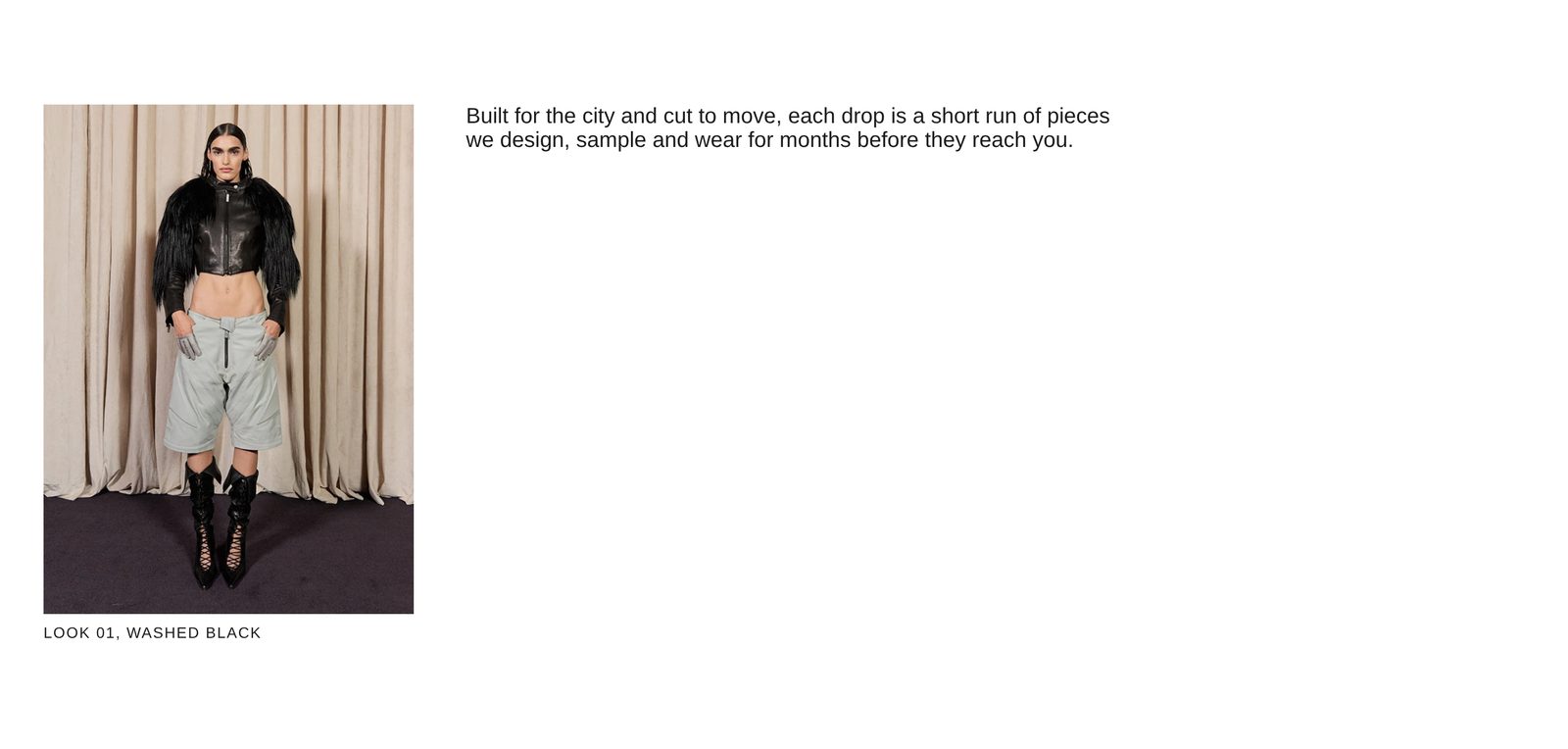
A small photo with a caption on the left, and a paragraph in a large heading style beside it, with wide space between them. Use it for a short statement about a piece or a collection, with one picture to go with it.
Add it
It can go on any page. In "Add section", find Image with text: Offset under Images. It is a ready-made Section, so it has all of that section's settings.
The blocks it starts with
- Image with caption, a group a quarter of the width (Width on desktop Custom, 25%), holding:
- Image at Width Full width and Shape Original.
- Text, the caption, in Style Uppercase: "Look 01, washed black".
- Text, the paragraph, in Style Heading 4 at Line length Medium: "Built for the city and cut to move, each drop is a short run of pieces we design, sample and wear for months before they reach you."
Choose your photo, then write your own caption and paragraph. To make the photo larger, raise the group's Custom width on desktop.
As first added
- Direction: Horizontal, with Stack on mobile on. Vertical alignment: Top.
- Gap: Extra large. Space above and Space below: Large.
On phones
The photo and caption come first, the full width of the screen, with the paragraph under them.
Tips
- Keep the paragraph to two or three sentences. In Heading 4 a long one pushes far below the photo.
- To put the photo on the right, move the Text block above the Image with caption group.
- To line the paragraph up with the middle of the photo, set Vertical alignment to Center.
Settings
All settings are the general section's: see Section.