Gallery: Stream
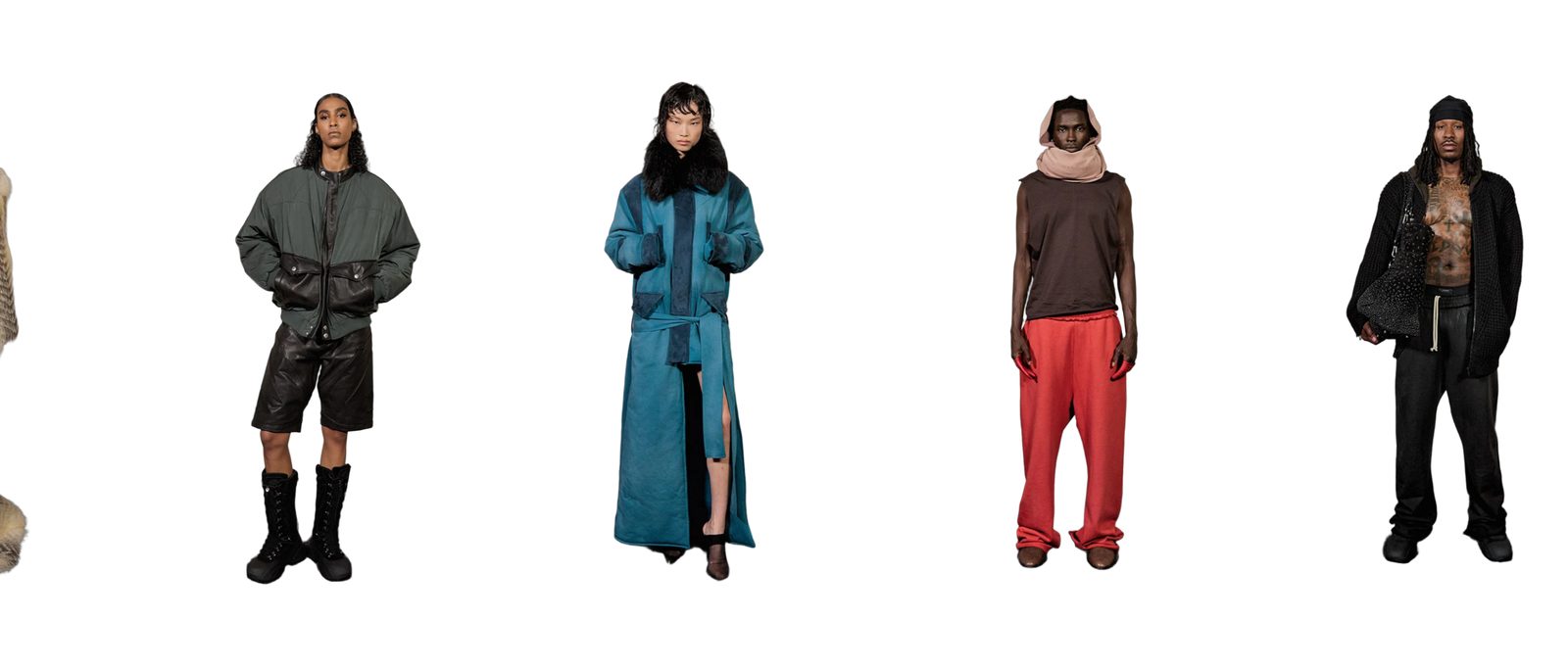
A row of pictures scrolls sideways on its own in an endless loop, under a title and a button.
A row of pictures glides sideways across the page by itself and loops without a seam, like a ticker of photos. A title and a button sit above it. Visitors can stop it by tapping it, tabbing into it or, if you choose, pointing at it.
Choose it to show a lot of pictures in little height: new arrivals, behind-the-scenes shots, an Instagram-style row. For a row visitors move themselves, see Slideshow: Arc.
Add it
It can go on any page except the password page, and in the footer, but not in the header. In "Add section", find Gallery: Stream under Slideshows & galleries.
As first added it has the title "Fresh off the rack", a "Shop now" button leading to all your products, and six placeholder pictures, four across on a computer.
What you need
- Six or more pictures. The row repeats them to fill the screen, so fewer works, but you will see the same picture come round quickly.
- Pictures of one shape, or choose Fill the frame for Image fit.
- Or a collection or a list of products: each product's main photo is used.
Settings
Select the section itself to see these.
| Setting | What it changes | Options |
|---|---|---|
| Color scheme | The background, the title and the button. See shared settings. | Default: Scheme 1. |
| Hide on mobile | Hides the whole section on phones. | On or off. Default: off. |
| Space above, Space below | Empty space above and below. See shared settings. | Default here: Medium. |
Blocks
The section has two blocks that are always there: Stream header and Stream track.
Stream header
The title and button above the row. It holds one Text block and one Button block; you cannot add or remove them, but you can hide either. Both are the same Text and Button blocks used across Plain Jane. As added, the title uses Heading 5.
| Setting | What it changes | Options |
|---|---|---|
| Alignment | Left puts both at the left; Spread puts the title left and the button right; Right puts both at the right. | Left, Spread (title left, link right), Right. Default: Spread. |
| Gap | The space between the title and the button. | Small, Medium, Large. Default: Medium. |
Stream track
The moving row.
| Setting | What it changes | Options |
|---|---|---|
| Source | Your images uses the Image blocks you add. Collection or Products fills the row with product photos, without captions or links. | Your images, Collection, Products. Default: Your images. |
| Collection | The collection used when Source is Collection. | Any collection. |
| Number of products | How many products from the collection. Only appears when Source is Collection. | 3 to 20. Default: 9. |
| Products | The products used when Source is Products. | Up to 20. |
| Height mode | Set by picture shape makes every picture the shape below. Fixed height gives the row a set height. Full screen makes the row as tall as the screen. | Set by picture shape, Fixed height, Full screen. Default: Set by picture shape. |
| Aspect ratio | The pictures' shape. Only appears with Set by picture shape. | Portrait (3:4), Square (1:1), Landscape (4:3), Widescreen (16:9). Default: Portrait (3:4). |
| Row height | How tall the row is. Only appears with Fixed height. | Small, Medium, Large. Default: Medium. |
| Images per row (desktop) | How many pictures fit across a computer screen. | 2, 3, 4. Default: 4. |
| Gap between images | The space between pictures. | None, Small, Medium, Large, Extra large. Default here: None. |
| Image fit | Show whole image never crops a picture. Fill the frame crops its edges so it fills its space. | Show whole image, Fill the frame. Default: Show whole image. |
| Edge fade | Fades the left and right ends of the row into the background. | None, Soft, Strong. Default: None. |
| Scroll duration | How long one full loop takes. A lower number is faster. | 10 to 90 seconds. Default: 30. |
| Direction | Which way the row moves. | Left (forward), Right (reverse). Default: Left (forward). |
| Pause on hover | On: the row stops while the mouse is over it. | On or off. Default: off. |
Image
One picture in the row. Add as many as you like inside Stream track. They show only while Source is Your images.
| Setting | What it changes | Options |
|---|---|---|
| Image | The picture. A placeholder shows while it is empty. Add alt text to the picture in your Files. | |
| Caption | Words over the picture when a visitor points at it on a computer. On phones and tablets they always show. | Text. |
On phones
About one picture fills the width at a time, with a little of the next one showing. Captions are always visible.
Tips
- With Image fit on Show whole image and pictures of mixed shapes, you get uneven gaps. Use Fill the frame, or crop your pictures to one shape first.
- A Soft Edge fade looks best with a plain background color.
- Keep the row slow (30 seconds or more) if it has captions, so visitors can read them.
- If the row sits right under another moving section, turn on Pause on hover to give visitors a calm place to look.
Good to know
- There is no pause button. Tapping the row on a phone stops it until the visitor taps elsewhere, and it stops while a keyboard visitor is tabbed into it.
- Visitors who have asked their device to reduce motion see a still row they can scroll sideways themselves.
- The row stops while it is off screen.
- Scroll duration is exact with Motion set to Lively in theme settings. With Calm, each loop takes about a third longer.
- Images in the row have no links. To link somewhere, use the button in Stream header.