Gallery: Thumbnail strip
One large picture fills the screen beside a column of small thumbnails; scrolling or clicking the thumbnails changes the large picture.
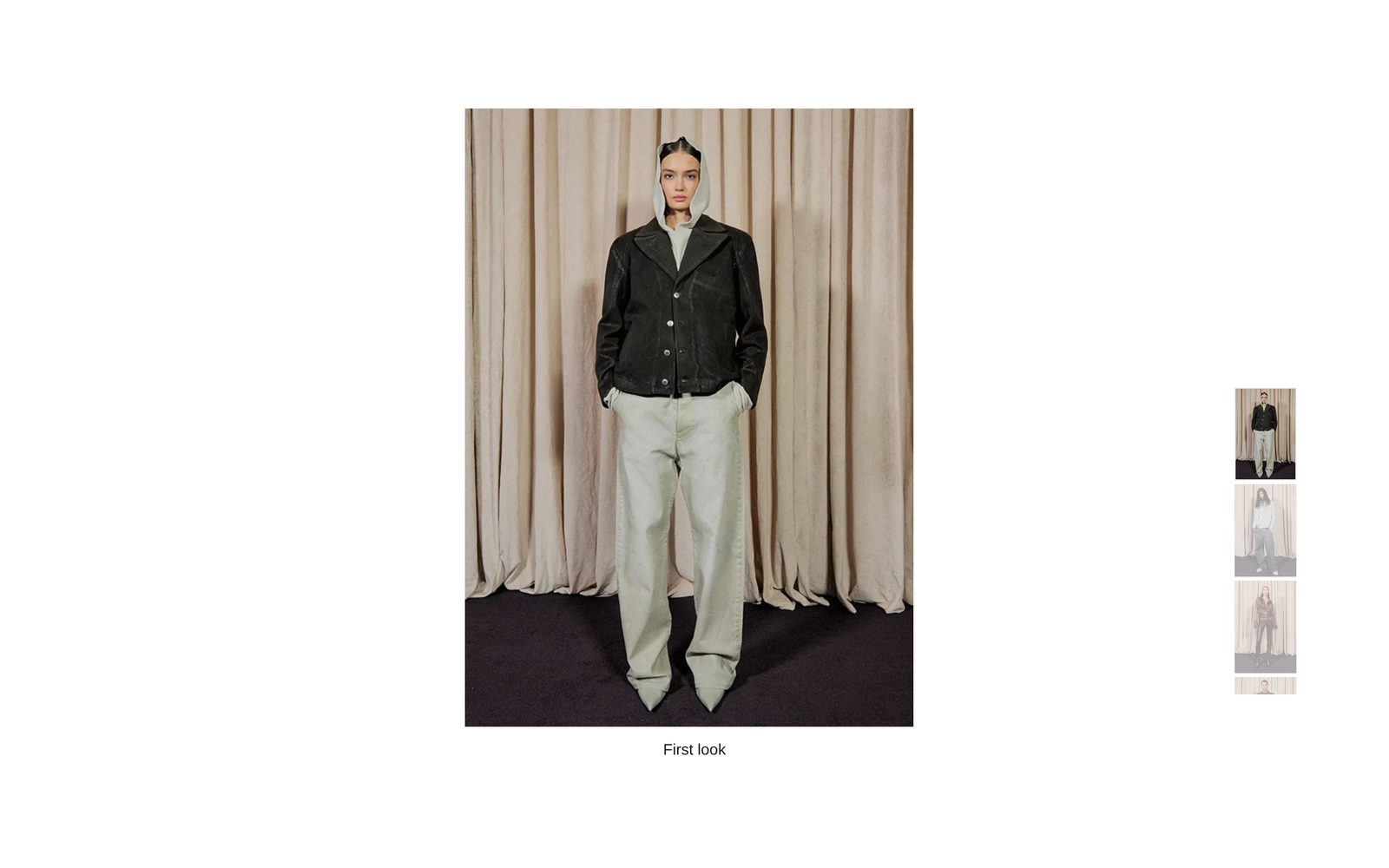
A single large picture sits on the page, with a column of small thumbnails beside it. As visitors scroll the thumbnails, or click one, the large picture changes to match, with its caption underneath. The thumbnail lined up with the marker in the middle of the column is the one shown.
Choose it for a lookbook or a set of campaign pictures where each one deserves the full screen, but visitors should see at a glance how many there are.
Add it
It can go on any page except the password page, and not in the header or footer. In "Add section", find Gallery: Thumbnail strip under Slideshows & galleries.
As first added it fills the screen. As the first section on a page, it starts at the very top, under a header that sits over the page. It has six slides showing placeholder pictures; the first four are captioned "First look", "Studio", "On location" and "Details".
What you need
- Four to twelve pictures. More works, but the column gets long.
- Pictures of one shape look best. With Image fit on Show whole image, each picture is shown whole; mixed shapes leave different empty margins.
- Short captions, or none.
Settings
Select the section itself to see these. This section has no Space above or Space below.
| Setting | What it changes | Options |
|---|---|---|
| Color scheme | The background, the captions and the outline around the selected thumbnail. See shared settings. | Default: Scheme 1. |
| Height | How tall the section is. | Large, Full screen. Default: Full screen. |
Under Large image:
| Setting | What it changes | Options |
|---|---|---|
| Size | How much of the section the large picture takes up. | Small, Medium, Large. Default: Medium. |
| Position on screen | Where the large picture sits across the page. | Left, Center, Right. Default: Center. |
| Image fit | Show whole image never crops the picture. Fill the frame crops its edges so it fills its whole area. | Show whole image, Fill the frame. Default: Show whole image. |
Blocks
The strip
Always there. It holds the slides and sets how the thumbnails and captions look.
| Setting | What it changes | Options |
|---|---|---|
| Position on screen | Which side the thumbnails sit on. Only used when the large picture is centered; with the picture on the left or right, the thumbnails go to the other side. | Left, Right. Default: Right. |
| Thumbnail size | How big the thumbnails are. | Small, Medium, Large. Default: Medium. |
| Thumbnail shape | The thumbnails' shape. | Portrait, Square, Wide. Default: Portrait. |
| Space between thumbnails | The gap between thumbnails. | 0 to 24 px. Default: 4 px. |
| Distance from the screen edge | How far the column sits from the side of the screen, on computers. | 16 to 200 px. Default: 96 px. |
| Mark the selected thumbnail with | An outline draws a thin frame in the middle of the column. A brighter image makes the selected thumbnail a little brighter. The other thumbnails are always dimmed. | An outline, A brighter image, None. Default: An outline. |
| Style (Caption) | The text style of every caption in this section. | Body, Heading 6, Heading 5, Heading 4. Default: Heading 6. |
| Space above the caption | The gap between the large picture and its caption. | 0 to 64 px. Default: 16 px. |
Slide
One picture. Add as many as you like inside The strip. The first two cannot be deleted or moved.
| Setting | What it changes | Options |
|---|---|---|
| Image | The picture, shown both large and as a thumbnail. | |
| Caption | Shows under the large picture while this slide is selected. Leave it blank for no caption. | Text. |
| Link | Makes the large picture and its caption clickable while this slide is selected. | Any link. |
On phones
The thumbnails run in a row along the bottom of the screen, whichever side you chose. Visitors swipe the row; the thumbnail in the middle is the one shown above. Distance from the screen edge does not apply.
Tips
- Give every slide a caption, or none. A mix makes the caption line appear and disappear.
- Choose Fill the frame for Image fit when your pictures come in mixed shapes, and set the focal point on each one in your Files.
- With Position on screen (Large image) on Left or Right, the large picture and the column sit on opposite sides, like a magazine spread.
- Without captions, add alt text to each picture so the thumbnails make sense to screen-reader users.
Good to know
- Nothing moves on its own. The picture only changes when a visitor scrolls the thumbnails, clicks one, or uses the arrow keys on a focused thumbnail.
- When the thumbnails reach the end of the column, scrolling goes on to the rest of the page.
- Only the first large picture loads with the page. Each of the others loads just before a visitor reaches it, so the page stays quick with many slides.