Lookbook: Canvas
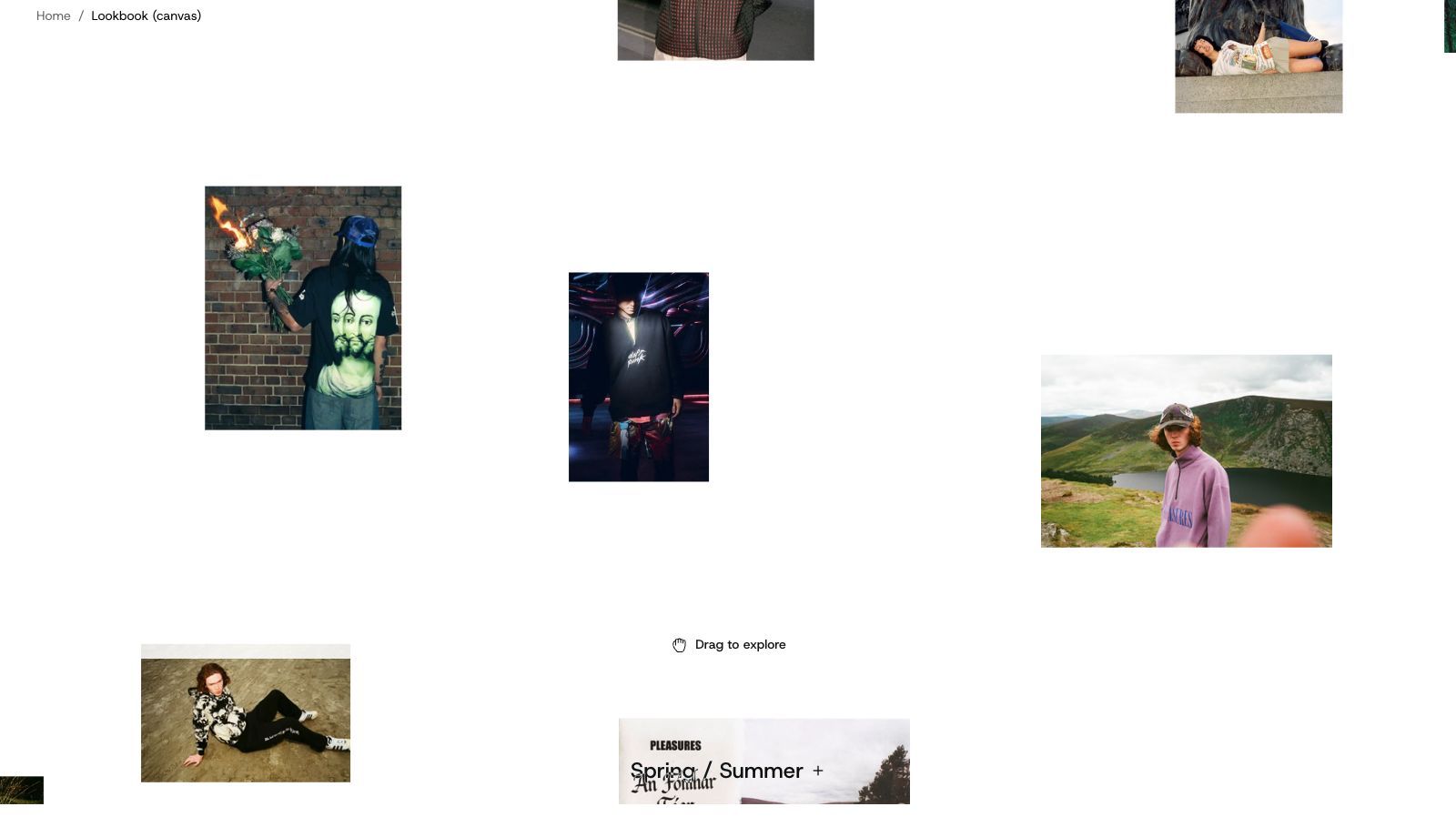
A full-screen board of scattered photos that shoppers drag in any direction, coming round again so it never ends.
A board of photos that fills the screen and runs under your header. Shoppers drag it in any direction, and the photos come round again, so it never ends. The lookbook's name sits at the foot of the screen; with several lookbooks, pressing it opens the list to choose another. Choose it for an immersive campaign page.
Setting up a lookbook page, filling it with photos and every setting of the Lookbook, Words and Photos blocks are covered in Lookbooks. This page covers adding the section on its own.
Add it
Add it to any page except the password page, from Storytelling in "Add section". It cannot go in the header or footer. A store also has a ready-made lookbook-canvas page template built on it.
As first added it has two Lookbook blocks, "Spring / Summer" with 14 empty photo slots and "Fall / Winter" with 8.
Settings
Select the section itself to see these.
| Setting | What it changes | Options |
|---|---|---|
| Color scheme | Background and text. See shared settings. | Default: Scheme 1. |
| Title style | The size of the lookbook's name at the foot of the screen. | Heading 3, Heading 4 (default), Heading 5, Heading 6 |
| Click to enlarge | What happens when a shopper clicks a photo. See Click to enlarge. | None, Fill the screen, Over the page (default), Scroll through all, Drag through all |
| Show the drag hint | A hand and "Drag to explore" at the foot until a shopper moves the photos. | On (default) or off |
| When shoppers scroll | The page scrolls past keeps normal scrolling; only dragging moves the photos. The photos move makes scrolling move the photos, so nothing below the section can be reached by scrolling. | The page scrolls past (default), The photos move |
There is no Space above or Space below: the board always fills the screen.
Blocks
Each Lookbook block is one board, with a Name and two fixed parts: Words, which follow the name at the foot, and Photos, which set Picture size, Spread and Corners. To add a photo, select Photos and add an Image block. Details in Lookbooks.
Tips
- Use 10 or more photos per lookbook, so the board does not repeat too soon.
- On phones a swipe always moves the photos, so shoppers cannot swipe past the board. Put it last on the page, or alone.
- Mix portrait and landscape shots: the board looks more scattered.