Image with text: Pair
A column of words at the bottom left beside two tall photos.
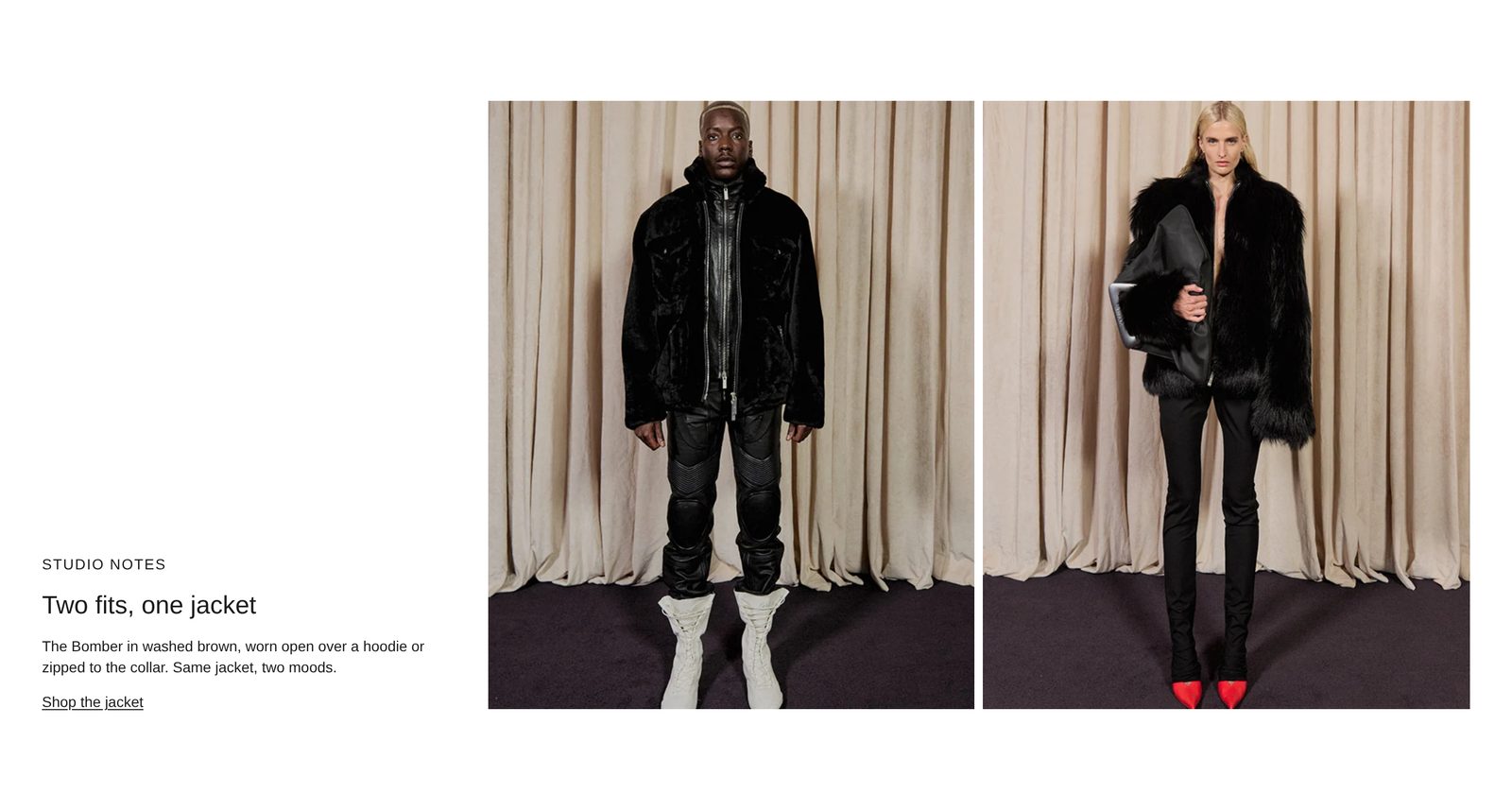
A narrow column of words on the left, sitting at the bottom, beside two tall photos side by side. Use it to show two looks of one piece, with a label, a heading, a few words and a link to it.
Add it
It can go on any page. In "Add section", find Image with text: Pair under Images. It is a ready-made Section, so it has all of that section's settings.
The blocks it starts with
- Group for the words, 30% of the width (Width on desktop Custom), with its blocks at the bottom, holding:
- Text in Style Uppercase: "Studio notes".
- Text in Style Heading 3: "Two fits, one jacket".
- Text in Style Body: the paragraph.
- Button in Style Link: "Shop the jacket", leading to all your products.
- Group for the photos, 70% of the width, a row (Direction Horizontal, Space between blocks Small) holding two Image blocks at Width Full width and Shape Portrait.
Choose both photos, write your own words, and point the Button at the product in its Link.
As first added
- Direction: Horizontal, with Stack on mobile on. Vertical alignment: Stretch, so the words' column is as tall as the photos.
- Gap: Large. Space above and Space below: Large.
On phones
The words come first, then the two photos, one under the other, each the full width of the screen.
Tips
- Use two photos of the same piece from different sides, or worn two ways. Both are cropped to the same portrait shape.
- To put the words on the right, move the photos' Group above the words' Group.
- Keep the paragraph short. The words' column is narrow, and a long paragraph grows taller than the photos.
Settings
All settings are the general section's: see Section.