Password page for drops
While your store is locked, visitors see one full-screen photo or video with the drop's name, a countdown and a field to leave their email.
While your store has a password, every visitor lands on this page instead of your shop. Plain Jane builds it from one section, Drops: Full screen: a photo or video fills the screen, your logo and an Enter store link sit across the top, the drop's name and a countdown sit on the photo, and a short description and an email field sit across the bottom. There is no header or footer.
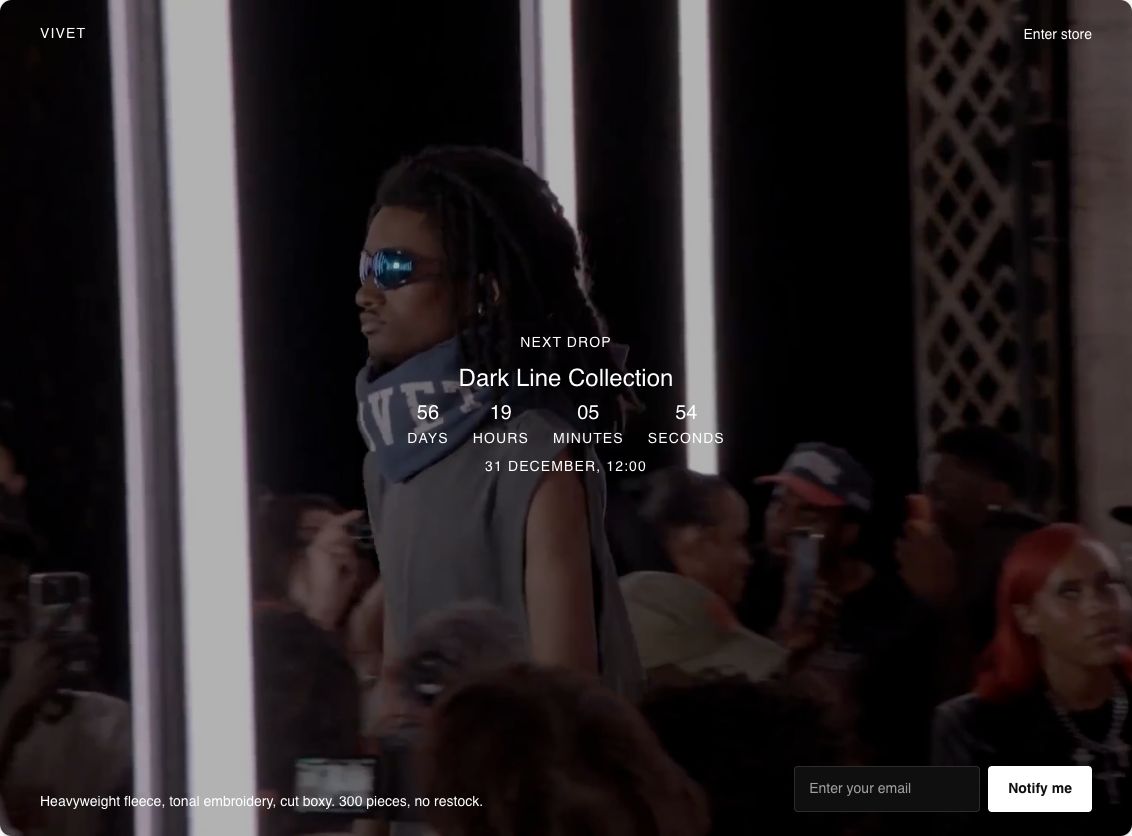
When shoppers see this page
Shoppers only see it while your online store is password protected. Turn the password on in your Shopify admin, in your online store's preferences, where you also choose the password. Anyone with the password can still get in through Enter store. Any message you write for the password page in Shopify admin does not show here: write your words in the editor.
The page does not unlock your store by itself. When the drop goes live, turn the password off in the same place.
Edit it
Open the password page from the page picker at the top of the editor. The page has one section, Drops: Full screen, with three areas inside it, always in this order: Top bar, Drop details and Bottom bar. Each area takes any block, so you can add, remove and reorder what is in them.
| Area | What it holds to start |
|---|---|
| Top bar | A Logo block on the left and an Enter store button on the right. Without a logo in Theme settings, your store name shows. |
| Drop details | A small line of text ("Next drop"), the drop's name, a Countdown and the date written out ("31 December, 12:00"). |
| Bottom bar | A Description and an Email signup whose button reads "Notify me". |
You can also add Drops: Full screen to any other page from "Add section", under Launches & drops.
What you need
- One photo or video that reads well behind words. Until you pick one, a stand-in drawing shows, on the live page too.
- The drop's date and time, set once in the countdown and once in the date text.
Settings
Select Drops: Full screen to see these.
| Setting | What it changes | Options |
|---|---|---|
| Color scheme | The colors of the words, the buttons and the background behind the photo. See shared settings. | Any of your schemes. Starts at Scheme 2. |
| Layout | Where the drop's details sit on the photo, between the top and bottom bars. | Center (default), Top left, Left, Bottom left, Top right, Right, Bottom right |
Media
| Setting | What it changes | Options |
|---|---|---|
| Type | Whether the background is a photo or a video. | Image (default), Video |
| Image | The photo. It fills the screen and is cropped to fit. Shows when Type is Image. | Any picture |
| Video | The video. It plays muted and on a loop, with no controls. Shows when Type is Video. | Any video. Use MP4. |
Overlay
| Setting | What it changes | Options |
|---|---|---|
| Strength | Darkens the photo so the words on it stay easy to read. | None, Light, Medium (default), Dark |
| Overlay color | The color laid over the photo. Hidden when Strength is None. | Any color. Default: black. |
The countdown
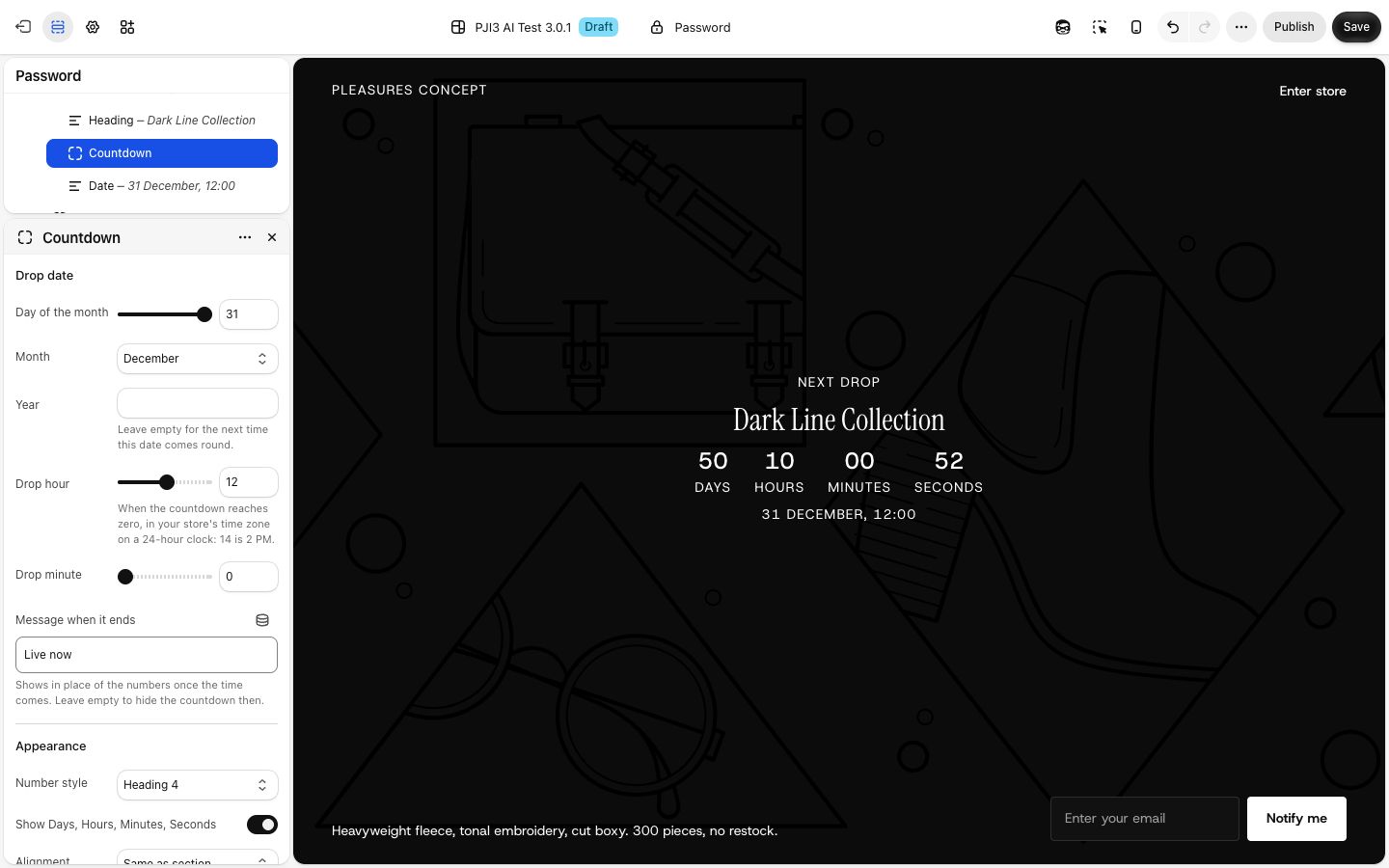
The Countdown block counts down days, hours, minutes and seconds to a moment you set, in your store's time zone.
| Setting | What it changes | Options |
|---|---|---|
| Day of the month, Month | The day of the drop. | 1 to 31, January to December. Default: 31 December. |
| Year | The year of the drop. Empty means the next time that day comes round. | Any year, or empty (default) |
| Drop hour, Drop minute | The time, on a 24-hour clock: 14 is 2 PM. | 0 to 23; 0 to 55 in steps of 5. Default: 12:00. |
| Message when it ends | Shows in place of the numbers when the time comes. Empty hides the countdown then. | Default: "Live now" |
| Number style | The size of the numbers, from your heading styles. | Heading 1 to Heading 6. Default: Heading 4. |
You can also turn off Show Days, Hours, Minutes, Seconds and set Alignment. The date written under the countdown is an ordinary text block. Change it by hand when you change the countdown.
Enter store and email signup
Enter store button shows only on the password page and in the editor. Clicking it opens a small box with a password field and an Enter button. A wrong password reloads the page with the box open and "That password didn't work. Please try again." Select the block to change its Label (empty reads "Enter store"), its Style (Link to start; Primary, Secondary or Glass) and the Password box color scheme.
Email signup adds each address to your customers in Shopify, tagged "newsletter". After signing up, the shopper sees "Thank you for subscribing!", or your own words in Success message. Here it starts with Width set to Compact, so the field is only as wide as it needs to be.
On phones
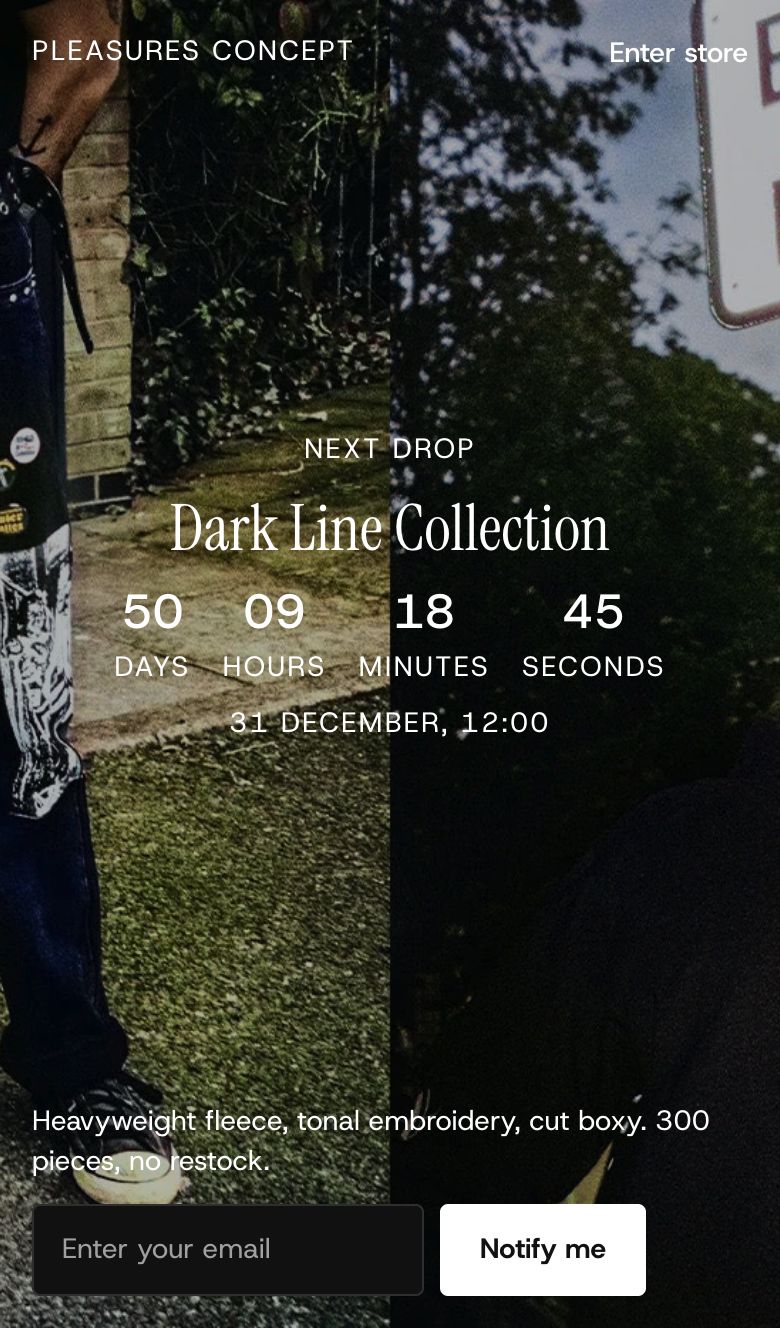
The page still fills the screen. The description sits above the email field instead of beside it, and the space around the edges is a little smaller.
When the drop opens
When the countdown reaches zero, shoppers who have the page open see the numbers change to your Message when it ends, without reloading. If you cleared that message, the countdown disappears. Your store stays locked until you turn the password off.
Tips
- Set Year. With it empty, anyone who opens the page after the drop sees a countdown to the same day next year instead of "Live now".
- Pick a photo with a calm area where the drop's details sit, or raise Strength to Dark.
- Use Success message to tell shoppers when you will email them, so they know what they signed up for.
Good to know
- A day the month does not have (31 November) is never reached. The editor shows a note in place of the countdown, and shoppers see nothing.
- The video stops when it is off screen or the tab is hidden. Shoppers who turn on Reduce Motion on their device see the video's preview picture instead.
Related
- Shared settings: Color scheme.
- Theme settings: Logo, which the Logo block shows.
- Email signup