Gallery: Floating
Photos drift slowly around the section and bounce off its edges; pointing at one stops it, and each can link to a product or a page.
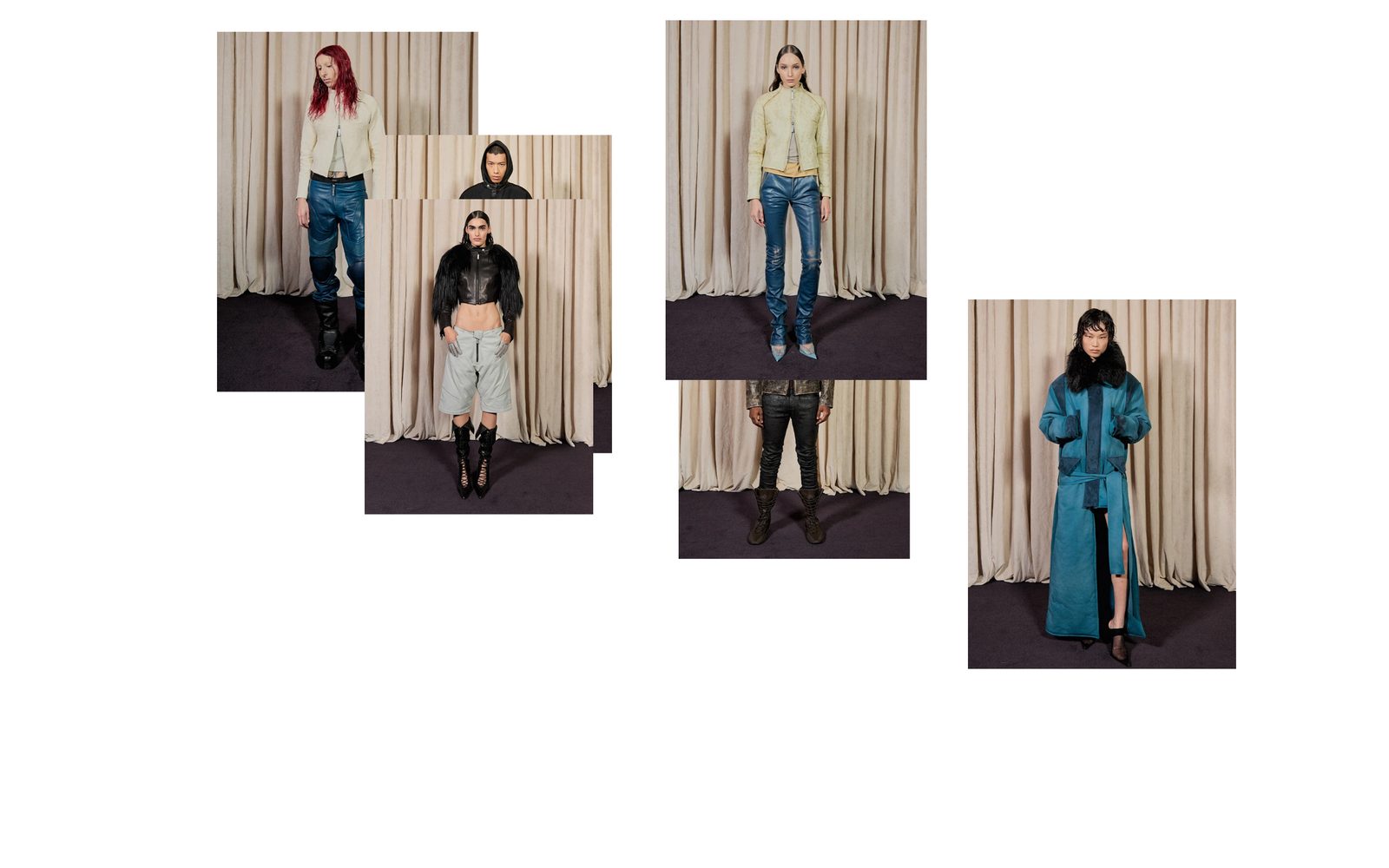
A handful of photos float around the section on their own, crossing each other and bouncing off the edges, like pictures pinned loosely to a board. A visitor who points at one stops it and brings it to the front. Each photo can open a product or any page.
Choose it for a playful opening to a page, or to show a few products in a way that invites a visitor to chase them.
Add it
It can go on any page except the password page, and not in the header or footer. In "Add section", find Gallery: Floating under Slideshows & galleries.
As first added it fills the screen and has six photos showing placeholder pictures, with no links.
What you need
- Four to eight photos. You can add up to 16, but the field gets crowded.
- Photos of any shape. Each keeps its own shape; very tall or very wide ones are held to a moderate shape so they do not take over.
- Or products: a photo that links to a product uses the product's main photo when you leave Image empty.
Settings
Select the section itself to see these.
| Setting | What it changes | Options |
|---|---|---|
| Color scheme | The background, and the colors of the button on a linked photo. See shared settings. | Default: Scheme 1. |
| Height | How tall the field the photos move in is. Medium is about two thirds of the screen, Large about four fifths. | Medium, Large, Full screen. Default: Full screen. |
| Space above, Space below | Empty space above and below. See shared settings. | Default here: None. |
| Photo size | How big the photos are. Each photo is a little bigger or smaller than this, so they do not all match. | Small, Medium, Large. Default: Medium. |
| Speed | How fast the photos drift. | Slow, Medium, Fast. Default: Medium. |
| Background | A picture or a video behind the photos, filling the section. With None, the section shows its color scheme. | None, Image, Video. Default: None. |
| Image or Video | The background picture or video. Appears when Background is Image or Video. | |
| Button label | The word on the button that shows on a linked photo. | Text. Default: "View". |
With Space above at None (or Custom at 0), the section, when it is first on the page, starts at the very top, under a header that sits over the page, and keeps the photos clear of it.
Blocks
Photo
One floating photo. Add, move or remove up to 16. Where each one starts, how fast it moves and its exact size are set by Plain Jane, so every photo moves differently and keeps its place from visit to visit.
| Setting | What it changes | Options |
|---|---|---|
| Image | The photo. Leave it empty to use the linked product's main photo. | |
| Link to | What a click on the photo opens. | None, Product, Link. Default: Product. |
| Product | The product the photo opens, and whose main photo shows when Image is empty. Only used when Link to is Product. | Any product. |
| Link | The page the photo opens. Only appears when Link to is Link. | Any link. |
A linked photo shows its button when a visitor points at it on a computer, when they tab to it, and when a phone visitor taps it.
On phones
Photos are larger compared to the screen. There is no pointing, so the first tap on a photo brings it to the middle of the section and shows its button; a second tap opens the link. A tap anywhere else sends it back to drifting.
Tips
- Mix close-ups and wider shots. Photos of very different shapes look most like a collage.
- If you use a background picture, keep it quiet: a plain wall or fabric lets the floating photos stand out.
- Keep Button label to one short word, such as "View" or "Shop".
- With more than eight photos, choose Small for Photo size so they overlap less.
Good to know
- There is no pause button. Pointing at, tabbing to or tapping a photo is how a visitor stops it.
- Visitors who have asked their device to reduce motion see the photos still, scattered across the section.
- The photos and any background video stop moving while the section is off screen.
- A photo set to link to a product but with no product chosen has no link.
- In the editor, selecting a photo brings it to the middle and holds it there while you edit it.