5. Setting Up Password Pages and Email Waitlist
Lock your store for a drop with a full-screen photo or video, a countdown and an email field.
While your store has a password, every visitor lands on one page instead of your shop: a full-screen photo or video, your logo, an Enter store link, the drop's name, a countdown and an email field. It is built from one section, Drops: Full screen.
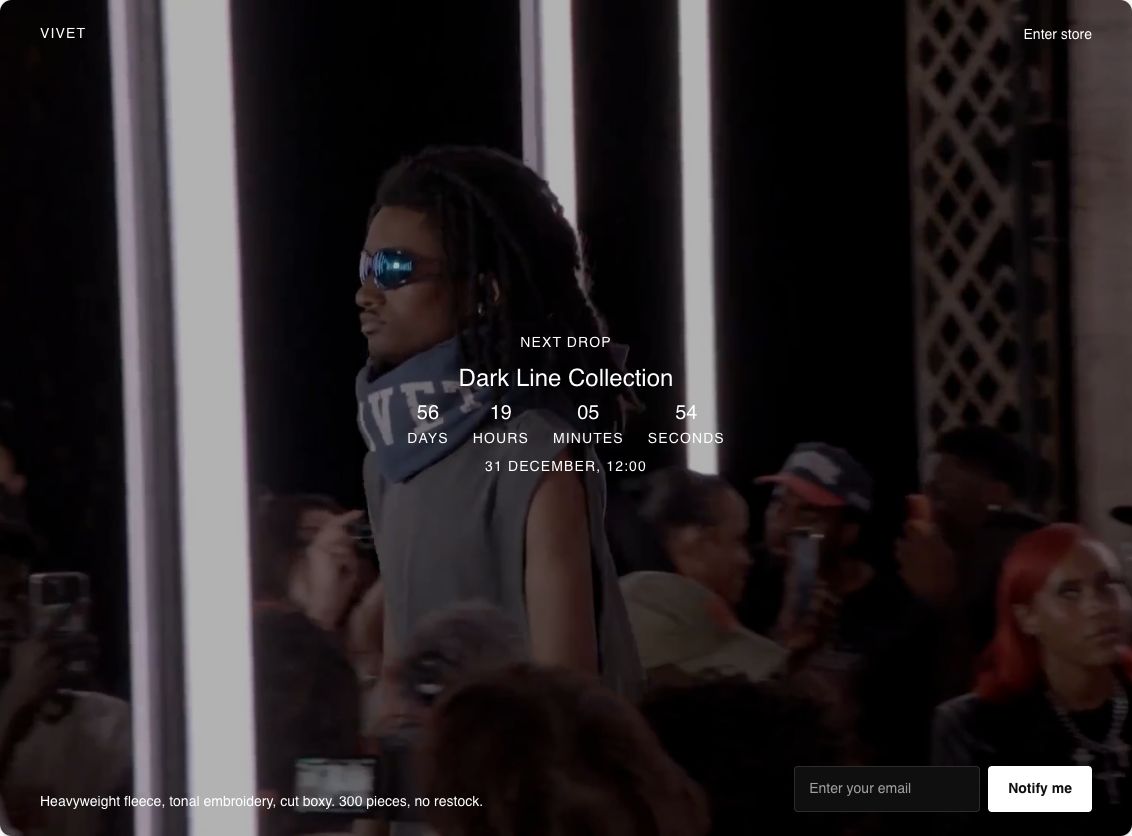
Set it up
- In your Shopify admin, turn on the password in your online store's preferences, and choose the password.
- Open the password page from the page picker at the top of the editor.
- Pick a photo or video that reads well behind words.
- Set the countdown's day, month, Year and time. Change the date text by hand to match.
- Check the email signup. Each address is added to your customers in Shopify, tagged "newsletter".
- When the drop goes live, turn the password off in Shopify admin. The page does not unlock your store by itself.
Every setting is covered on Password page for drops. See also Email signup.