Add a preloader or splash page
Greet visitors with a short animation while a page opens, or with a full-screen entry page they step through into your store.
A preloader covers a page for a few seconds while it opens, plays a short animation of your logo or photos, and fades away by itself. A splash page covers the page with your logo, menu and an Enter link, and stays until the visitor enters. You can use one of each on the same page: the preloader plays first, then the splash page appears.
Add a preloader
- Open the page you want it on in the editor, usually your home page.
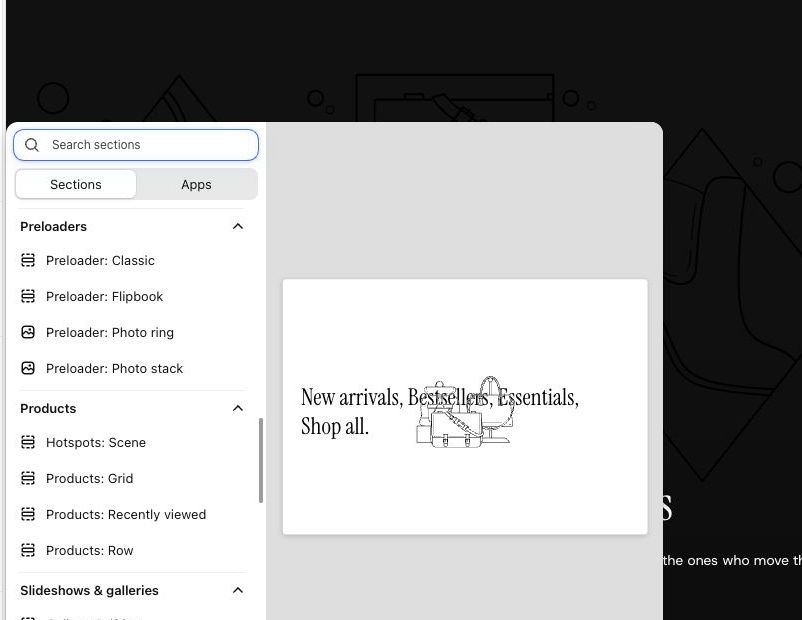
- Choose "Add section" and look under Preloaders. Pick a style (see below). Its place in the list of sections does not matter: it always covers the whole screen.
- Select the section. The preloader plays in the preview, then fades. It stays hidden while the section is not selected.
- Add your photos. For styles with photos, select each Frame block and choose an Image. Frames play in list order and end on the last one, so put the photo you want visitors to see last at the bottom. A frame with no photo is skipped on your store.
- Choose a Color scheme for the background and a Speed: Slow, Medium (default) or Fast.
- Save, then open your store in a new tab to watch it as a visitor would.
Use one preloader per page. A second one would either play over the first or not play at all.
The preloader styles
Preloader: Classic. Your logo fades in on a plain background, holds, and fades into the page. It uses the logo from Theme settings, or your store name if you have none. Add a Text block for a line of words (up to three blocks). No photos needed.
Preloader: Photo stack. Your photos drop one by one into a loose pile in the middle of the screen, then the last one straightens and grows to fill the screen, holds, and fades into the page. It starts with four frames and a "Welcome" line near the bottom; clear the line's text if you want photos only. Up to eight frames.
Preloader: Photo ring. Round photos come in one by one around a ring, then the last one glides to the middle and grows to fill the screen. Set Ending to Fade out to have the whole ring fade away instead. It starts with six frames and has no text. Up to eight frames.
Preloader: Flipbook. Full-screen photos flip past quickly, slow down, and land on the last one, with a "Welcome" line in the middle. Up to twelve frames. Use photos of similar brightness: quick jumps between light and dark can be uncomfortable for some visitors.
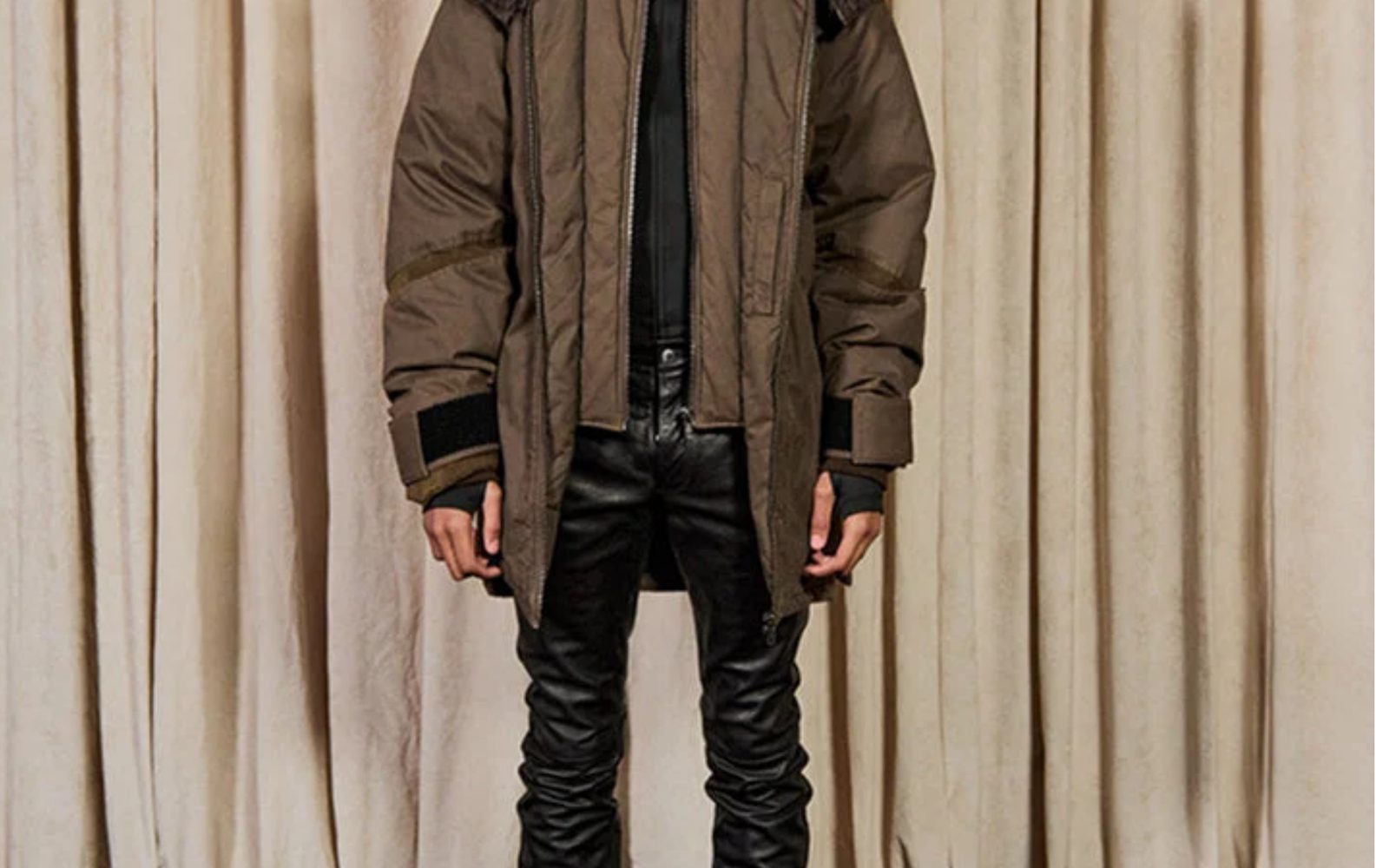
Photos from one shoot, with similar light, read as one story. Make the last photo the strongest: in Photo stack, Photo ring and Flipbook it ends up filling the screen.
How preloaders behave
- Show once per visit is on to start. A visitor sees a preloader the first time they open a page with one, and not again until their next visit, even on other pages that have one. Turn it off and it plays every time the page opens.
- It never waits long. It waits for its own photos, never more than about two and a half seconds, then plays its short run and fades. If a photo is slow, the run starts with the ones that have arrived.
- Visitors can skip it. Any click, tap or key press fades it straight away.
- Reduce Motion. Visitors who turn on Reduce Motion on their device never see a preloader. The page opens as usual.
- Motion in Theme settings, under Animations, changes its pace too: Calm slows it down.
Preloaders and page transitions
A page transition is set once for the whole store, with Page transition in Theme settings under Animations. It plays each time a visitor moves between pages, and the next page shows the moment it is ready. A preloader is a section on one page, with its own photos or logo, and plays when that page opens. You can use both.
Add a splash page
- Open the page you want it on in the editor, usually your home page. A splash page can go on any page except the password page.
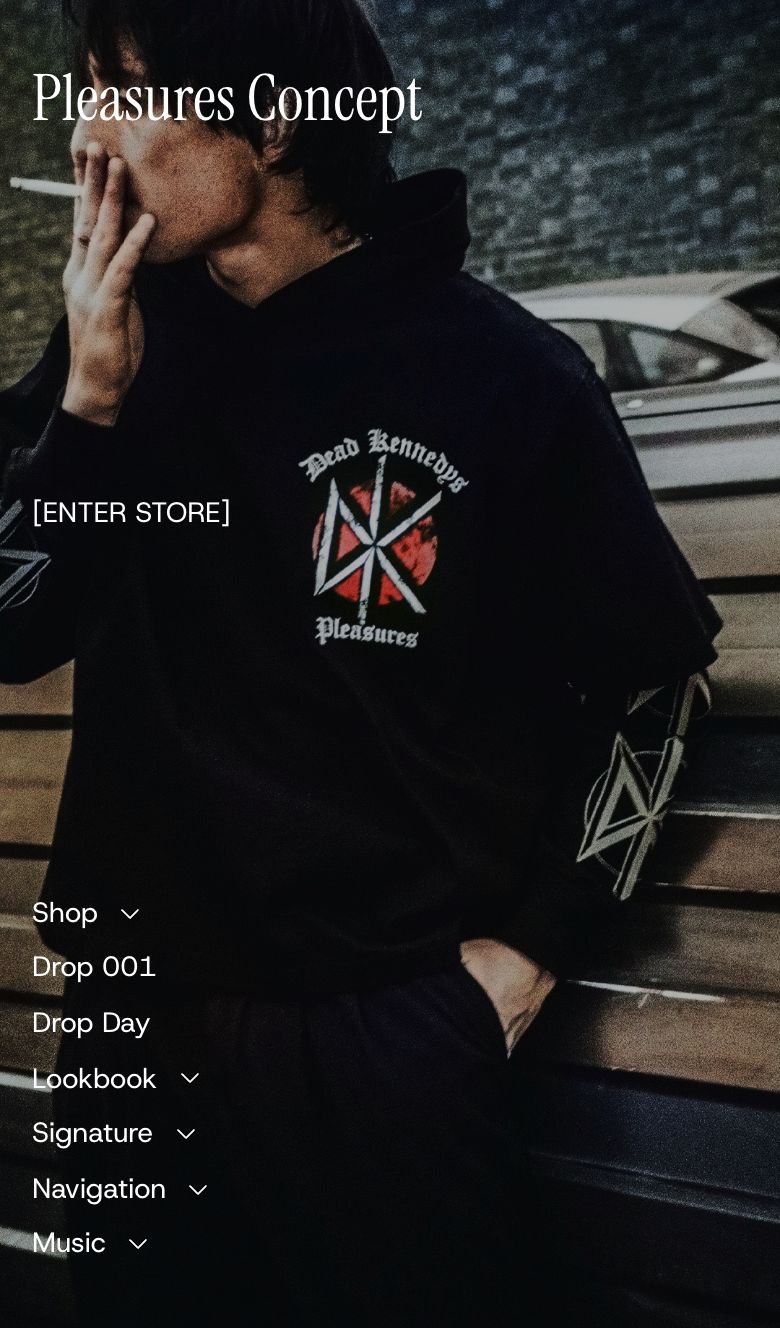
- Choose "Add section" and look under Splash pages. Pick Splash page: Centered, Splash page: Side aligned or Splash page: Depth.
- Select the section. The splash page shows in the preview while it or one of its blocks is selected.
- Choose the background. In Centered and Side aligned, set the background Style to Slideshow (up to three photos that fade one into the next), Image, Video or Solid color. The preset starts on Image. In Depth, pick the Image. Add a Phone image if you want a different picture on phones. If words are hard to read over the photo, raise the overlay Strength.
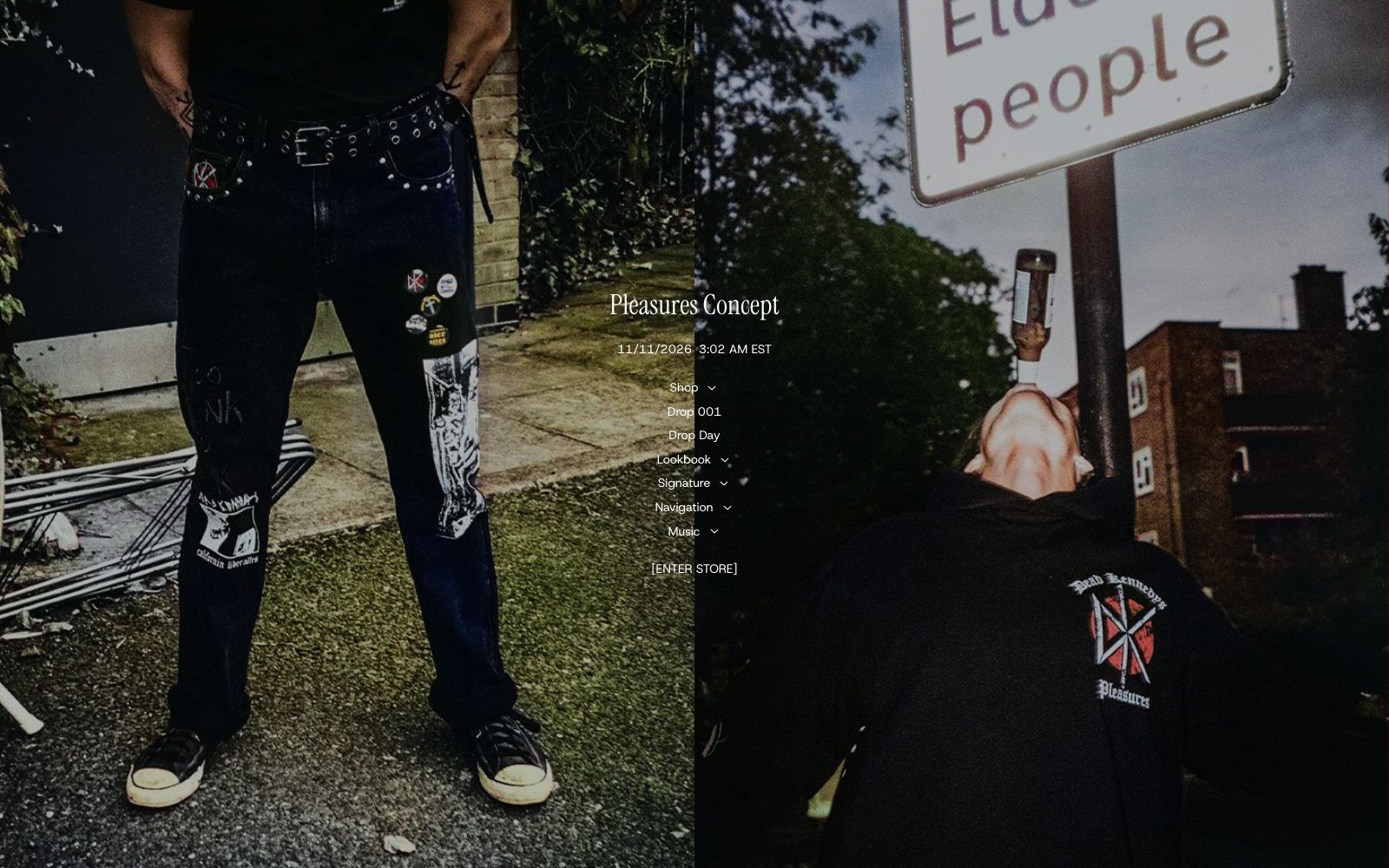
- Check the blocks. Each style starts with a Logo, a Menu (your main menu) and an Enter link, whose Text starts as "[ENTER STORE]". Centered and Depth add a Clock. You can add others, such as Email signup or Countdown.
- Save, then open your store in a new tab.
The splash page styles
Splash page: Centered. Everything sits in one column in the middle of the screen. Content vertical position sets how far down it starts: Top, Upper (default) or Middle.
Splash page: Side aligned. The logo sits at the top, the Enter link in the middle and the menu at the bottom, down one side of the screen. Horizontal position chooses Left (default) or Right.
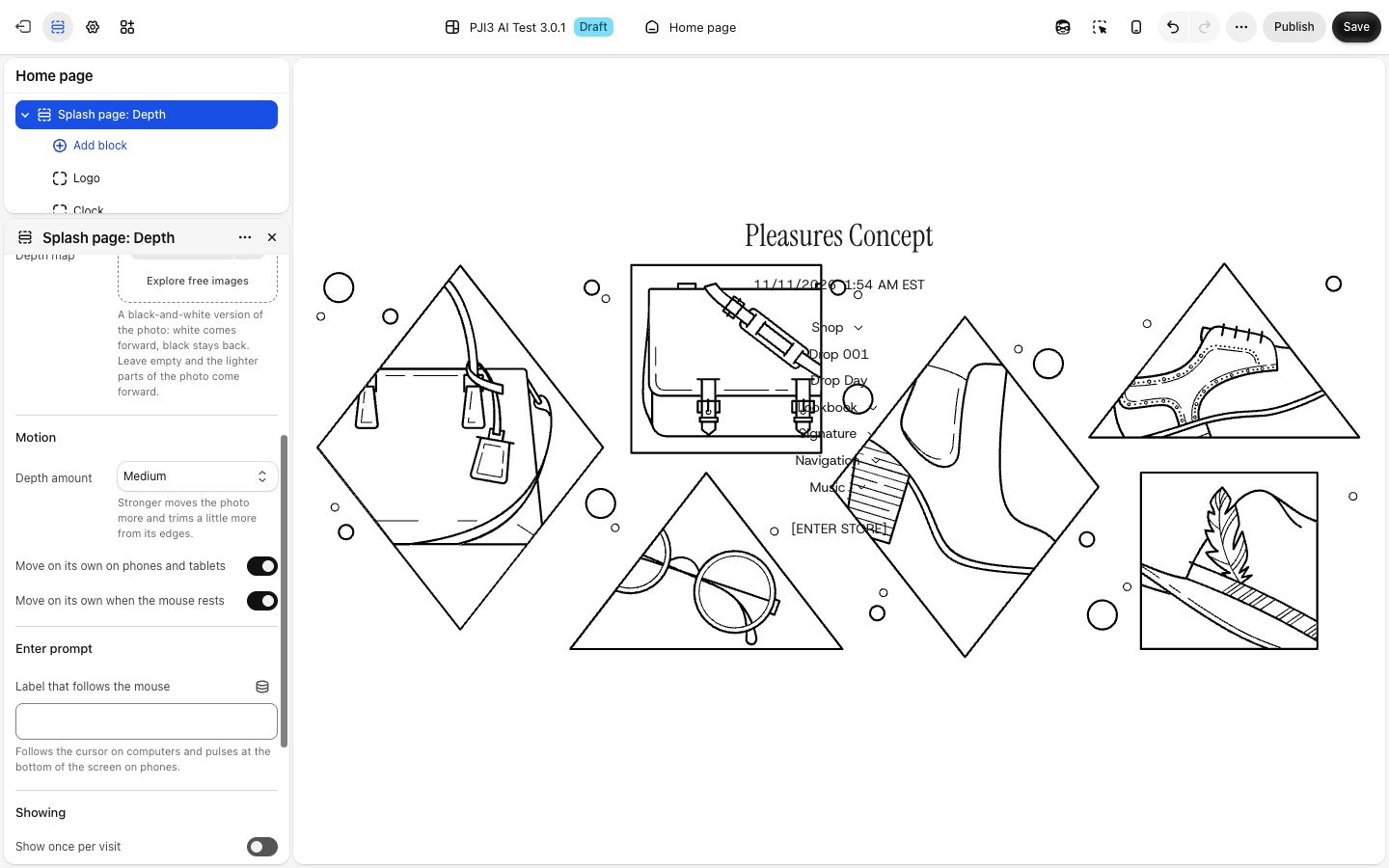
Splash page: Depth. The same centered column over one photo that moves gently in depth with the mouse, and by itself on phones and when the mouse rests. A Depth map (a black-and-white copy of the photo, white coming forward) gives the best effect; without one, the lighter parts come forward. Until you pick an Image, a stand-in drawing shows. Label that follows the mouse is empty to start; type a word such as "Enter" to have it follow the cursor on computers and pulse at the bottom of the screen on phones.
How splash pages behave
- It shows every time the page opens to start. Turn on Show once per visit so a visitor who has entered does not see it again until their next visit.
- Ways in: the Enter link, any link on it (a menu link goes straight to that page), or the Esc key. Depth also enters on a tap anywhere away from its links. Remove the Enter link from Centered or Side aligned and a tap anywhere enters, so nobody is stuck.
- Entering fades it away and shows the page under it, with no reload.
- Reduce Motion. A slideshow stays on its first photo, a video holds still, and the Depth photo stays still.