FAQ page
A heading over a list of questions that open to show their answers.
The FAQ page lists your questions one under the other, with a line between them. Shoppers click a question to open its answer, and can have several open at once. Plain Jane starts it with five common questions about delivery, returns, sizing, care and shipping abroad, so you only need to change the words.
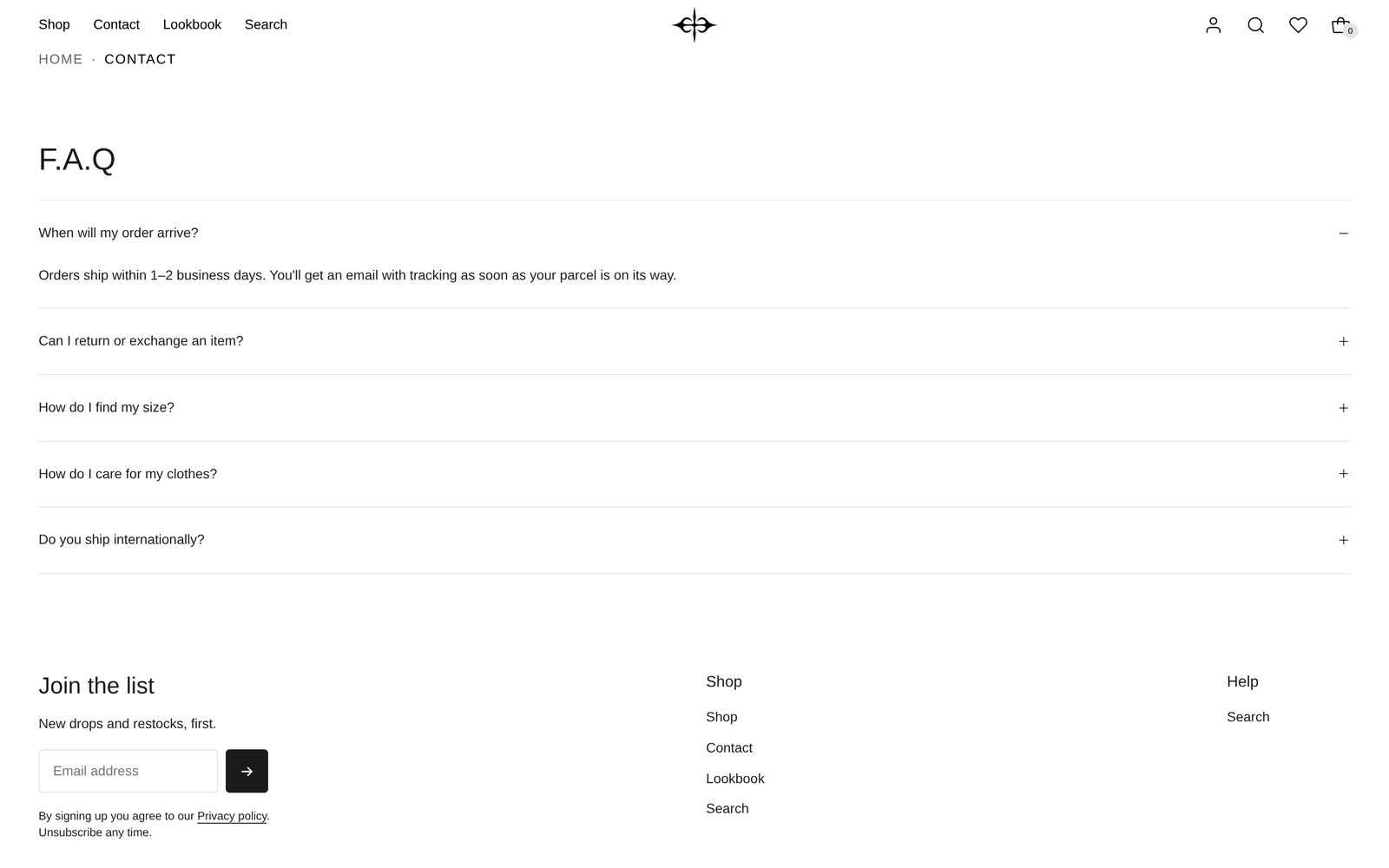
When shoppers see this page
Plain Jane gives you the page's design as a template called faq. Shoppers see it on any page in your store that uses that template.
- In your Shopify admin, add a page under your online store's pages. Call it "FAQ", or whatever you like.
- Choose faq as its theme template, and save.
- Add the page to your menu, or link to it from your footer.
The words you type into the page's content box in Shopify admin do not show on this page. Write the questions in the editor instead.
The same FAQ section can also go on any other page, such as a product page or your home page. Find it under "Add section", in Text.
Edit it
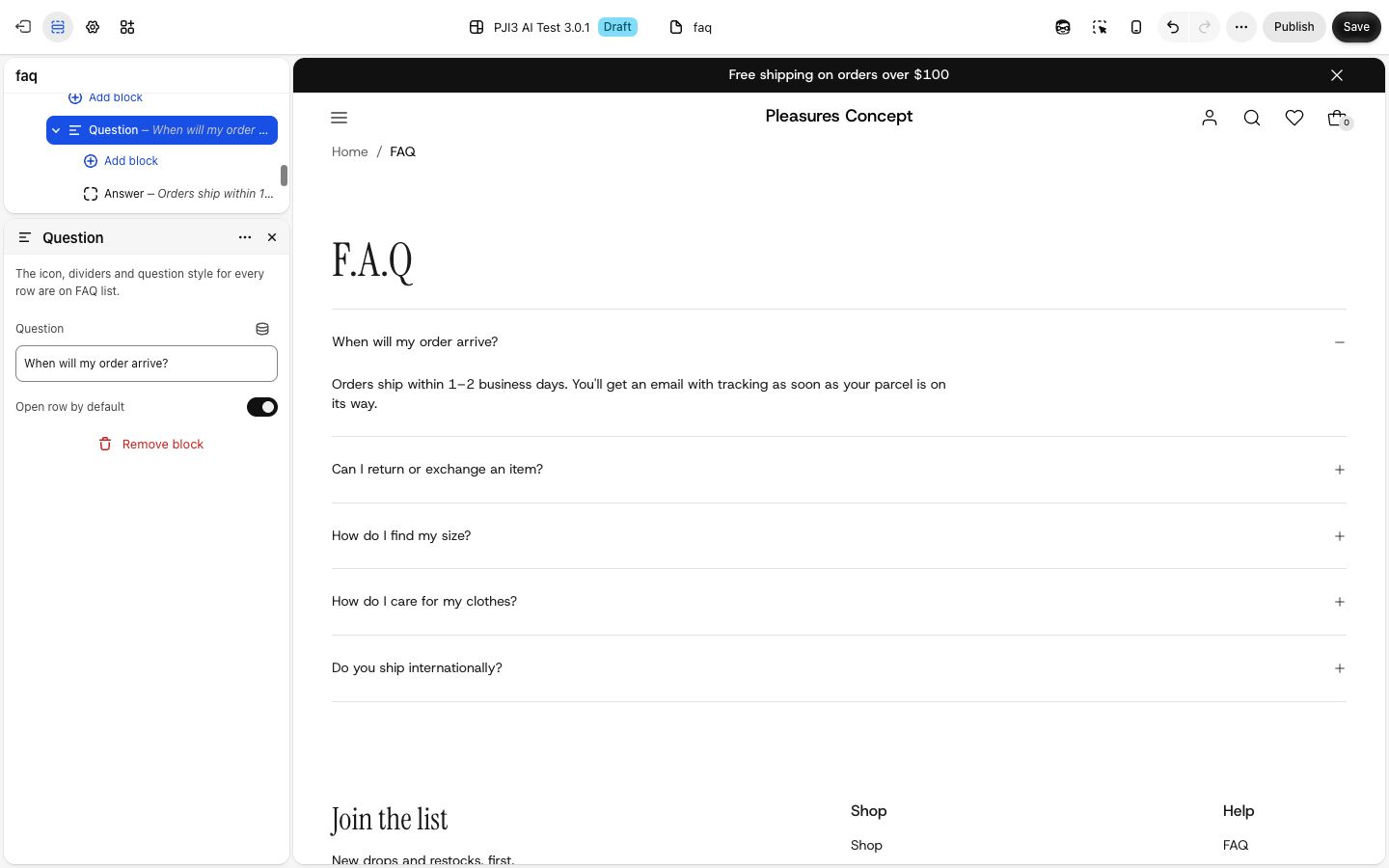
Open your FAQ page in the editor. The page has one section, FAQ, with two parts inside it: Heading with button at the top (it starts with only a heading, "F.A.Q") and the FAQ list. Change the words in the Heading block inside Heading with button. Select Heading with button itself to move the heading with Position (Left to start, Center, Right or Spread across the row) or add a button beside it, such as a link to your contact page.
Settings
| Setting | What it changes | Options |
|---|---|---|
| Color scheme | The colors of the page. See shared settings. | Any of your schemes |
| Width | How wide the list runs. Narrow keeps long answers at a comfortable line length. | Narrow, Page width (default) |
| Space above, Space below | See shared settings. | The page starts at Medium. |
Blocks
FAQ list sets the look of every question at once:
| Setting | What it changes | Options |
|---|---|---|
| Icon | The mark beside each question that shows it opens. | Plus (default), Caret (a small arrow) |
| Show dividers | A line between questions. | On (default) |
| Style | The size of every question, from your type styles in Theme settings. | Body (default), Heading 1 to Heading 6 |
Question is one row. Type the question in Question, and turn on Open row by default to have it open when the page loads (the first one starts open). Add, remove or drag questions inside the FAQ list.
Answer sits inside each Question and holds the answer's text. It can have bold, italics and links. You can add more than one Answer to a question, and app blocks too.
Tips
- Keep each question to one line on a phone. Short questions are easier to scan.
- Set Width to Narrow if your answers run to more than a few lines.
- Link to your returns or shipping policy from an answer instead of repeating it.
Good to know
- A question with no words is left off the live store, though you still see it in the editor.
- Questions glide open and shut, at the pace set by Motion in Theme settings.