Collect emails with a popup
Ask new visitors for their email in a popup, choose when it shows, and find the signups in Shopify.
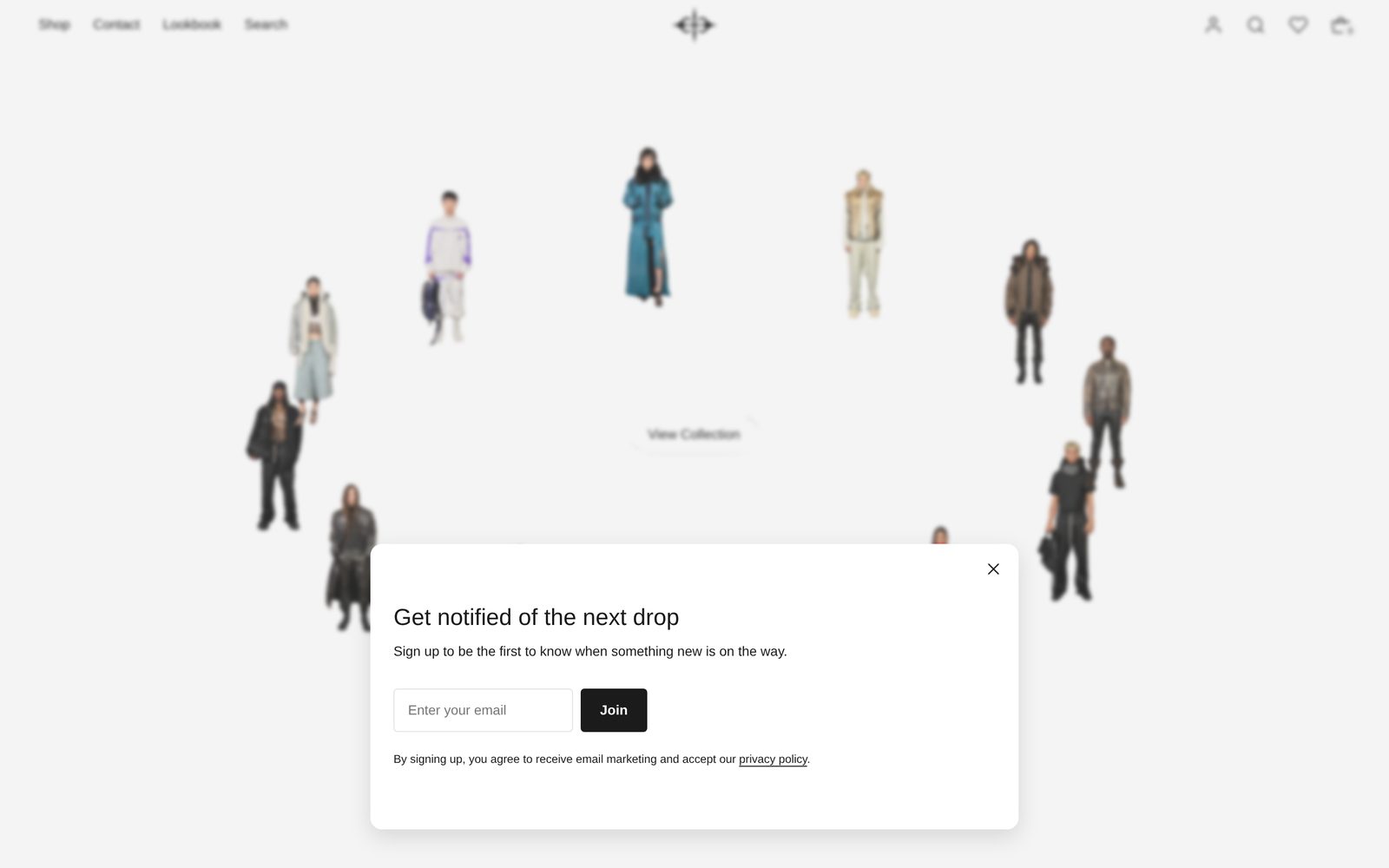
Popup: Email signup asks visitors for their email address in a card over the page. Each visitor sees it once. After they sign up, it thanks them and closes by itself.
For a form that stays on the page, use the Email signup section or block (below). All of them send signups to the same place.
Set it up
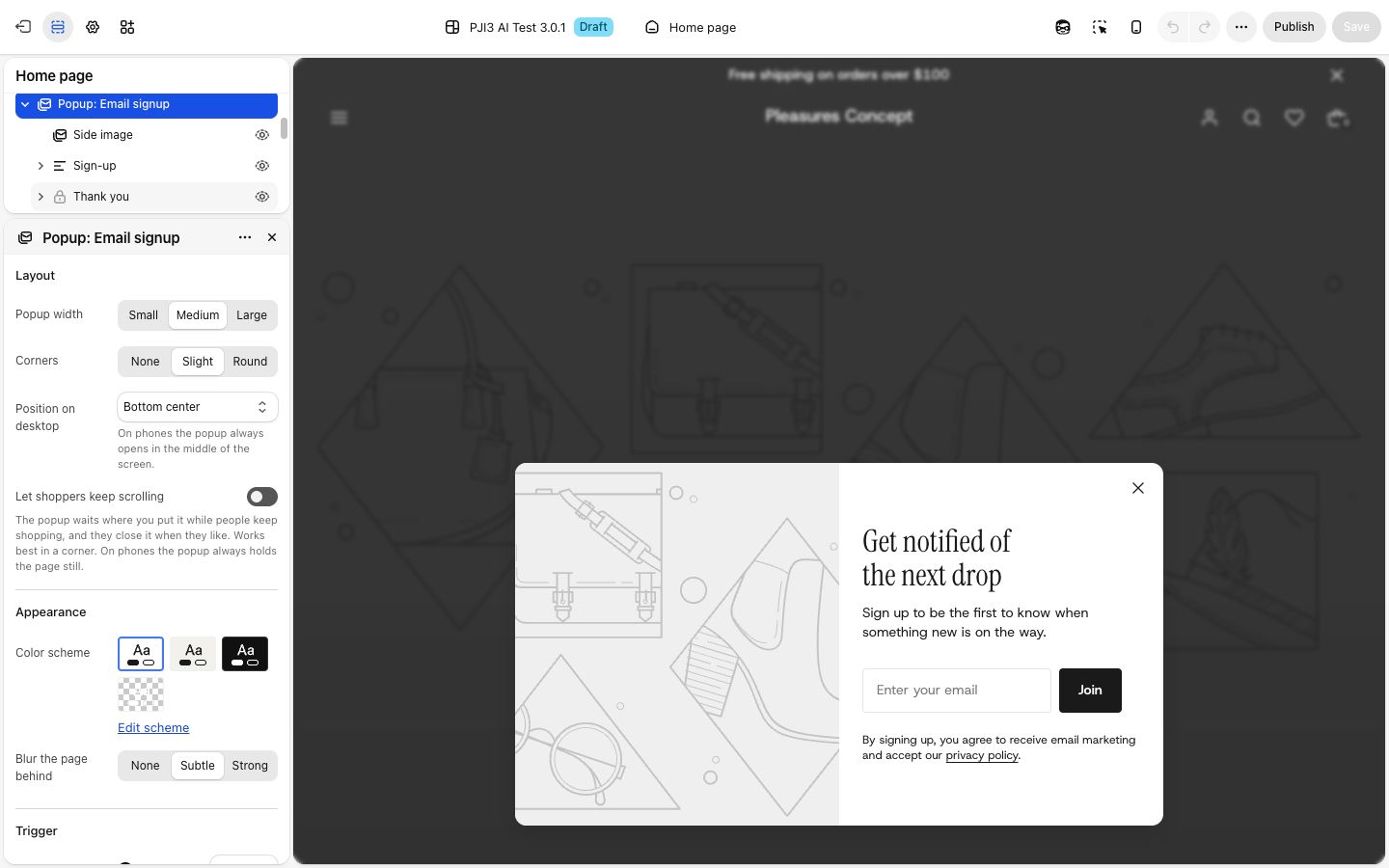
- Find the popup. Your store starts with Popup: Email signup in the Overlays group of the editor's sidebar, with the cart and the menu.
- Select it. The popup opens in the preview and stays open while you work on it.
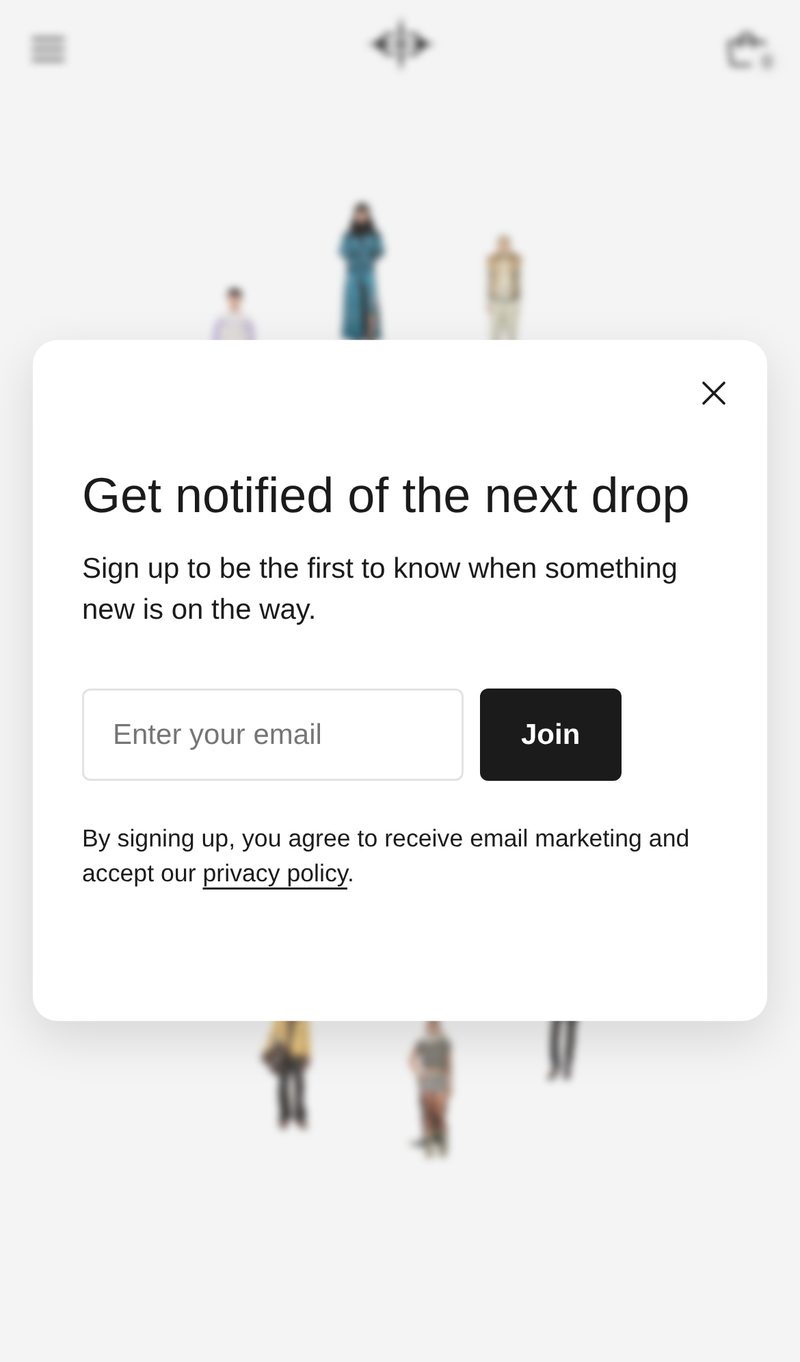
- Write your words. Open the Sign-up part and change the Heading ("Get notified of the next drop"), the Description and the Small print, which links to your privacy policy. In the Email signup block, change Placeholder and Button label ("Join").
- Add a picture, if you like. Open Side image and choose one. It fills one side of the popup on computers and is hidden on phones. Without one, the popup is a single column.
- Write the thank-you. Open Thank you and change its heading ("Thank you!") and message. Selecting anything in it switches the preview to the thank-you.
- Choose when it shows. Select the popup and set Show after (seconds), from 0 to 30.
- Save.
When it shows, and how often
- Once per visitor. The popup opens once a page has finished loading and your Show after (seconds) has passed. Once a visitor closes it or signs up, it does not come back in that browser.
- Not on top of something else. If the visitor has the cart, search or menu open when it is due, it waits for the next page.
- Closing. Visitors close it with the ×, the Escape key, or a click outside it.
- After a sign-up the page reloads and the popup opens on your thank-you. A ring around the × counts down and the popup closes by itself after about six seconds. The ring pauses while the pointer is over the popup. If you leave Thank you empty, the form stays with a short thank-you line under it.
Settings
| Setting | What it changes | Options |
|---|---|---|
| Popup width | How wide the card is. | Small, Medium (default), Large |
| Corners | How round the card's corners are. | None, Slight (default), Round |
| Position on desktop | Where the card opens on computers. Phones always show it in the middle. | Center, Top left, Top center, Top right, Bottom left, Bottom center (in your store to start), Bottom right |
| Let shoppers keep scrolling | The page stays usable with the popup open, and visitors close it when they like. Works best in a corner. Phones always hold the page still. | Off |
| Color scheme | The card's colors. See shared settings. | Any scheme |
| Blur the page behind | How much the page blurs and dims behind the card. Hidden while visitors can keep scrolling. | None, Subtle (default), Strong |
| Show after (seconds) | The wait before it opens. | 0 to 30. Starts at 0. |
| Hide on the password page | See "Good to know". | On |
Sign-up and Thank you each have Alignment, Space between items and Padding, which apply to everything in them.
Where signups go
Every signup, from the popup or any other email form in Plain Jane, goes to your Customers list in the Shopify admin. Shopify records the person as agreeing to email marketing and tags them newsletter, so you can filter for them and email them with Shopify's email tools or a connected email app. If Shopify suspects a bot, it may ask the visitor to complete a quick check on its own page first.
Test it
- In the editor, the popup never opens by itself. Select it to see the form, or select a block in Thank you to see the thank-you.
- On your store, open it in a private browser window so it counts you as a new visitor. Wait for your delay and check the popup opens where you set it.
- Sign up with an email address you can check. The page reloads onto the thank-you, which closes by itself.
- In the Shopify admin, open Customers and find that address with the
newslettertag. - To see it again, close the private window and open a new one.
Other places to collect emails
- Email signup section: a band on any page, with a heading, a description, the form and small print. Add it from "Add section", in Forms. Set Content alignment, Content width (Narrow, Medium, Wide, Page width), Color scheme, and Space above and Space below.
- Email signup block: the form alone, for the footer, Menu: Overlay and other sections. Your footer's newsletter uses it. Its Success message is the line shown after a sign-up; empty, it reads "Thank you for subscribing!". Width is Compact or Full width.
Good to know
- The popup never shows on the password page, whichever way Hide on the password page is set. That page has its own sign-up, in Drops: Full screen.
- Visitors who block site data in their browser may see the popup on every page, because their browser cannot remember that they closed it.