Blog and blog posts
How your blog's list of posts and each post's own page look, and how to show your latest posts on any other page.
Your blog has two pages: the blog page, which lists every post, and the blog post page, which shows one post in full. To show recent posts on your home page or anywhere else, add the Blog posts: Feed section.
You write posts and add their photos, tags and author in your Shopify admin, under Online Store > Blog posts. You set how they look in the editor.
When shoppers see these pages
- The blog page opens from a link to your blog, such as one in your menu. A tag on a post opens the same page showing only the posts with that tag.
- A blog post page opens when a shopper clicks a post.
The blog page
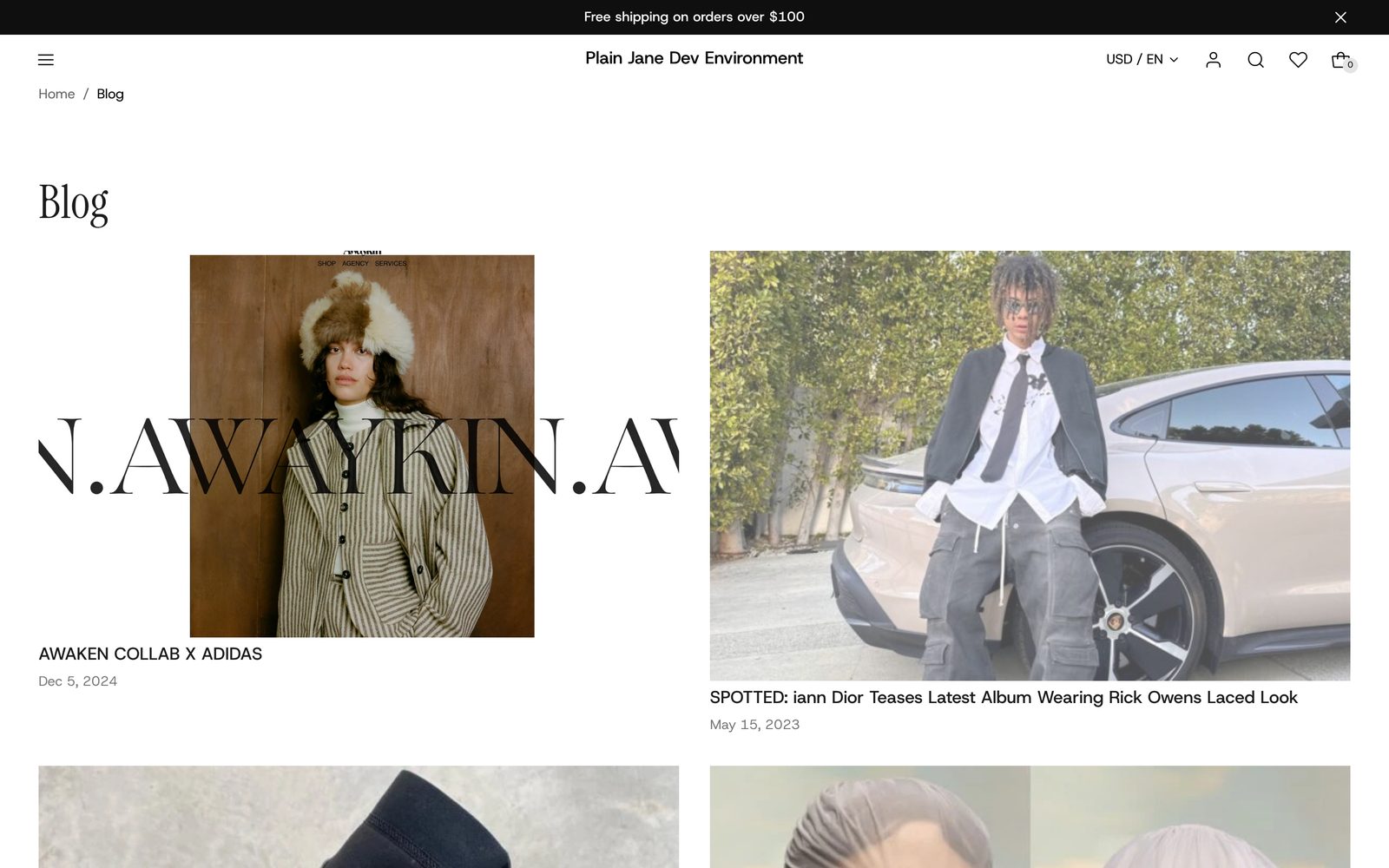
Open the blog page in the editor. Its section, Blog posts: Grid, shows every post as a card with its photo, title and date. The whole card is a link.
| Setting | What it changes | Options |
|---|---|---|
| Show blog name | Your blog's name as the heading above the posts. | On (default) or off |
| Posts per page | How many posts show before page links take over. | 6 to 48. Default: 24 |
| Fade posts in when the page opens | The first two rows fade in as the page loads. | On (default) or off |
| Arrangement | How the posts sit together on desktop (see below). | Even grid (default), First post large, Staggered, List |
| Columns | Posts per row on desktop. Hidden for List. | 1 to 4. Default: 2 |
| Width | Page width lines the posts up with your other sections; Full width runs them edge to edge. | Page width (default), Full width |
- Even grid: equal rows.
- First post large: the newest post on each page runs across the row, photo beside the words, above an even grid.
- Staggered: every second column sits a little lower, for a magazine look.
- List: one post per row, photo beside the words.
Color scheme, Space above and Space below work as described in Shared settings.
Select Post card to change every card at once. Alignment (Left, Center, Right) lines up its contents. Inside it, Photo has Corners, Post title has Style (default Heading 5), and Date has Format (default Jan 9, 2026). Hide any of the three to remove it from every card. To show an excerpt or the author, add a Text block to the card and choose what it shows with Connect dynamic source.
To put words above the posts, add a Text or Heading with button block to the section.
The blog post page
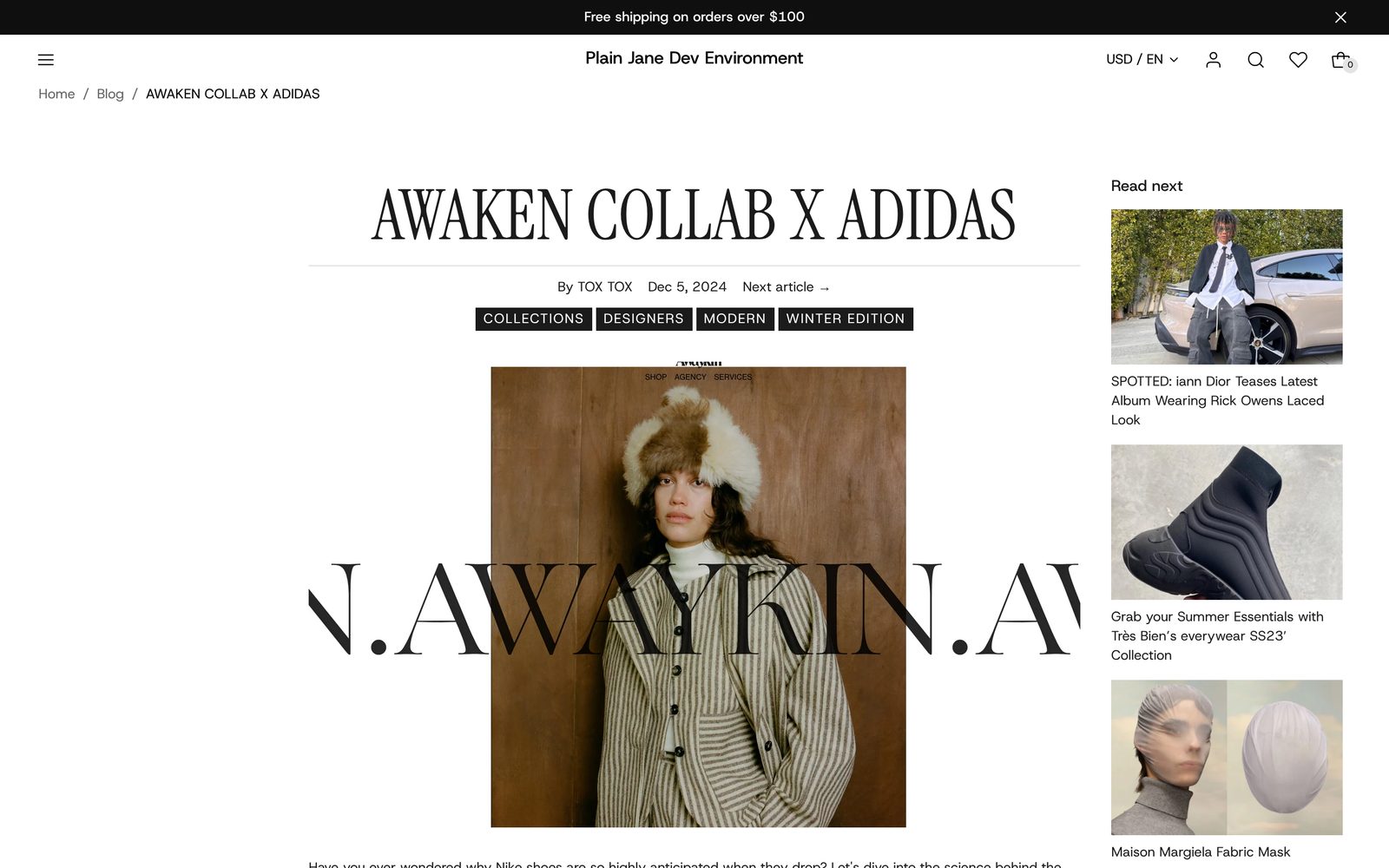
Open a blog post in the editor. Its section, Blog post, shows from top to bottom: the title, a thin line, the details, the tags, the featured image, the post text, an All articles button and Read next.
| Setting | What it changes | Options |
|---|---|---|
| Content width | How wide the title, text and blocks can grow. | Narrow, Medium (default), Wide, Page width |
| Alignment | Lines up the title, details, tags and buttons. | Left, Center (default) |
| Read next position | Read next in a column beside the post, or under it. | Beside (default), Below |
| Space between parts | Space between the title, photo, text and buttons. | Small, Medium (default), Large |
Each part is a block. Hide one to remove it.
| Block | What it shows | Settings |
|---|---|---|
| Post title | The post's title, the page's main heading. Keep it showing. | Heading style. Default: Heading 1 |
| Details | "By" and the author, the date, and a Next article link. | Show author, Show date, Date format, Show next article link. Layout: Side by side (default) or Stacked |
| Tags | The post's tags. Each opens the blog page with only the posts that have it. | None |
| Post text | What you wrote. | Alignment: Left (default) or Center |
| Back links | An All articles button back to the blog page. | Show all articles button, Style |
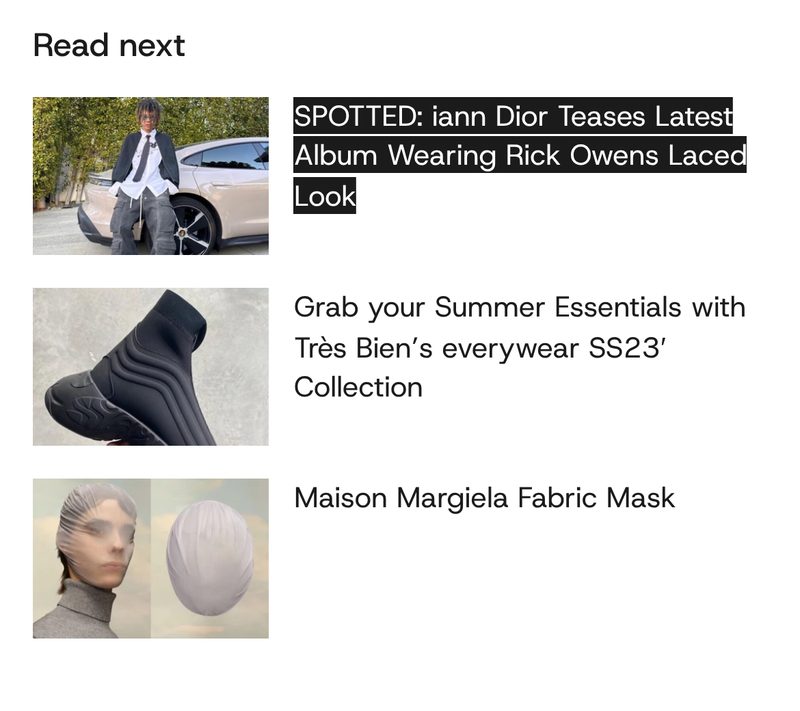
| Read next | Up to three more posts from the same blog, each a photo and title. | Corners |
Divider (the thin line) and Featured image can be hidden too. You can add your own blocks, such as an image or an email signup; they sit between the post text and the All articles button.
Comments show under the post when you turn them on for that blog in your Shopify admin, 10 at a time, with a form to leave one.
Blog posts: Feed, on any page
Blog posts: Feed lists posts as rows, like a contents page: a photo, the author and title, the date and the tags, in columns. Each row is a link to the post. Find it under Storytelling when you add a section.
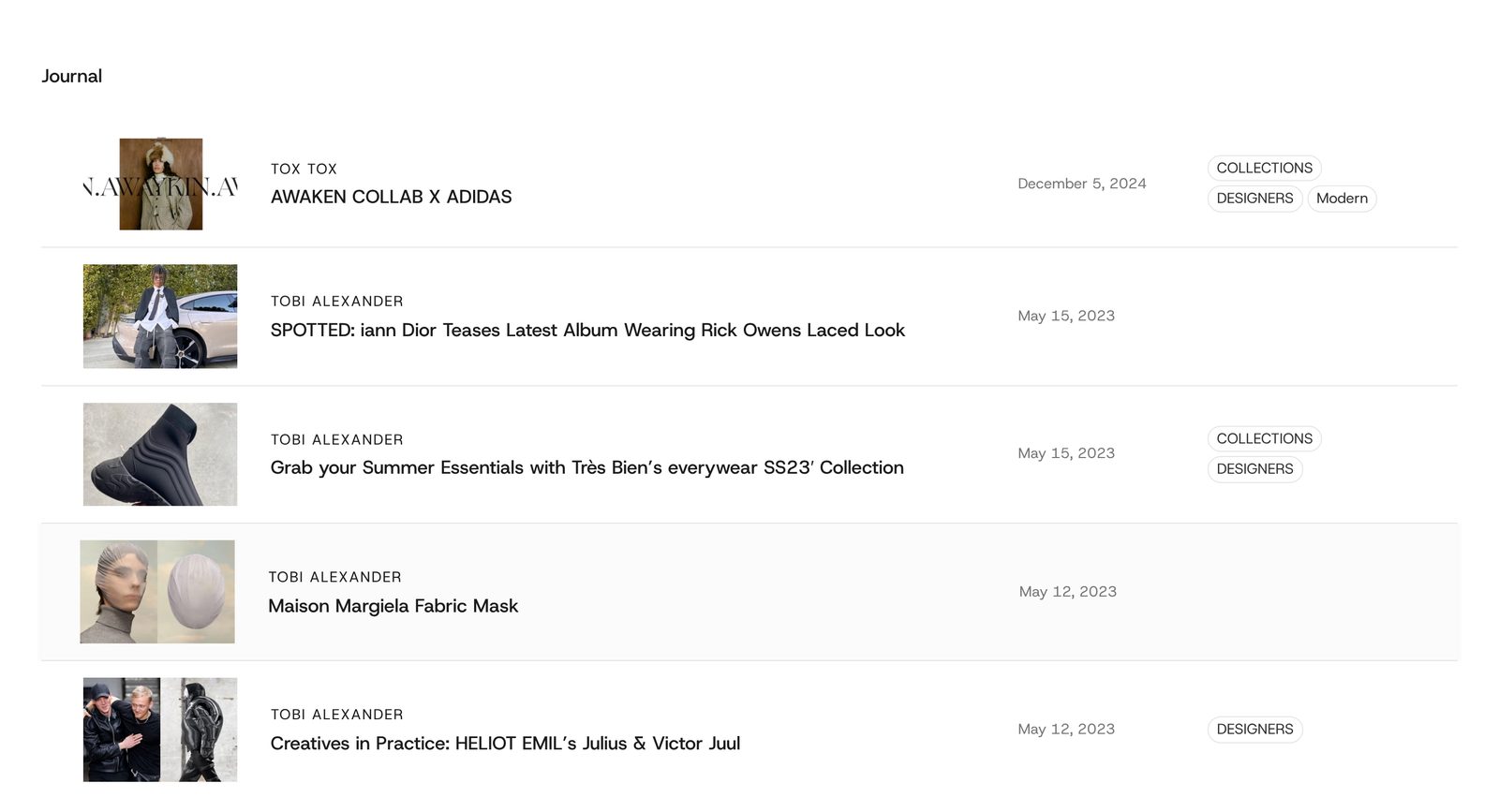
Choose a blog under Blog first. Until you do, the editor shows sample rows and your store shows nothing.
| Setting | What it changes | Options |
|---|---|---|
| Posts to show | How many of the newest posts show. | 3 to 12. Default: 6 |
| Posts to show on a phone | Fewer on phones, so the list does not bury the page. | 2 to 12. Default: 3 |
| Space below heading | Space between the heading and the first post. | None, Small, Medium, Large (default) |
Select Post row to set every row, including On a phone: Stack the columns (default) or Keep them in a row. Each column (Photo, Post title, Date, Tags) is a block: drag to reorder, remove to drop it, and set its width on the block. Select Post list for the lines between posts and Highlight a post on hover.
On phones
The blog page shows one post per row, photo on top, whatever the arrangement. On a post, Read next moves under the post. The feed stacks its columns unless you choose Keep them in a row.
Tips
- Give every featured image the same shape. The grid shows photos whole, so mixed shapes make uneven rows.
- First post large suits a blog where the newest post matters most, such as drop news. List suits long reads.
- Write an excerpt for each post in your admin and show it with a Text block on the Post card.
- Keep tags few and reused. A tag on one post opens a page with one post.
Good to know
- Next article goes to the next older post, and from the oldest back to the newest. With only one post, Next article and Read next do not show.
- A post with no tags or photo leaves those parts out, with no gap.
- The tagged view has no label. It shows only the matching posts under your blog's name, without naming the tag.
- Feed tags are labels, not links. Tags on a post page are links.
- Tag corners follow Corners under Badges in Theme settings.
- The highlight under Next article and Read next slides in. Stop the highlight sliding under Animations turns that off.