4. Creating and Customizing Your Product Page
Choose a product page layout, give products different layouts, and find the settings every layout shares.
Plain Jane Interactive has four product page layouts. They share the same blocks (title, price, options, buy buttons), so what you learn in one works in all of them.
| Layout | Template | What shoppers see on desktop |
|---|---|---|
| Product page: Centerpiece | The default template | Photos down the middle, a column of details on each side. |
| Product page: Thumbnails | product-page-thumbnails | One large photo, with small photos to pick from beside the details. |
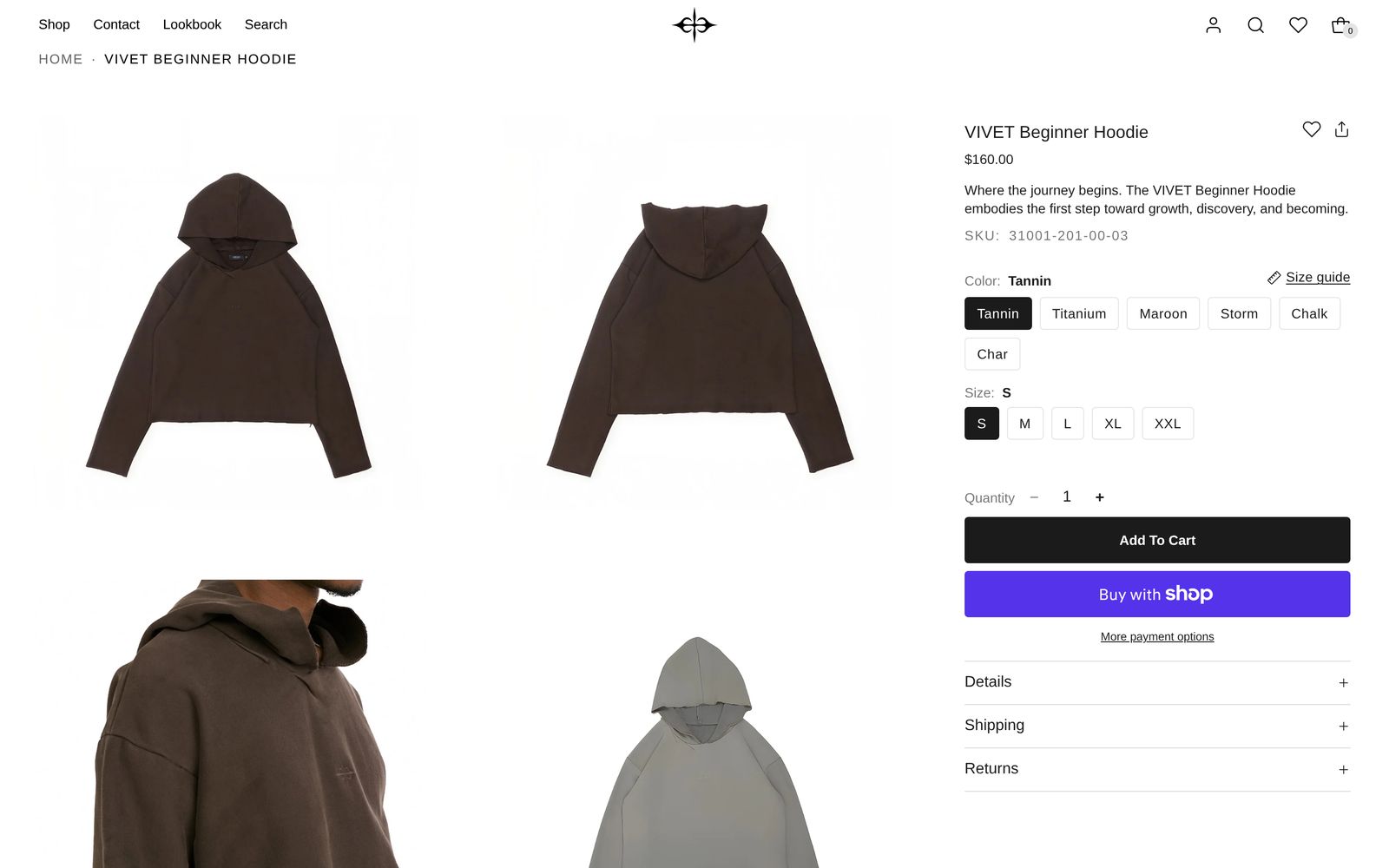
| Product page: Sidecar | product-page-sidecar | A grid of photos, with the details pinned beside them. |
| Product page: Panorama | product-page-panorama | A strip of photos from edge to edge, with a buy panel floating over it. |
Give a product a different layout
Open the product in your Shopify admin and choose its template, such as product-page-sidecar. To change the layout for every product, change the default template in the editor. Inside a template, add the new layout first, then remove the old one.
Under the layout
- Products: Recommended and Products: Recently viewed sit below the product.
- Help shoppers choose: Set up size guides, Show who's wearing it and Set up color swatches.
Every setting is covered on Product page.