Gallery: Drifting
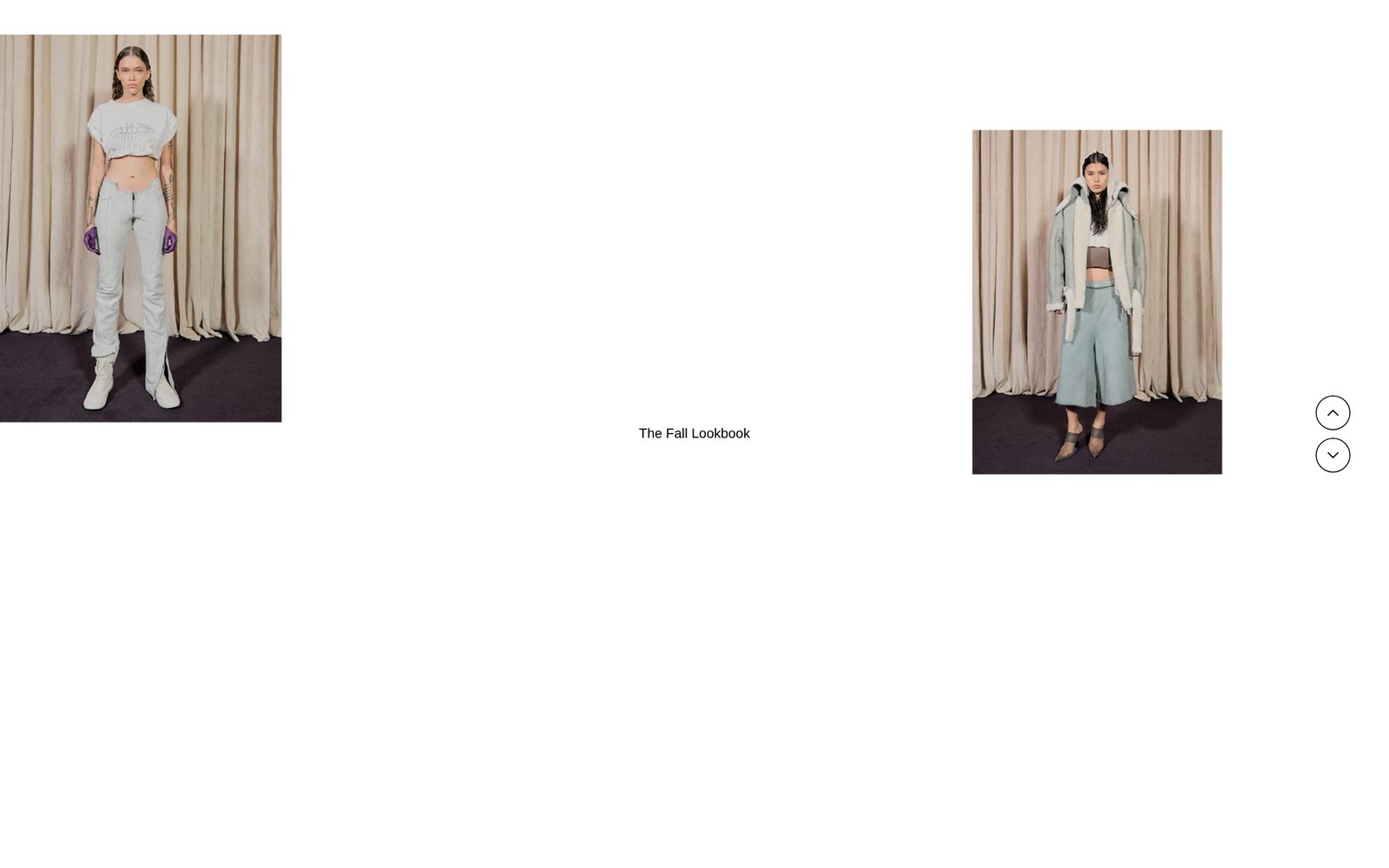
Screen-tall slides of one or two photos drift slowly up the page in a loop, with a caption fixed in the middle.
A column of slides drifts upward by itself and loops without end. Each slide holds one or two photos or videos placed where you choose, so the page feels like a moving lookbook. A caption stays fixed in the middle, and arrows let visitors step one slide up or down.
Choose it for a lookbook or campaign where the mood matters more than a product grid. For pictures that visitors move themselves, see Slideshow: Arc.
Add it
It can go on any page, but not in the header or footer. In "Add section", find Gallery: Drifting under Slideshows & galleries.
As first added it fills the screen. As the first section on a page, it starts at the very top, under a header that sits over the page. It has four slides of placeholder pictures (two photos, one, two, two) and the caption "The Fall Lookbook".
What you need
- Four or more slides. Each slide is as tall as the section, so a handful is enough to loop smoothly.
- Photos of different shapes and sizes look most like a printed lookbook. Mix a large photo with a smaller one on the same slide.
- Short, muted videos work too. They play on a loop while on screen.
Settings
Select the section itself to see these.
| Setting | What it changes | Options |
|---|---|---|
| Color scheme | The background behind the photos, and the caption's colors. See shared settings. | Default: Scheme 1. |
| Height | How tall the section and each slide are. Full screen is one screen tall; Tall and Extra tall are taller than the screen, so the photos drift further apart and the section takes more scrolling to pass. | Full screen, Tall, Extra tall. Default: Full screen. |
| Space above, Space below | Empty space above and below. See shared settings. | Default here: None. |
| Speed | How fast the slides drift. | Slow, Medium, Fast. Default: Medium. |
| Pause on hover | On: the drift stops while a visitor points at a photo. | On or off. Default: off. |
| Fade-in duration | How long each photo takes to fade in as it comes into view. | Short, Medium, Long. Default: Medium. |
| Show navigation arrows | Up and down arrows that step the slides one at a time. | On or off. Default: on. |
Blocks
Slide
One slide of the drift, as tall as the section. Add, move or remove as many as you like.
| Setting | What it changes | Options |
|---|---|---|
| Number of media items | One or two photos or videos on this slide. | One, Two. Default: Two. |
Then, under Media 1 and Media 2 (Media 2 only appears when the slide has two):
| Setting | What it changes | Options |
|---|---|---|
| Media type | A photo or a video. | Image, Video. Default: Image. |
| Image or Video | The photo, or the video. A video plays muted on a loop while on screen. | |
| Hover text | Replaces the caption while a visitor points at this photo. | Text. |
| Link | Where the photo goes when clicked. | Any link. |
| Width | How wide the photo is, as a share of the screen width. | 20 to 100%. Default: 45% (Media 1), 35% (Media 2). |
| Height | How tall the photo is, as a share of the screen height. | 30 to 80. Default: 75 (Media 1), 60 (Media 2). |
| Horizontal position | Where the photo sits across the slide. The "edge" options touch the side of the screen, the "padded" ones keep your page margin. | Left edge, Left (padded), Center, Right (padded), Right edge. |
| Vertical position | Where the photo sits up and down the slide. | Top edge, Top (padded), Center, Bottom (padded), Bottom edge. |
Caption area
Always there, fixed in the middle of the section over the photos. It holds a Caption block by default, and you can add Image, Button or most other blocks beside it. A slide's Hover text replaces the first Caption or Text block here; anything else stays put.
The Caption block has the usual text settings: Text, Width, Line length, Alignment, Style (and Font, Size, All caps when Style is Custom), Stay readable over photos with Text tone, Color, Background, spacing Top and Bottom, and Animation with Speed. As added here it uses Body style with Stay readable over photos on, so it turns light or dark against the photo behind it.
On phones
Your widths, heights and most positions are set aside. The first photo fills most of the width near the top of the slide and the second sits smaller at the bottom right. The caption gets a small backing in the scheme's background color so it stays readable over the photos. Hover text does not show.
Tips
- Vary the positions from slide to slide (left edge, then right edge, then centered) so the column does not look like a stack.
- Keep the caption to a few words. It sits over the photos the whole time.
- If you add Hover text, also turn on Pause on hover, so the photo does not drift away while the visitor reads.
- Give a linked photo alt text in your Files, so screen readers can say where the link goes.
Good to know
- Visitors stop the drift by tapping the strip on a phone (tap again to start it) or by tabbing into the section with a keyboard. There is no pause button.
- Visitors who have asked their device to reduce motion see a still column. The arrows still work, and videos stay on their first frame.
- The drift stops while the section is off screen.
- In the editor, selecting a slide brings it into view and holds it there.