Page content
Your page's name as its heading, and the text you wrote for the page in Shopify admin.
The main section of a plain page, such as About, Shipping or a policy page. It shows the page's name as its heading and the words you typed into the page's content box in Shopify admin, with your headings, lists, links, photos and tables laid out in Plain Jane's type styles. You can add other blocks above, between or below them, such as a picture or a button.
Add it
Plain Jane already puts this section on the page template every new page uses, so there is nothing to add. To edit it, open any of your pages in the editor.
It only works on page templates, and only once per template. If you removed it, choose "Add section" on a page template and look for Page content under Text.
As first added it holds a Page title block and a Page content block, with Space above and Space below at Medium. The words themselves come from the page in Shopify admin. In the editor, a page with no text yet shows a sample line, "The text you write for this page in Online Store > Pages shows here." Visitors never see it.
Settings
| Setting | What it changes | Options |
|---|---|---|
| Color scheme | The background, text and link colors. See shared settings. | Any of your schemes. Default: Scheme 1. |
| Width | How wide the title, text and any other blocks can grow, centered on the page. Narrow is a comfortable reading width; Medium is 800 px and Wide 1100 px. | Narrow, Medium, Wide, Page width (default) |
| Space above, Space below | See shared settings. | As added: Medium. |
Blocks
You can add, remove, hide and reorder every block. Besides the two below, the section takes the blocks used across Plain Jane (Text, Image, Button, Video, Group and others) and app blocks.
Page title
Shows the page's name, as you typed it in Shopify admin. It is always the page's main heading for search engines, whichever style you choose.
| Setting | What it changes | Options |
|---|---|---|
| Style | Which of your heading styles the name uses. | Heading 1 (default) to Heading 6 |
| Alignment | Where the name sits. | Left (default), Center, Right |
Page content
Shows the text from the page in Shopify admin. To change the words, edit the page there.
| Setting | What it changes | Options |
|---|---|---|
| Alignment | Where the lines of text sit. | Left (default), Center, Right |
On phones
The text runs the width of the screen, inside the page margin, whichever Width you choose.
Tips
- Use Narrow for long pages of text, such as policies or your story. Lines that run the full page width are hard to read.
- Use headings inside the page's text in Shopify admin to break up a long page. They take your theme's heading styles.
- To add a button after your text, such as a link to your shop, add a Button block below Page content.
- Keep Page title unless you add your own heading. Each page needs one main heading.
Good to know
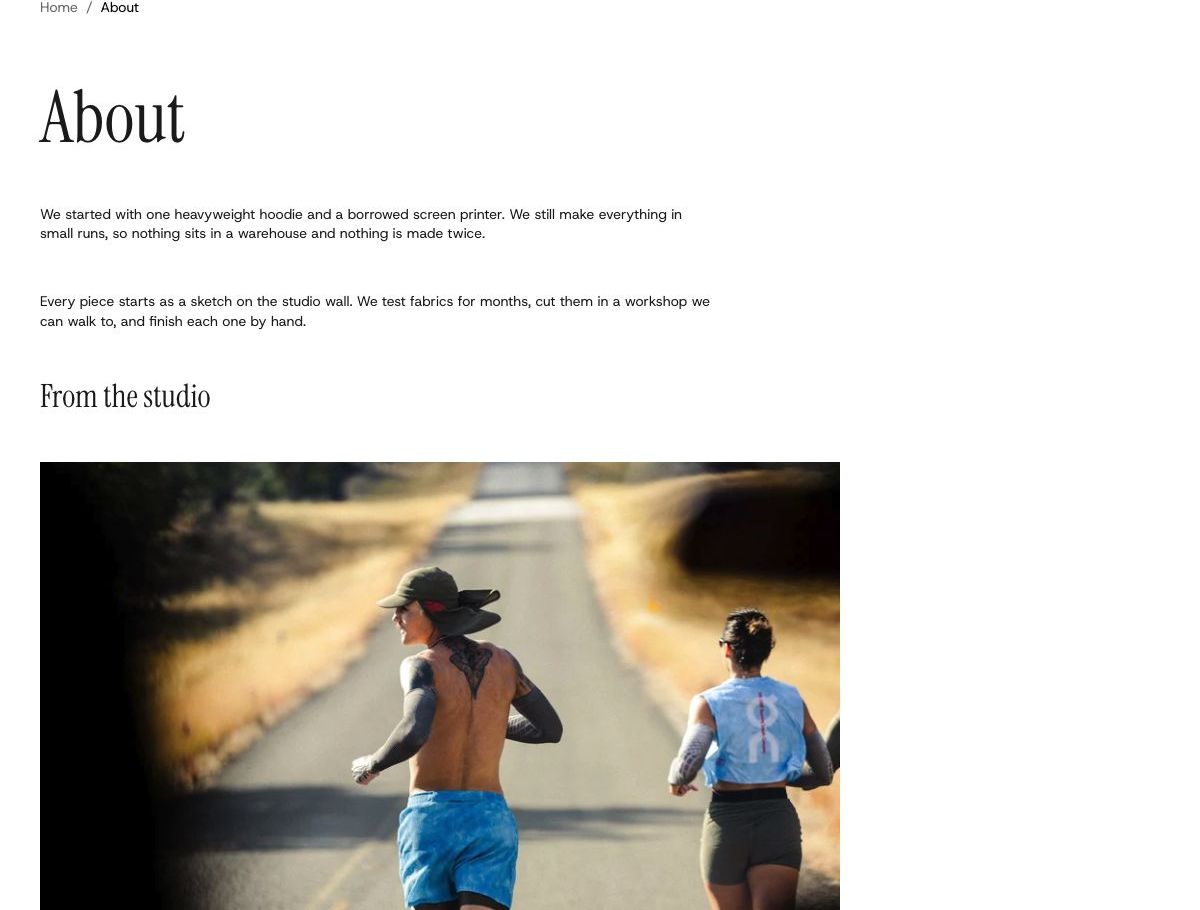
- Photos you add inside the page's text in Shopify admin show at their own size, never wider than the column.
- If you make a second page template, such as one for a single page, it gets its own copy of this section with its own settings.