Hero: Depth
One large photo that moves in 3D as the visitor moves the mouse, with your words and buttons on top.
One photo fills the width of the page. As the visitor moves the mouse, the near parts of the photo shift more than the far parts, so the picture seems to have depth. On phones and tablets it drifts gently on its own. Your heading, text and buttons sit on top.
Choose it when you have one strong photo with a clear foreground and background, such as a person in front of a street or a product on a table. For several photos, look at Hero: Filmstrip or Hero: Sliced.
Add it
It can go on any page. In "Add section", find Hero: Depth under Hero. It works best as the first section on the page, where it runs up under your header.
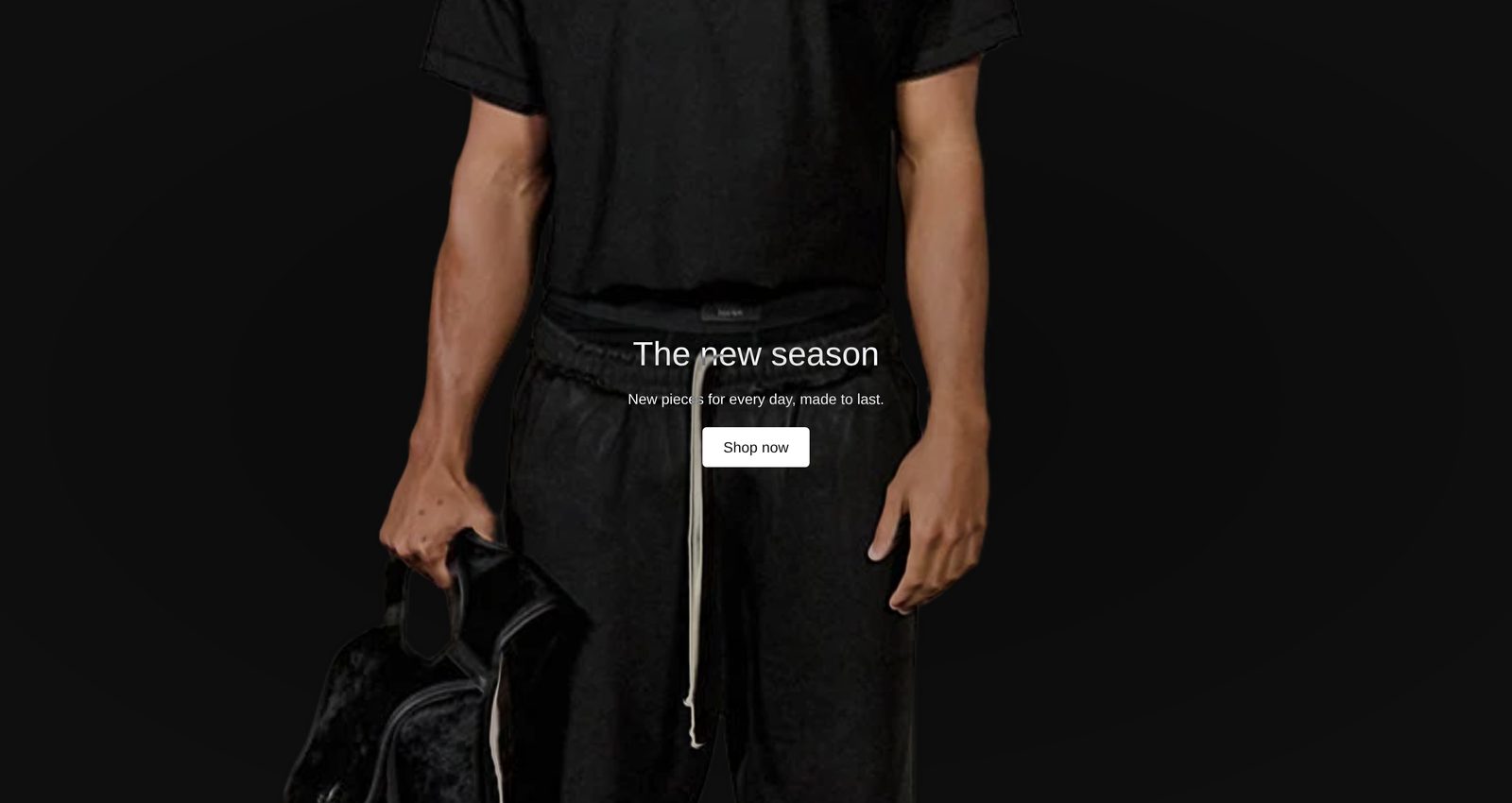
As first added it is Large (85% of the screen's height) with a stand-in picture, the heading "The new season", the line "New pieces for every day, made to last." and a "Shop now" button that leads to all your products. Until you choose a photo, nothing moves.
What you need
- One wide, sharp photo. The section crops it to fill the space, so keep the subject away from the edges, or set a focal point on the photo in Shopify.
- A depth map, if you can. This is a black-and-white copy of the same photo, the same size, where white marks what is near and black what is far. Without one, the lighter parts of the photo come forward, which suits some photos and looks odd on others.
Settings
| Setting | What it changes | Options |
|---|---|---|
| Color scheme | The color of the words when a block uses your scheme's text color, and the label when Label color is Color scheme text. See shared settings. | Default: Scheme 2. |
| Height | How tall the photo is. Small is half the screen, Medium 70%, Large 85%. See shared settings. | Small, Medium, Large, Full screen. Default: Large. |
Media
| Setting | What it changes | Options |
|---|---|---|
| Image | The photo. | Any image. |
| Depth map | Which parts of the photo come forward (white) and which stay back (black). Leave empty to use the photo's own light and dark. | Any image. |
Motion
| Setting | What it changes | Options |
|---|---|---|
| Depth amount | How far the photo moves. Stronger also trims a little more off the photo's edges. | Subtle, Medium, Strong. Default: Medium. |
| Move on its own on phones and tablets | On: the photo drifts slowly from side to side on touch screens. Off: it stays still there. | On or off. Default: on. |
| Move on its own when the mouse rests | On: when the mouse stops for a moment, or leaves the photo, the photo starts drifting. Off: it waits for the mouse. | On or off. Default: on. |
Link
| Setting | What it changes | Options |
|---|---|---|
| Link | Makes the whole photo clickable. Buttons on top still go to their own links. | Any link. Default: none. |
| Label that follows the mouse | A short word or two that follows the mouse over the photo, in place of the pointer. On phones it sits at the bottom of the photo and gently pulses. Only appears once Link is set. | Any text. Default: empty. |
| Label color | Contrasts with the photo turns the label light over dark parts and dark over light parts. Color scheme text uses your scheme's text color. Only appears once the label has text. | Contrasts with the photo, Color scheme text. Default: Contrasts with the photo. |
Layout and Overlay
| Setting | What it changes | Options |
|---|---|---|
| Content position | Where your blocks sit on the photo. | Nine places, from Top left to Bottom right. Default: Center. |
| Strength | Darkens the photo so your words stay easy to read. | None, Light, Medium, Dark. Default: Medium. |
| Overlay color | The color of the darkening. Only appears when Strength is not None. | Any color. Default: black. |
| Overlay style | Behind text darkens only the part your words sit on: a fade from the top, bottom or side, or a soft glow behind centered words. Whole photo darkens all of it. Only appears when Strength is not None. | Behind text, Whole photo. Default: Behind text. |
Blocks
You can add Plain Jane's general blocks, such as Text, Button, Image, Group, Countdown and Email signup, plus app blocks. They stack on top of the photo in the place Content position sets, and each has its own style settings. The heading and the line under it start with Stay readable over photos on, so they flip light or dark against the photo.
On phones
The photo keeps its height as a share of the screen and is cropped from the sides. There is no mouse to follow, so the photo drifts on its own (if Move on its own on phones and tablets is on) and the label sits at the bottom as a tap hint.
Tips
- A depth map is worth the effort. Many free tools make one from a photo; save it at the same size and crop as the photo.
- Keep the label to one or two words, such as "Shop" or "Explore".
- If the photo's edges look cut off, try Depth amount Subtle.
- Put your words over the far part of the photo, where it moves least.
Good to know
- Visitors who have asked their device to reduce motion see the photo still. So do visitors whose browser cannot draw the effect.
- When the photo stands still, the label does not follow the mouse and the normal pointer shows.
- In the editor, clicking the photo selects the section instead of following the link.