Image with text: Centered
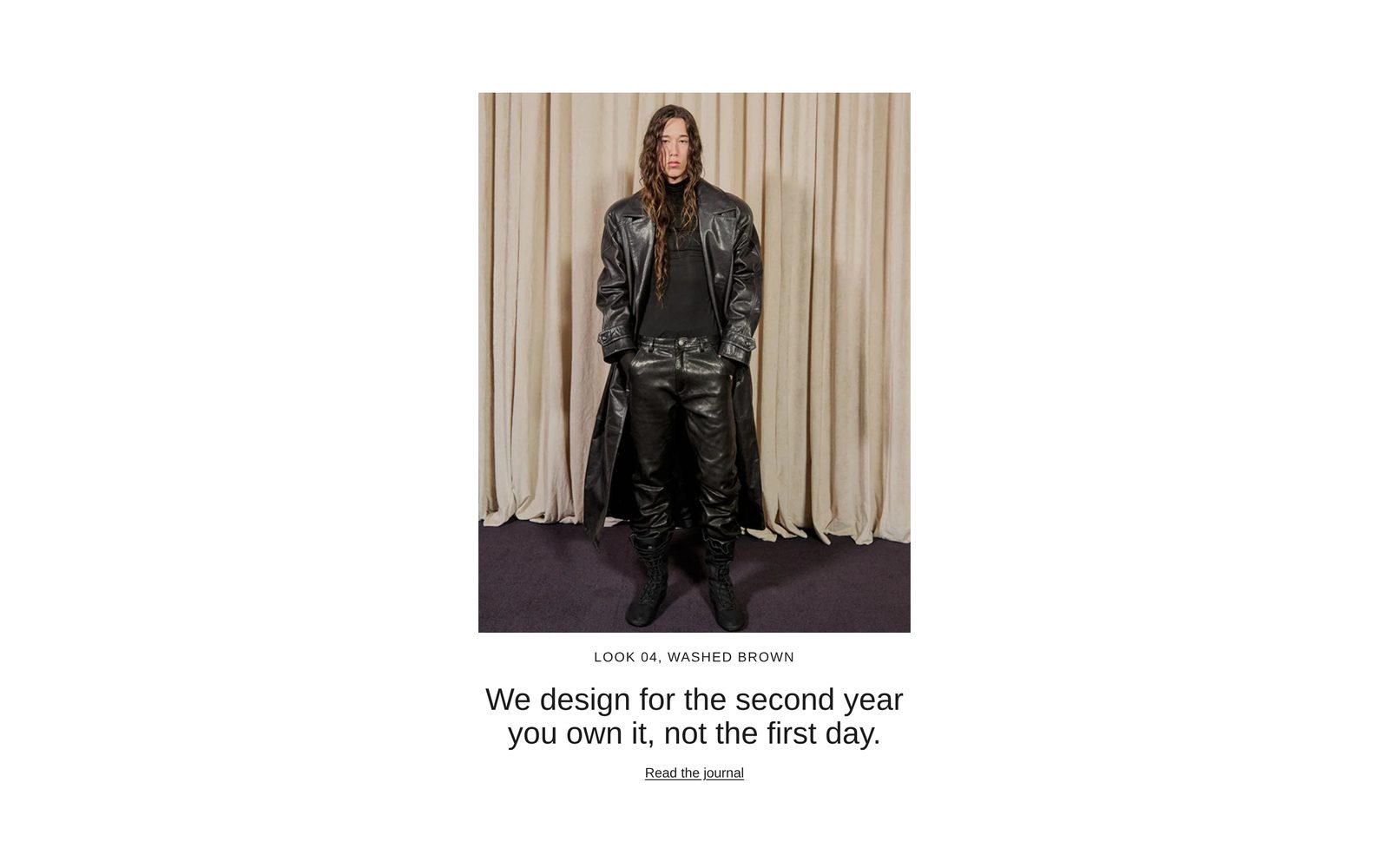
One photo with a caption, a centered statement and a link, all down the middle of the page.
One tall photo in the middle of the page, with a caption, a large centered statement and a link under it. Use it for a single idea you want to say out loud, with one picture to set it up.
Add it
It can go on any page. In "Add section", find Image with text: Centered under Images. It is a ready-made Section, so it has all of that section's settings.
The blocks it starts with
- Group, centering what is inside it (Alignment Center, Space between blocks Medium), holding:
- Image at Width Fit to image, Shape Portrait and Height Medium.
- Text, the caption, in Style Uppercase, centered: "Look 04, washed brown".
- Text, the statement, in Style Heading 2, centered at Line length Short: "We design for the second year you own it, not the first day."
- Button in Style Link: "Read the journal", leading to all your products.
Choose your photo, write your own caption and statement, and point the Button at your page in its Link.
As first added
- Direction: Vertical. Gap: None.
- Space above and Space below: Large.
On phones
The photo fills the width of the screen inside the page margin, still in portrait shape, with the words centered under it.
Tips
- Keep the statement to one sentence. At Heading 2 and a short line length, a long one makes a tall block of words.
- For a smaller photo, set the Image block's Height to Small.
- To point at your blog, set the Button's Link to it. See Blog.
Settings
All settings are the general section's: see Section.