Set up color swatches
How to make the small color circles on your product pages, product cards, quick add and Color filter show the right colors.
Plain Jane shows a product's colors as small swatches in four places: the color picker on the product page, the row of circles under each product card, the quick add window, and the Color filter on collection and search pages. All four read the same information, so once a color is set up it looks the same everywhere.
This guide shows what works with no setup, how to set up exact colors and patterns in your Shopify admin, how to get swatches on the Color filter, and which theme settings change how swatches look.
Where swatches show
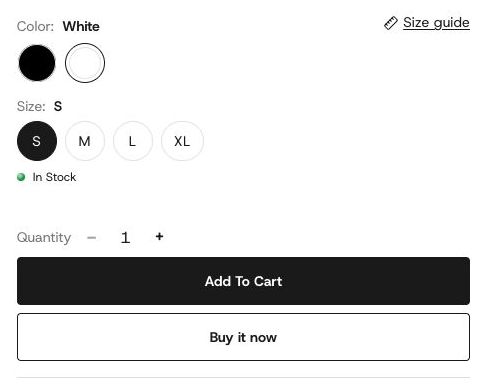
This product has two colors, not five. No more were added, because no other products in the demo store have photos of a second color.
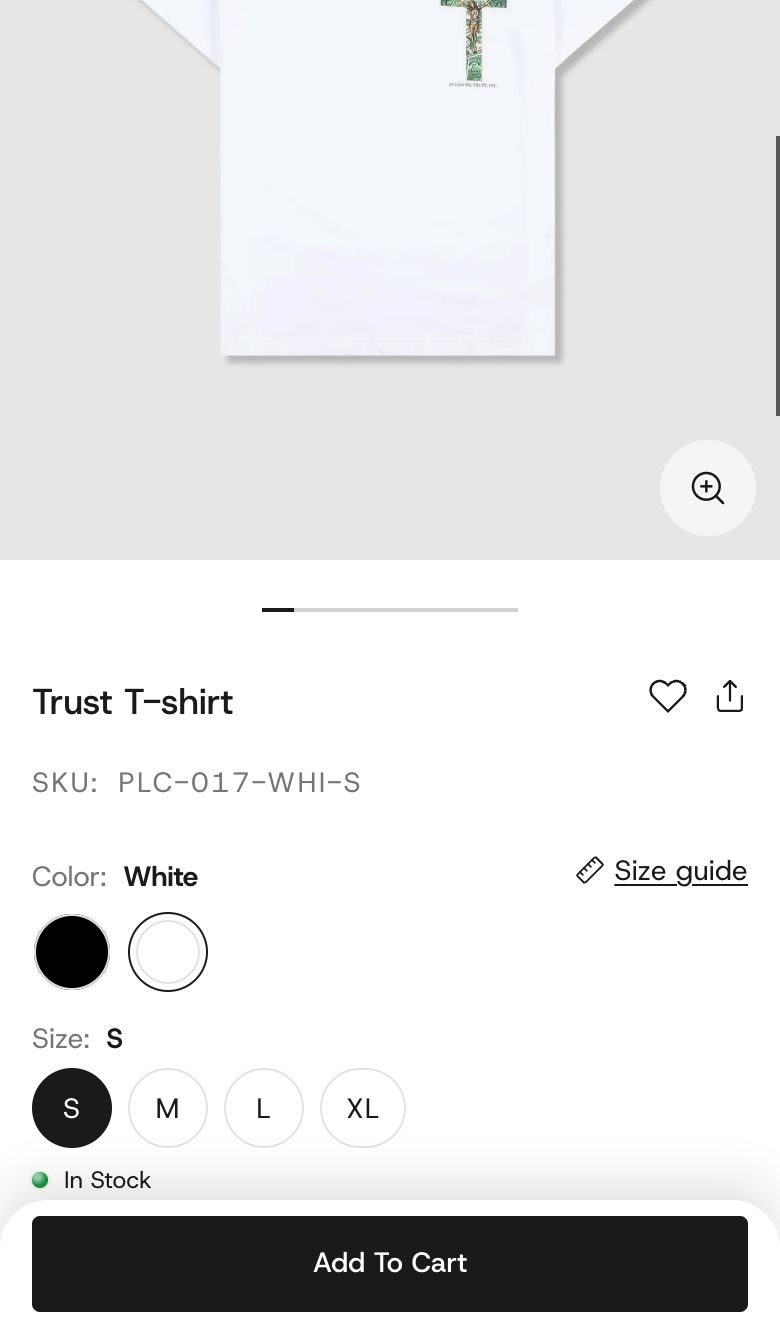
- Product page. The color option shows as a row of swatches with its name above, for example "Color: Olive". Picking one changes the photo and the price, as any option does.
- Product cards. On collection pages, search results and the "Featured collection: Grid" section, each card can show a row of small circles, one per color. Clicking one switches the card's photo to that color, if that color has its own photo, and the card's link then opens the product on that color.
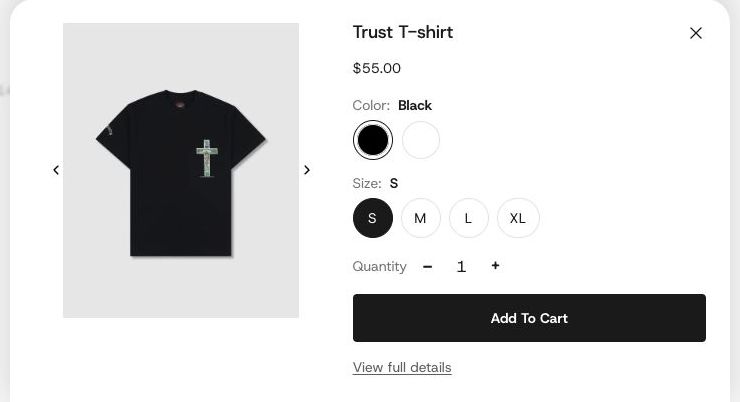
- Quick add. When a shopper opens quick add from a card, the window shows the same color picker as your product page, already set to the color they clicked on the card.
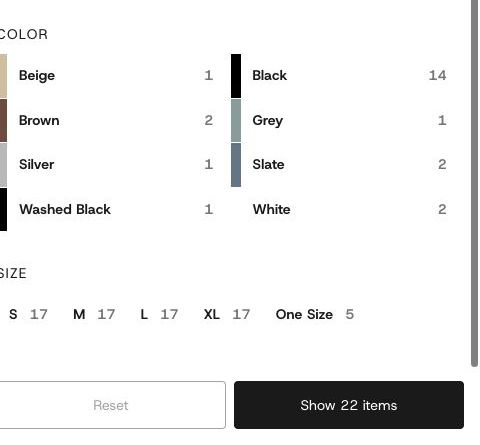
- Color filter. In the filter panel on collection and search pages, each color is a box with a strip of that color down its left edge.
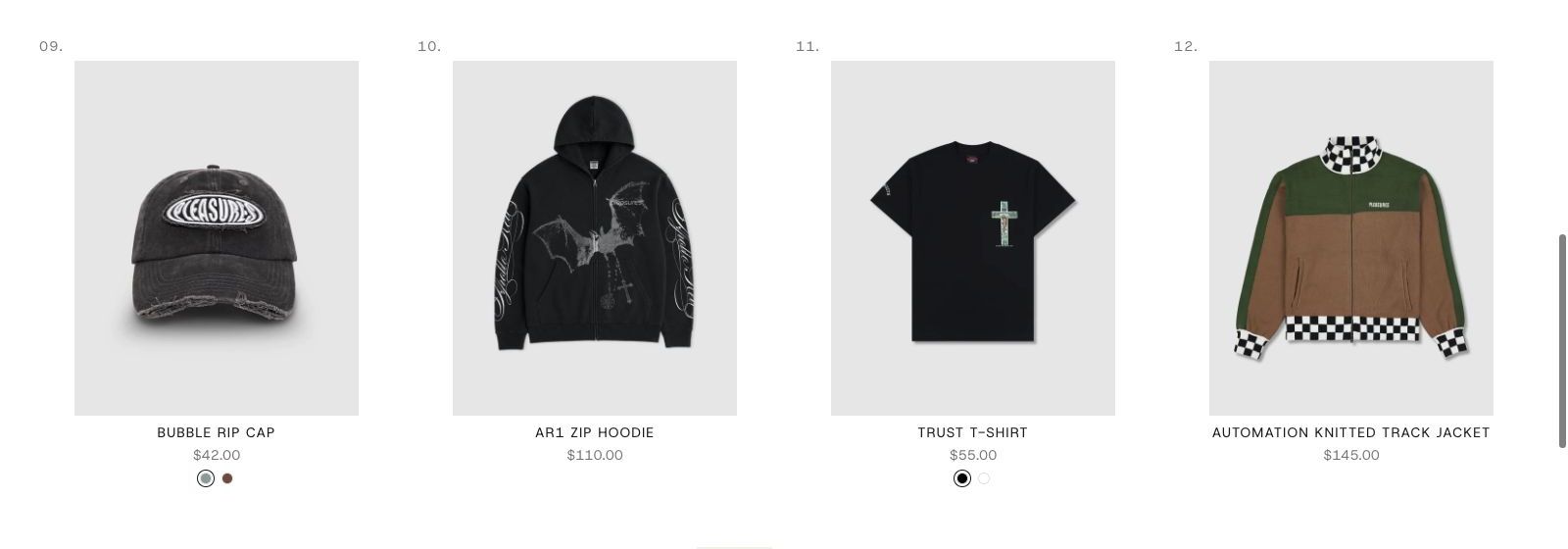
Only two products in the demo store have more than one color, so this shot shows two cards with circles, not three. The other two cards show none, as described under Troubleshooting.
What works with no setup
On the product page and in quick add, colors start as plain text buttons, so every store looks right before anything is set up. Turning swatches on there takes one setting (Step 1). Cards and the Color filter show swatches from the start.
If your color option is called Color and your colors have common names, that's all you need. Plain Jane knows about 190 color names, from Black, Navy and Sage to Terracotta, Oat and Seafoam, and fills in a close shade for each one.
It also understands a color word inside a longer name. "Deep navy" shows as navy and "Washed olive" shows as olive.
You need to set up colors yourself when:
- The shade matters. The built-in colors are a close guess, not the color of your fabric. "Sage" is one shade of sage, and it may not be yours.
- The name is your own. "Harbor", "Fig jam" or "Colorway 3" mean nothing to the theme, and the swatch stays empty.
- The color is a pattern. Stripes, florals, checks and prints need a picture. A few pattern names (Leopard, Camo, Plaid, Floral) get a flat color that only roughly stands for the pattern. Multi, Rainbow and Tie dye get a rainbow blend.
Step 1: Turn swatches on for the product page
- In the theme editor, open a product page.
- Select the Variants block in the product section.
- Set Colors show as to Swatches.
- Save.
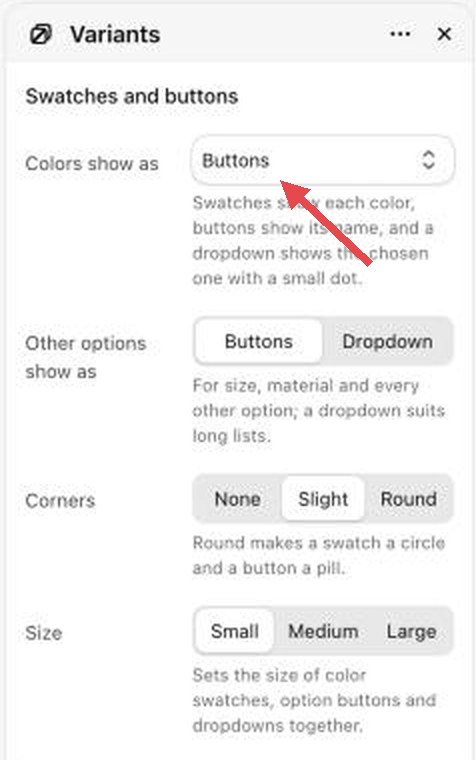
Each product layout has its own Variants block, so do this in every product page template you use.
What you should see: the color option shows as a row of swatches instead of text buttons.
Step 2: Name the option "Color"
Plain Jane only treats an option as a color when it has the right name.
- In your Shopify admin, open the product.
- In the variants area, look at the name of the option that holds your colors.
- Make sure it is Color (or Colour). Color/Pattern also works on the product page.
What you should see: with Step 1 done, the color option on the product page shows as swatches instead of text buttons.
Use exactly that name. An option called "Colors", "Shade" or "Fabric color" shows on the product page as plain text buttons, not swatches.
Step 3: Give each color its exact shade or pattern in Shopify
For exact colors and for patterns, use Shopify's own color swatches. You set them up once in your admin, and Plain Jane uses them everywhere in place of its own guess.
Shopify ties swatches to the product's category, so this starts with the category.
Set the product's category. Open the product and choose a category that describes it, such as a T-shirt or a dress. Shopify then knows the product can have a color.
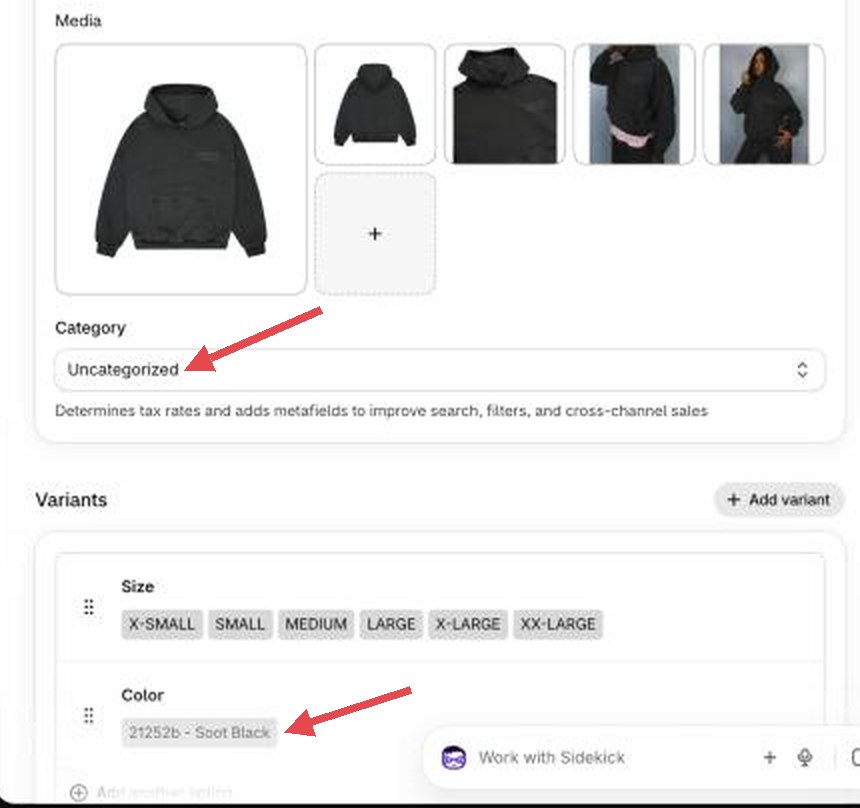
The Category field, and the Color option further down 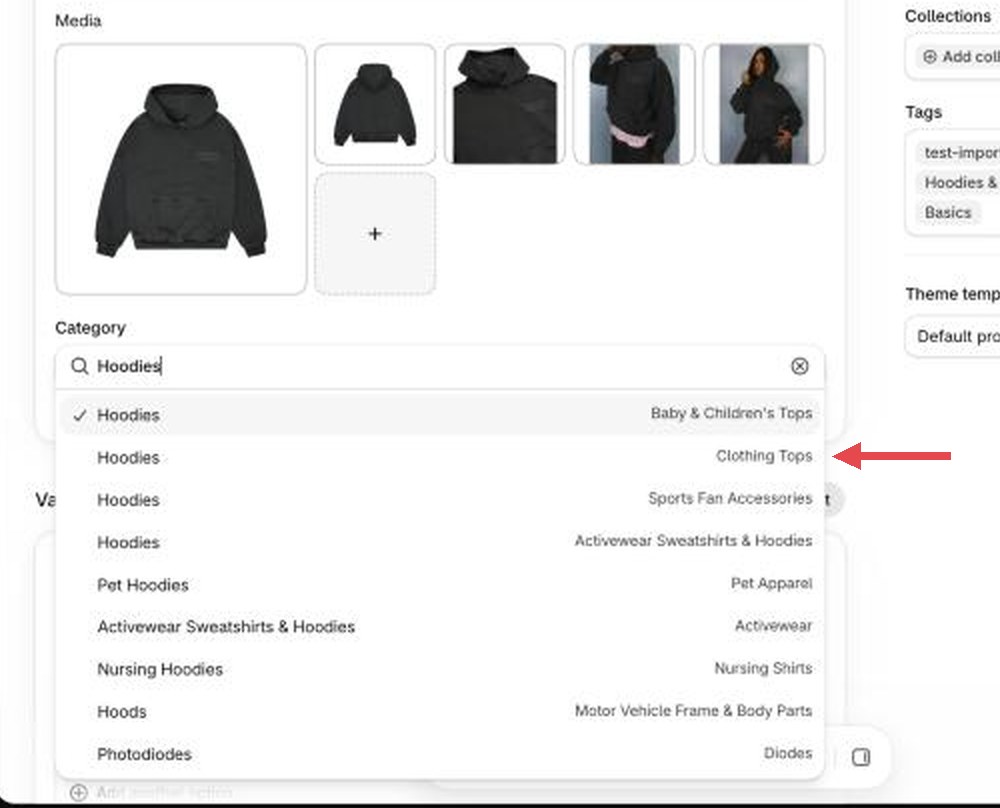
Type what the product is and pick the closest category Link the option to Shopify's colors. Click the Color option to edit it. Click the small stack icon at the right end of Option name, then choose Color under Recommended. The option's values then come from a list of colors that each carry a swatch.
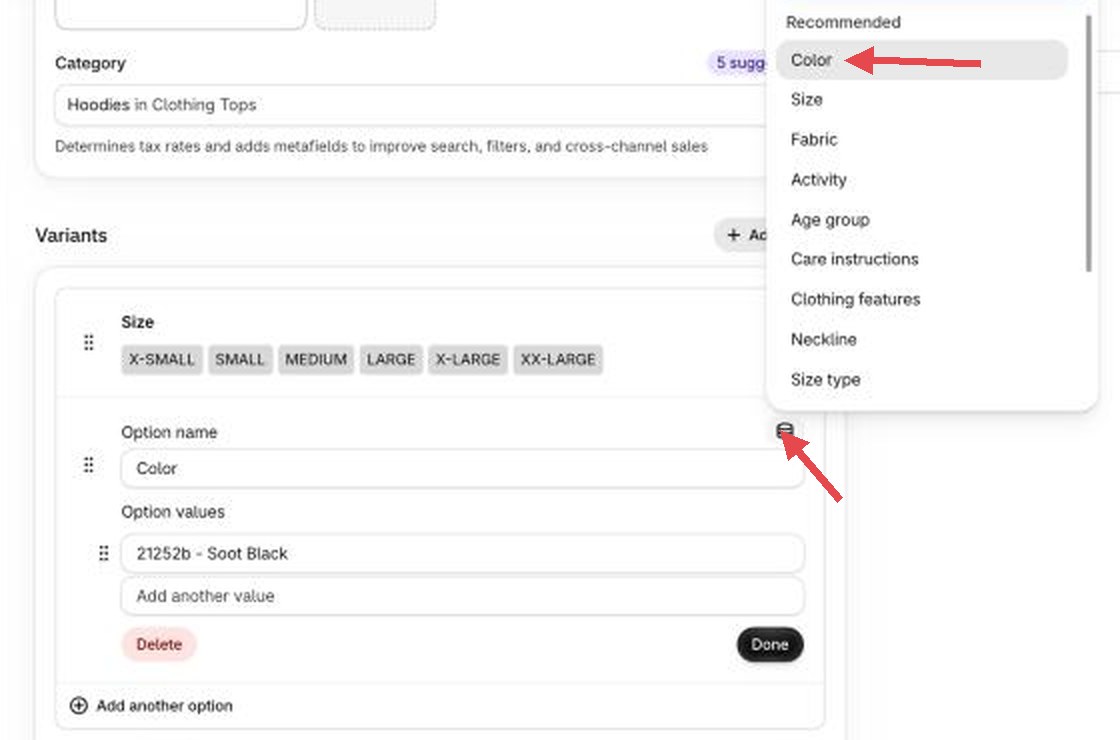
The icon beside Option name links the option Pick your colors. Choose your colors from the list, or click Add new entry to make one with your own name. Each one has a swatch beside it in the admin.
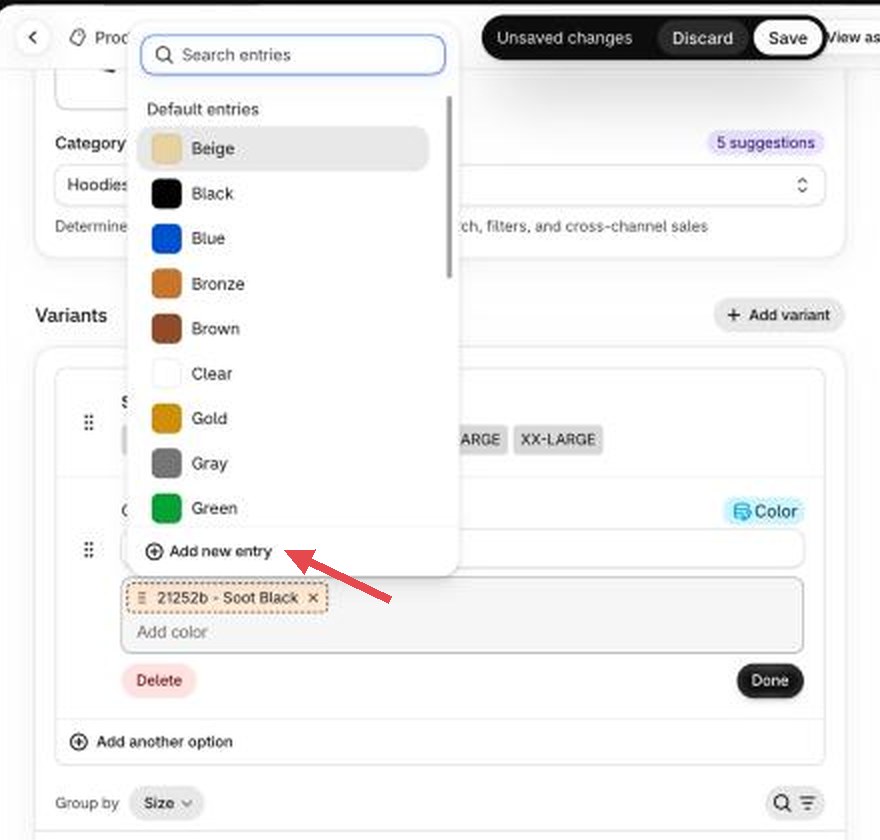
Pick a color, or add your own Set the exact shade, or add a picture for a pattern. Each color is saved as its own entry, which you can open and edit. Set the color to the exact shade you want. For a pattern, add an image of the fabric; a close crop of the print works best, since the swatch is small. Shopify also asks for a Base color, the plain color yours is closest to; click the one it suggests. Save the entry.
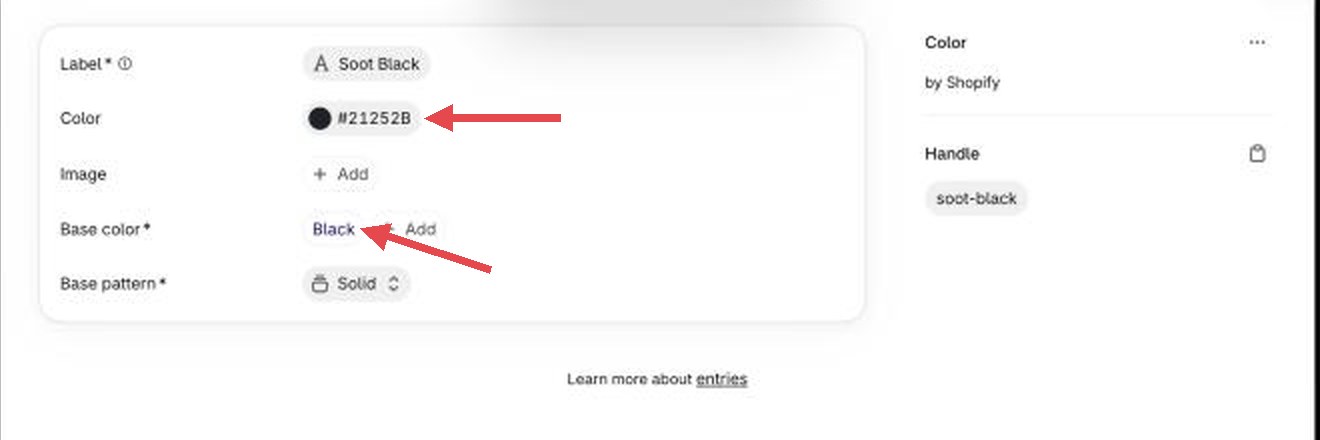
Your shade, and the plain color it is closest to Save the product, then look at it in your store.
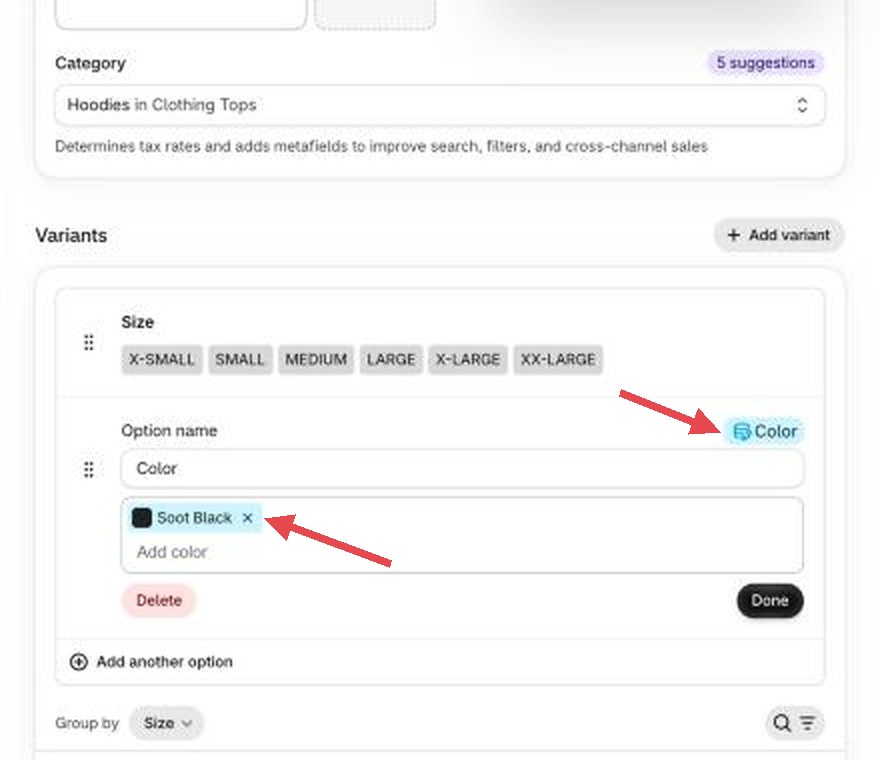
Linked: the option shows its swatch
What you should see: every swatch for that product shows the shade or picture you set, on the product page, on its card, in quick add and in the Color filter.
If a color has both a shade and a picture in Shopify, Plain Jane shows the shade.
You can link an existing product's color option the same way. Shopify has you match each of your old color names to a color entry.
A quicker fix you probably do not want
Plain Jane also reads a color code typed into the color's name: "Denim blue #acbecd" shows as exactly that blue. But shoppers see the name as you typed it, code and all, on the product page, under the swatch when they point at it, and in the filter. Use Shopify's swatches instead.
Step 4: Set up the Color filter
The filter on collection and search pages comes from Shopify's free Search & Discovery app. Plain Jane shows what you set up there.
In your Shopify admin, open the Search & Discovery app and go to its filters.
Add a filter for color. If you linked your Color option to the category in Step 3, choose the color that comes from the category, so the filter carries your exact shades and pictures. Otherwise choose your Color option.
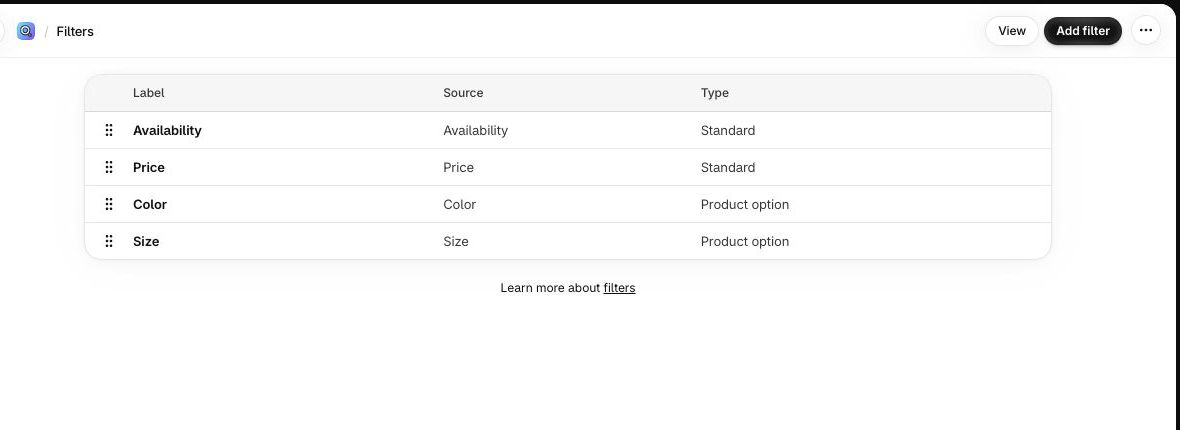
The Search & Discovery filters, with Color and Size added as product options. Keep the word "Color" (or "Colour") in the filter's name. "Color" or "Shop by color" both work.
Save.
In the theme editor, open a collection page, select the Filters & sort block and make sure Enable filtering is on. It is on by default.
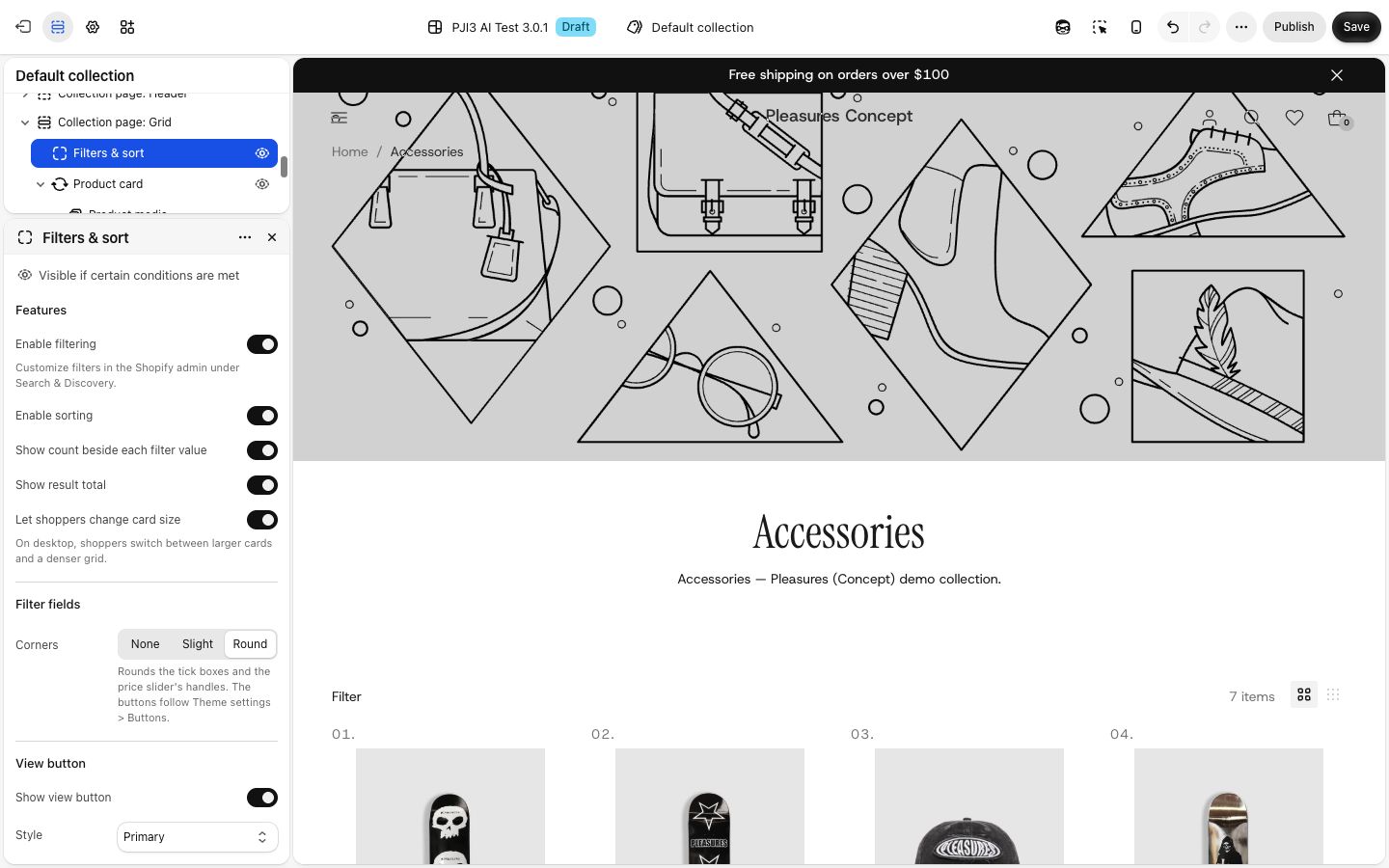
The theme editor with the Filters & sort block selected and Enable filtering switched on.
What you should see: in the filter panel, the colors sit in two columns, each with a strip of its color down the left edge.
The rule for the colored strips. A filter gets them when its name contains "Color" or "Colour", or when its colors come with Shopify swatches. A filter you have renamed to something like "Shade", built from plain color names, shows as a plain list with no colors.
Step 5 (optional): Use the variant's photo as the swatch
On the product page, each swatch can show a small crop of that color's own photo instead of a flat color. This suits products where the photo says more than a flat color: printed fabric, washed denim, jewelry.
- Make sure each color has a photo. In your Shopify admin, give at least one variant of each color its own image.
- In the theme editor, open a product page and select the Variants block in the product section.
- Turn on Use the variant's photo as the swatch.
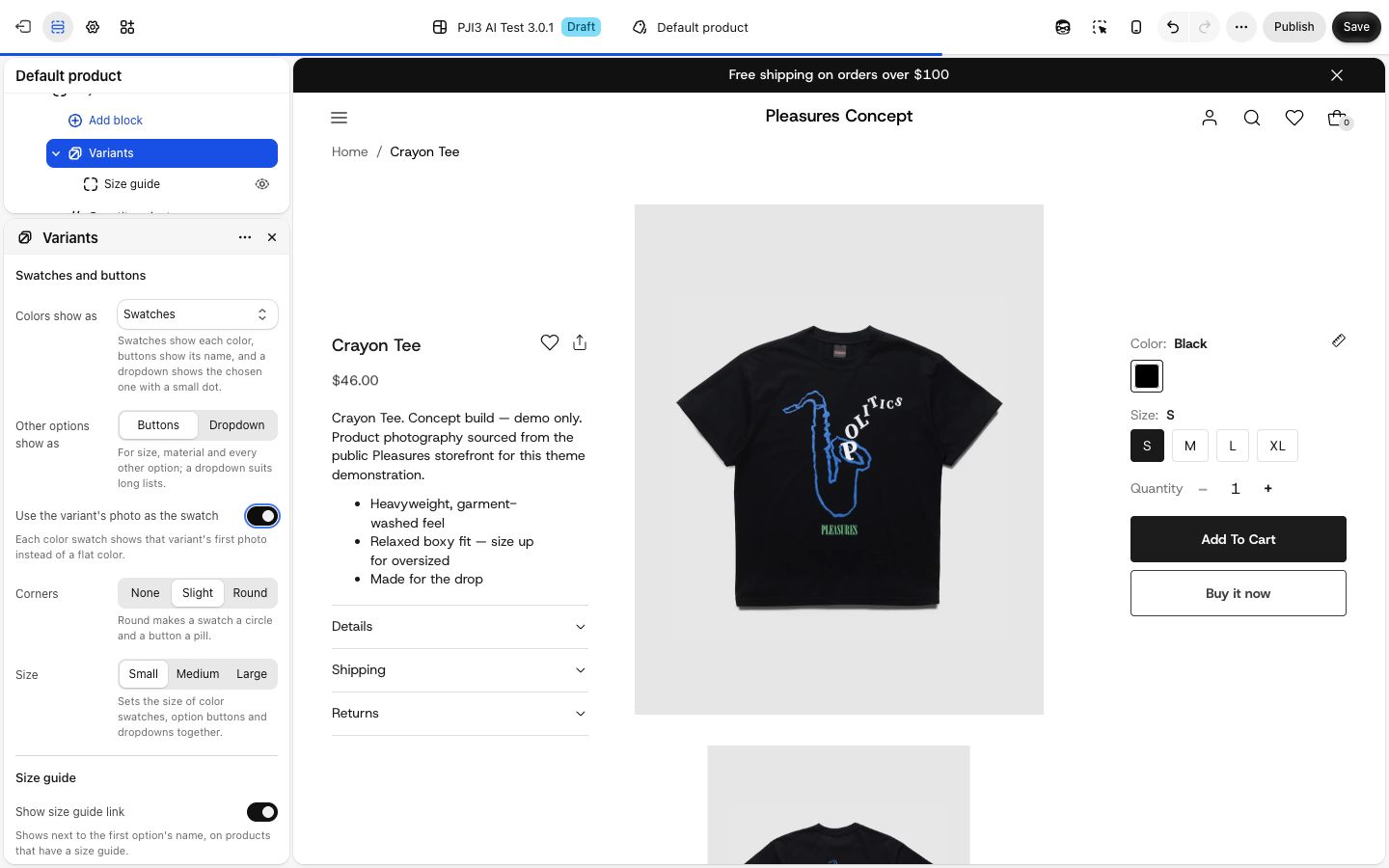
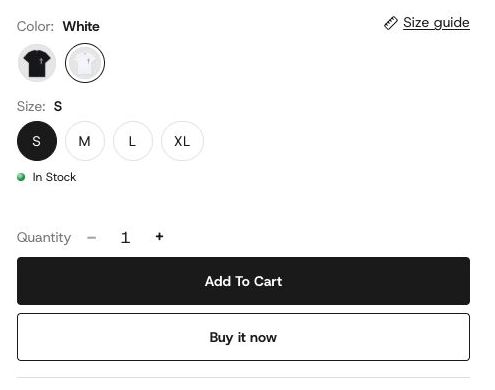
What you should see: each swatch shows that color's photo, cropped to fill the swatch.
This setting only shows while Colors show as is Swatches or Dropdown. It is off by default.
A color with no photo of its own falls back to its Shopify swatch, then to Plain Jane's guess from its name. So if some colors have photos and some do not, you get a mix of photos and flat colors. This setting changes the product page and quick add only. Cards and the filter keep the flat color or the swatch picture from Shopify.
Theme settings that change swatches
Product page and quick add
These are on the Variants block inside your product page section (Product page: Thumbnails, Sidecar, Centerpiece or Panorama). When you add a new one it is called Variant picker. Quick add uses the same block from the product's page, so whatever you set here shows in quick add too.
| Setting | What it changes | Options |
|---|---|---|
| Colors show as | Swatches show each color as a filled shape. Buttons show the color names as text, with no swatch. Dropdown shows a list, with a small dot of the chosen color beside it. | Swatches, Buttons, Dropdown. Default: Buttons. |
| Other options show as | How size and every other option shows. It does not change colors. | Buttons, Dropdown. Default: Buttons. |
| Use the variant's photo as the swatch | Fills each swatch with that color's photo. See Step 5. Only shows when Colors show as is not Buttons. | On or off. Default: off. |
| Corners | The shape of swatches, size buttons and dropdowns together. Round makes swatches circles. See shared settings. | None, Slight, Round. Default: Slight. |
| Size | How big color swatches, size buttons and dropdowns are, together. | Small, Medium, Large. Default: Medium. |
Product cards
The swatches on a card are the Color swatches block inside the Product card block of your collection section. It has one setting.
| Setting | What it changes | Options |
|---|---|---|
| Corners | Square swatches, slightly rounded ones, or circles. | None, Slight, Round. Default: Round. |
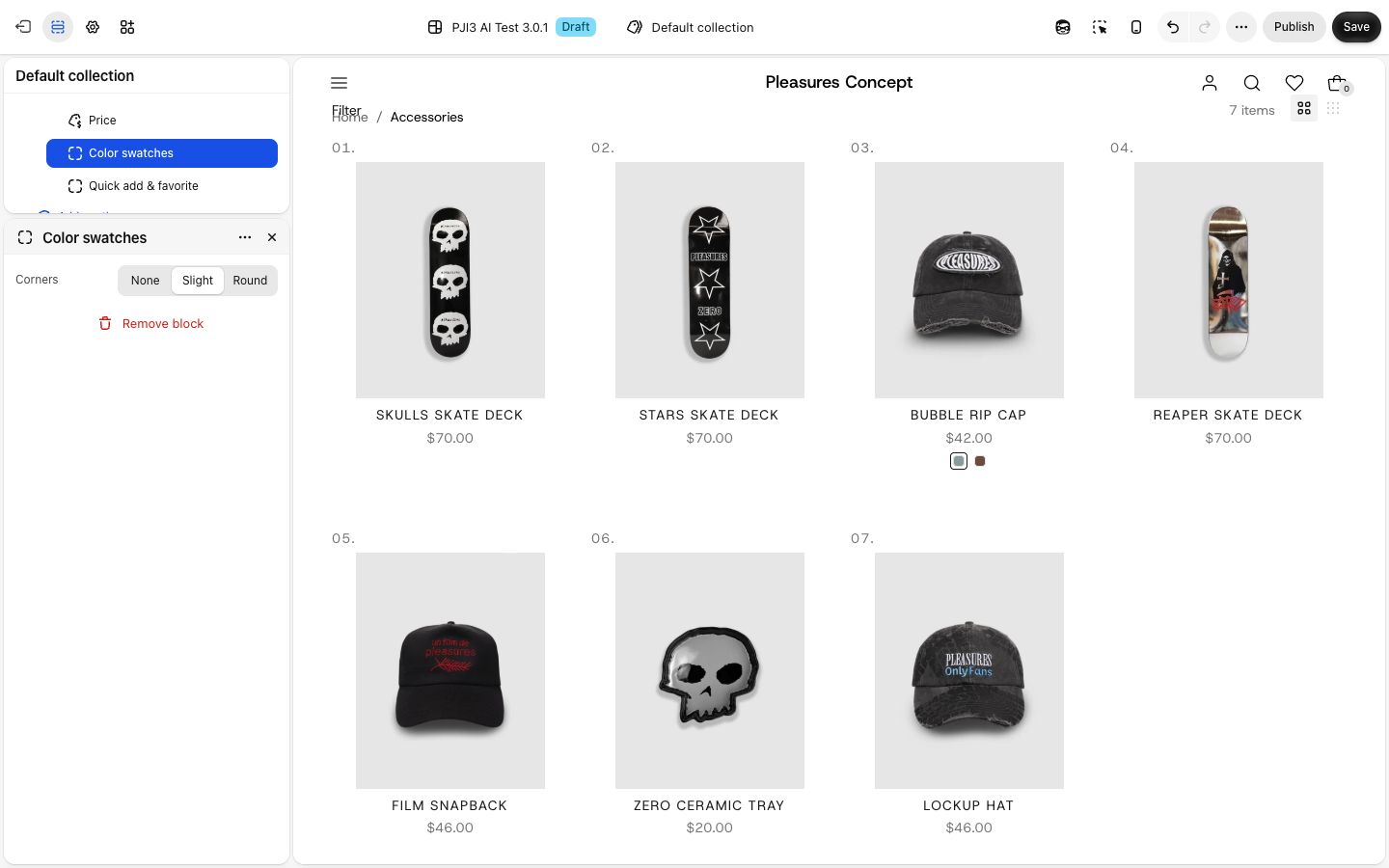
To remove swatches from cards, hide or remove the Color swatches block. To move them above or below the title or price, drag the block. On cards, the swatch size is fixed and every color is shown.
For shoppers to reach quick add from a card, the card's Quick add & favorite block needs Show quick add button on desktop or Show quick add button on mobile on. In a new store, quick add is on for computers and off for phones.
Color filter
The filter has no swatch settings of its own. Its strips follow the colors you set up in Shopify, or the theme's guess from each color's name.
On phones
Swatches on the product page and on cards keep their size and shape on phones, and wrap onto a new line when there are many. In the filter panel, colors stay in two columns.
Troubleshooting
A swatch is an empty circle with only a thin outline. Plain Jane does not know the color's name, and there is no Shopify swatch for it. Set the color up in your admin (Step 3). In the filter, the same color shows as a box with no strip.
A swatch shows the wrong shade. The color is coming from Plain Jane's guess. A name that contains a common color word gets that word's general shade, so "Light blue denim" may show as a plain mid blue and "Rose gold" as gold. Set the exact shade in Shopify (Step 3). If Use the variant's photo as the swatch is on, check which photo that color's first variant uses.
A swatch looks white or almost invisible. On the product page and on cards, white and very light colors keep a thin outline so they stay visible. In the filter the strip has no outline, so a white strip can be hard to see against a light background; the color's name beside it still tells shoppers what it is.
The Color filter has no colored strips. Check that the filter's name in Search & Discovery contains "Color" or "Colour". If you want a different name, link your colors to Shopify's swatches (Step 3) and build the filter from them. Also check that Enable filtering is on in the Filters & sort block.
The Color filter does not show at all. Check that the filter is added in Search & Discovery and that the products in that collection have a Color option. Colors that no product in the current results has are shown faded.
Cards show no swatches for a product. Cards only show swatches when a product has two or more colors. A product in one color shows no row of circles. Also check the Color swatches block is in the card and is not hidden.
The product page shows color names as buttons, not swatches. Check that Colors show as is set to Swatches, and that the option is named exactly Color or Colour in your admin.
Quick add shows a different picker from my product page. Quick add copies the Variants block from the product page template that product uses. If the product uses a different template, change the block there.
Good to know
- Sold-out colors stay on show. On the product page a sold-out color is faded with a line through it, and shoppers can still pick it to see that it is sold out. A color counts as sold out only when every size in that color is sold out. On cards, a color is faded when the first variant of that color in your admin's list is sold out, even if other sizes are in stock.
- One color on the product page. A product with a single color still shows one swatch on its product page, so shoppers see the color. Cards leave it out.
- Screen readers hear each color's name, not the swatch. Give colors names a shopper would understand.
- Your own color names. If you want Plain Jane to know a name of yours without setting it up in Shopify, a developer can add it to the theme. You cannot add names from the editor.