Slideshow: Orbit
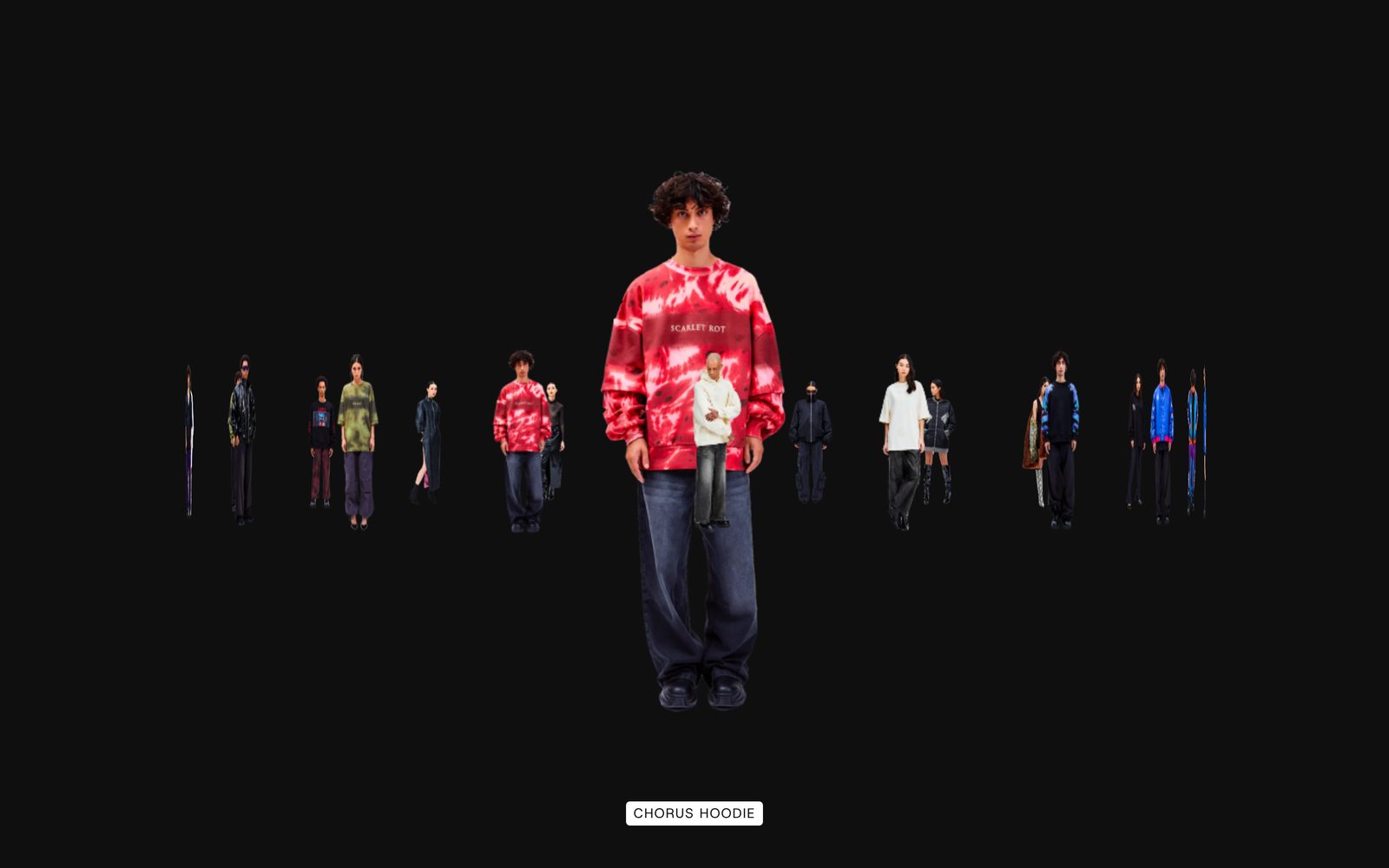
A ring of pictures turns in 3D around a large copy of the one facing the front, with a caption naming it.
Pictures stand in a ring that turns in 3D, so the ones at the back look smaller and further away. A large copy of the picture facing the front sits in the middle, and a caption names it. By default the ring turns as visitors scroll the page; they can also drag it, click a picture to bring it to the front, or use the arrow keys.
Choose it to open a page with a product range or a set of looks, when you have eight or more pictures that look good side by side.
Add it
It can go on any page except the password page, and not in the header or footer. In "Add section", find Slideshow: Orbit under Slideshows & galleries.
As first added it fills the screen with ten placeholder slides titled "Boxy tee", "Field jacket", "Wool overshirt" and so on, and turns as the page scrolls.
What you need
- Eight to sixteen pictures for a full ring.
- Portrait pictures, at least 800 px wide. Every picture in the ring and the middle should have the same shape.
- Product shots on a see-through background float on your background color with no frame around them.
- Or a collection or a list of products: each product's image and title are used, linking to the product.
Settings
Select the section itself to see these.
| Setting | What it changes | Options |
|---|---|---|
| Color scheme | The background, the caption and its tag. See shared settings. | Default: Scheme 1. |
| Height | Full screen fills the screen with the caption over its bottom edge. Fit to slides is just as tall as the ring, with the caption under it. With Movement on Stays on screen while it turns, the section always fills the screen. | Full screen, Fit to slides. Default: Full screen. |
| Space above, Space below | Empty space above and below. See shared settings. | Default here: None. |
Blocks
The section has two blocks that are always there: Slides and Caption. You add Slide blocks inside Slides. Hiding Slides hides the whole section.
Slides
| Setting | What it changes | Options |
|---|---|---|
| Source | Your slides uses the Slide blocks you add. Collection or Products shows products instead, each linking to its product page. | Your slides, Collection, Products. Default: Your slides. |
| Collection | Used when Source is Collection. Your slides show until the collection has products. | Any collection. |
| Number of products | How many products from the collection. Only appears when Source is Collection. | 8 to 20. Default: 10. |
| Products | Used when Source is Products. Pick 8 or more. | Up to 20. |
| Ring size | How wide the ring is. Phones always show a size that fits the screen. | Small, Medium, Large. Default: Medium. |
| Middle image | How big the picture in the middle is. Hidden leaves the middle empty. | Extra large, Large, Small, Hidden. Default: Large. |
| Your own middle image | A picture that stays in the middle while the ring turns, instead of a copy of the front slide. Hidden when Middle image is Hidden. | |
| Middle image link | Where a click on your own middle image goes. Only appears once you pick Your own middle image. | Any link. |
| Transition | How the middle picture changes to the next one. Flip and Shuffle follow the way the ring turns. Only appears when the middle shows a copy of the front slide. | None, Flip, Shuffle, Blur, Fade. Default: None. |
| Corners | How round the pictures' corners are. Cut-out pictures on a see-through background do not change. | None, Slight, Round. Default: None. |
| Movement | What turns the ring. See below. | Turns as the page scrolls, Stays on screen while it turns, Turns slowly on its own, Still until moved. Default: Turns as the page scrolls. |
| Tilt toward the pointer | The ring leans toward the mouse on computers. Phones and tablets keep it level. | Off, Subtle, Strong. Default: Off. |
Movement, option by option:
- Turns as the page scrolls: the ring turns while the visitor scrolls past it.
- Stays on screen while it turns: the section fills the screen and holds still while scrolling turns the ring through every slide; then the page carries on.
- Turns slowly on its own: the ring keeps turning. It slows to a stop under the mouse, while pressed, or while a keyboard visitor is on it.
- Still until moved: nothing turns until the visitor drags, clicks or uses the arrow keys.
Slide
| Setting | What it changes | Options |
|---|---|---|
| Image | The picture. Portrait, at least 800 px wide. | |
| Title | Shown in the caption while this slide faces the front. | Text. |
| Link | Where the slide goes, from the slide or from the caption. | Any link. |
| Open link in a new tab | Only appears once Link is filled in. | On or off. Default: off. |
Caption
Shows the title of the slide facing the front. Clicking it opens that slide's link. To remove it, hide this block.
| Setting | What it changes | Options |
|---|---|---|
| Look | Tag puts the title in capitals on a solid label; Outlined tag on an outlined label; Plain text has no label. | Tag, Outlined tag, Plain text. Default: Tag. |
| Size | Normal is your body text size; Large uses your Heading 5 size. | Normal, Large. Default: Normal. |
| Font | Which of your theme's fonts the caption uses. | Body, Subheading, Heading, Accent. Default: Body. |
On phones
The ring shrinks to fit the screen and never tilts. Visitors swipe to turn it or tap a picture to bring it to the front.
Tips
- Use pictures of one shape. A wide picture in a ring of tall ones stands out.
- Stays on screen while it turns works best as the first section on a page, so visitors scroll through the whole ring before reaching anything else.
- Use Your own middle image for a logo or a campaign picture, with the products turning around it.
- Keep titles short, especially with Tag, which uses capitals.
Good to know
- If you choose Collection or Products but leave it empty, your own slides show instead.
- Visitors who have asked their device to reduce motion see the ring still, and the middle picture changes at once.
- There is no pause button for Turns slowly on its own: pointing at it or tabbing to it stops it.