Contact page
A contact form on one half of the page and your photos on the other, so shoppers can write to you.
The contact page puts a heading, a short message and a form on one half of the page, and a photo on the other. Shoppers fill in their name, email, a phone number if they like, and their message. Shopify emails each message to your store.
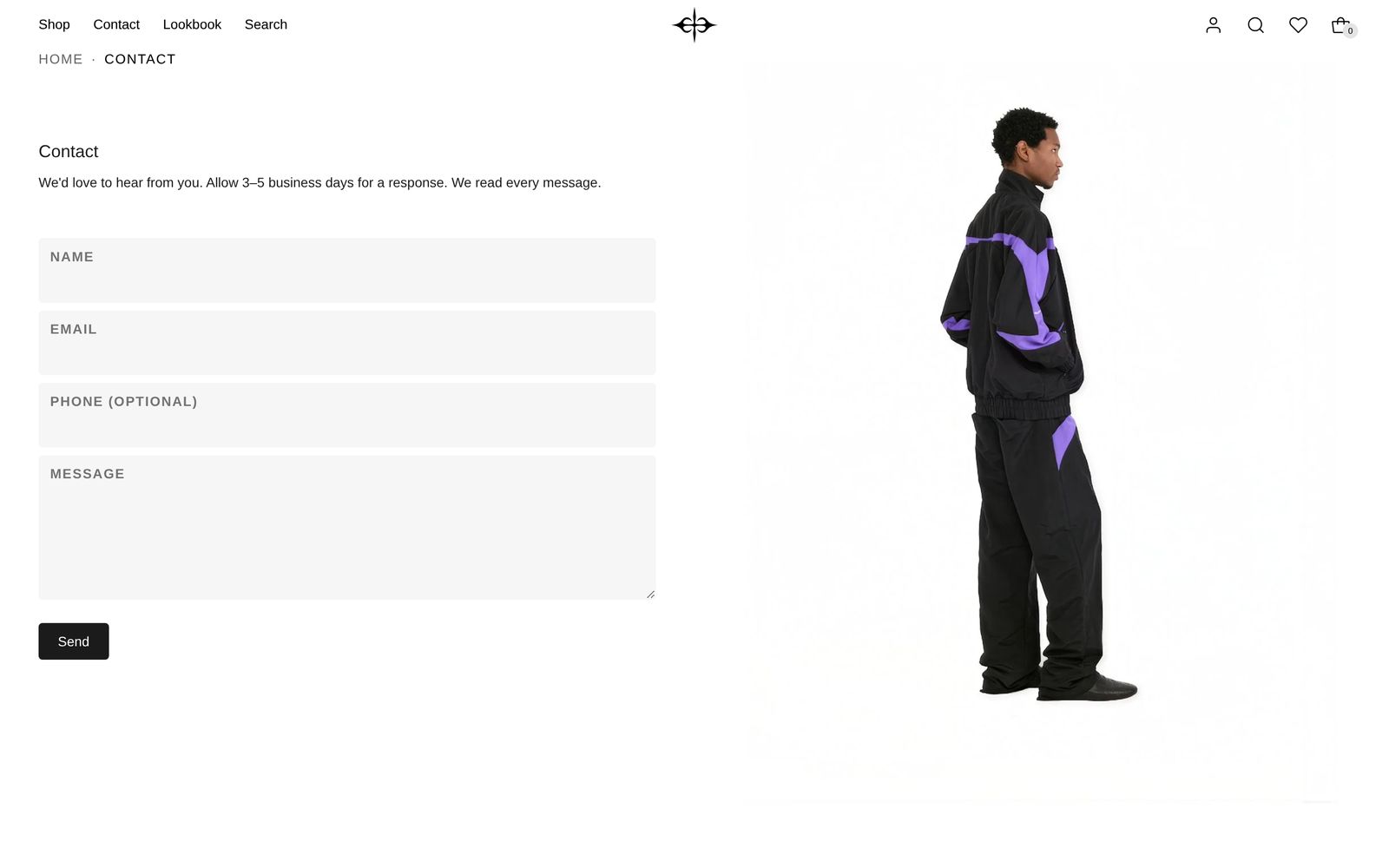
When shoppers see this page
Plain Jane gives you the page's design as a template called contact. Shoppers see it on any page in your store that uses that template.
- In your Shopify admin, add a page under your online store's pages. Call it "Contact", or whatever you like.
- Choose contact as its theme template, and save.
- Add the page to your menu so shoppers can find it.
The words you type into the page's content box in Shopify admin do not show on this page. Write them in the editor instead.
Edit it
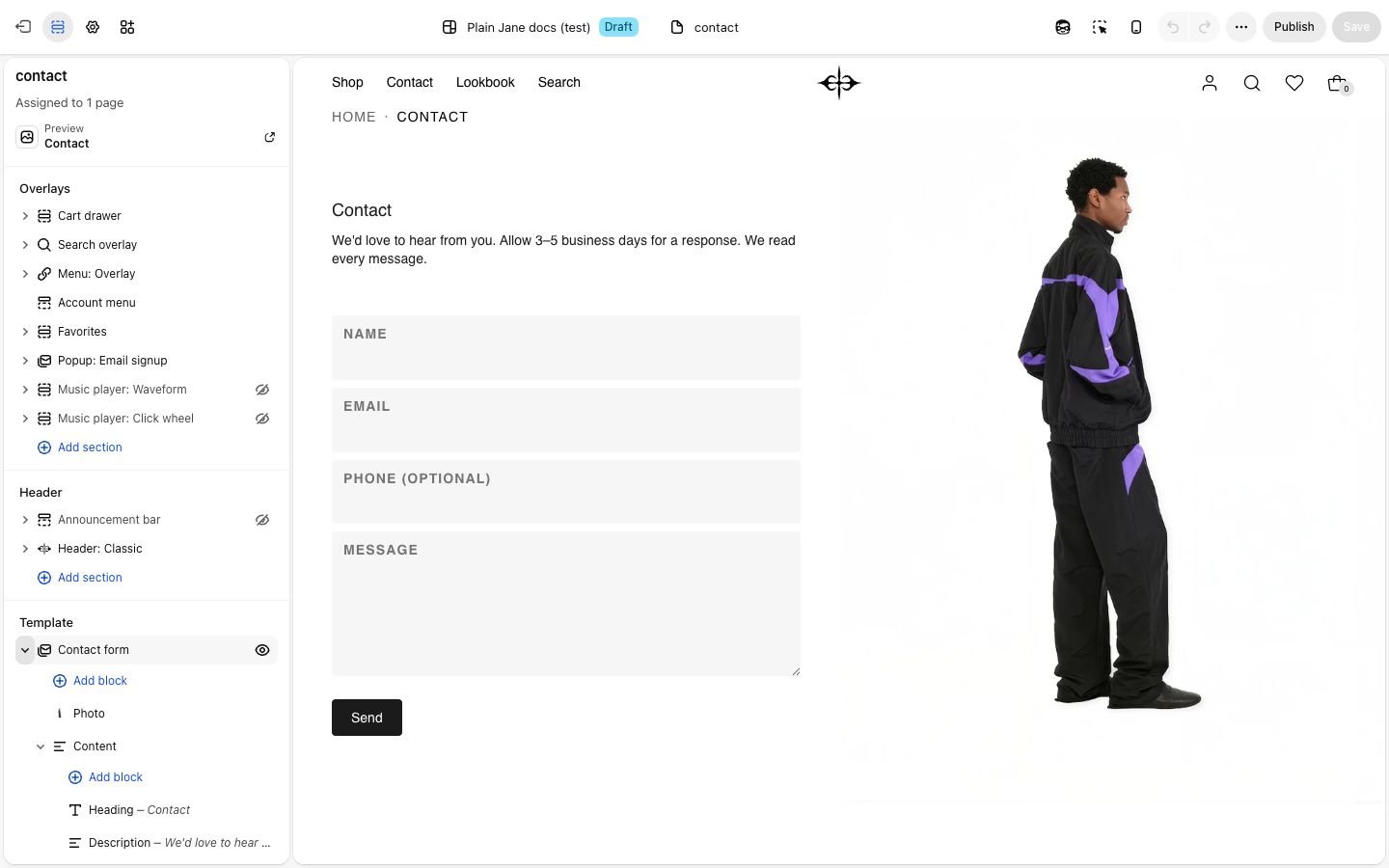
Open your contact page in the editor. The page has one section, Contact form. It is not in "Add section", because it is a whole page.
Settings
| Setting | What it changes | Options |
|---|---|---|
| Color scheme | The colors of the whole page, the form included. See shared settings. | Any of your schemes |
| Position | Which side the photos are on. | Left, Right (default) |
| Speed | How fast several photos move. See shared settings. | Slow, Medium, Fast. The page starts at Fast. |
| Space above, Space below | Empty space above and below the words. See shared settings. | The page starts at Medium. |
Blocks
Photo. Each Photo block is one photo. Until you pick one, a stand-in drawing shows, on the live store too.
- One photo fills its half of the page, as tall as the screen, cropped to fit. It stays put while the words scroll.
- Two or more show whole, one under the next, and rise in an endless loop. They do not pause when a shopper points at them.
- None: remove every Photo block and the form takes the full width.
Content holds the words: a Heading, a Description and the Form. You can add Small print, Text or any other block above or below the form, such as your address or opening hours. The Form has one setting, Field corners: None, Slight (default) or Round.
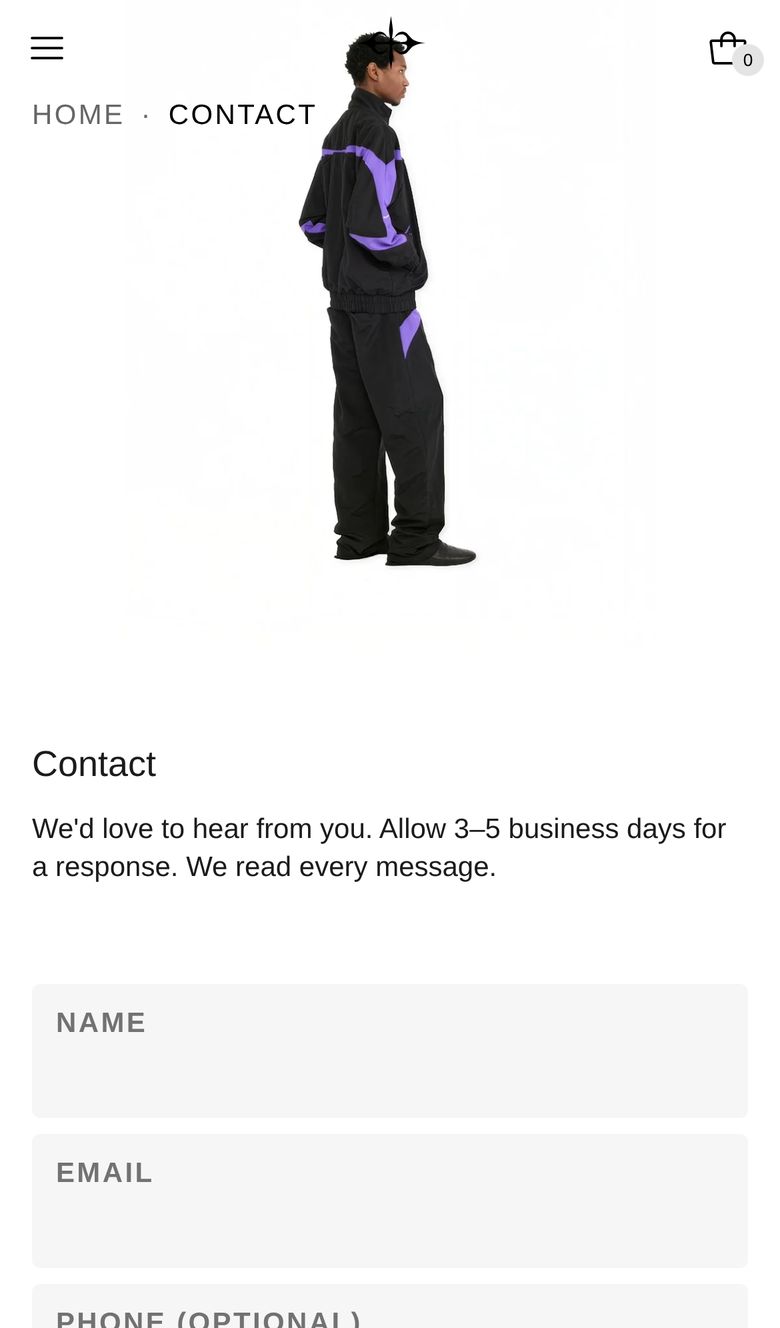
On phones
The photos sit above the form. One photo shows in a shape slightly wider than it is tall. Several run sideways in a row instead of rising.
Good to know
- After sending, the page reloads at the form and shows "Message sent" and "Thank you. We'll reply by email." If something is missing or the email is wrong, a message above the fields says so.
- Signed-in customers find their name, email and phone already filled in.
- Shoppers who turn on Reduce Motion on their device see several photos standing still, in a column they can scroll (a row to swipe on phones).