Editorial: Sticky text
A tall photo or video on one side, with words beside it that stay in view and travel down with it as the page scrolls.
A tall photo or video takes up one side of the row. On computers, the words beside it hold their place on screen while the photo scrolls past, so they stay readable the whole way down and stop when the photo ends. Choose it for a story that needs a few paragraphs, such as how something is made, next to one strong picture.
Add it
Add it to any page from Storytelling in "Add section". It cannot go in the header or footer.
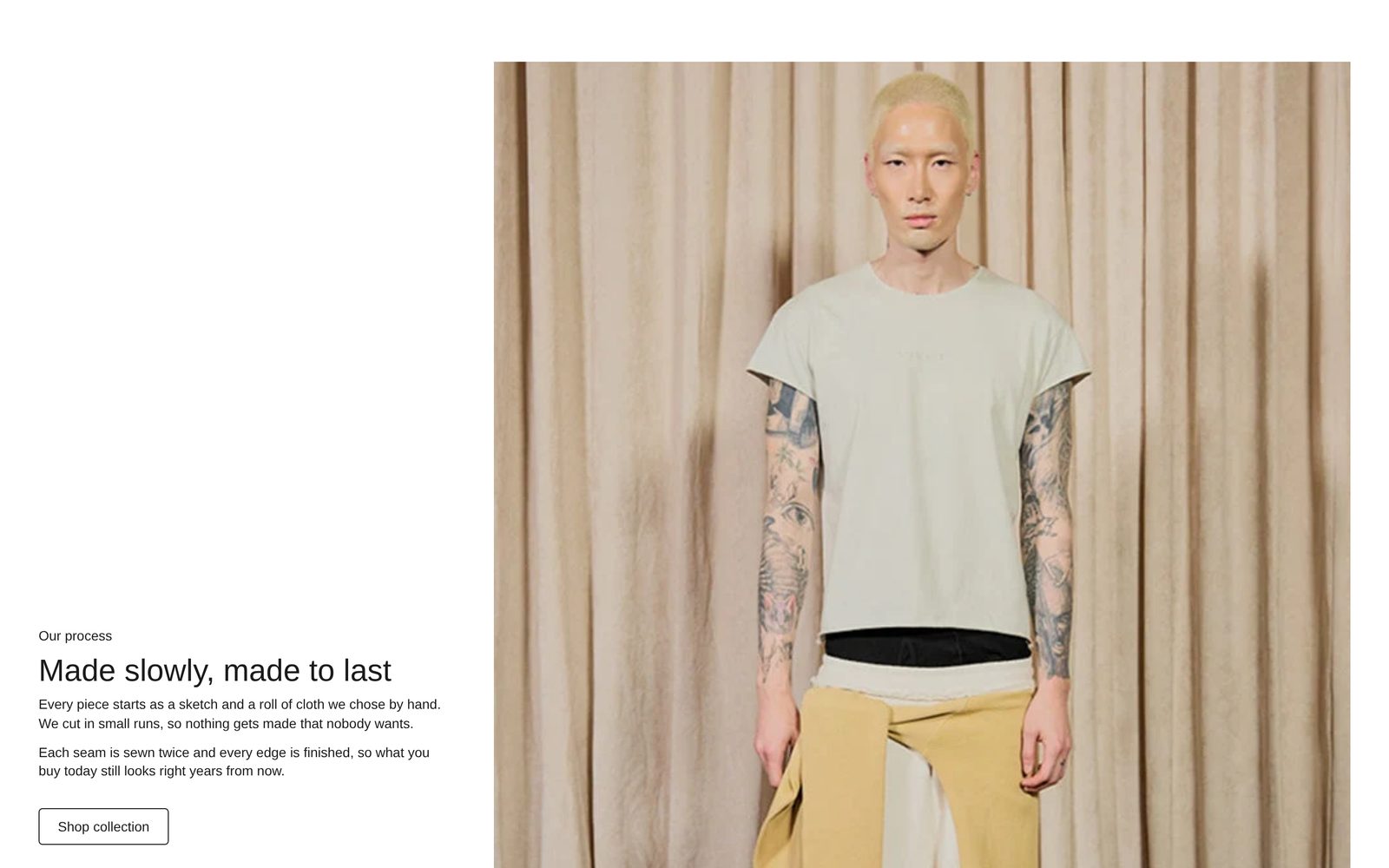
As first added the photo is on the right and takes two thirds of the row. The words on the left are a small heading ("Our process"), a heading ("Made slowly, made to last"), two paragraphs, and a "Shop collection" button linking to all your products. Until you choose a photo, a drawing of clothes stands in.
What you need
- One tall photo or video. The taller it is, the further the words travel beside it.
- A short story: a heading and one to three paragraphs.
Settings
Select the section itself to see these.
| Setting | What it changes | Options |
|---|---|---|
| Color scheme | Background, text and button. See shared settings. | Default: Scheme 1. |
| Photo width | Page width keeps the photo inside the page's side margin. Full width runs it to the screen edge on its side. The words always line up with your other sections. | Page width (default), Full width |
| Photo position | Which side the photo is on. | Left, Right (default) |
| Photo size | How much of the row the photo takes on computers. | Half, Two thirds (default) |
| Space above, Space below | See shared settings. | As added: Medium. |
Blocks
Two fixed blocks: Photo or video and Content. You cannot remove them.
Photo or video
| Setting | What it changes | Options |
|---|---|---|
| Media type | Whether to show a photo or a video. | Image (default), Video |
| Image | Appears with Image. | |
| Video | Appears with Video. It plays muted on a loop while it is on screen. There are no play or pause buttons. | |
| Shape | The photo's shape. Adapt to image keeps its own. Tall portrait (2:3) gives the words the furthest to travel. | Adapt to image, Tall portrait (default), Portrait (3:4), Square (1:1) |
| Corners | How round the photo's corners are. With Full width, the side that meets the screen edge stays square. | None (default), Slight, Round |
Content
The words beside the photo.
| Setting | What it changes | Options |
|---|---|---|
| Words stay at | Where the words hold on screen while the photo scrolls past. Top keeps them just under your header. Bottom keeps them near the foot of the screen; they first appear beside the top of the photo and travel down with it. | Top, Bottom (default) |
| Space between blocks | The gap between the blocks inside. | None, Small (default), Medium, Large, Extra large |
Inside, add Heading, Description, Text, Button, Small print or any other block. As added the small heading is a Text block, the paragraphs a Description, and a Spacer sits above the button.
On phones
The words sit above the photo, and nothing stays in place. With Photo width on Full width, the photo meets both screen edges and its corners are square.
Tips
- Keep the words shorter than the photo is tall. If the words are taller, they have nowhere to travel and simply scroll.
- Use Top for a long story, so the first lines are in view as soon as the section arrives. Bottom suits a short heading and a button.
- A video works best when it is calm and slow: it plays the whole time the section is on screen.
Good to know
- If no photo or video is chosen, shoppers see the drawing of clothes too.