Hero: Poster
One tall photo or video that scrolls past behind your words, which stay held in the middle of the screen.
A single photo or video, taller than the screen, fills the section. Your heading, text and button sit halfway down the screen and stay there while the visitor scrolls, so the picture slides past behind them like a poster being unrolled. When the picture ends, the words move on with it.
Choose it for a tall photo, such as a full-length portrait, that you want seen top to bottom. For a picture that fits on one screen, use Hero: Classic.
Add it
It can go on any page except the password page. In "Add section", find Hero: Poster under Hero. With no space above, the picture runs up under your header.
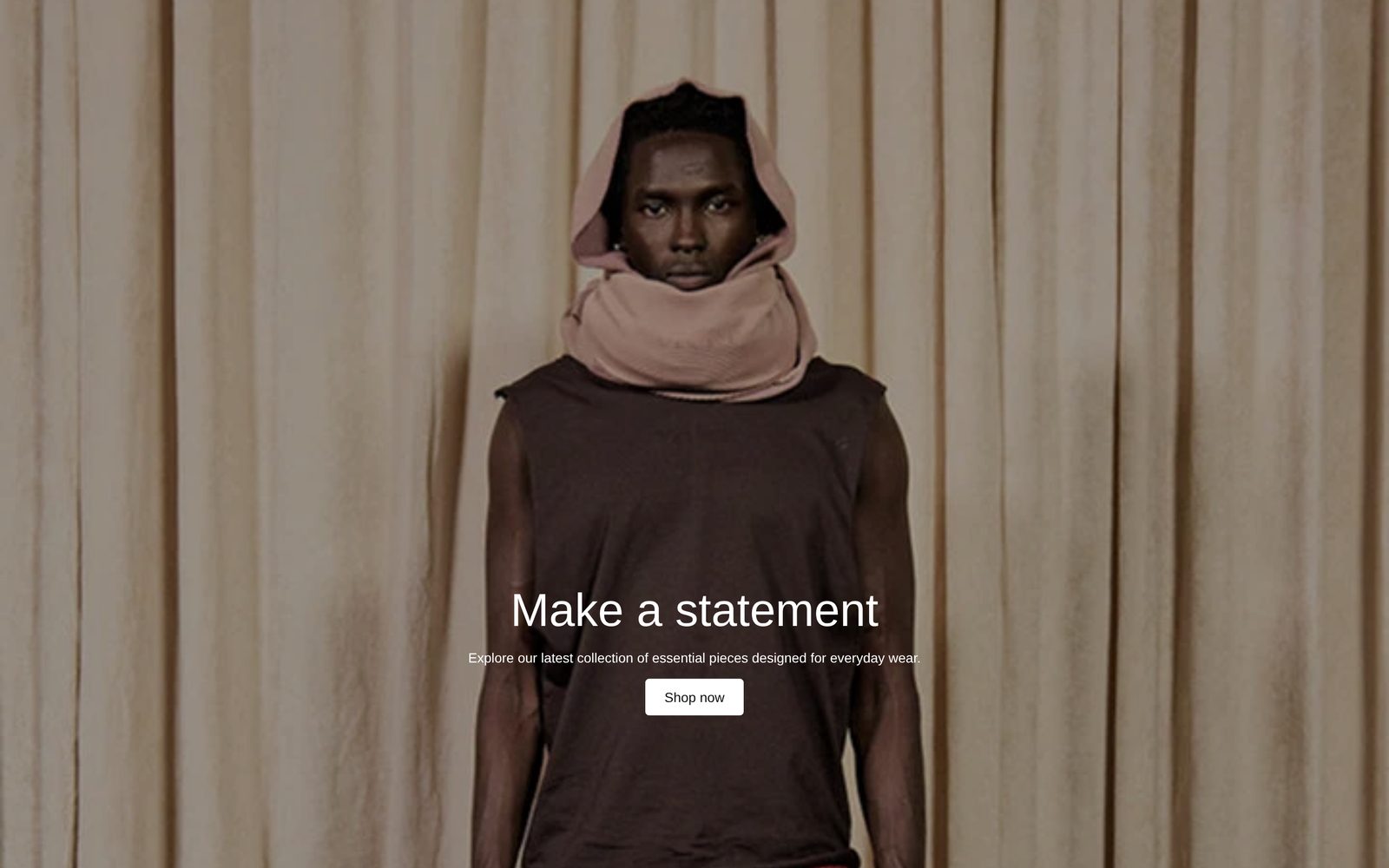
As first added it is one and a half screens tall with a stand-in picture, the heading "Make a statement" in the Heading 1 style, a line of text and a "Shop now" button leading to all your products, centered.
What you need
- One tall photo (portrait shape works best) or a video. A wide photo is cropped from the sides to fill the height.
- A calm area down the middle or one side of the photo, where your words will sit.
Settings
| Setting | What it changes | Options |
|---|---|---|
| Color scheme | The color of the words and buttons over the picture, and of the space above and below. See shared settings. | Default: Scheme 2. |
| Height | How tall the poster is: one screen, one and a half, or two. A taller poster keeps your words on screen longer while the picture scrolls past. These steps are not the same as Height in other sections. | Short, Medium, Tall. Default: Medium. |
| Space above and below | Space at the top and bottom of the section. One setting covers both ends, and there is no Custom option. With None, the picture runs up under your header. | None, Small, Medium, Large. Default: None. |
Media
| Setting | What it changes | Options |
|---|---|---|
| Type | Whether the poster is a photo or a video. | Image, Video. Default: Image. |
| Image | The photo. Only appears when Type is Image. | Any image. |
| Video | The video. It plays silently on a loop while on screen. Only appears when Type is Video. | Any video. |
Overlay
| Setting | What it changes | Options |
|---|---|---|
| Strength | Darkens the picture so your words stay readable. | None, Light, Medium, Dark. Default: Medium. |
| Overlay color | The color of the darkening. Only appears when Strength is not None. | Default: black. |
| Overlay style | Behind text darkens the side your words sit on, or a glow behind centered words. Whole photo darkens all of it. Only appears when Strength is not None. | Behind text, Whole photo. Default here: Whole photo. |
Layout
| Setting | What it changes | Options |
|---|---|---|
| Content position | Which side your words sit on. They are always held halfway down the screen, so there are only three places. | Center left, Center, Center right. Default: Center. |
| Space between items | The space between your blocks. | Small, Medium, Large. Default: Small. |
Blocks
You can add Plain Jane's general blocks, such as Text, Button, Image, Group and Giant text, plus Divider and app blocks. They stack in the middle of the screen. As added: a heading (a Text block), a Text block for the line under it and a Button.
On phones
The poster keeps its height, measured in screens, and the picture is cropped from the sides to fill it. Your words are still held halfway down the screen.
Tips
- Use Tall with a full-length photo: the visitor scrolls from head to toe while your words stay put.
- Keep it to a heading, a line and one button. Everything is held in one place, so a long stack can cover much of the picture.
- If your words sit to one side, set Overlay style to Behind text so only that side darkens.
Good to know
- A video pauses while a visitor uses the keyboard inside the section, or after they tap or click it. There is no pause button.
- Visitors who have asked their device to reduce motion see a video's first frame.
- If Type is Video and no video is chosen, the photo shows instead.
- In the "Add section" preview the poster is one screen tall.