Add music to your store
Put a small music player in the corner of every page, add your songs, and choose how it looks.
A music player sits in a bottom corner of every page. Shoppers press it to play your songs. Music never starts on its own.
Plain Jane has three players, in the Music players category of "Add section":
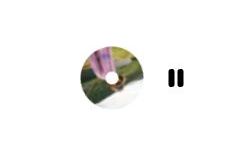
- Music player: Classic: a small spinning record with a play button.
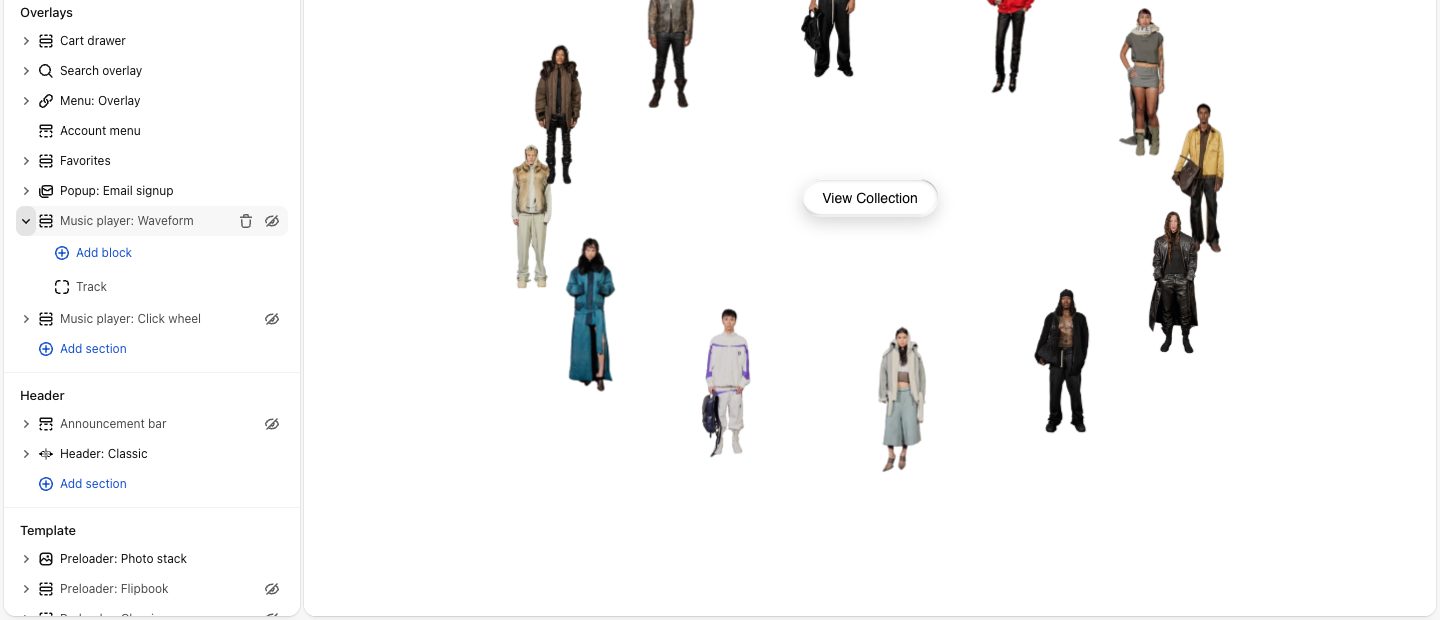
- Music player: Waveform: a line that ripples like a sound wave.
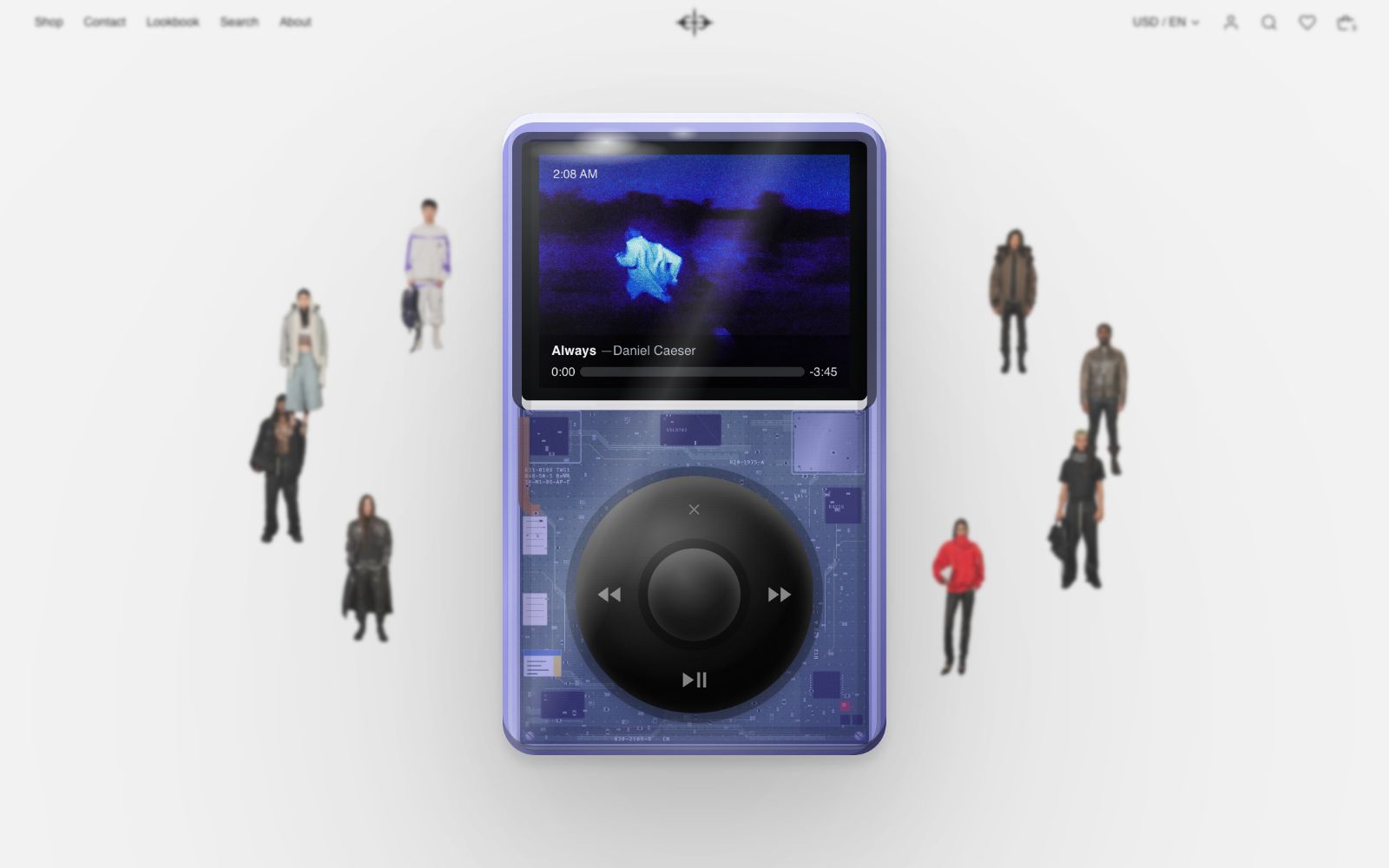
- Music player: Click wheel: a small see-through handheld player that opens up in the middle of the screen when pressed.
Before you start
Each song needs to be an MP3 file with its own web address. Have the song names and artists ready, and for the Click wheel, a square cover picture per song. Use music you have the rights to play in public.
Set it up
- Upload your songs. In the Shopify admin, go to Content, then Files, and upload your MP3 files. Copy each one's link.
- Find the player in the editor. Players sit in the Overlays group of the editor's sidebar, with the cart, search and menu. Plain Jane starts with Music player: Waveform there, with one empty track. You see the wave in the bottom-right corner of the preview, even before it has a song.
- Or switch players. To use Classic or Click wheel instead, add it to the Overlays group, then hide or remove the Waveform. While two are showing, the editor outlines the extra one and shows a note in the corner of the preview.
- Add your first song. Open the player's Track block. Paste a link from step 1 into Audio file URL, and replace Track name ("Store playlist") and Artist ("Played in our shop"). Press play in the preview to hear it.
- Add the rest. Add one Track block per song and drag them into playing order. A track with no audio file is skipped.
- Set how it looks. Select the player itself to change its colors (and the Click wheel's corner). Each change shows in the preview straight away.
- Save. Shoppers now see the player on every page. Until a track has an audio file, shoppers see no player at all.
Which player to pick
- Classic if you want a record with your artwork on it: one play button, and a disc that skips to the next song.
- Waveform for the quietest look: just a line, with no picture or box around it.
- Click wheel if you want shoppers to see what is playing: cover, song name, artist and time. It stays small in its corner until pressed.
Where it sits
Players stay in their corner as shoppers scroll. Classic and Waveform sit bottom right; the Click wheel goes bottom right or bottom left. If something else already holds the bottom-right corner, such as the Click wheel, Classic and Waveform move to the bottom left.
Use one player
Use one music player for the whole store. Each player shows on every page, so if two are in place, shoppers see and hear both.
On phones
To start, players show on computers and tablets only.
To show them on phones too, open Theme settings, then Experimental, and turn on Show music players on phones. Classic and Waveform get a little smaller there, and Classic puts its play button above the record.
On phones, the music stops each time a shopper opens a new page, and picks up at their next tap. To keep it playing between pages, also turn on Keep the page alive between links in the same group. Read what it changes first: apps may stop working after the first page, and analytics may count only the first page. See Experimental.

Why music never starts on its own
Browsers don't let a page play sound until the visitor has pressed or tapped something, and Plain Jane doesn't try. Music starts only when a shopper presses the player.
If music was playing when a shopper opens another page, the new page loads quietly, and their next click or tap anywhere carries the song on from where it was. A key press doesn't, so a keyboard or screen reader never starts sound by surprise. With Keep the page alive between links on, there is no gap: the music keeps playing.
The player remembers which song was cued, even on a later visit. Where in the song, and whether it was playing, lasts only for the visit, so nobody comes back days later to music they didn't ask for. If a video with sound starts on the page, the player pauses.
Player notes
Music player: Classic
The play button plays and pauses; clicking the record skips to the next song. After the last song it starts again from the first.
- Disc image: the picture on the record. Square pictures work best, since the corners are cut to a circle. With none, shoppers see a plain tinted record. To show only the play button, hide the Disc block.
- Contrast with the page behind (on to start): the play button turns light over dark parts of the page and dark over light ones. Turn it off to pick a Play button color; left empty, it matches your text.
Music player: Waveform
Shoppers click the wave to play or pause and double-click it to skip. Keyboard users get a next button when they reach it. Playing, the wave rises and moves faster. If a shopper's device is set to reduce motion, the wave stands still and only grows taller while playing. Songs loop, as on Classic.
- Contrast with the page behind (on to start): the wave turns light over dark parts of the page and dark over light ones. Turn it off to pick a Wave color, which colors the song name too.
- Show song name on hover (off to start): the song name appears above the wave when shoppers point at it.
Music player: Click wheel
A press brings the device to the middle of the screen and makes it larger, with the cover, song name, artist and time on its screen. The wheel has previous, play and next buttons, and shoppers drag along the bar to move through a song. A press outside it, Escape or the × at the top of the wheel sends it back.
- Corner: Bottom right (default) or Bottom left.
- Body color and Wheel color: the case is see-through, tinted by the body color, with a circuit board showing through. The marks on the wheel turn dark on a pale wheel and pale on a dark one.
- Play the next track automatically (on to start): turn it off to stop after each song.
- Click sound on the wheel (on to start): a short tick when a wheel button is pressed.
- Cover art, on each Track: the picture on the screen for that song.