Stockists page
A list of the shops that carry your brand, one country at a time, beside a photo.
The stockists page lists the shops that sell your products, grouped by country and city. Each shop shows its name, address, phone number, opening hours and a Directions link that opens the address in Google Maps. A photo fills the other half of the page. With more than one country, shoppers pick theirs from a dropdown.
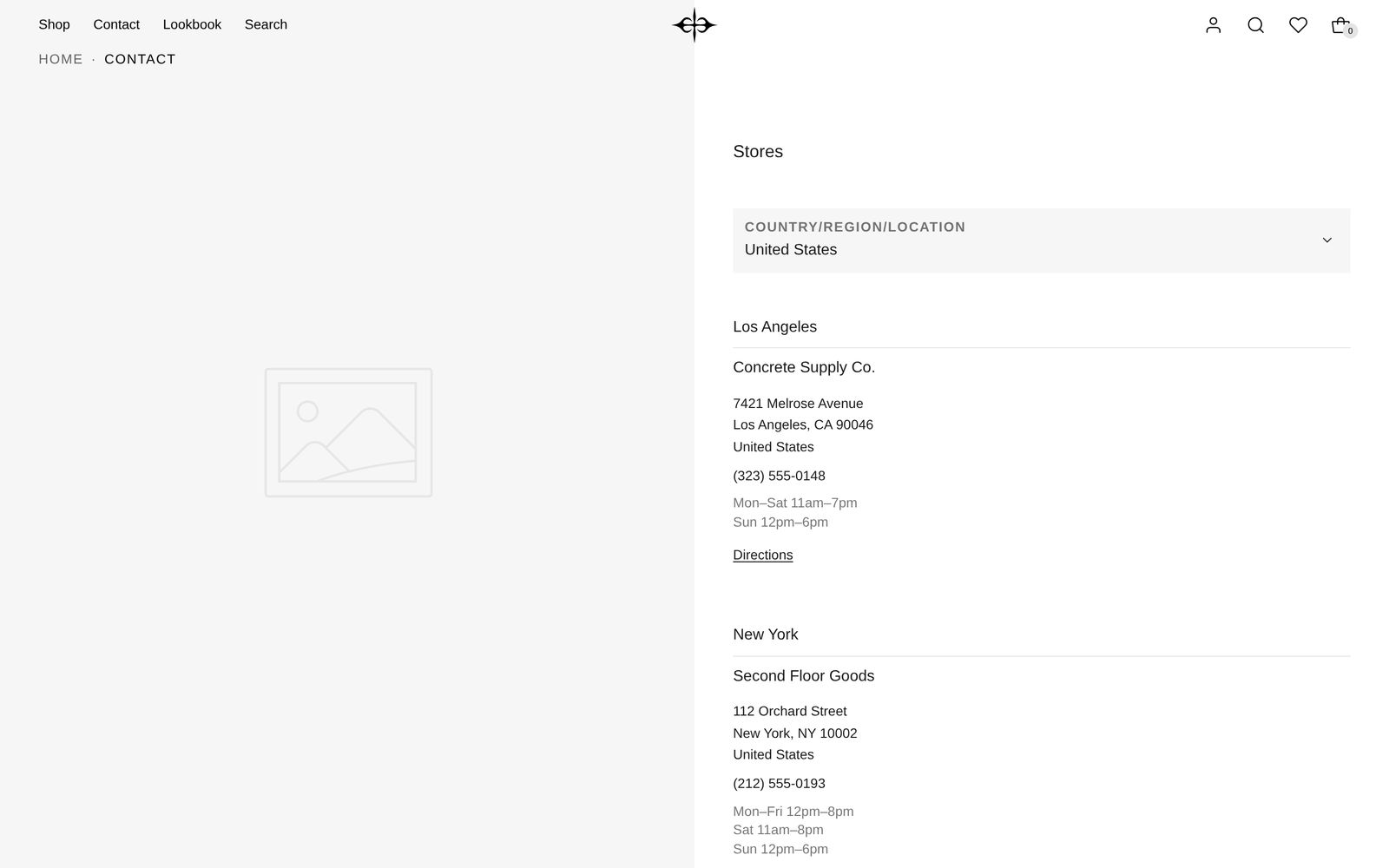
When shoppers see this page
Plain Jane gives you the page's design as a template called stockists. Shoppers see it on any page in your store that uses that template.
- In your Shopify admin, add a page under your online store's pages. Call it "Stockists" or "Stores".
- Choose stockists as its theme template, and save.
- Add the page to your menu so shoppers can find it.
The words you type into the page's content box in Shopify admin do not show on this page.
Edit it
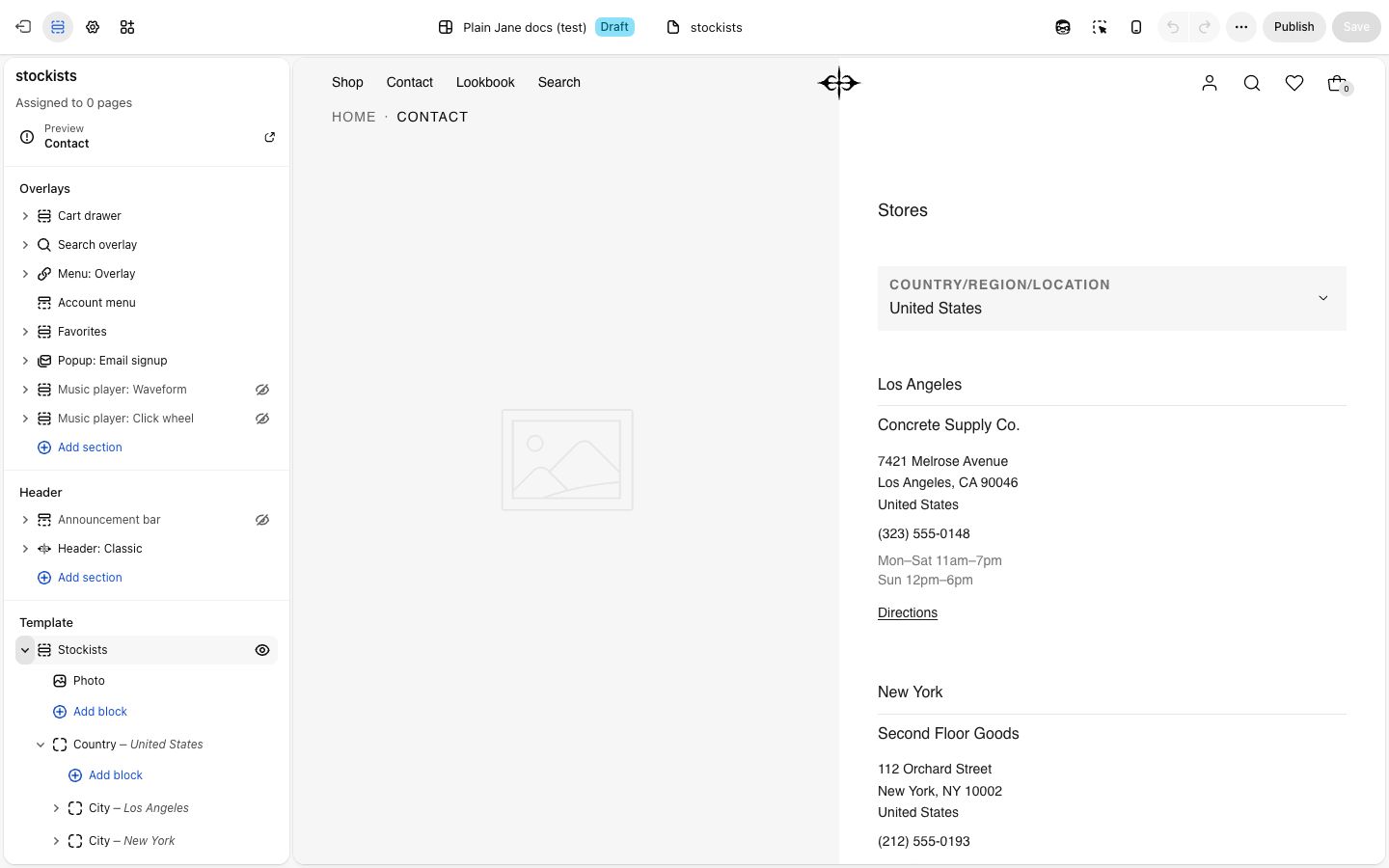
Open your stockists page in the editor. The page has one section, Stockists. It is not in "Add section", because it is a whole page. It starts with sample shops in the United States, the United Kingdom and Japan: replace them with your own.
Settings
| Setting | What it changes | Options |
|---|---|---|
| Color scheme | The colors of the page. See shared settings. | Any of your schemes |
| Heading | The title above the list. Empty shows no title. | Default: "Stores" |
| Space above, Space below | See shared settings. | The page starts at Medium. |
Blocks
The list is built from three blocks, one inside the next: Country, then City, then Store.
| Block | Setting | What it changes |
|---|---|---|
| Country | Country or region | Its name in the dropdown. Shoppers see one country at a time. |
| City | City | A heading over that city's shops. |
| Store | Store name | The shop's name. |
| Link | Where the name leads, such as the shop's website. Empty leaves the name as plain text. | |
| Address | The address, each part on its own line. Shoppers get a Directions link that opens it in Google Maps. | |
| Phone number | Shoppers on phones can tap it to call. | |
| Hours | Opening hours. Put each day, or group of days, on its own line. |
Leave any of a shop's lines empty and it does not show.
Photo is always there. Pick a picture in Photo and choose its side with Position (the page starts with Left). Until you pick a picture, a stand-in drawing shows, on the live store too. To show only the list, hide the Photo block.
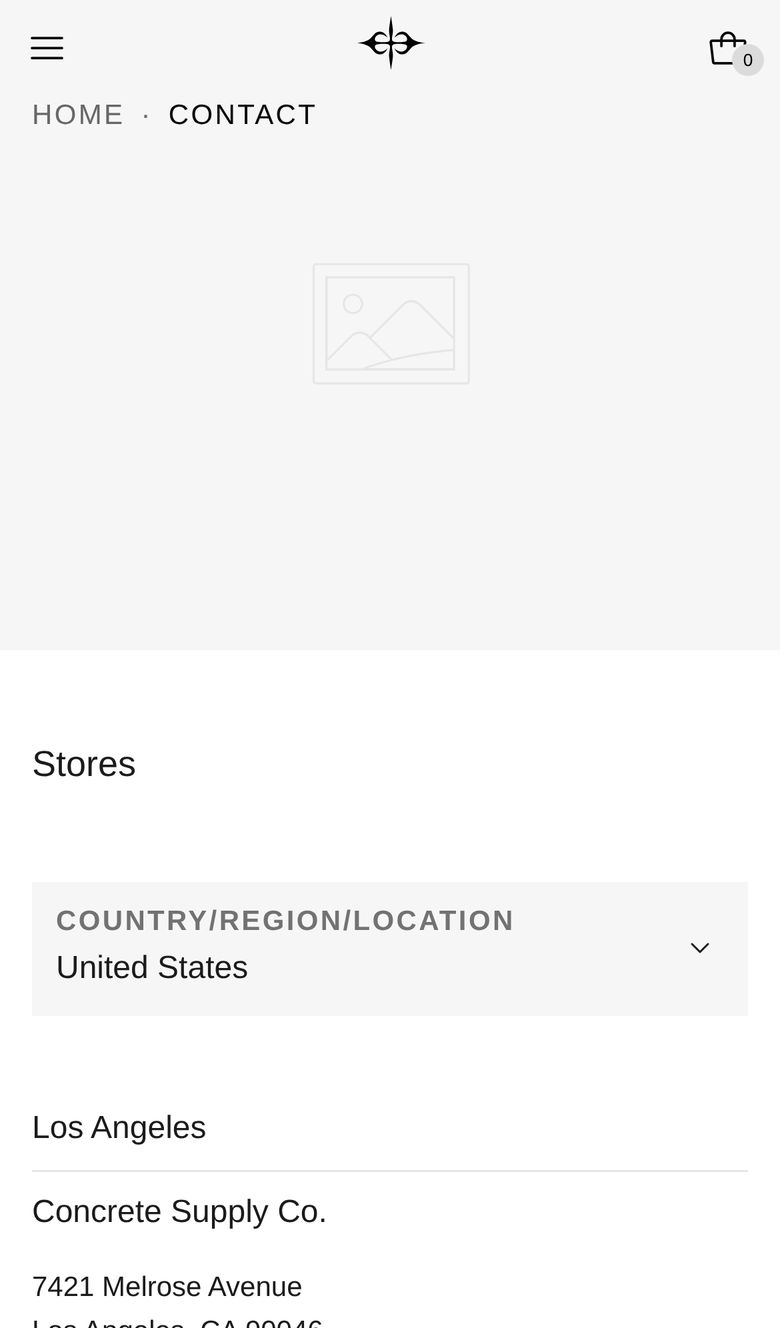
On phones
The photo sits above the list instead of beside it.
Tips
- Write each country's name in full, as it appears in your store's list of countries ("United Kingdom", not "UK"). When it matches a country your store sells to, shoppers from there see their own country first.
- Online-only shops: add a country called Online and put the shops straight in it, without a City.
- Share a link to one country. Choosing a country from the dropdown adds it to the page's address, such as
?location=japan. Copy that address to send people straight to it.
Good to know
- With one country, there is no dropdown: its shops show straight away.
- Without a match for the shopper's country, the list opens on the first country. Drag the Country blocks to change which that is.