Set up size guides
Write a size guide once in the Shopify admin, pick it on every product it fits, and shoppers get a full-page guide they can buy from.
A size guide slides in from the side of the product page when shoppers tap the Size guide link beside the size options. Shoppers see a line drawing of the garment with their size's numbers on it, that size's measurements, how the item fits, and the size buttons with Add to cart, so they can pick a size and buy without closing it. Compare all sizes opens the whole table, with their size shaded. Pointing at a measurement, such as Waist, lights up where it is taken on the drawing.
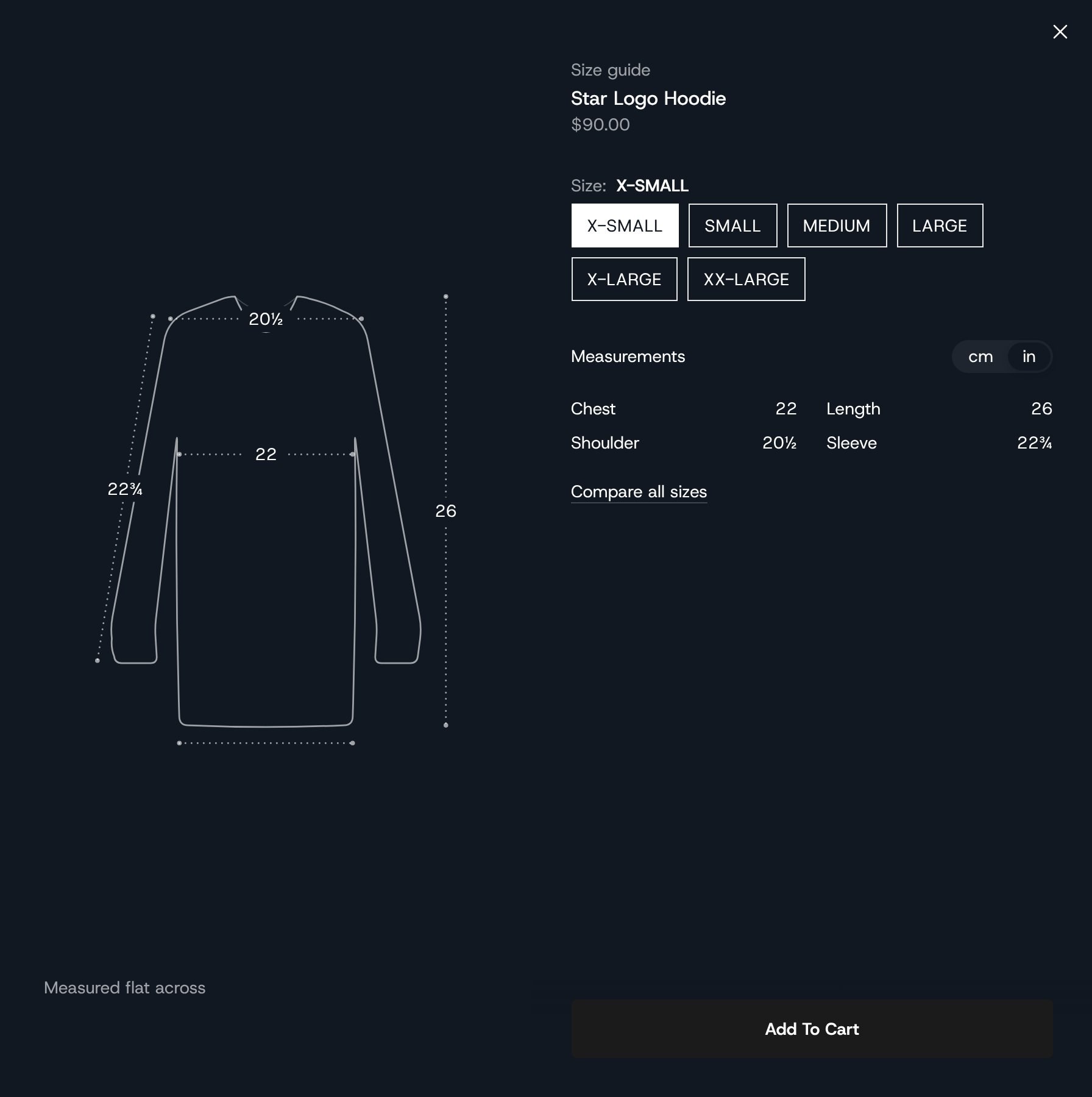
You write each guide once and reuse it. One guide called "Wide leg denim" can serve every pair of jeans cut the same way.
Setting it up takes four steps in the Shopify admin. You do the first two only once.
1. Create the Size guide type
This tells Shopify what a size guide holds.
In the Shopify admin, go to Settings, then Metafields and metaobjects. Next to Metaobjects, click Add definition.
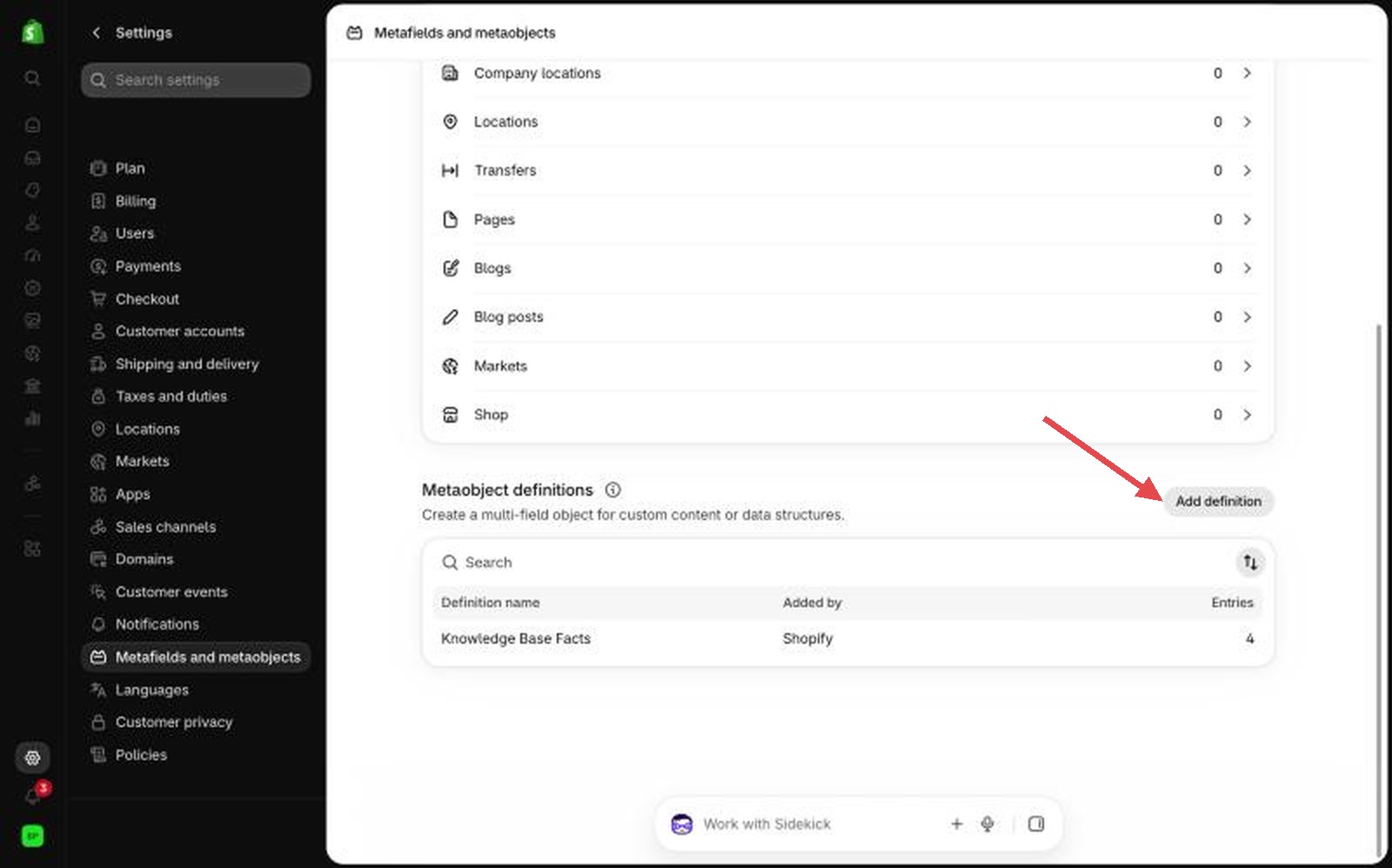
Settings, then Metafields and metaobjects Name it Size guide. Check that its type, shown under the name, is
size_guide.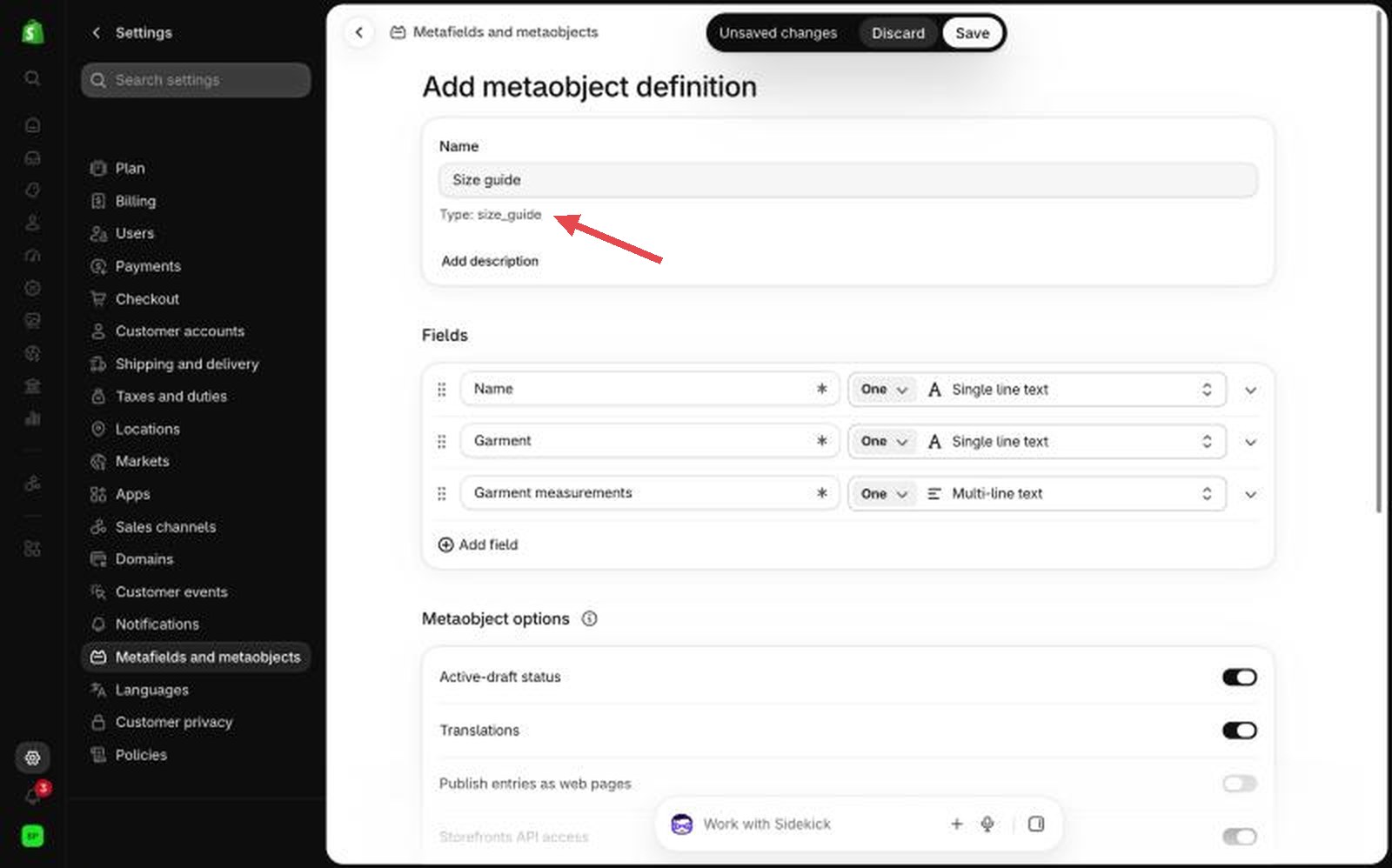
The type has to be size_guide Add the fields below. To start, you only need Name, Garment and Garment measurements; you can add the rest any time. The key in the second column has to match exactly, or the theme won't find the field. Shopify makes a key from the name you type, so check it before you save the field.
| Field name | Key | Type | Notes |
|---|---|---|---|
| Name | name |
Single line text, required | Only you see it. Use it to tell guides apart, for example "Regular fit tees". |
| Garment | garment |
Single line text | Picks the drawing. Type a garment from "Garments with drawings" below, spelled the same way, or add those names as choices so you can pick from a list. Leave it empty for no drawing; the guide is then a narrower panel with just the measurements. |
| Drawing | drawing |
File (images) | Optional. Your own picture in place of the built-in drawing. It doesn't light up. |
| Unit | unit |
Single line text, with choices: Centimeters, Inches | The unit you type the measurements in. Empty means centimeters. |
| Measured | measured |
Single line text, with choices: Flat across, All the way around | Shown under the drawing. Empty means flat across. |
| Garment measurements | garment_measurements |
Multi-line text | The garment's own measurements. See "How to type a table" below. |
| Body measurements | body_measurements |
Multi-line text | Optional. The body each size fits. |
| Size conversion | size_conversion |
Multi-line text | Optional. Each size in other countries' sizing. |
| Fit | fit |
Single line text, with choices: Runs small, True to size, Runs large | Optional. Shown as a three-step scale. |
| Fit note | fit_note |
Multi-line text | Optional. For example "Relaxed through the thigh. Between sizes? Size up." |
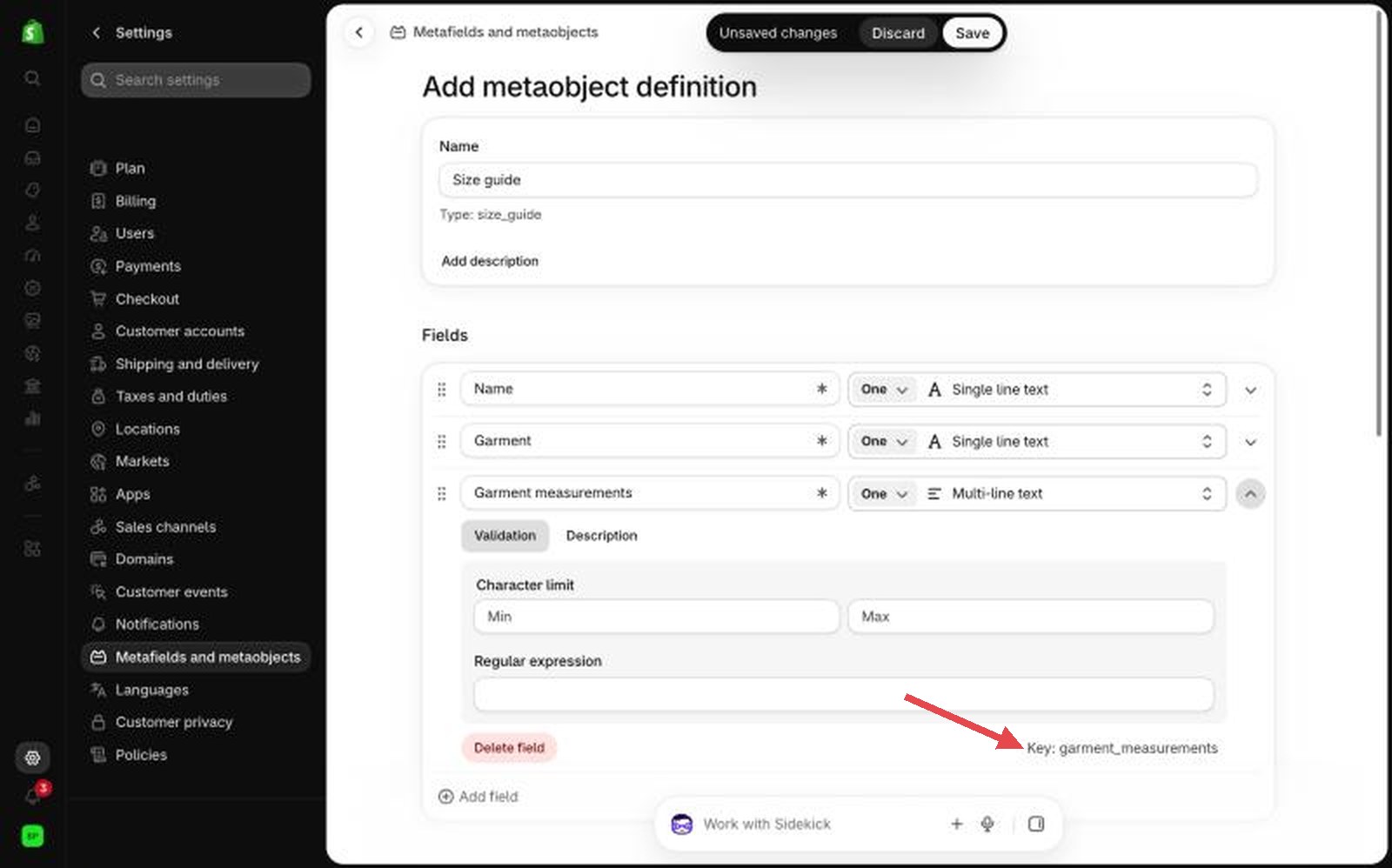
Check that Storefronts access is on. Shopify turns it on for a new definition. Without it, your store can't show the guide, and the link stays hidden.
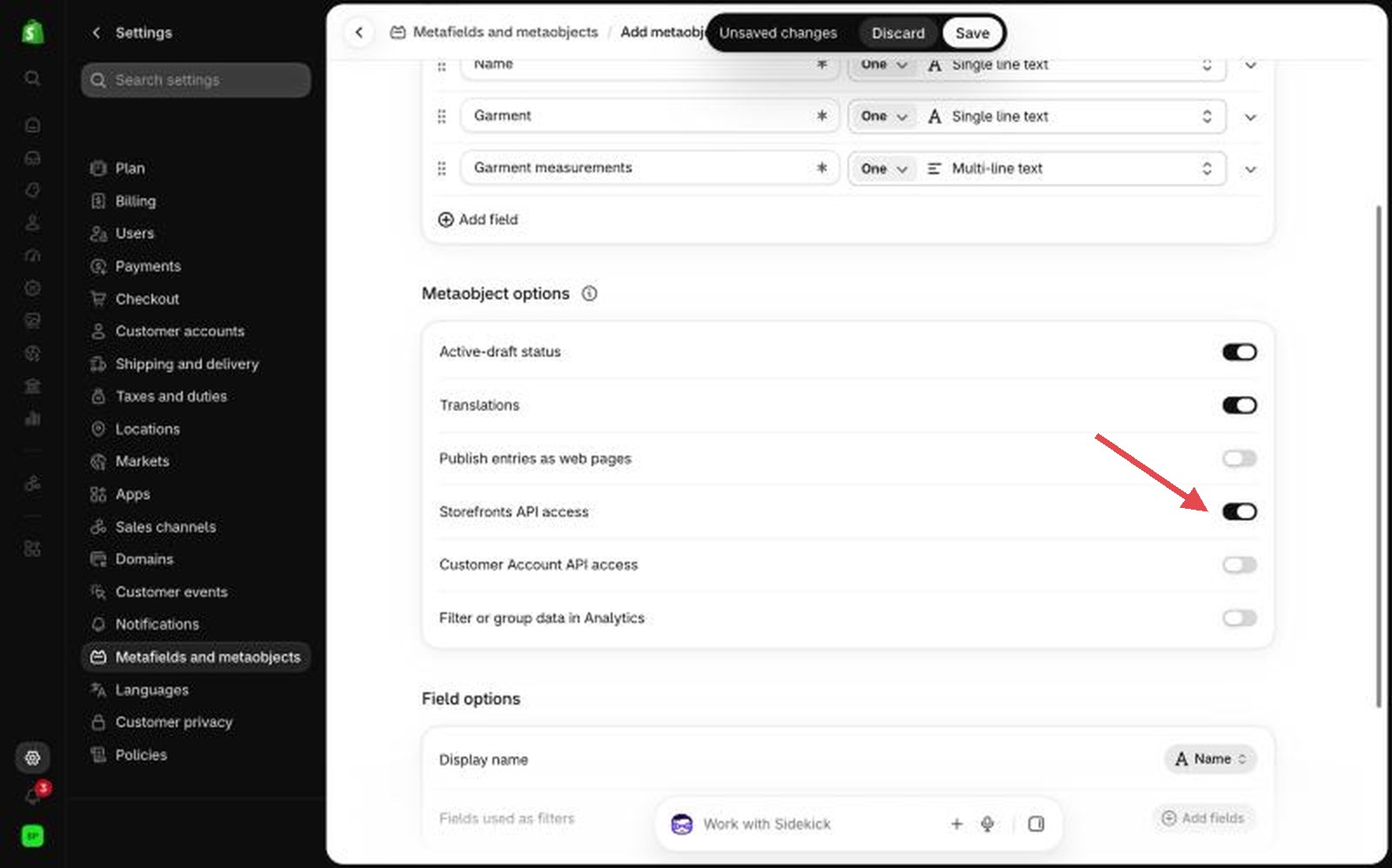
Storefronts access, on Save.
2. Let products pick a guide
Go back to Metafields and metaobjects, open Products and click Add definition.
Name it Size guide, with the namespace and key
custom.size_guide.For its type, choose Metaobject, and pick Size guide.
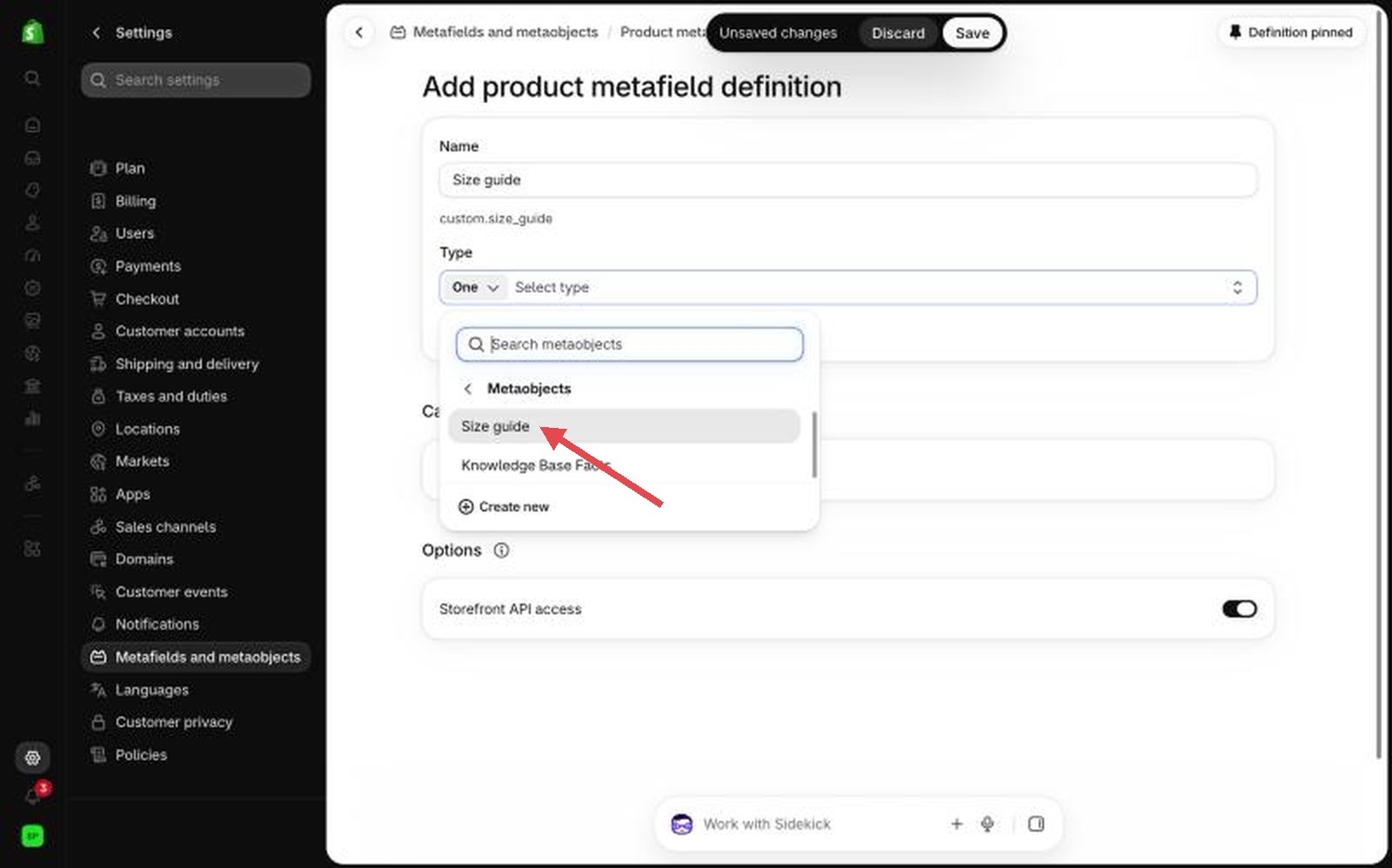
Its type is the Size guide metaobject Save.
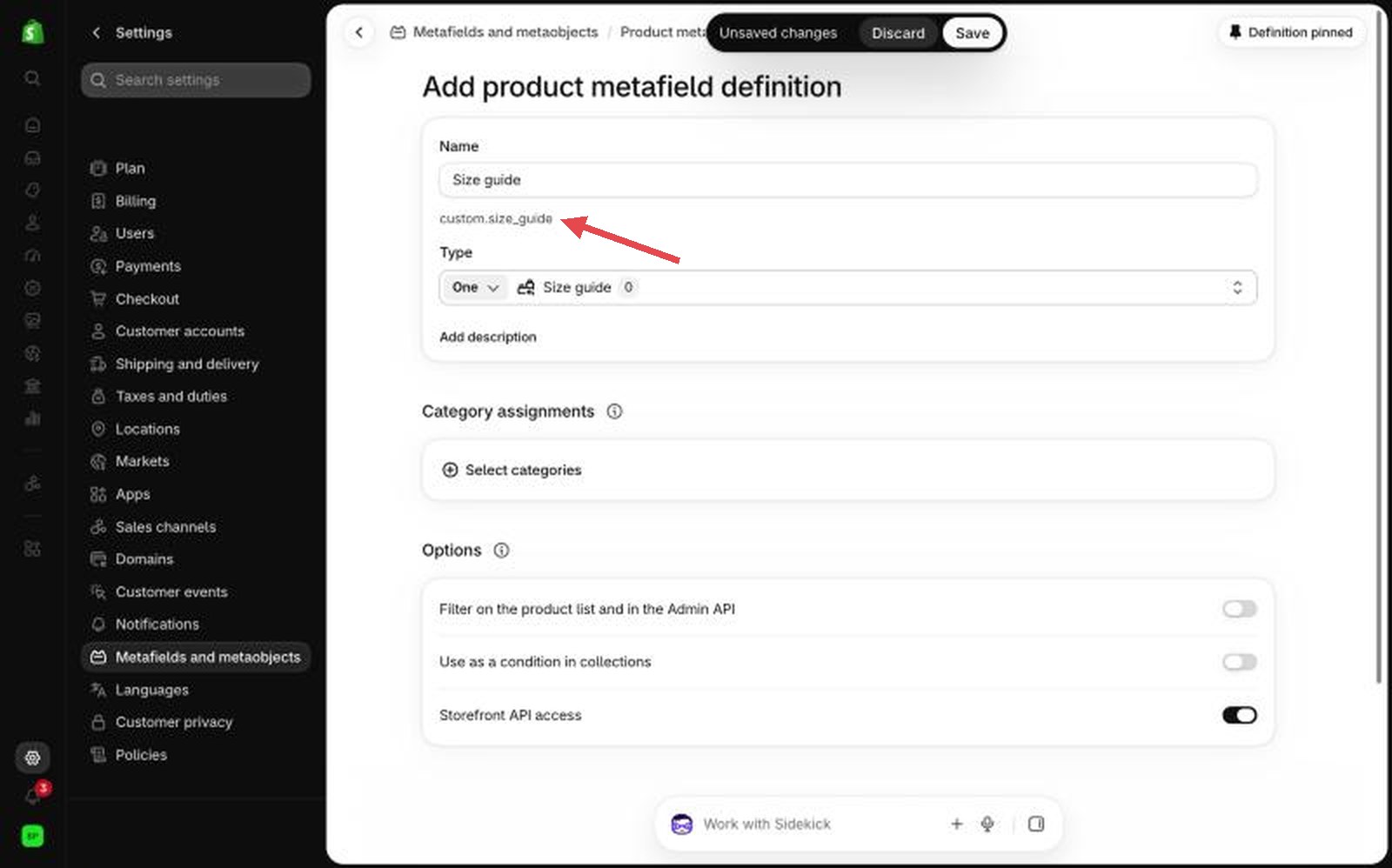
The finished product field
If one product fits differently from the rest of its guide, you can also add custom.fit and custom.fit_note to products, with the same types as the Fit and Fit note fields above. A product's own fit wins over its guide's.
If a product has a model picked (see Show who's wearing it), the guide shows their photo, height and size worn under the fit too.
3. Write a guide
- Go to Content, then Metaobjects, open Size guide and add an entry.
- Give it a name, choose the garment, and type or paste the tables.
- Save.
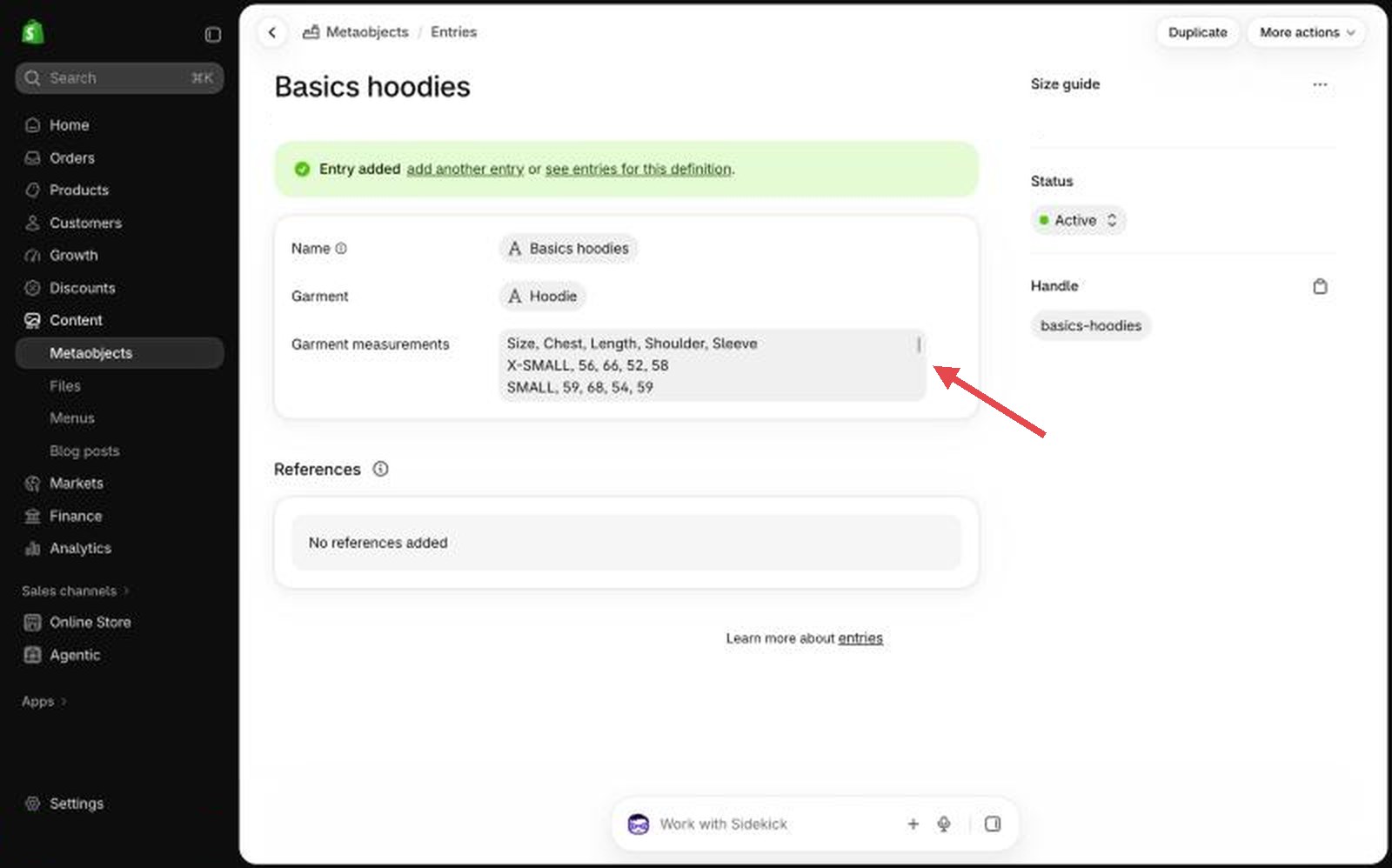
How to type a table
The first line holds the column names. Then one line per size. The first column is always the size.
Size, Waist, Hip, Rise, Inseam
XS, 34, 46, 28, 79
S, 36.5, 48.5, 28.5, 80
M, 39, 51, 29, 81
- Separate the values with commas, or paste straight from a spreadsheet: copy the cells, including the header row, and paste them into the field. The tabs a spreadsheet copies work as separators too, and then you can also write decimals with a comma (71,5).
- Each size has to be spelled the way your product's options spell it. "S" matches a product option called S, not "Small". Capitals and spaces don't matter.
- For two options at once, such as size and length, join them with a slash:
XS / Petite. A size without a length part applies to every length. - Values can be numbers (71 or 71.5), ranges (71-73, or 71 to 73) and fractions (28 1/2, or 28½). They switch between centimeters and inches when the shopper presses the switch. Anything else, like "One size", is shown as you typed it.
- Name the columns in plain words. Waist, Hip, Rise, Thigh, Knee, Leg opening, Inseam, Outseam, Chest, Bust, Shoulder, Sleeve, Length, Hem and Neck light up a line on the drawing. Other columns still show, they just don't light up.
- Lines that start with
#are ignored, so you can leave yourself notes. - The size conversion table is never converted. Its values are labels, like EU 36.
Starter tables
Copy one and change the numbers. These are garment measurements in centimeters, measured flat across.
Tops (T-shirt, Shirt, Knit, Jacket):
Size, Chest, Length, Shoulder, Sleeve, Hem
XS, 48, 66, 42, 20, 47
S, 51, 68, 44, 21, 50
M, 54, 70, 46, 22, 53
L, 57, 72, 48, 23, 56
XL, 60, 74, 50, 24, 59
Bottoms (Jeans, Trousers):
Size, Waist, Hip, Rise, Thigh, Knee, Leg opening, Inseam
XS, 34, 46, 28, 28, 21.5, 23, 79
S, 36.5, 48.5, 28.5, 29, 22, 23.5, 80
M, 39, 51, 29, 30, 23, 24, 81
L, 41.5, 53.5, 29.5, 31, 24, 24.5, 82
XL, 44, 56, 30, 32, 25, 25, 82
Dresses and skirts:
Size, Bust, Waist, Hip, Length, Hem
XS, 41, 33, 46, 105, 120
S, 43.5, 35.5, 48.5, 106, 123
M, 46, 38, 51, 107, 126
L, 48.5, 40.5, 53.5, 108, 129
XL, 51, 43, 56, 109, 132
A skirt has no bust: leave that column out.
Body measurements, all the way around:
Size, Bust, Waist, Hip
XS, 80-82, 62-64, 88-90
S, 84-86, 66-68, 92-94
M, 88-90, 70-72, 96-98
L, 93-96, 75-78, 101-104
XL, 98-101, 80-83, 106-109
Size conversion:
Size, EU, UK, US, FR, IT, JP
XS, 34, 6, 2, 34, 38, 5
S, 36, 8, 4, 36, 40, 7
M, 38, 10, 6, 38, 42, 9
L, 40, 12, 8, 40, 44, 11
XL, 42, 14, 10, 42, 46, 13
4. Pick the guide on your products
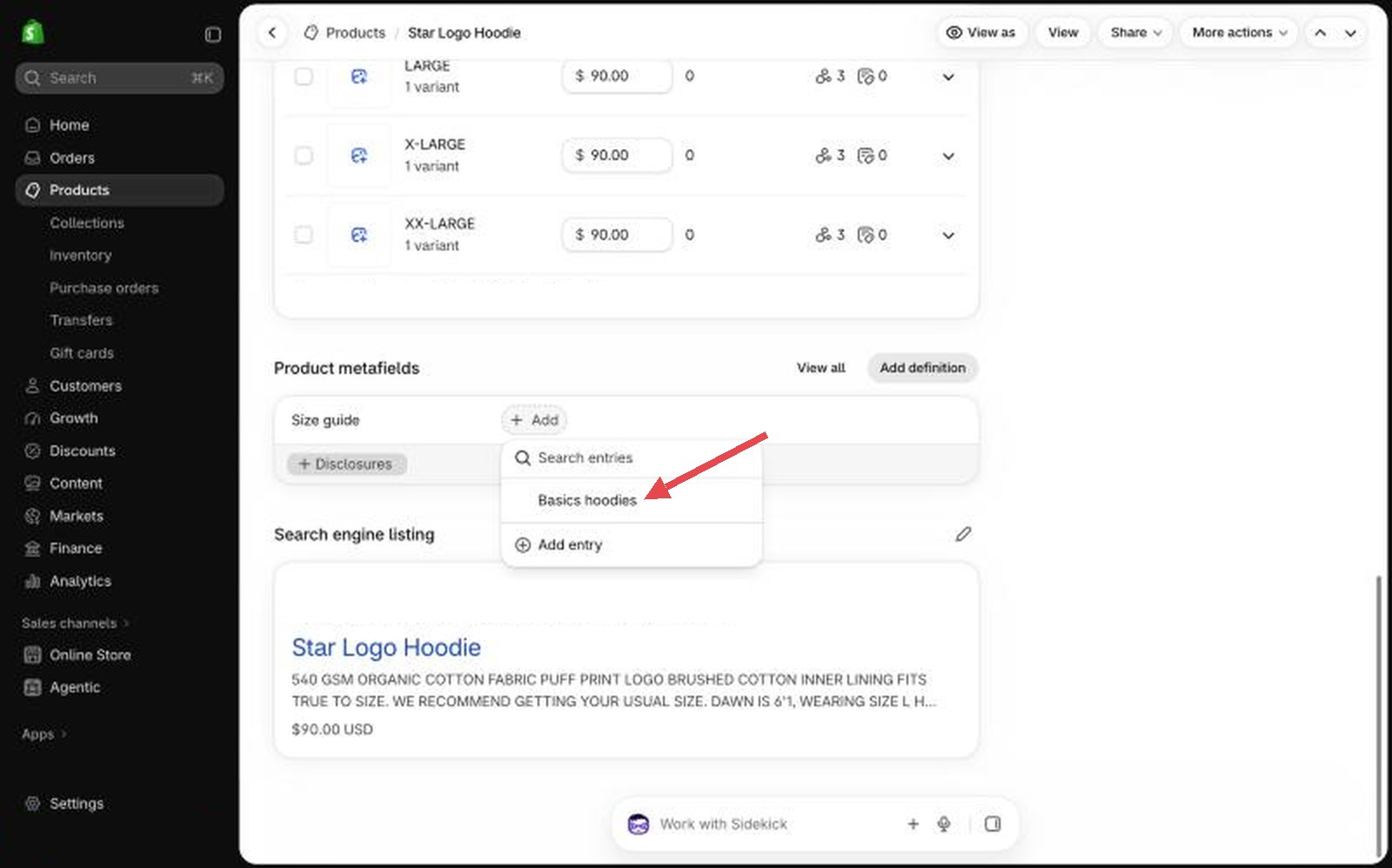
Open a product in the admin, find Size guide among its metafields, and choose the guide. Save.
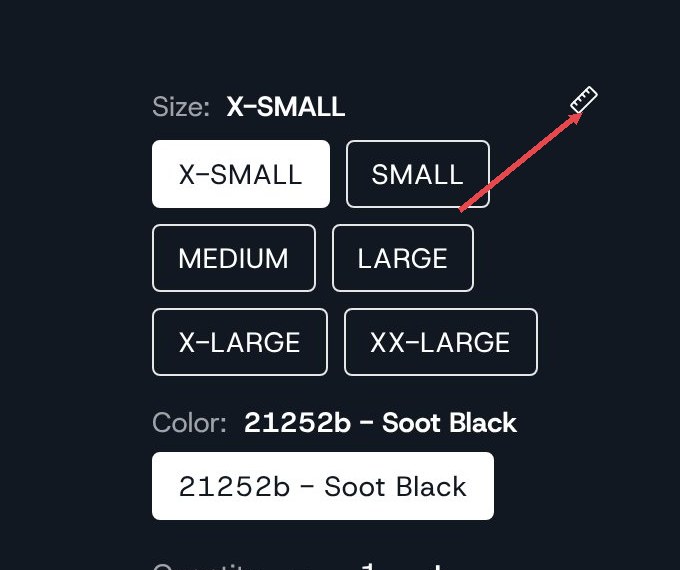
The Size guide link now shows beside the product's first option. Where the row is narrow, it shows as a small ruler.
Check it in the editor
Open a product with a guide in the editor and click the Size guide link, or select Size guide under Variants in the left panel: the guide opens in the preview.
While you're in the editor, the guide lists anything it can't use, in plain words, above the measurements: a line with too few or too many values, a size that isn't one of the product's options, a column the drawing has no line for. A tab with something to fix has a dot on it. Shoppers never see these.
A product with no guide shows a note where the link would be, in the editor only.
Settings
The link is part of the variant picker. Select Variants in a product page section to see these.
| Setting | What it changes | Options |
|---|---|---|
| Show size guide link | Shows the link on the right of the first option's name, on products that have a guide. Products without one show nothing. | On or off. Default: on. |
Select Size guide, under Variants, for the link itself.
| Setting | What it changes | Options |
|---|---|---|
| Link text | The words of the link. Leave it empty to use "Size guide", translated into each of your store's languages. | Any text. Default: empty. |
| Show ruler icon | A small ruler before the words. On a narrow row the words drop out and the ruler stays. | On or off. Default: on. |
The guide itself is set up once for the whole store, in Theme settings, under Size guide.
| Setting | What it changes | Options |
|---|---|---|
| Color scheme | The background, text and line colors of the guide. The highlighted line and row use the scheme's primary color. | Any of your schemes. Default: Scheme 1. |
| Units shown first | Which unit shoppers see when they first open a guide. With Shopper's country, shoppers in the United States see inches and everyone else centimeters. When a shopper switches, their choice is remembered from product to product. | Shopper's country, Centimeters, Inches. Default: Shopper's country. |
| Shoppers can pick a size and add to cart in the guide | Shows the size buttons and Add to cart beside the measurements. Turn it off for a guide that only shows measurements; it then opens on the whole table. | On or off. Default: on. |
On phones
The guide slides up from the bottom of the screen. The drawing sits at the top, the measurements scroll under it, and Add to cart stays at the bottom. The back button closes the guide. Shoppers tap a measurement or a line on the drawing to light it up; the how-to line under the drawing is left out to save room.
Tips
- Measure every size the same way, and choose Measured to match, so shoppers know what the numbers mean.
- Body measurements answer a different question ("which size fits me?") from garment measurements ("how big is this piece?"). Add both when you have them.
- Keep one guide per cut, not per product. When a cut changes, you update one guide and every product follows.
Good to know
- The size buttons in the guide are the product's own. A size sold out in the chosen color is struck through, the same as on the page, and picking a size in the guide picks it on the page.
- A product with one size and no options still shows its guide, with only Add to cart.
- The guide isn't shown in quick add. Shoppers reach it from the full product page.
- The drawings are soft flat sketches in your scheme's colors. Your own picture in the Drawing field replaces them, but has no lines to light up.
Garments with drawings
Pick one of these in the Garment field. Each has its own drawing, with lines for the measurements that garment is usually sized by. The first eight (Jeans, Trousers, T-shirt, Shirt, Jacket, Dress, Skirt, Knit) are general drawings that suit most of their kind.
- Shirts & tops: Crew neck tee, Box tee, Oversized tee, Ringer tee, Raglan tee, Henley, Mock neck tee, Turtleneck, Baby tee, Cap sleeve tee, Muscle tee, Tank top, Stringer tank, Longline tee, V-neck tee, Scoop neck tee, Boatneck tee, Slim fit tee, Oxford shirt, Dress shirt, Camp collar shirt, Polo shirt, Band collar shirt, Western shirt, Flannel shirt, Shacket, Tunic, Peplum top, Wrap top, Tube top, Halter top, Corset top, Camisole, Smock top, Pussy-bow blouse, Hoodie, Zip hoodie, Crewneck sweatshirt.
- Pants & trousers: Chinos, Dress trousers, Cargo pants, Palazzo pants, Cigarette pants, Paperbag pants, Sailor pants, Pegged pants, Culottes, Jodhpurs, Straight jeans, Skinny jeans, Slim jeans, Bootcut jeans, Flare jeans, Wide leg jeans, Mom jeans, Boyfriend jeans, Baggy jeans, Joggers, Sweatpants, Leggings, Stirrup pants, Parachute pants.
- Dresses: A-line dress, Sheath dress, Shift dress, Pencil dress, Wrap dress, Slip dress, Bodycon dress, Shirt dress, Smock dress, Empire waist dress, Ball gown, Mermaid dress, One-shoulder dress, Off-shoulder dress, Babydoll dress, Peasant dress, Cheongsam, Mini dress, Midi dress, Maxi dress, Tea-length dress.
- Jackets & coats: Bomber jacket, Blazer, Harrington jacket, Denim trucker jacket, Biker jacket, Cafe racer, Varsity jacket, Windbreaker, Coach jacket, Bolero, Chore jacket, Trench coat, Overcoat, Peacoat, Puffer jacket, Parka, Anorak, Duffle coat, Cape, Mac coat, Shearling jacket.