1. Installing the Plain Jane Interactive Theme
Add Plain Jane Interactive to your store, activate your licence, learn the editor and make the first changes that matter.
This page takes you from a fresh copy of Plain Jane Interactive to a store that looks like yours. Each step takes a few minutes. Keep the theme editor open beside this page while you work.
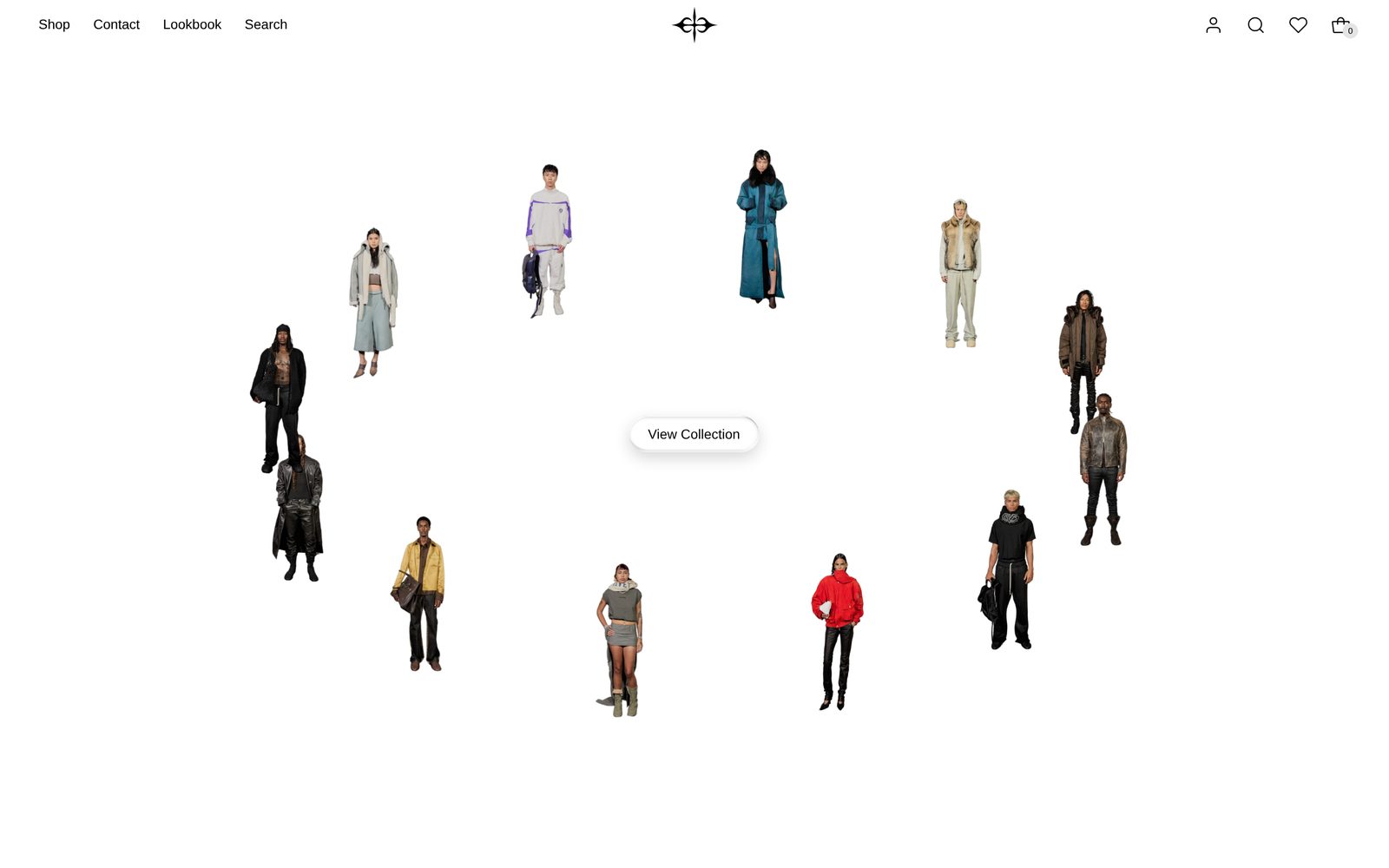
Add the theme to your store
- In your Shopify admin, open Online Store, then Themes.
- Under Draft themes, press Import, then Upload zip file, and choose the Plain Jane Interactive file you downloaded. It arrives as a draft, so your live store does not change yet.
- Press Edit theme beside Plain Jane to open the editor.

You can work on Plain Jane for as long as you like before you publish it. Shoppers keep seeing your current theme until you do.
Activate your licence
The first time you open the editor, you may see Activate your Plain Jane Interactive licence. Press Activate licence, or go straight to the licence activation form, and enter the store address you are using (it ends in .myshopify.com). Then reload the editor.
- The lock only covers the editor. Your live store and your shoppers are never affected.
- If you already activated and still see the screen, check that you used this store's address, not another store's, then reload.
Learn the editor in two minutes
The editor shows your store on the right and its parts on the left.
- Sections are the large pieces of a page: a hero picture, a row of products, an email signup. You add, move and hide them from the left.
- Blocks are the pieces inside a section: a heading, a button, a picture. Most sections let you add, reorder and remove them.
- Header, Footer and the panels that slide over the page (cart, menu, search, popups) are shared by every page. Change them once and every page changes.
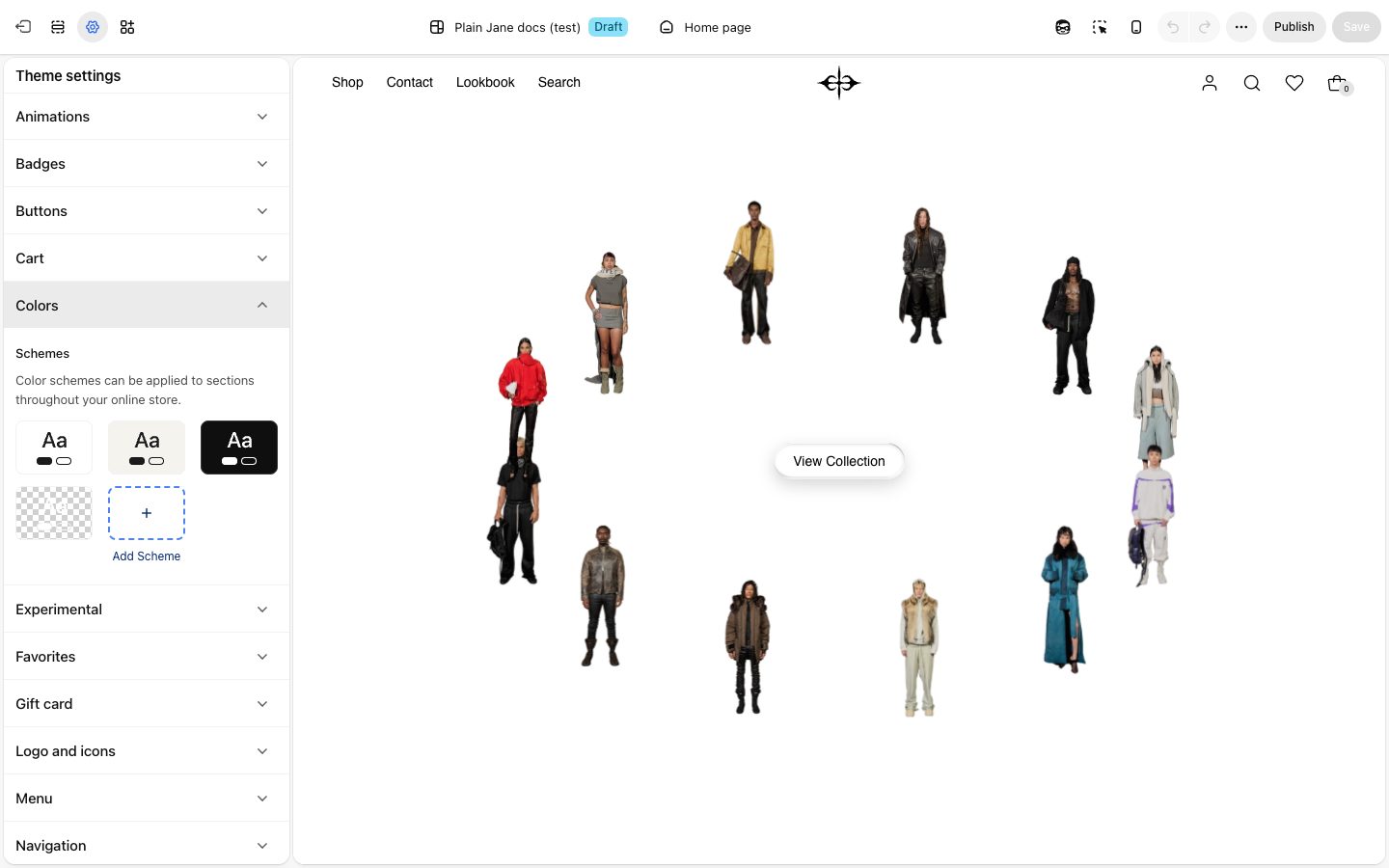
- Theme settings (the brush icon) hold the choices for your whole store: colors, fonts, buttons, logo. See Theme settings.
- The page picker at the top switches between your home page, product pages, collection pages and the rest.
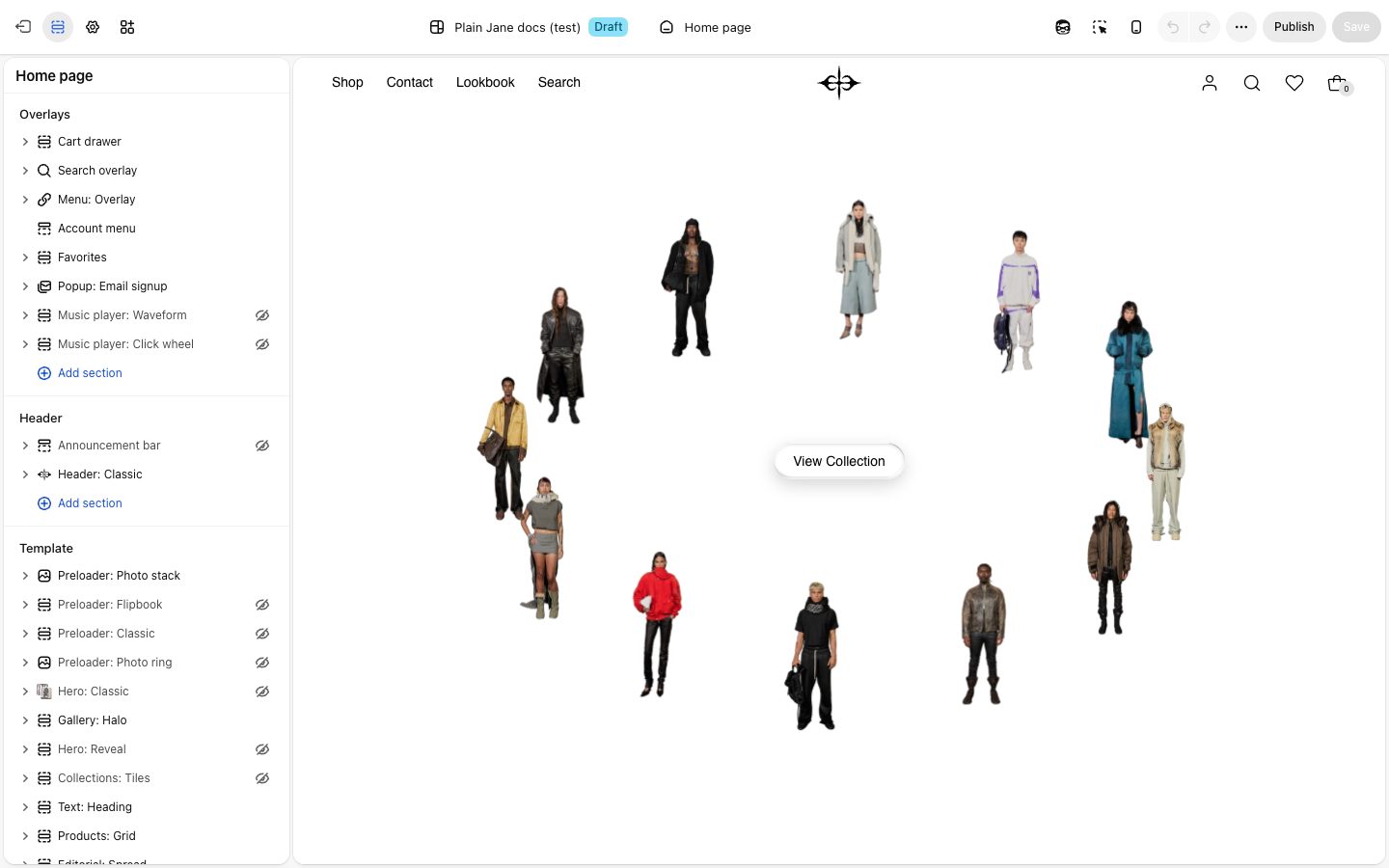
Every change shows in the preview as you make it. Press Save to keep your changes.
Make it yours
Do these in order. Each one changes the whole store at once.
- Logo. In Theme settings, open Logo and icons and add your Logo. Use a PNG or SVG with a see-through background. Until you add one, your store name shows in its place.
- Colors. In Theme settings, open Colors. Plain Jane comes with four color schemes. Change their colors to your brand's, and every section using a scheme follows. See Color scheme.
- Fonts. In Theme settings, open Typography and choose a Body font and a Heading font. You can also use your own font file.
- Menu. In Theme settings, open Menu and pick the menu shown in your header. Menus are made in Shopify admin, under Content, then Menus.
- Buttons. In Theme settings, open Buttons to set the corners, font and text case of every button in the store.
Check it on a phone, then publish
Use the phone button at the top of the editor to see your store on a small screen. When you are happy, go back to Themes in your Shopify admin and publish Plain Jane Interactive.
Next: 2. Setting Up Your Homepage.