Image with text: Two sizes
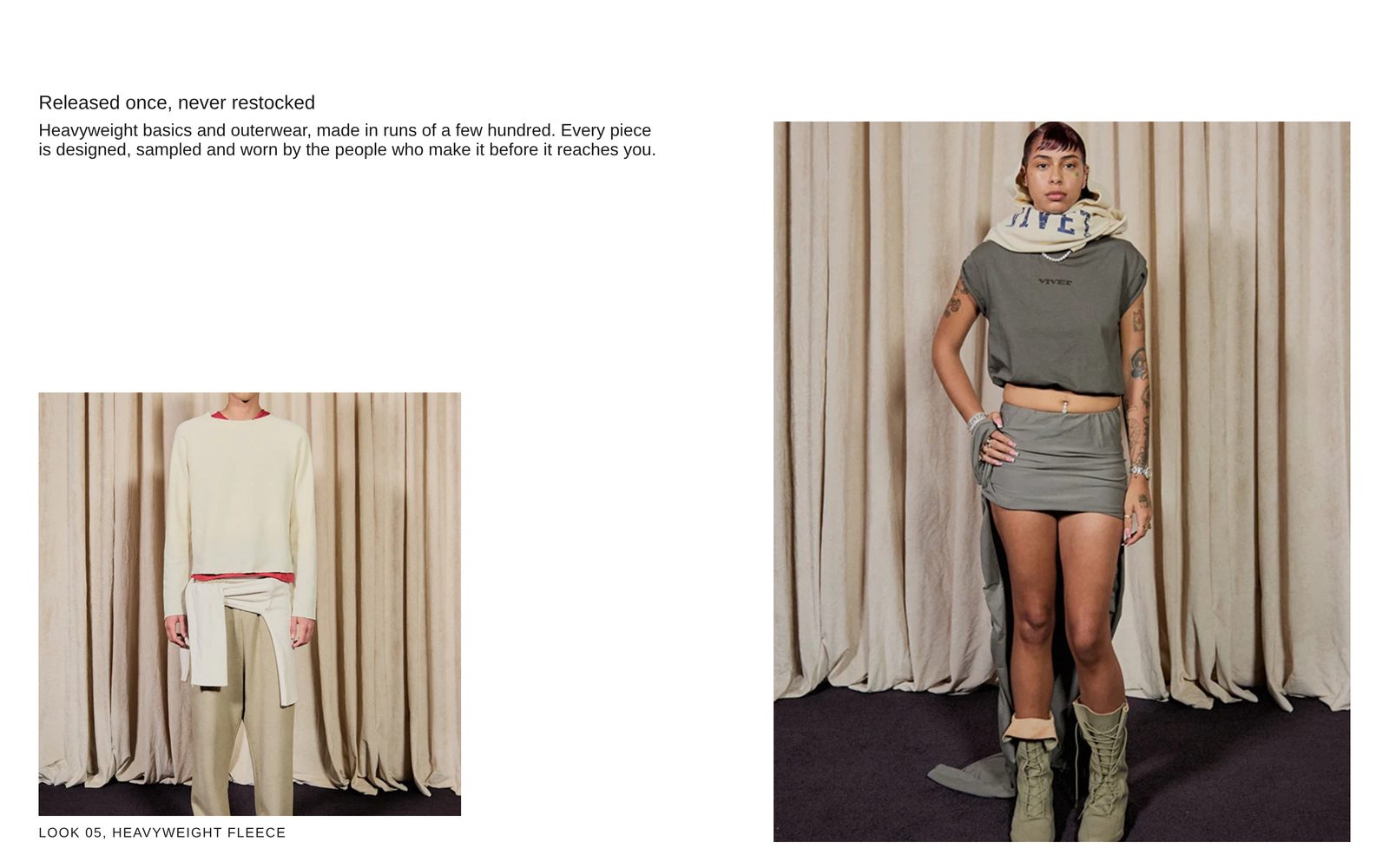
A heading across the top, a paragraph and a small captioned photo on the left, and a tall photo on the right.
A heading across the top. Under it, on the left, a paragraph with a small square photo and caption below it; on the right, a tall portrait photo. Use it for an about-us or a collection story that needs two pictures of different sizes.
Add it
It can go on any page. In "Add section", find Image with text: Two sizes under Images. It is a ready-made Section, so it has all of that section's settings.
The blocks it starts with
- Text in Style Heading 4: "Released once, never restocked".
- Group, a row (Direction Horizontal, Space between blocks Large, Position Stretch), holding:
- Group on the left, 55% of the width, with the paragraph at its top and the photo at its bottom:
- Text in Style Heading 5 at Line length Medium: the paragraph.
- Image with caption, 60% of the column, holding an Image at Shape Square and a Text caption in Style Uppercase: "Look 05, heavyweight fleece".
- Group on the right, 45% of the width, with an Image at Shape Portrait.
- Group on the left, 55% of the width, with the paragraph at its top and the photo at its bottom:
Choose both photos and write your own heading, paragraph and caption.
As first added
- Width: Full width. Direction: Vertical. Gap: Small.
- Space above and Space below: Large.
On phones
Everything stacks: the heading, the paragraph, the small photo and its caption, then the tall photo. Both photos are the full width of the screen.
Tips
- The tall photo sets the height of the row. The left column's paragraph stays at the top and the small photo at the bottom, level with the bottom of the tall photo.
- Keep the paragraph to a few sentences, so it does not run into the small photo.
- To swap the sides, move the right-hand Group above the left-hand one.
Settings
All settings are the general section's: see Section.